Check your watch history
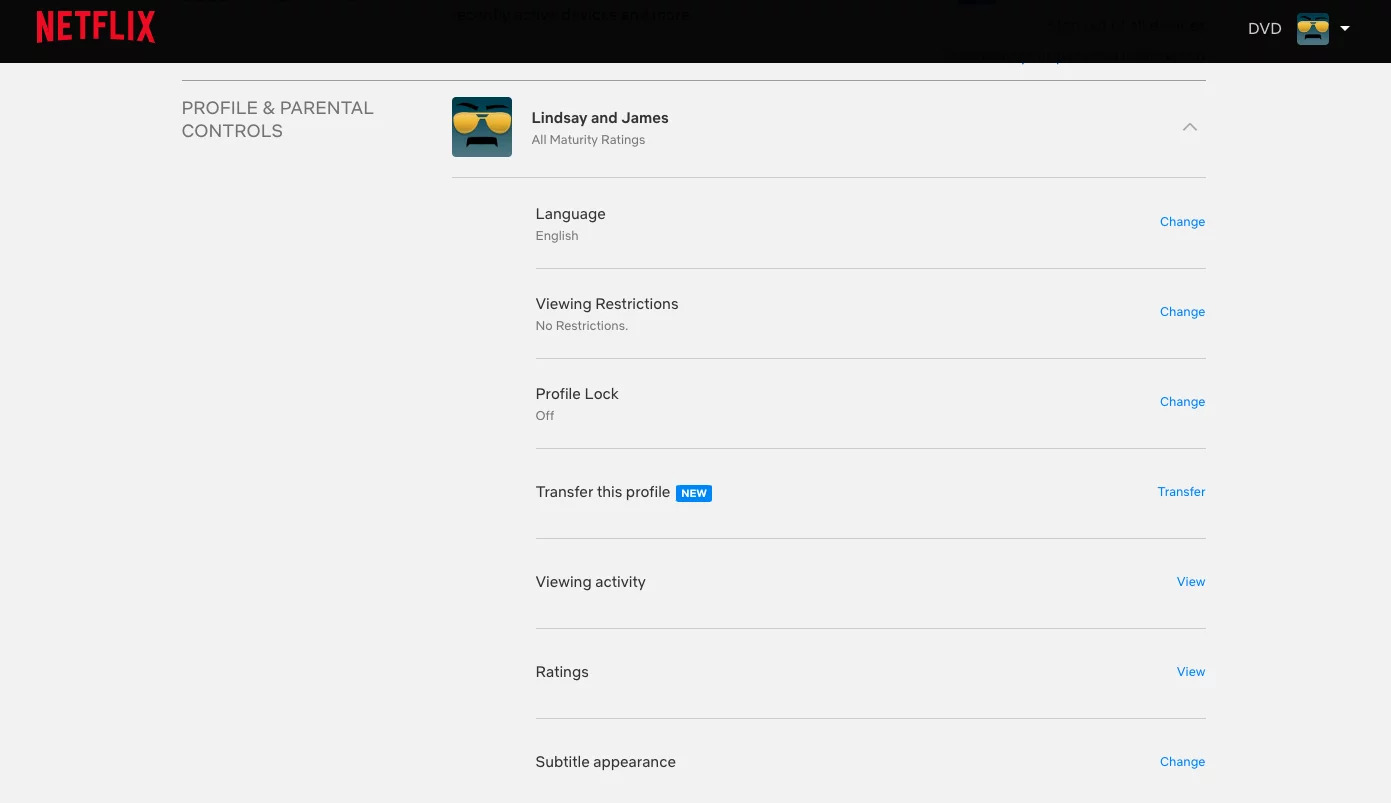
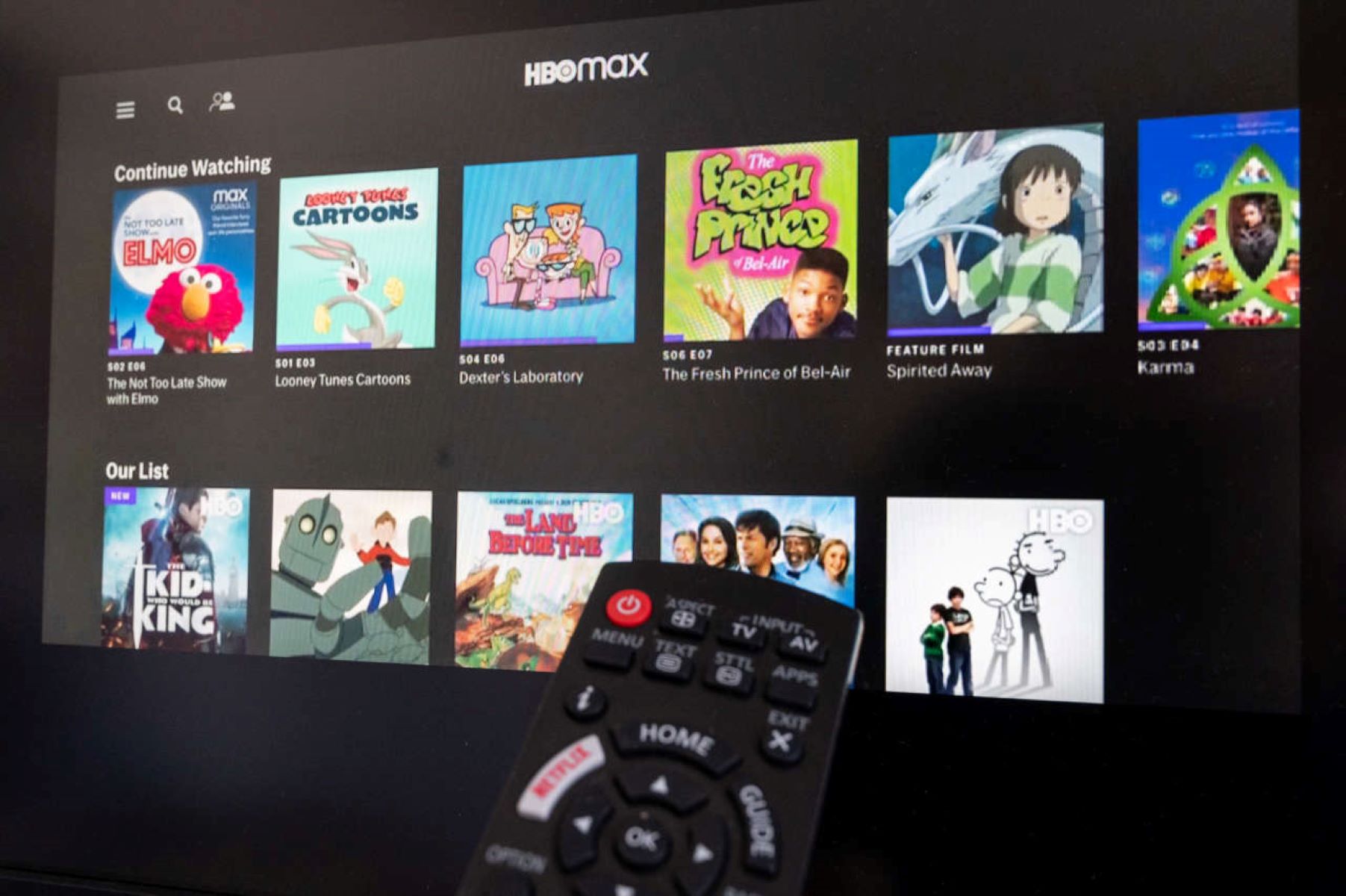
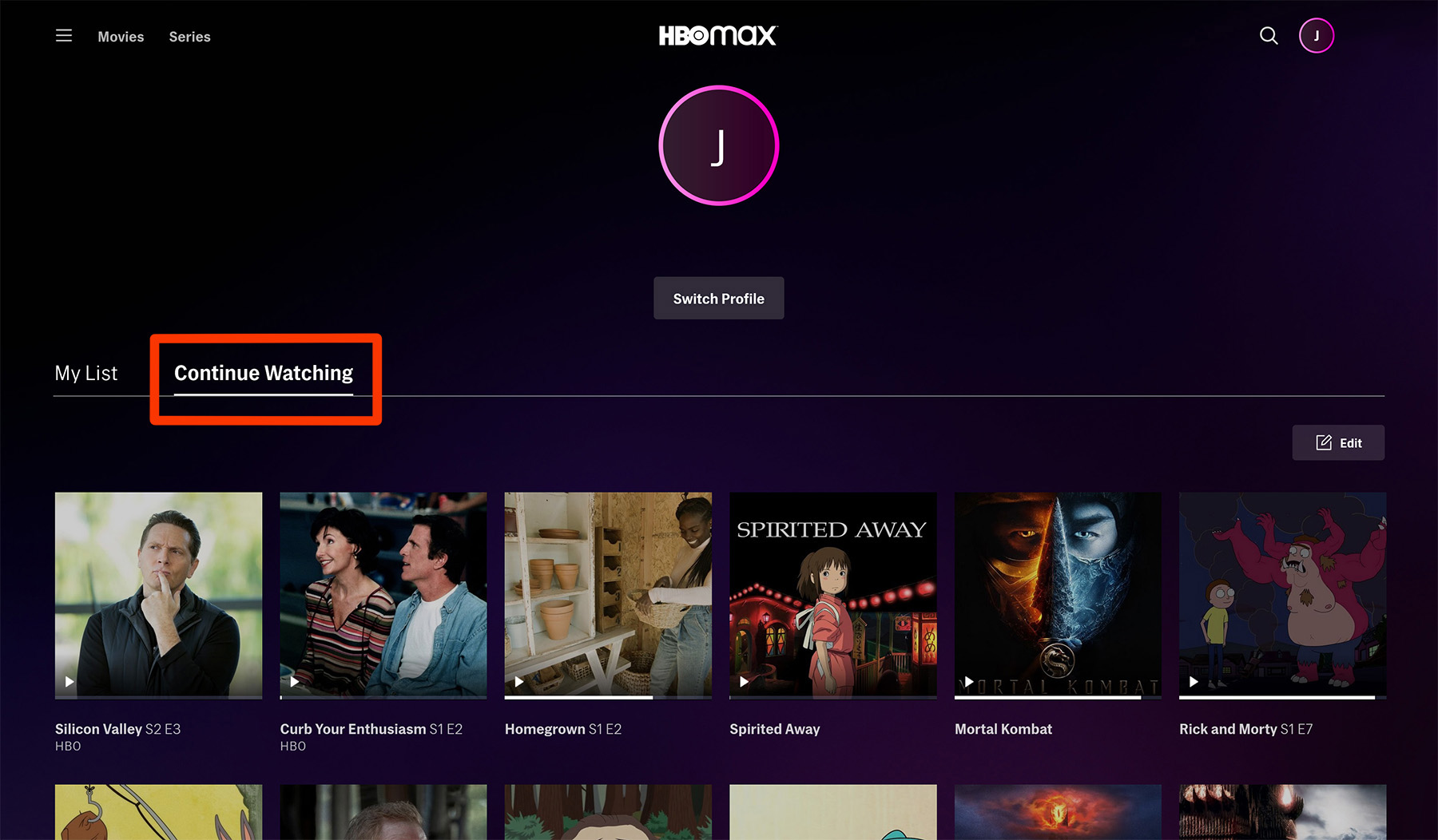
Before you clear watch history on any streaming service, take a moment to see what your account has recorded. Open your profile menu and look for a “History” or “Recently Watched” section. On the Netflix website, that list appears under Account > Profiles & Parental Controls > Viewing activity, showing every title you’ve streamed, sorted by date. On YouTube, your view history includes both full videos and shorts, and you can filter by day or search for a specific clip. For HBO Max subscribers, the process is slightly different: you can see watch history on HBO Max through your profile settings. This displays a chronological list of everything you’ve played. Note that this history page may not show titles in your “Continue Watching” row. That separate shelf lives on the home screen and holds only partially finished content. Understanding this distinction is crucial, clearing your full watch history on HBO Max may leave those half-viewed episodes untouched. If you want to remove them, you may need to go to the “Continue Watching” row and delete each one individually. For series, you may be able to “reset” a show’s progress by playing the final episode all the way to the end, which forces the platform to mark it as completed. Checking what you’ve viewed first lets you decide which list actually needs editing.
Clear or edit individual items
To clean up your viewing record without wiping everything, start by hovering over or long-pressing the offending entry on most platforms. On HBO Max, for example, you may be able to click the three-dot menu on a movie or episode tile and select an option to remove it from your history, but be aware that this function may not touch your Continue Watching list. If you need to remove show from HBO max completely, you may also need to manually clear it from the Continue Watching row. For Netflix, the process is different: you can go to your Account page, scroll to "Profile & Parental Controls," and click "Viewing activity" to delete watch history on Netflix item by item using the circle-X icon.
Individual edits can be finicky. On HBO Max, if you want to remove shows or movies from your continue watching list on HBO max, you cannot rely on the history-clearing feature alone, you may need to navigate to the series or movie's detail page and select the remove option. Similarly, if you need to specifically remove watch history from HBO max, you may be able to do so from the main Settings menu, but this action may still leave your Continue Watching list intact unless you perform a separate cleanup. And if you ever want to delete history HBO max entirely, note that some series may stubbornly remain in Continue Watching. For streaming services in general, look for an "Edit" or "Manage History" button near the bottom of your history list to batch-remove multiple entries at once. Unlike some other streamers, HBO Max may split your activity into two independent logs, your main history and your Continue Watching row, meaning a full purge may require two separate steps.
Reset progress and start fresh
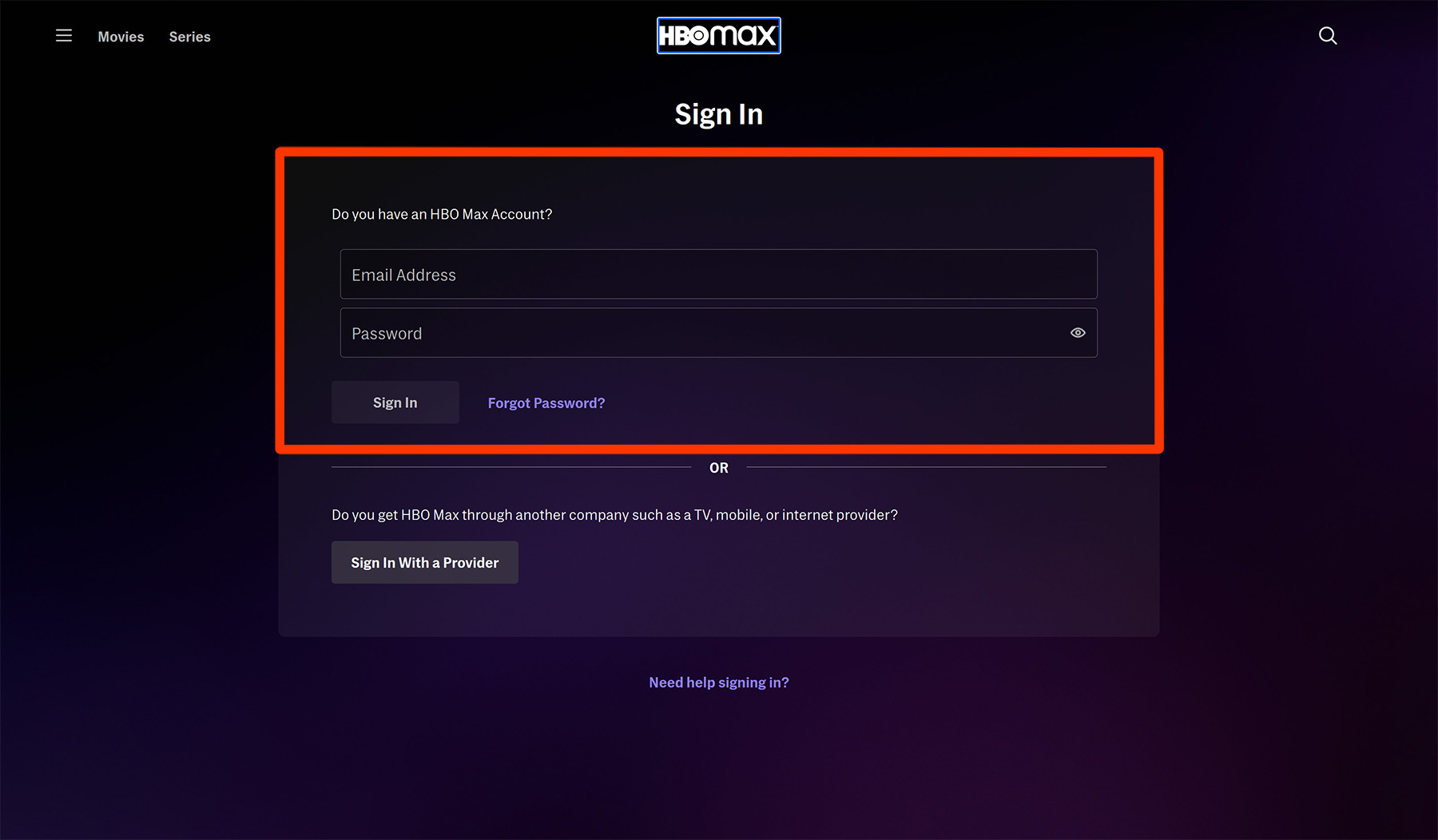
If you want to wipe your entire presence from a streaming service, there are two very different approaches. For a full reset of a single show, you can manually reset series on HBO Max. This trick forces HBO Max to treat the series as completed, clearing it from your Keep Binging row without touching the rest of your history. If your goal is a total erasure, removing every trace of your viewing data across all devices, you will need to delete HBO Max account entirely. Be aware that this action is permanent and will cancel any active subscription tied to that login. However, even after deleting an account, the in-progress queue on any previously logged-in device may still show cached entries until you force-close the app or clear the local data. The key misunderstanding is that "watch history" and "Up Next" are separate storage bins on HBO Max: clearing the history deletes the record of what you streamed, but the algorithm that builds the resume bar is not necessarily wiped. A clean break requires doing both, reset series for individual shows, then a full account deletion for everything else, followed by manually removing any stubborn leftover items from the list.