You can delete history HBO Max to either clear your entire watch history for a fresh start, or to remove individual titles from your Continue Watching row. The steps differ depending on your device and whether you want a full reset or just to hide specific shows.
Clear your delete history HBO Max on mobile
- Open the HBO Max app on your mobile device and sign in to your account.
- Tap the profile icon (location may vary by app version).
- Select "Settings" or the gear icon from the menu that appears.
- Scroll down to the section related to privacy or data settings.
- Tap the option to clear your watch history.
- Confirm the action when prompted.
This action clears your watch history across all devices logged into your account, not just the mobile app. It is a direct way to reset recommendations and protect your privacy when clearing watch history on streaming apps.
Clear your full watch history on a web browser
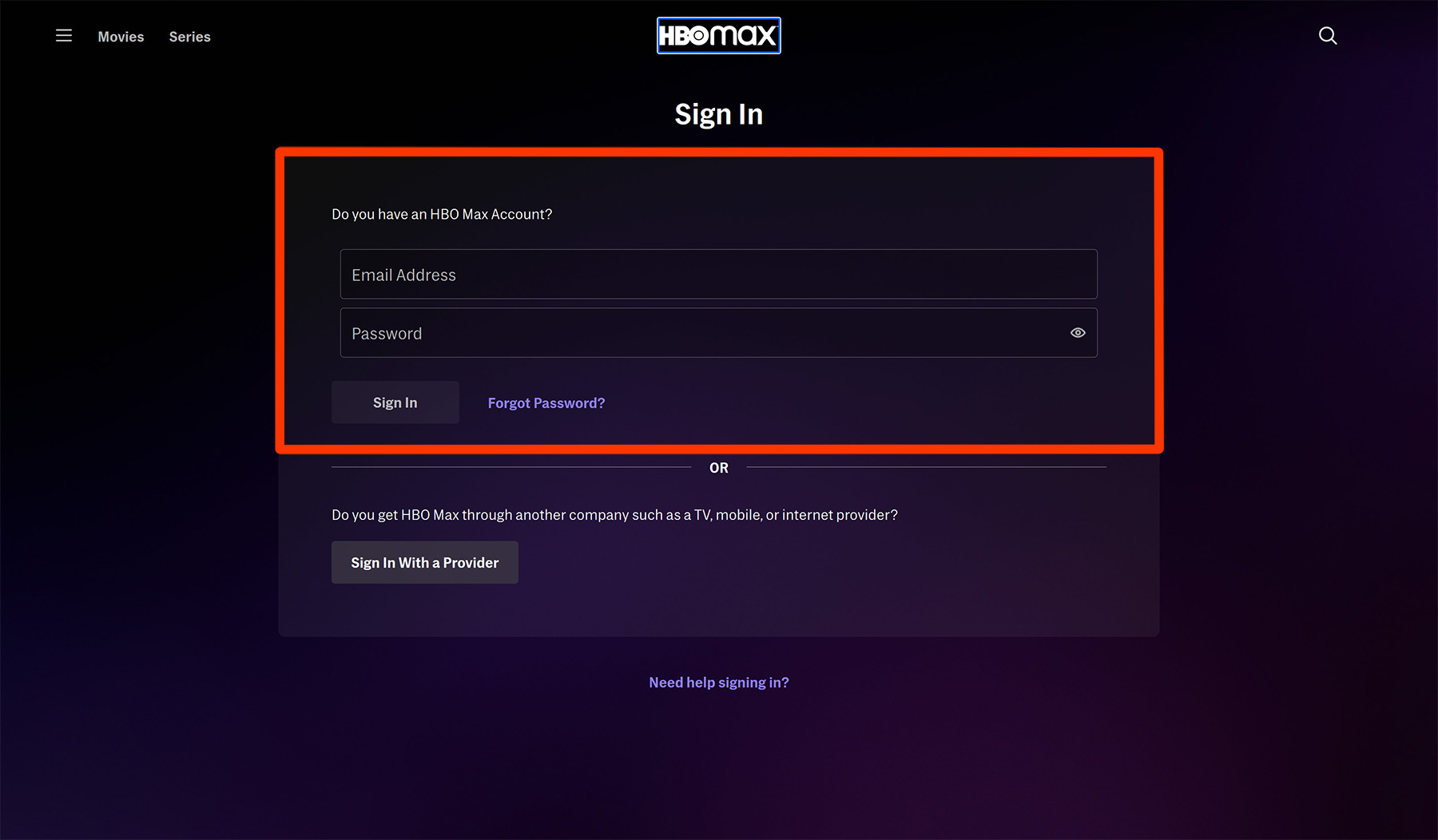
- Sign in to your account at hbomax.com using your preferred web browser.
- Click your profile icon (location may vary).
- Select "Account" or "Settings" from the dropdown menu.
- Scroll to the privacy or settings section and click the option to manage your watch history.
- Click "Clear All Watch History."
- Confirm by clicking "Clear Watch History" in the pop-up.
Your entire viewing history will be deleted, affecting recommendations and the Continue Watching row on every device linked to your account.
Clear your full watch history on a TV device
- Open the HBO Max app on your Roku, Apple TV, or Fire TV and sign in if prompted.
- Navigate to the settings or options menu within the app (the exact location varies by device).
- Find the section related to your account or profile settings.
- Locate the option to manage your watch history.
- Select the option to clear your watch history.
- Confirm the action when the prompt appears on your TV screen.
This removes all watched titles from your history on that TV device and across your entire HBO Max account.
Remove individual shows from Continue Watching
To hide a specific title without deleting your entire history, select "Remove" or tap the "X" to the right of the show or movie. This action removes it from your Continue Watching row and watch history, but does not clear your full viewing record. If you also want to erase search terms you've typed into the app, you can clear keyboard history on your device. For detailed steps on this process, see the dedicated page on how to remove shows or movies from your continue watching list on HBO Max.