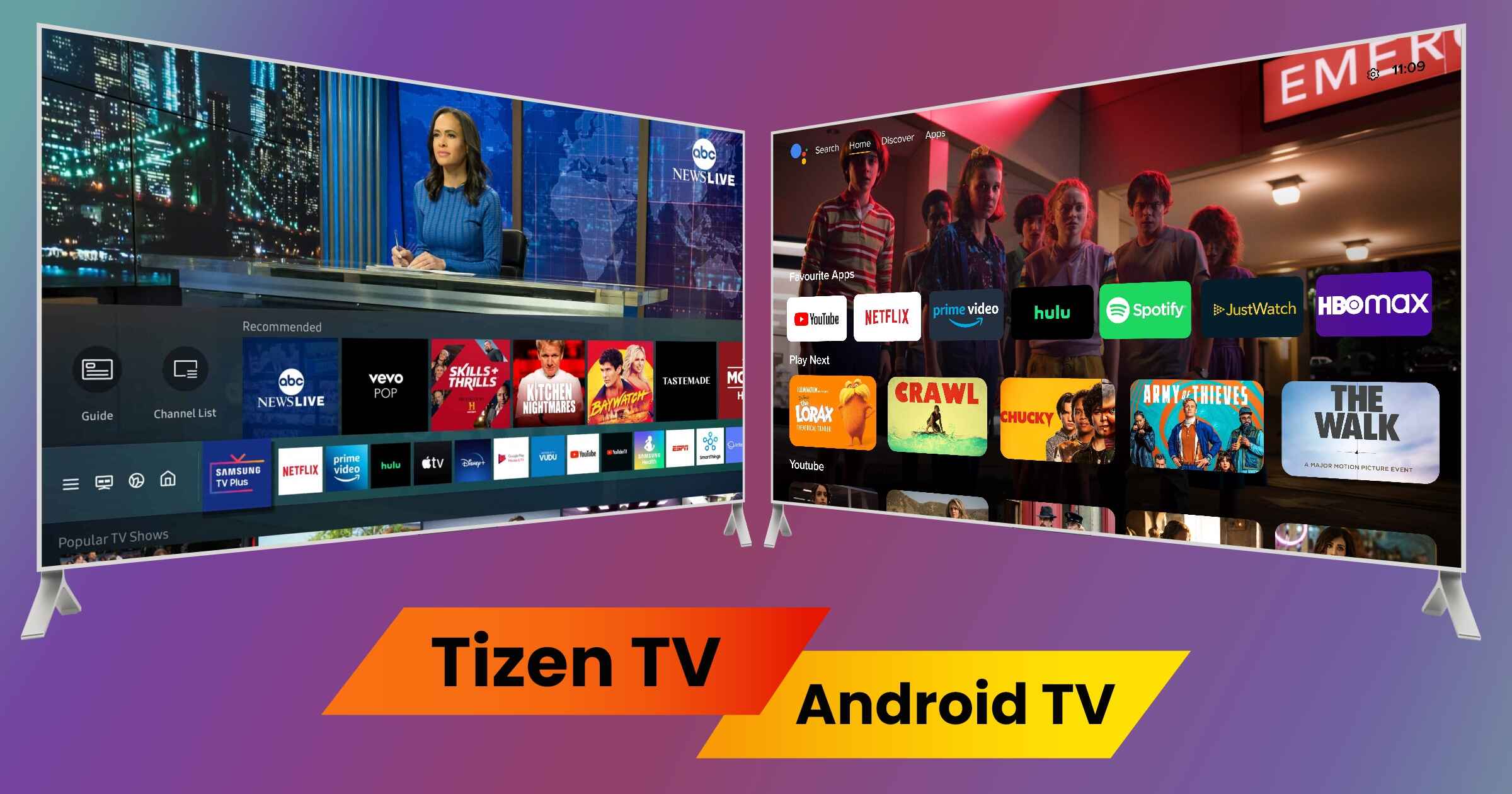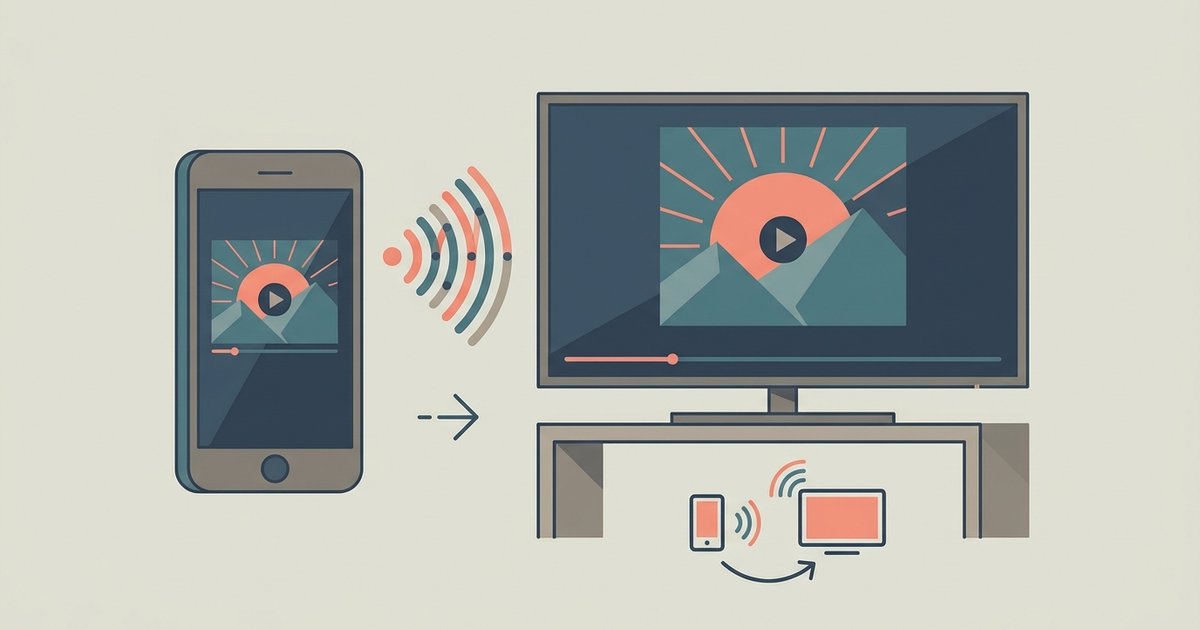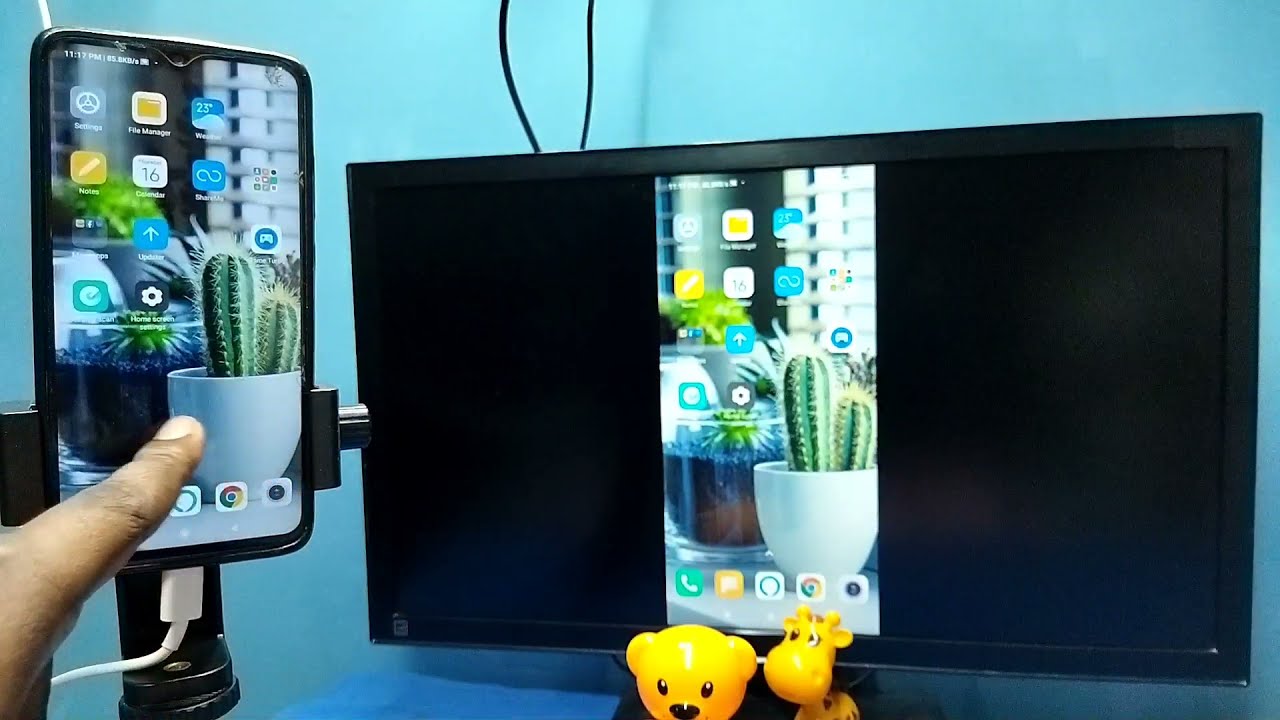
To screen share on a Philips Smart TV, you need to wirelessly project content from your smartphone, tablet, or computer onto the larger display. The method you use depends entirely on whether your TV runs Google TV/Android TV (which uses Chromecast) or Saphi/Titan OS (which uses Miracast).
Before you screen share on your Philips Smart TV
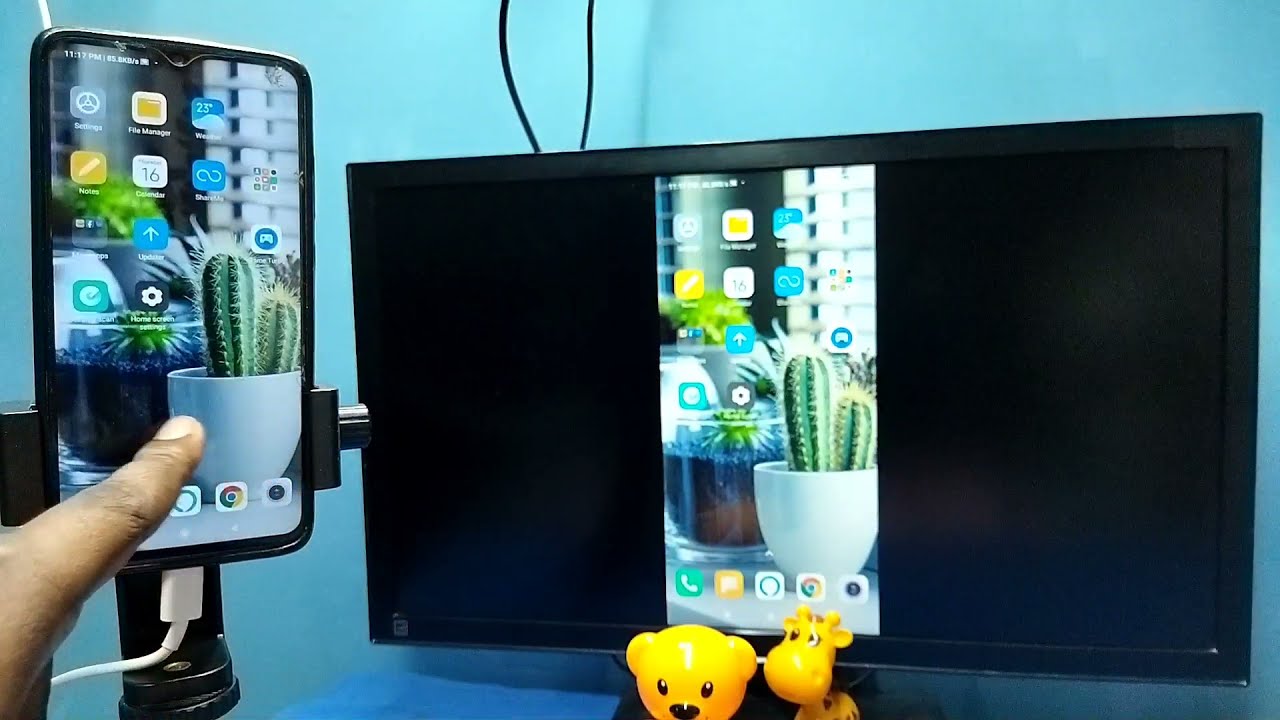
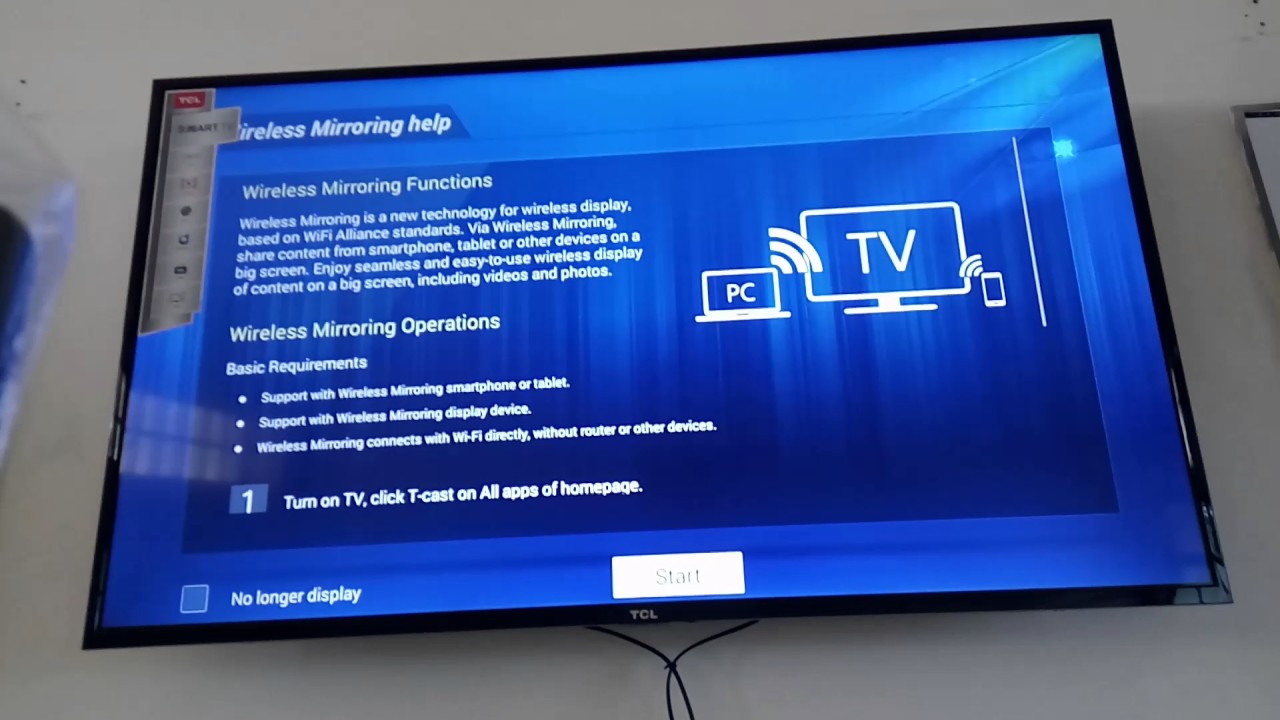
Before you begin, ensure both your device and your Philips Smart TV are connected to the same Wi-Fi network. A strong Wi-Fi signal, or an Ethernet connection if your TV supports it, is recommended for a stable connection. You also need to identify your TV's operating system: Philips Google or Android TVs use Chromecast, while Philips Saphi or Titan OS TVs use Miracast. This distinction is critical because the screen sharing method is different for each, and if your goal is to simply view your phone's display without interacting with apps, you may want to screen mirror on Philips smart TV instead. If you own a different brand, the steps vary slightly, so you can similarly screen mirror on TCL smart TV using its built-in Chromecast or dedicated mirroring menu.
How to screen share on a Philips Google or Android TV with Chromecast
If your Philips TV runs Google TV or Android TV, you can use Chromecast built-in to share your screen. This method is ideal for casting from apps or mirroring your entire device. It is a simple way to achieve screen mirroring to a TV.
Casting from an Android device
To cast your entire Android screen, use the Google Home app. Download it from the Google Play Store, open it, and log in with the Google account that is also used on your TV. Add your Philips Android TV to the "Devices" tab, then select the TV. Finally, press the "Cast my screen" option to begin mirroring.
Casting from Chromecast-built-in apps
Many popular apps like Netflix and YouTube have a Cast button built in. Open the app on your mobile device, tap the Cast symbol (which looks like a rectangle with a Wi-Fi signal in the corner), and choose your Philips TV from the list. The content will then play on your TV.
Casting from a Chrome browser on a laptop, PC, or Mac
You can also cast content from a Google Chrome browser. Open Chrome on your laptop, PC, or Mac, click the three vertical dots in the top-right corner, select "Cast...", and then choose your Philips TV. This will mirror the browser tab or your entire desktop, depending on your selection.
How to screen share on a Philips Saphi or Titan OS TV with Miracast
If your Philips TV uses Saphi or Titan OS, you will use Miracast for screen sharing. Miracast is a wireless display standard that allows screen sharing over an Internet connection. Note that Miracast is not compatible with Apple devices, so iPhones and Macs cannot use this method.
Activating Miracast on the TV
To activate Miracast, press the "Sources" button on your remote control and select "[Miracast]" or "[Screen Mirroring]". Alternatively, depending on your model, press the "Home" button, then select [Setup] > [Network settings] > [Wi-Fi Miracast] > [On]. Both devices used must be Miracast-compatible, connected to the same network, and have up-to-date software.
Connecting from a Windows PC
On your Windows PC, click the Action Center icon in the lower-right corner of the taskbar. Click "Connect to a wireless display" and select your Philips TV from the list of available devices. Your PC screen will then appear on the TV.
Connecting from an Android device
On your Android device, open the settings or quick settings menu and look for the casting option. Some mobile devices may name the casting option differently, such as "Cast screen," "Smart View," or "Screen Mirroring". Select your Philips TV from the list of available devices. If your mobile device does not have a built-in casting option, you may not be able to use Miracast directly.
Tips for a smooth screen sharing experience
For a stable connection, ensure you have a strong Wi-Fi signal. If possible, use an Ethernet cable to connect your TV directly to your router for the most reliable performance. Keeping your device and TV software up-to-date is also verified advice for avoiding compatibility issues. To close a Miracast connection, simply disconnect your device from its screen sharing application. Some mobile devices may name the casting option differently (e.g., "Cast screen," "Smart View," "Screen Mirroring"), and some might not have a built-in casting option at all.