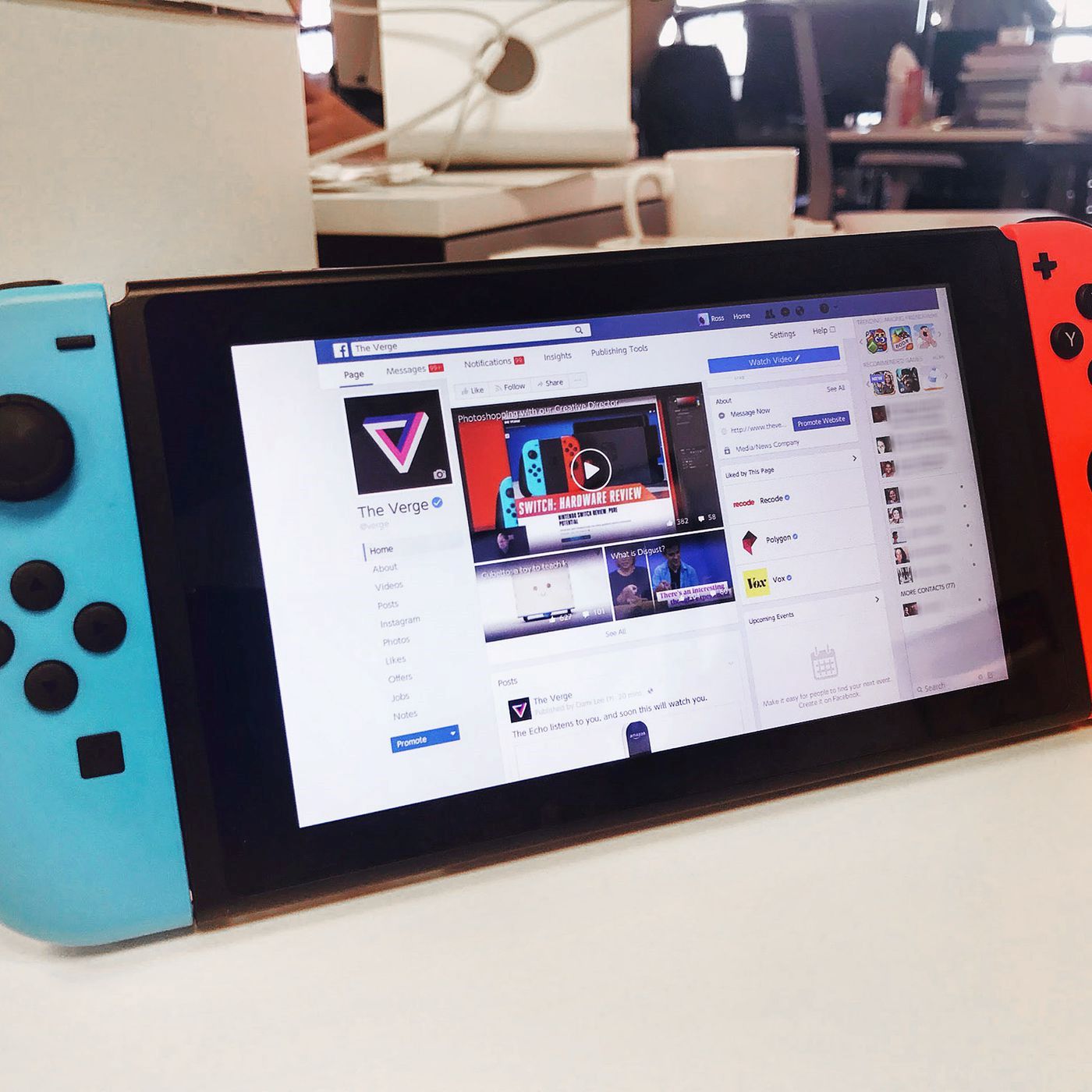
Use 045.055.142.122 as your primary DNS and leave the secondary blank or set to 0.0.0.0. This is the SwitchBru DNS address that reliably triggers the hidden browser splash page instead of connecting normally.
Why most DNS addresses fail for Switch hidden browser
Generic public DNS servers like 8.8.8.8 or 1.1.1.1 will never trigger the browser. They resolve domains normally rather than redirecting to a captive portal. That captive portal is the actual mechanism that forces the Switch to open its browser. The hidden browser on Nintendo Switch is not a standard app you launch from the home menu. It is a limited web viewer that only appears when the console detects a captive portal during a connection test. A normal DNS server simply translates domain names to IP addresses without any redirection. The connection test succeeds instantly and the browser splash page never loads. Many users try Cloudflare or Google DNS because they are fast and reliable for everyday use. Those qualities are exactly what prevent the browser from appearing. The Switch needs a DNS server that deliberately intercepts the connection test request and returns a fake captive portal response. That is something only a custom DNS like SwitchBru provides. Once you have the browser open, you will also need to know which video formats working on the Switch hidden browser are actually supported.
The working DNS address
If you enter this correctly and the connection test still fails or skips the browser, the issue is almost always a misconfigured secondary DNS or a saved network profile that overrides the manual settings. The specific SwitchBru DNS address 045.055.142.122 works because it is maintained specifically to redirect the Switch's connection test to a local server. That server mimics a hotel or public Wi‑Fi login page. The secondary DNS must be left blank or zeroed out. A fallback DNS would bypass the redirect and prevent the browser from appearing. If you enter 8.8.8.8 or any other public server as the secondary, the Switch will automatically fall back to that resolver when the primary fails or times out. This completely skips the captive portal. The same applies if you leave the secondary field with a default value like 0.0.0.0. The Switch interprets that as "no fallback" and will only use the primary. To confirm you have set it correctly, navigate to System Settings > Internet > Internet Settings. Select your Wi‑Fi network and choose Change Settings. Scroll down to DNS Settings and switch from Automatic to Manual. Enter 045.055.142.122 in the primary field. Leave the secondary blank or type 0.0.0.0. Then save and run the connection test. The test should take noticeably longer than usual. After about 30 seconds the hidden browser should appear with a "Welcome to Nintendo Switch" or similar splash page.
The SwitchBru DNS is the only public resolver maintained specifically to intercept Nintendo’s connection test and return a fake captive portal, which is what forces the hidden browser to open.
What to do when it still does not work
If the DNS is correct but the browser still won't open, you may need to forget saved networks. Ensure the Switch is not already connected to a different access point. Also check that your console firmware hasn't patched this method. First, delete any stored network profiles for the same Wi‑Fi network by selecting "Delete" from the network options. Then re‑enter the SSID and password fresh with the manual DNS settings. Second, verify that your Switch is not connected to a second network simultaneously. For example, a mobile hotspot or a guest network on the same router. The console will use the first network that passes the connection test. Third, check your system firmware version in System Settings > System > System Update. If you are running a recent firmware version, Nintendo may have disabled the captive portal trigger entirely. No DNS address will open the browser. If you are on an older firmware, also confirm that your router is not blocking DNS changes or captive portal responses. Some enterprise or guest networks filter UDP port 53 traffic and will prevent any DNS redirection from reaching your Switch. For those who want to get a browser on Switch for basic web use, this method remains the only reliable offline trick. The browser itself cannot play video streams natively. If you instead need to watch videos on the Switch browser, you must use a site that serves HTML5 video without DRM. The Switch browser lacks codec support for most streaming services. Similarly, if you are trying to play your Switch on a laptop without a capture card, you cannot rely on the hidden browser. You need a hardware capture card or a remote play solution like Moonlight. And if your goal is to stream your Switch without a capture card on PC, the hidden browser is not involved. You must use the Switch's built‑in streaming feature or a third‑party app via a modded console.