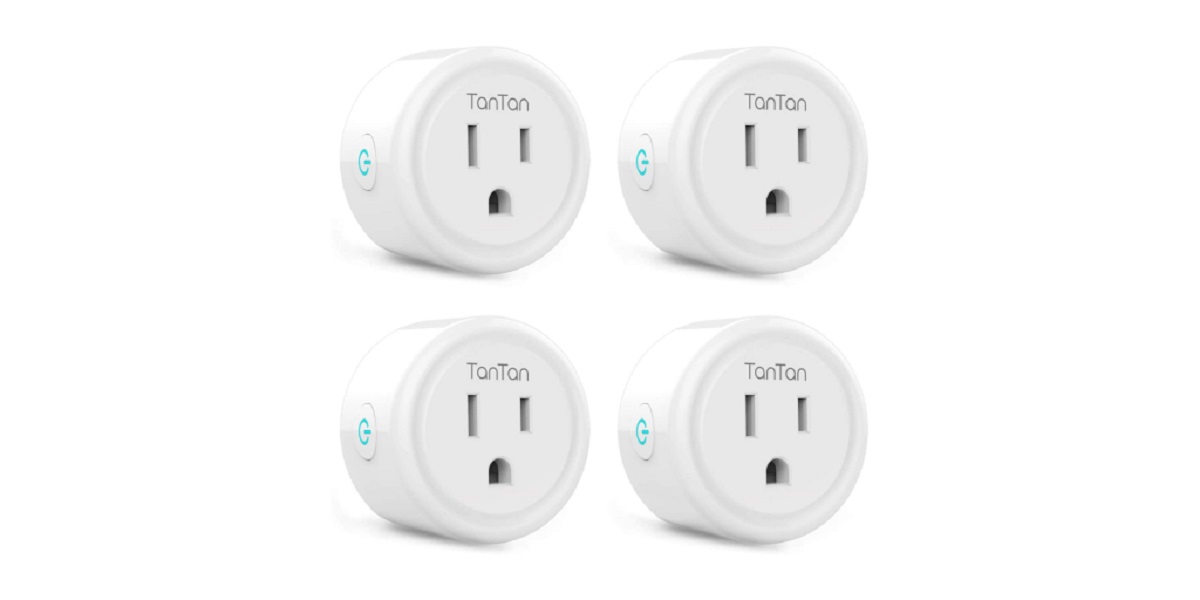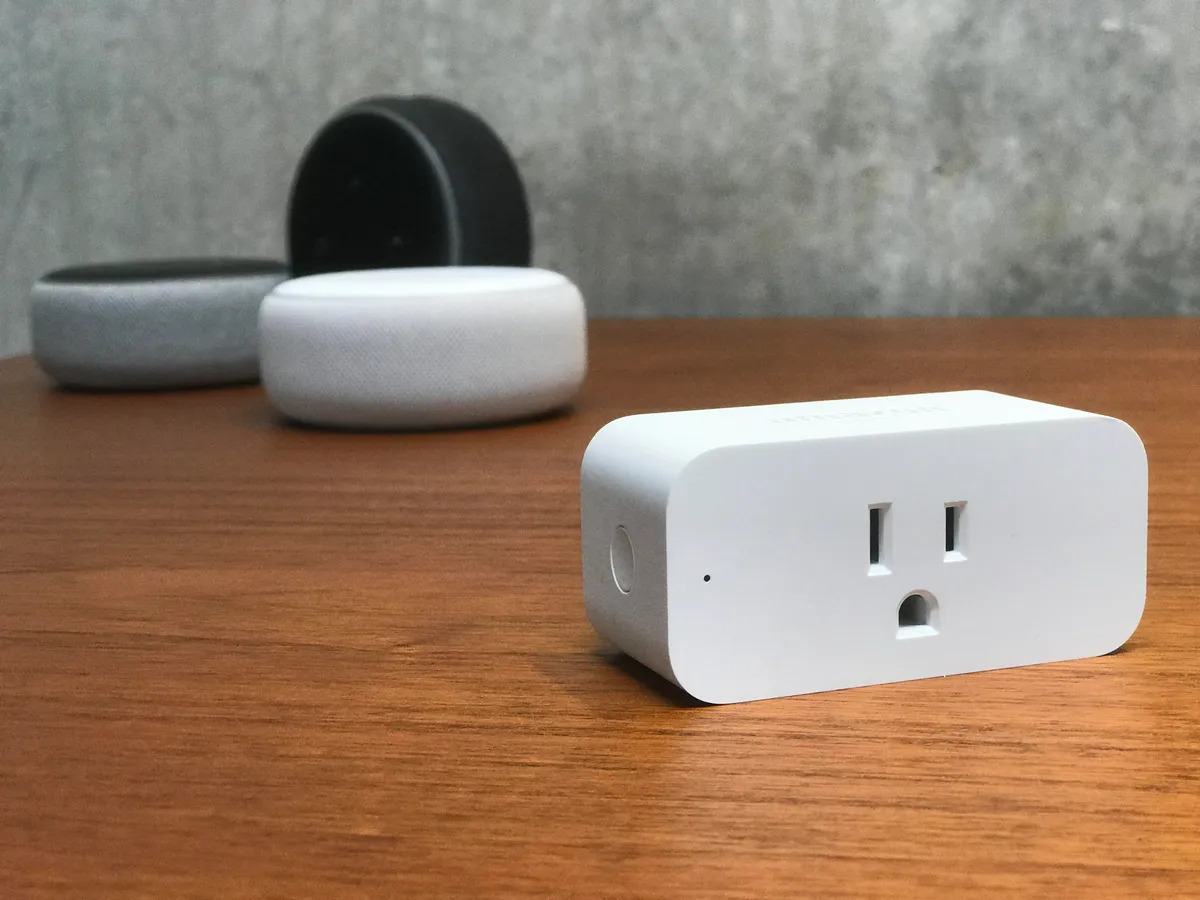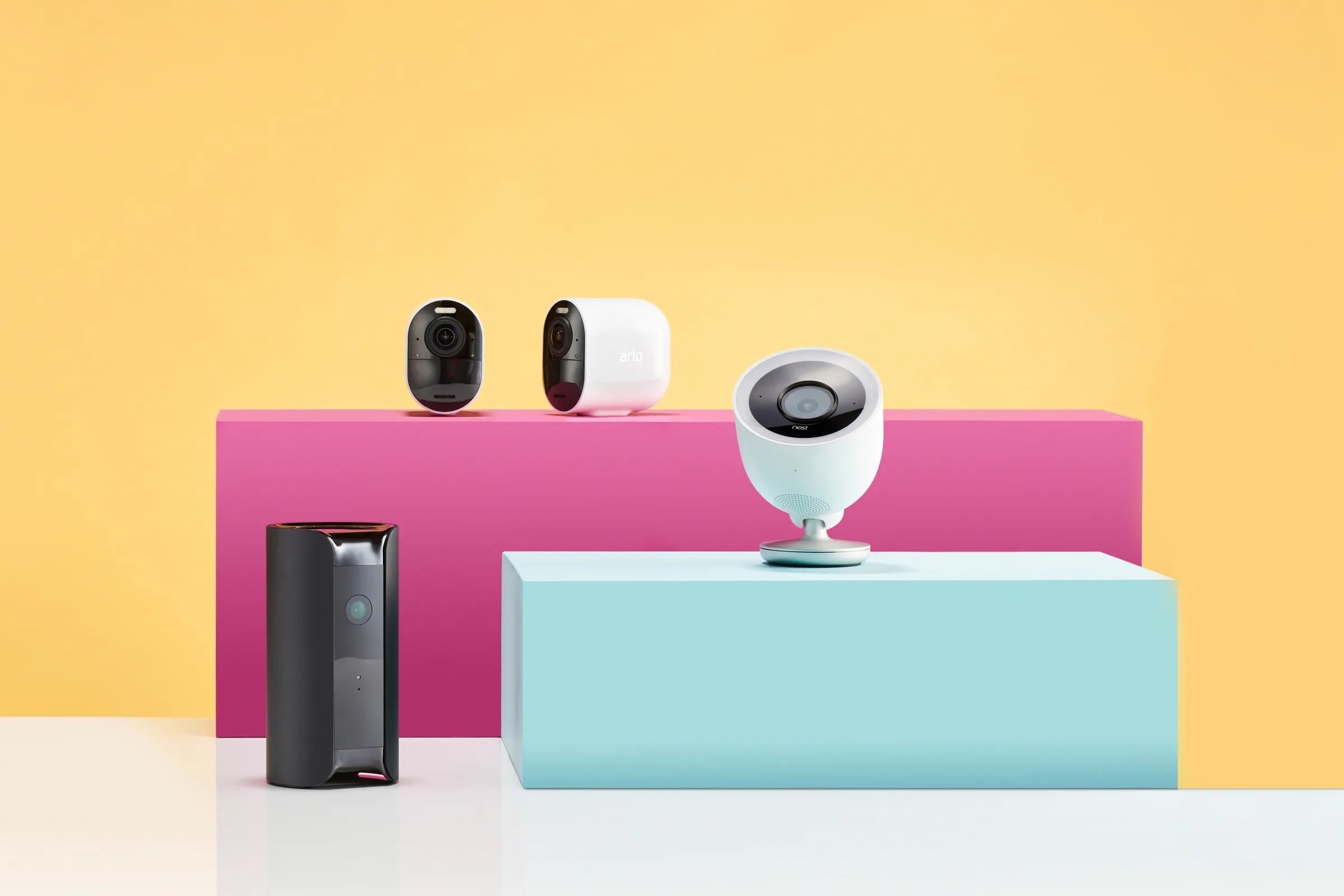
To set up your smart home, start by ensuring you have a stable Wi-Fi network (either 2.4 GHz or 5 GHz), a smartphone or tablet, and your smart device ready. If you're adding a compatible outlet, you can set up tantan smart plug to control lamps or small appliances remotely. Then download the official app for your chosen platform, like Google Home or Samsung SmartThings, and follow the step-by-step process to connect everything.
What you need to set up your smart home
A stable internet connection and a secure Wi-Fi network (2.4 GHz or 5 GHz) are fundamental requirements for smart home devices. You'll also need a smartphone or tablet to manage the setup, plus the smart device itself. Having these three things ready before you start ensures a smooth process, so you won't have to pause mid-setup to hunt for a missing component.
Download the app and create an account
Download the official smart home app (e.g., Google Home, Amazon Alexa, Apple Home, or Samsung SmartThings) on your smartphone or tablet, as it is essential for setup and management. This app becomes your command center for adding, controlling, and troubleshooting every device. Open the app and sign in or create a new account, this links your devices to your personal profile and enables features like remote access and voice control.
Power on and prepare your smart device
Plug in your smart device and ensure it's powered on. An often-missed but crucial step is to enable Bluetooth and location services on your phone to facilitate device discovery. Without these permissions, the app may not detect the device during the pairing process, which can stall your setup. Once Bluetooth and location are on, the device will appear in the app's search results within seconds.
Connect your device to the network with Google Home
For Google Home, open the app, tap the '+' icon, select "Set up device," then "New devices," and follow the in-app steps to connect to Wi-Fi and link your Google account. This is the verified step-by-step that works for most smart lights, plugs, and sensors. The app will walk you through naming the device and assigning it to a room, making it easy to control later with voice or routines.
- Open the Google Home app on your phone.
- Select "Set up device" from the menu.
- Choose "New devices" (or "Device Supports Matter" if applicable).
- Follow the on-screen prompts to connect your device to your Wi-Fi network and sign in to your Google account.
Connect your device to the network with Samsung SmartThings
For Samsung SmartThings, download the app, sign in with your Samsung account, navigate to the "Devices" tab, tap "Add" (plus sign), and follow the on-screen guide to add your hub or device. This verified step-by-step ensures your SmartThings Hub or compatible device joins your network correctly. The app will then scan for nearby devices and guide you through finalizing the connection.
- Download and open the Samsung SmartThings app.
- Sign in with your Samsung account (or create one if needed).
- Tap the "Devices" tab at the bottom of the screen.
- Tap the "Add" (+) button to begin adding a hub or device.
- Follow the on-screen guide to complete the setup and connect to Wi-Fi.
Basic troubleshooting for a smooth setup
This simple step often resolves connectivity glitches. For app malfunctions, such as the app crashing or failing to detect devices, reinstall the app from your phone's app store. These quick fixes keep you moving forward without needing to restart the entire process. If problems persist, verify that your Wi-Fi network is operating on 2.4 GHz or 5 GHz and that your phone's Bluetooth and location services remain enabled throughout setup.