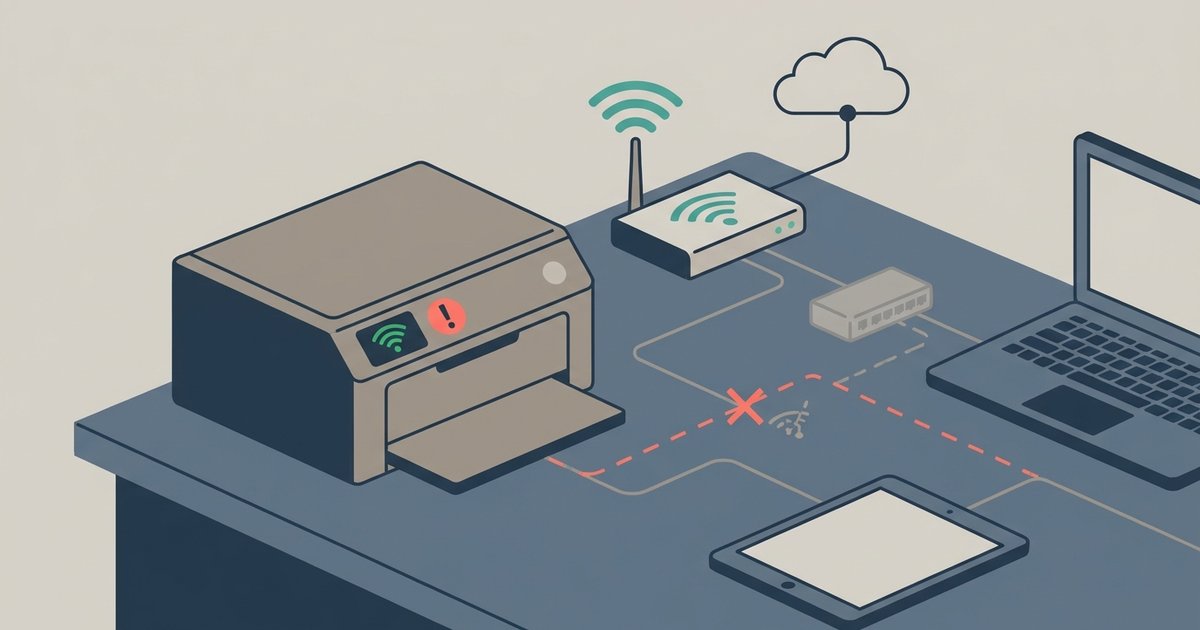
You created two competing DHCP servers on the same network. Both routers are trying to assign IP addresses, and devices on the switch get confused about which router is the gateway to the internet.
What breaks when two routers share one switch
When you connect a second router to the same switch, you introduce a rogue DHCP server. The first router assigns IP addresses from its pool, say 192.168.1.100-200. The second router, fresh out of the box, also starts handing out addresses, often from its own default range like 192.168.0.100-200 or a different subnet entirely. Endpoints on the switch receive two different IP offers, pick one at random, and then try to reach the internet through a gateway that may not exist for that subnet. The result is IP chaos: some clients get an address from router A but expect router B as the gateway, others get no address at all, and all traffic stalls because no machine knows which router actually leads to the internet. The switch itself never fails, it forwards packets faithfully, but the local logic collapses.
You created two competing DHCP servers on the same broadcast domain. Both routers are trying to assign IP addresses, and endpoints on the switch get confused about which router provides the path to the internet. This is the immediate reason your switch works with one router but stops working the moment you plug in the second, your setup now has two appliances arguing over who controls addressing and routing, and the switch, being a simple pass-through, has no way to resolve the conflict.
The one-router rule most people miss
A flat topology with a single switch can only have one appliance acting as the DHCP server and gateway. The failure case that trips up most users is connecting the second router via its LAN port instead of properly cascading it. When you plug a second router’s LAN port into the switch, that router’s DHCP server remains active and begins broadcasting offers on the same broadcast domain as the first router. The switch treats both routers as equal peers, so it forwards those DHCP offers to every client. The first router’s DHCP server doesn’t “win”, both compete, and your gear flips between them unpredictably. The one-router rule is simple: on a single subnet with a single switch, only one router should be the DHCP server and the default gateway. Adding a second router requires changing its role, not just plugging it in.
How to check if this is your problem
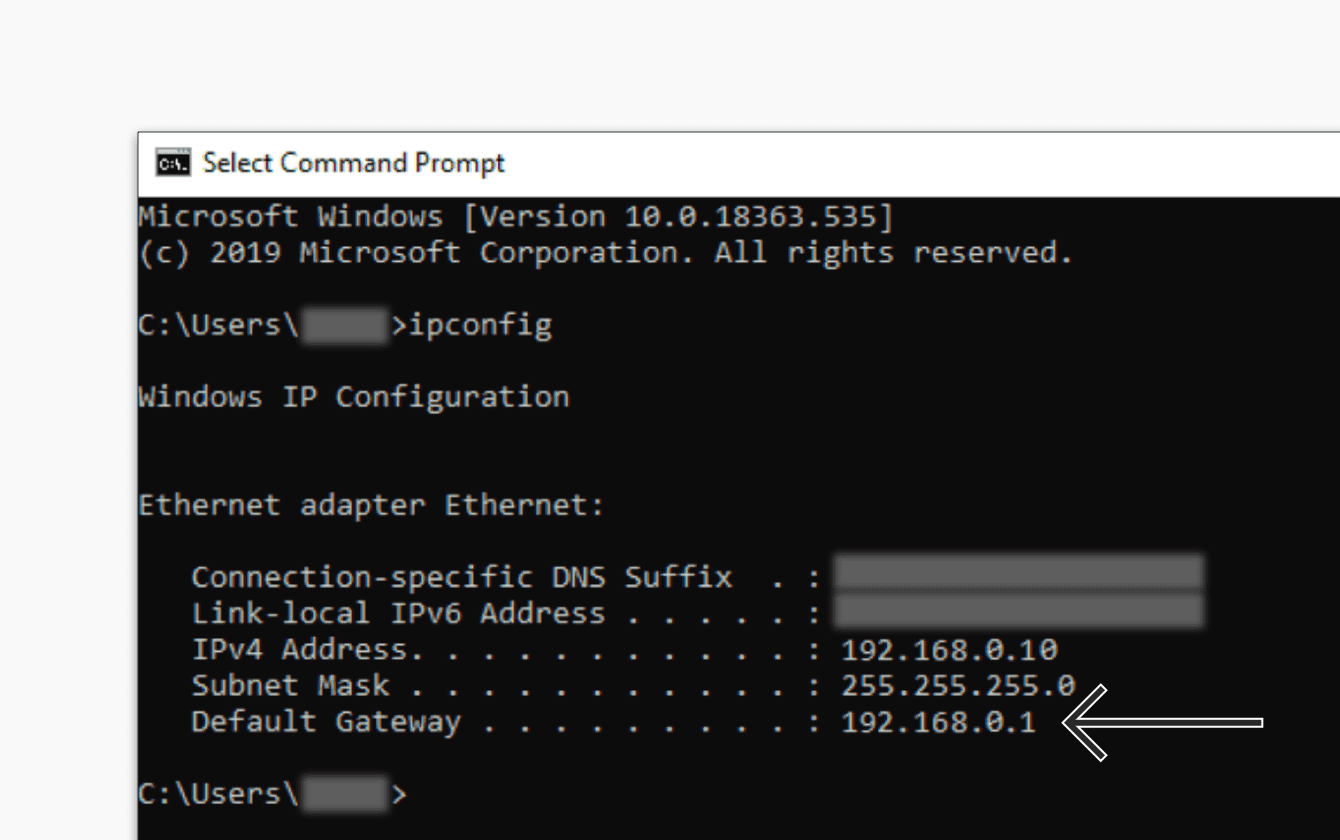
Run these isolation steps to confirm the issue. Disconnect the second router from the switch entirely. If connectivity immediately returns for all machines still connected to the first router, you have a DHCP conflict. Next, check a client’s configuration: on the Nintendo Switch, navigate to 'System Settings' > 'Internet' > 'Internet Settings', select the connected network, and verify the IP address and gateway under 'Connection Status'. Look for a default gateway IP that doesn’t match the first router’s LAN IP, often 192.168.1.1 or 192.168.0.1. If you see two different gateway IPs listed across different endpoints, or if one machine shows a gateway from a completely different subnet, the second router is handing out conflicting addresses. For a third test, temporarily disable DHCP on the second router via its admin panel, usually under “LAN Settings” or “DHCP Server”, then reconnect it. If the whole environment stabilizes, you have confirmed the root cause.
Making the second router safe for the switch
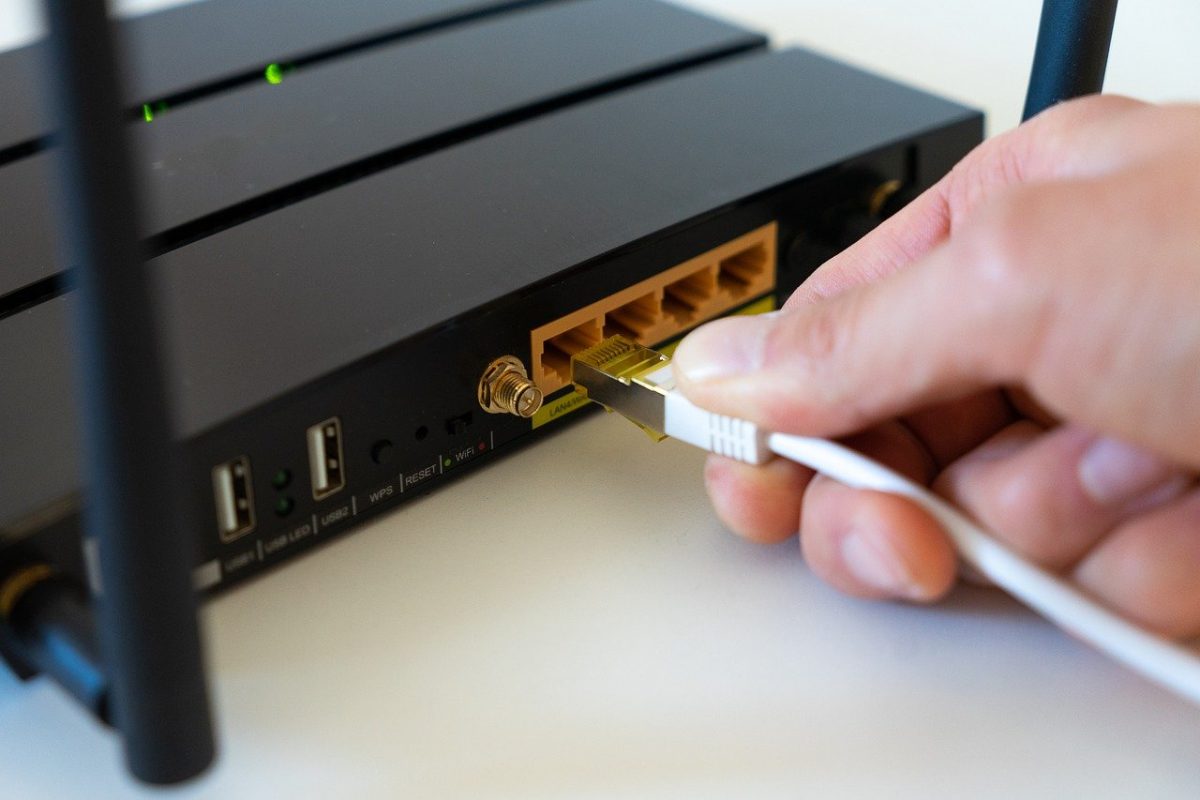
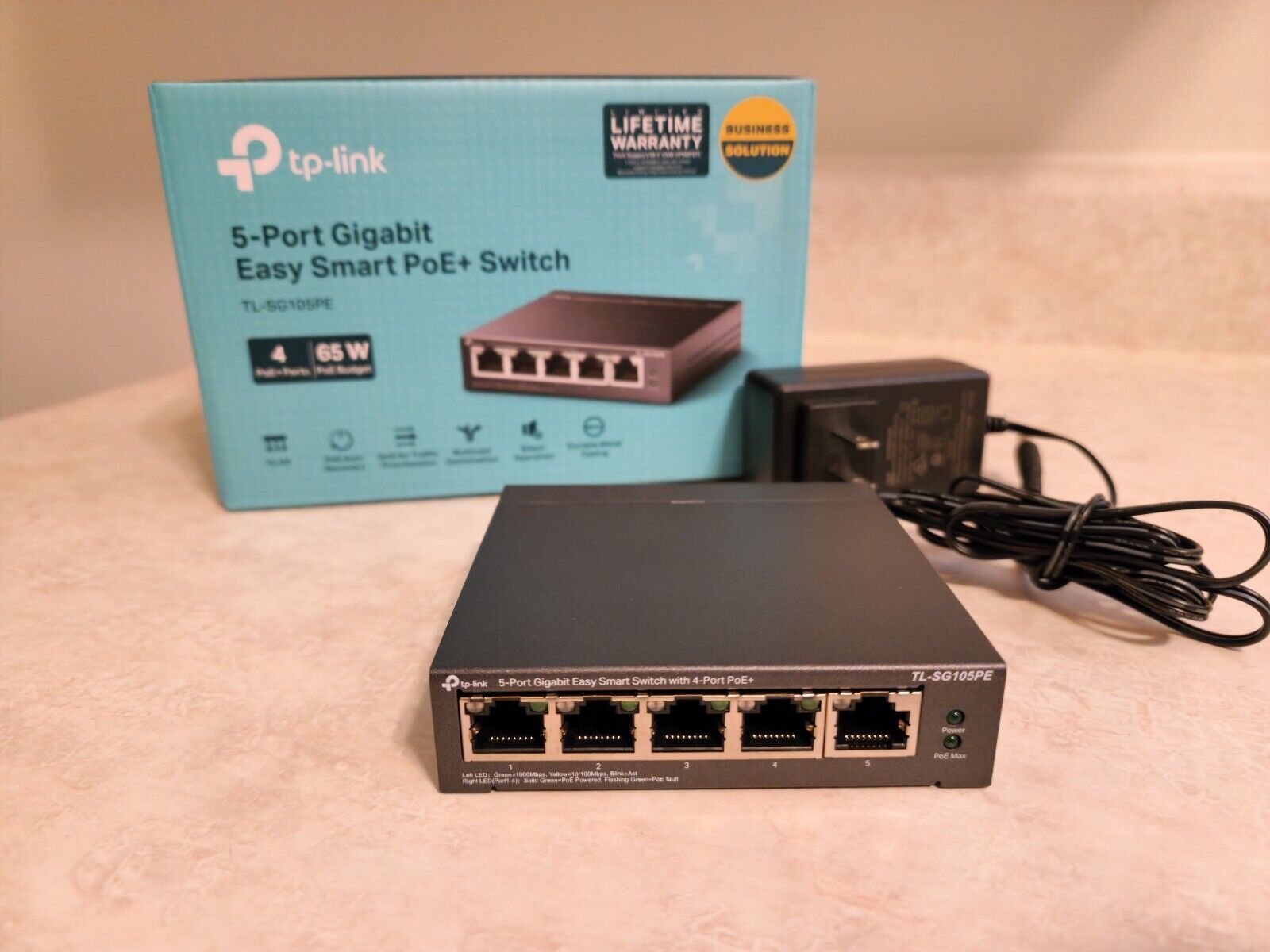
Apply one of two correct configurations to fix the problem. For option one, disable DHCP and NAT on the second router to turn it into an access point. Log into its admin interface, find the DHCP server settings, and set it to “Disabled” or “Off”. Then disable NAT, often under “WAN” or “Advanced Routing”. Connect the second router to the switch using one of its LAN ports, not the WAN port. Assign it a static IP address within the first router’s subnet, for example, 192.168.1.2 if the first router is 192.168.1.1, and ensure that IP is outside the first router’s DHCP pool. Now the second router acts purely as a switch and Wi-Fi extender, and the environment remains stable. For option two, if you truly need two separate segments, connect the second router’s WAN port to the switch. This creates a second subnet behind the second router, with its own DHCP server. Clients on the switch that connect to the second router’s LAN side will get addresses from that second subnet, and the first router will treat the second router as a client. This setup works, but endpoints on different subnets cannot communicate directly without additional routing rules. For most home and small office users, the access-point method is simpler. To learn the hardware steps, you can use a network switch with 2 routers by following the access-point method above. To manage advanced settings, you can configure a managed network switch for VLANs or port isolation. To adjust settings on a specific model, you can access netgear network switch through its web interface. For a basic setup, you can set up TP-Link 5-port gigabit Ethernet network switch by simply connecting it to the first router and then adding the second router in access-point mode.