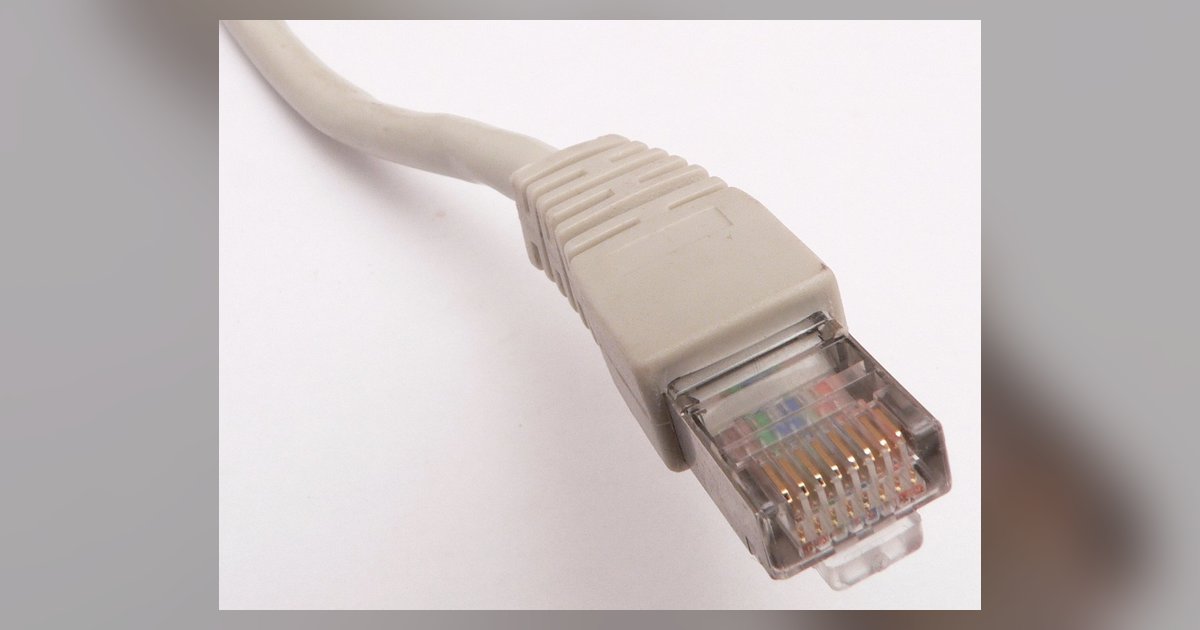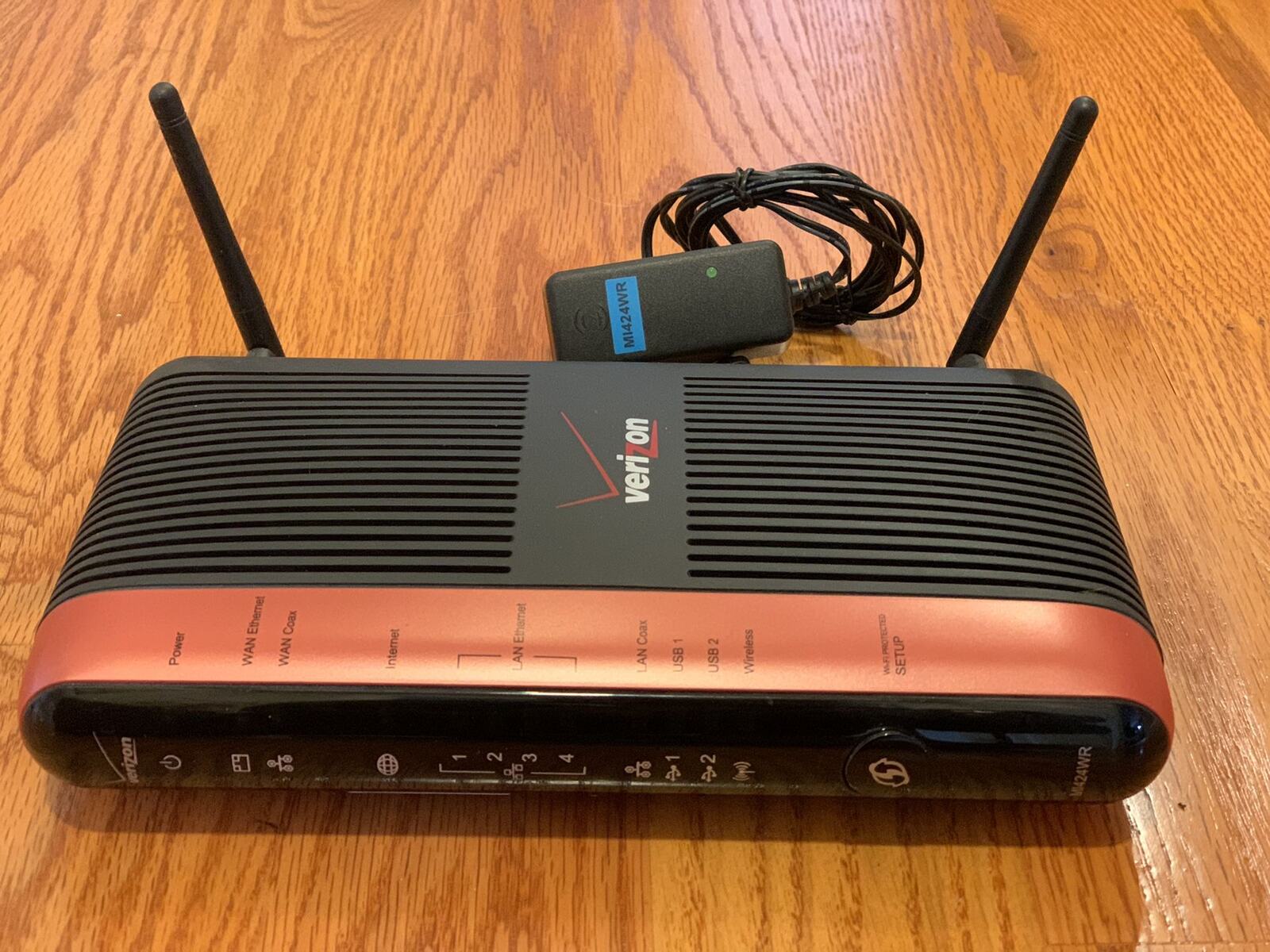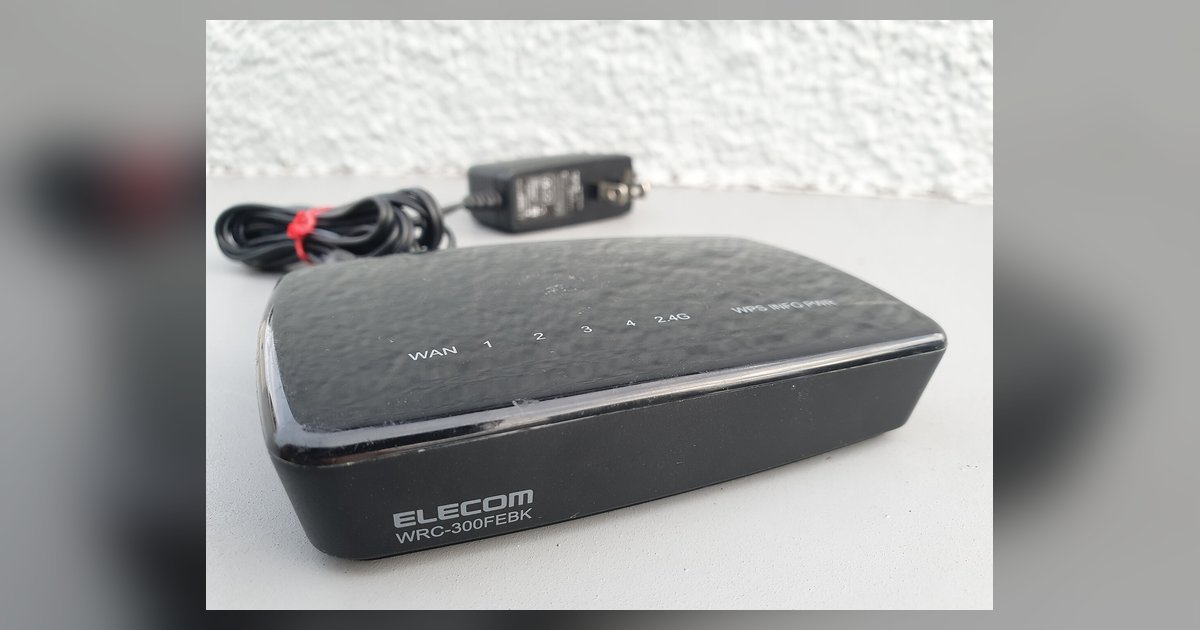
Choose access point mode if the second router connects to the main router with an Ethernet cable. Choose bridge mode only if it connects wirelessly, and even then, avoid it if you can run a cable instead.
The key difference in bridge mode vs access point mode
Access point mode expects a wired Ethernet connection back to the main router. When you enable this mode, the second router stops acting as a gateway (no NAT, no DHCP server) and becomes a simple radio that extends your existing Wi-Fi network. All traffic flows through the cable to the main router, which handles IP addresses and internet routing. In contrast, bridge mode connects wirelessly and turns the router into a dedicated Wi-Fi client. The second router uses its own Wi-Fi radio to link to the main router’s signal, then provides wired Ethernet ports for devices, without rebroadcasting Wi-Fi for wireless clients. This wireless backhaul can reduce available bandwidth because the radio must handle both receiving and transmitting. For a wired setup, bridge mode on some devices disables the second router’s Wi-Fi entirely and treats the Ethernet port as a WAN port.
What people get wrong
The common mistake of picking bridge mode for a wired setup, which disables the second router's Wi-Fi and leaves devices unable to connect to it. Bridge mode on many consumer routers turns the device into a pure Ethernet-to-Wi-Fi bridge: the Wi-Fi radio becomes a client that connects to the main router’s SSID, and the LAN ports become a switch for wired devices. If you already have a cable, you do not need the wireless client function. You need the radio to serve clients, not to connect upstream. Access point mode keeps the Wi-Fi broadcasting. If your router’s menu includes a bridge mode option and you have a cable plugged in, switch to access point mode instead.
When neither mode is the right call
If your second router lacks both access point mode and bridge mode, you face a double NAT problem that breaks online gaming, port forwarding, and VPN connections. In its default router mode, the second device creates a separate subnet (e.g., 192.168.1.x behind the main router’s 192.168.0.x). Traffic must traverse two NAT layers, causing latency and making devices invisible to each other across the subnets. The fix is to manually disable DHCP on the second router, give it a static IP on the main router’s subnet, and plug the Ethernet cable into a LAN port (not the WAN port). This turns it into an access point without the dedicated mode. For more complex setups, you might need to use a network switch with 2 routers to avoid chaining routers at all, a switch lets both routers share the same physical network without NAT conflicts. If you plan to extend further, you can connect a network switch to another network switch to expand port count without adding routing layers. When you need to control VLANs or traffic priority, you will configure a managed network switch to segregate traffic between the two routers. And if your switch is a Netgear model, you must access netgear network switch through its local IP using a browser. Avoid these extra steps by simply choosing access point mode when you have a cable, or bridge mode only when you absolutely cannot run one.