Can you get the Xfinity Stream app on Hisense Smart TV?
The short answer is no, the Xfinity Stream app is not natively supported on most Hisense Smart TV models, so getting Xfinity stream on Hisense smart TV usually requires a workaround.
What you need to stream Xfinity on a Hisense TV
Before you try any of the solutions below, make sure you have three things ready. First, you need an active Xfinity TV subscription, Xfinity Stream is included with your service at no extra charge, but it won't work without one. Second, your Hisense TV needs a stable internet connection, either through Wi-Fi or an Ethernet cable, because streaming live TV and on-demand content requires consistent bandwidth. Third, you'll need a secondary device: either a smartphone or tablet for casting, or an external streaming device like a Roku, Fire TV Stick, or Apple TV. Without one of those, there's no reliable way to get Xfinity Stream on your Hisense TV.
Workaround 1: Cast Xfinity Stream from your phone or tablet
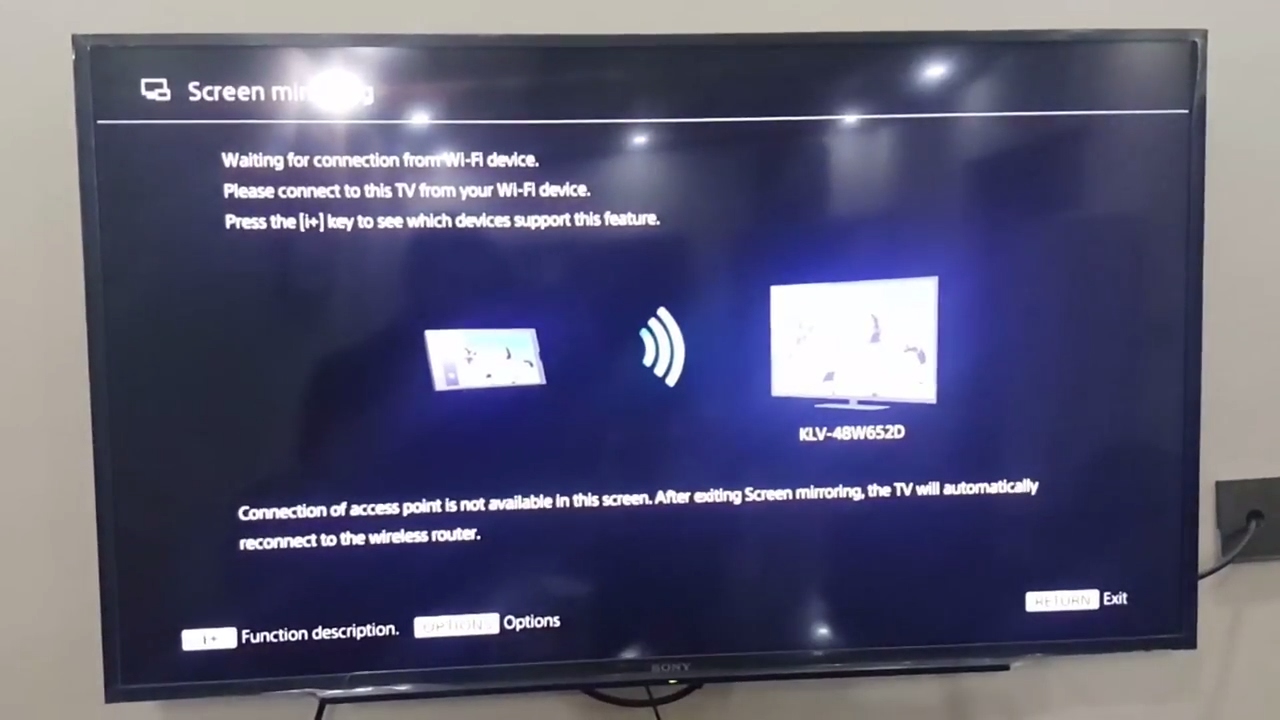
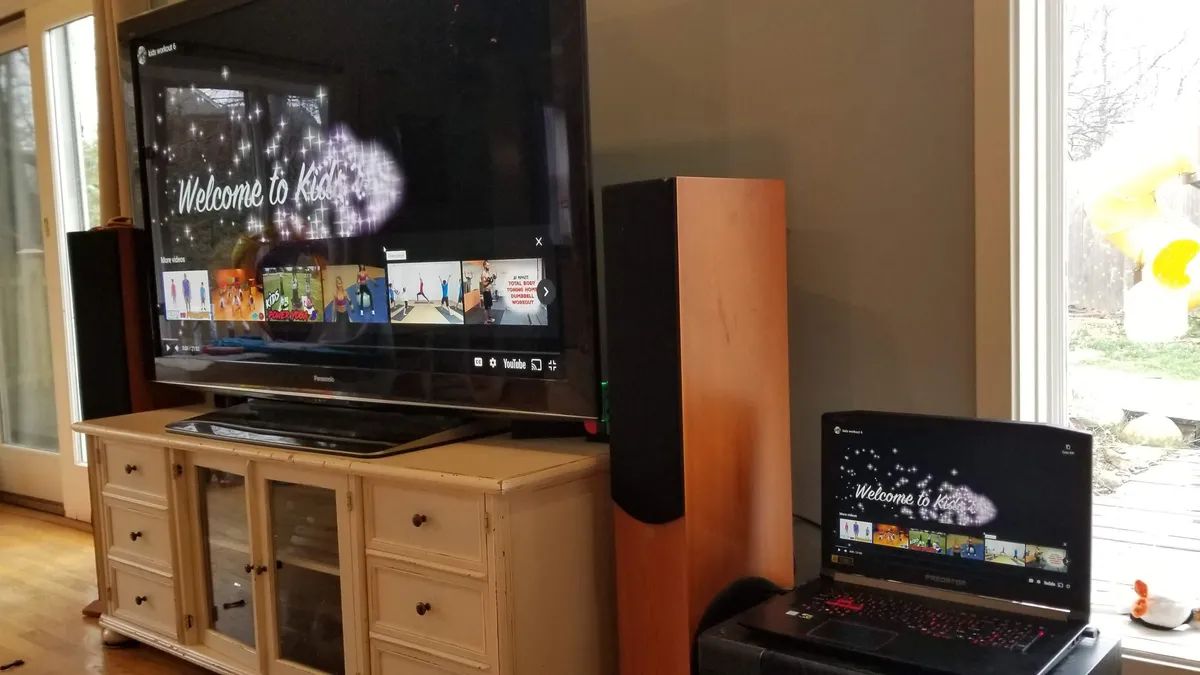
The easiest way to watch Xfinity on your Hisense TV is to cast from the Xfinity Stream mobile app. This works on both iOS and Android devices, and it uses either Google Chromecast or Apple AirPlay depending on your phone. Here's how to do it:
First, make sure your phone or tablet and your Hisense TV are connected to the same Wi-Fi network, this is critical, as casting won't work if they're on different networks. Next, open the Xfinity Stream app on your mobile device and sign in with your Xfinity credentials. Once you're in, play any show, movie, or live channel you want to watch. Look for the Cast icon (it looks like a rectangle with Wi-Fi waves in the corner) and tap it. Your device will scan for available displays; select your Hisense TV from the list. The content will then appear on your TV screen while your phone acts as the remote. Note that this method mirrors what's on your phone, so keep the app open and your screen on while watching.
The Xfinity Stream app will then play directly on the big screen without needing a separate Chromecast device.
Workaround 2: Use an external streaming device
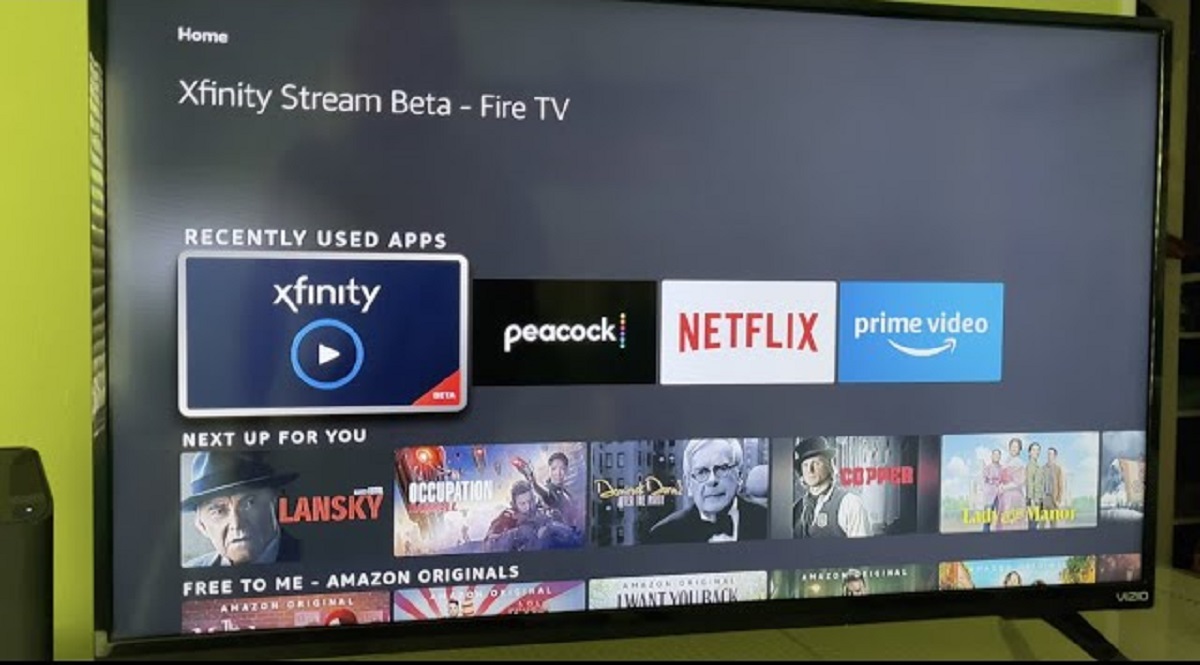
If you'd rather not rely on your phone every time you want to watch, plugging in an external streaming device is the most dependable solution. A Roku, Amazon Fire TV Stick, or Apple TV (4th generation or newer) all support the Xfinity Stream app, and they'll turn your Hisense TV into a fully capable Xfinity player.
To set this up, simply plug the streaming device into an available HDMI port on your Hisense TV and switch the TV's input to that HDMI port. Follow the on-screen instructions to connect the device to your Wi-Fi network, then open its app store (the Roku Channel Store, Amazon Appstore, or Apple App Store). Search for "Xfinity Stream" and download it, it's free with your subscription. Once installed, open the app, sign in with your Xfinity username and password, and you're ready to watch. This method gives you a dedicated remote and a smoother experience than casting, and it works on virtually any Hisense model regardless of its operating system.
One thing to keep in mind: the Xfinity Stream app on external devices may not support every feature you'd get on an Xfinity X1 TV Box. For example, you won't be able to use the Xfinity Voice Remote or rent Pay Per View events through the app on Roku or Fire TV. Movie and TV show rentals through Xfinity On Demand are available on Roku and Fire TV, but not on LG or Samsung Smart TVs, so if you're using a Hisense with a streaming stick, you're in the better position. If your Hisense lacks the app, a similar workaround exists to get Xfinity app on Vizio smart TV using an external streaming device.
Workaround 3: Get an Xfinity Xumo Stream Box
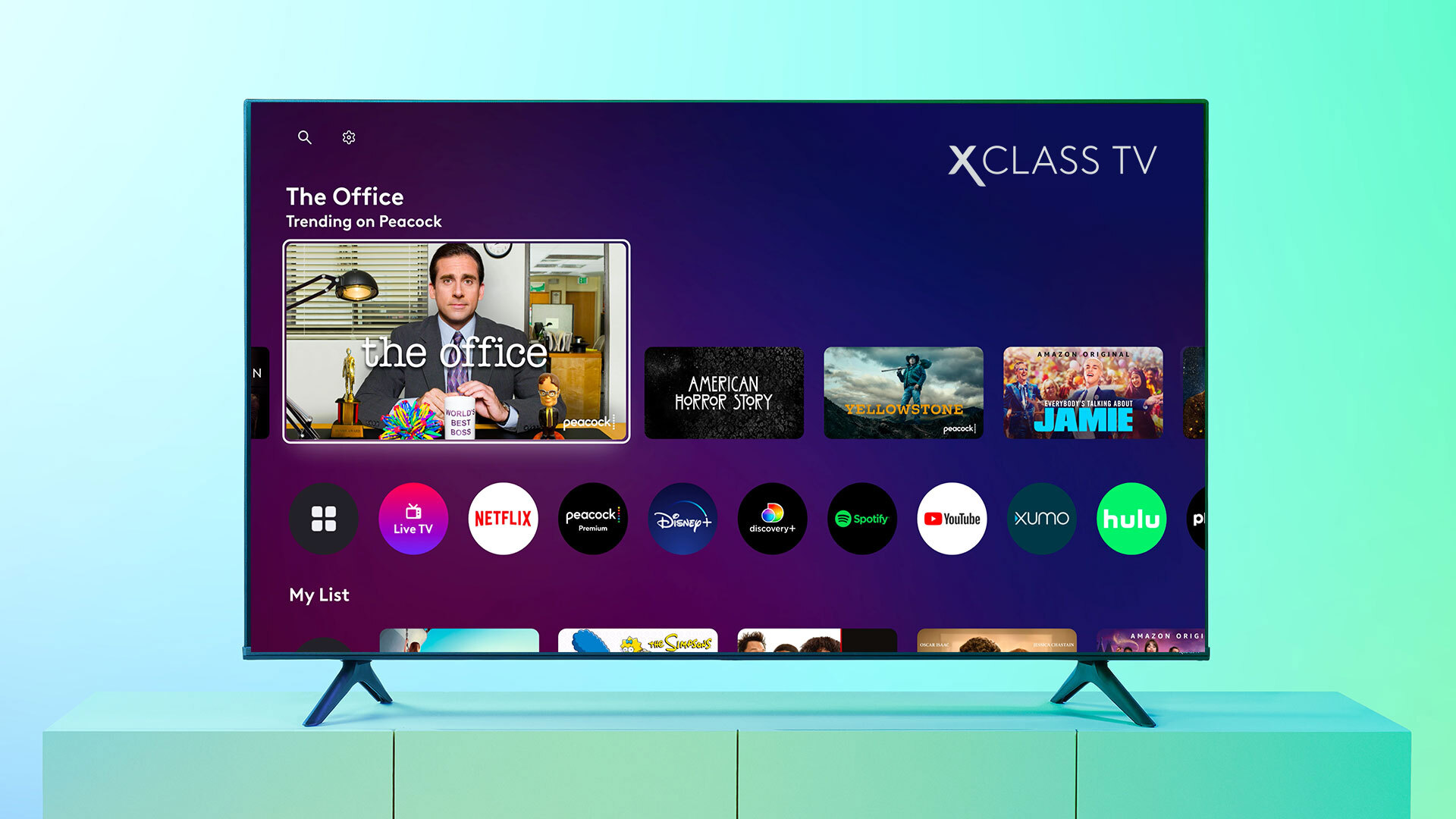
If you want the closest thing to a native Xfinity experience without buying a third-party device, Xfinity offers its own hardware solution: the Xumo Stream Box. This is a small streaming device provided by Xfinity that plugs into any TV with an HDMI port, including your Hisense. It comes pre-loaded with the Xfinity Stream app, so there's no need to search for it or download anything, just plug it in, connect to Wi-Fi, and sign in with your Xfinity account.
The Xumo Stream Box is designed specifically for Xfinity customers, which means it's optimized for streaming live TV, on-demand content, and even integrates with your existing Xfinity channel lineup. It also supports other streaming apps like Netflix and YouTube, so it doubles as a general-purpose streaming device. You can get it directly from Xfinity's website or by contacting their customer service; it's often available at no upfront cost or as part of a monthly rental plan. This is the most straightforward option if you want a reliable, supported way to stream Xfinity on your Hisense TV without dealing with compatibility issues.
What to do if you have a compatible Hisense model
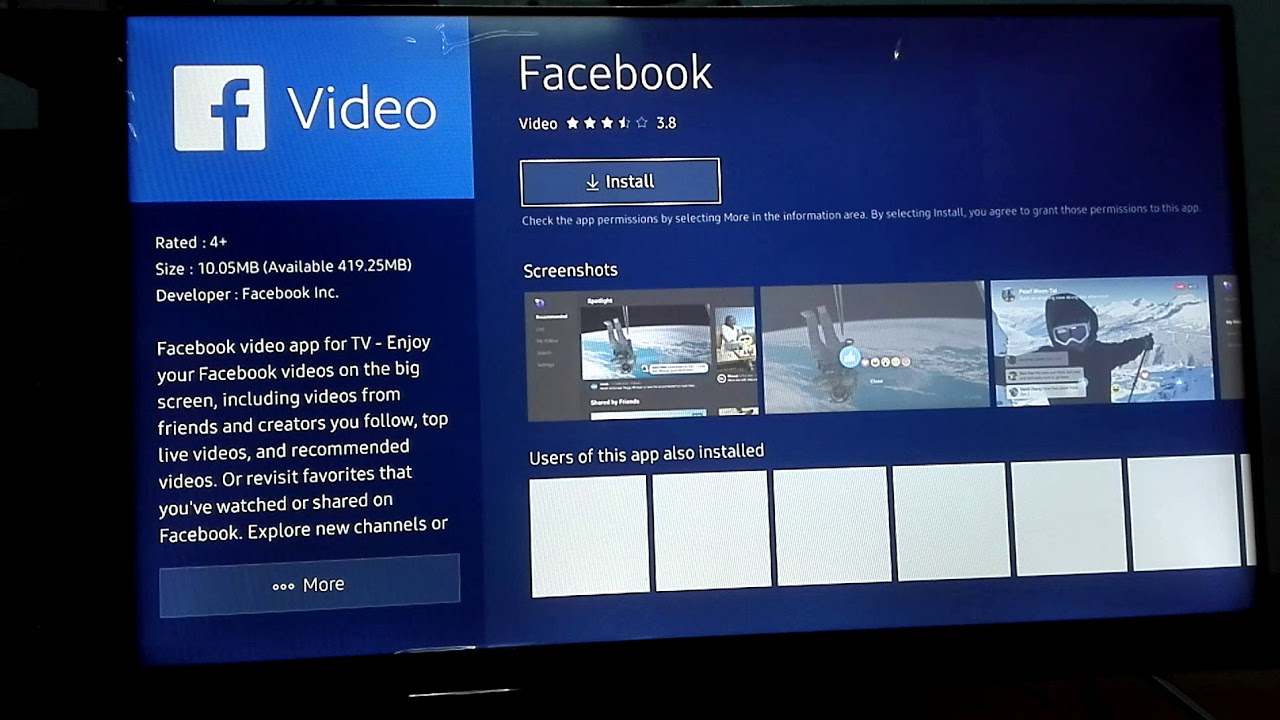
There's a small chance your Hisense TV runs on Android TV or Google TV, and in that case, you might be able to install the Xfinity Stream app directly. To check, go to your TV's home screen and open the Google Play Store (or search for "Play Store" in your apps list). Type "Xfinity Stream" into the search bar and see if it appears. If it does, select it, hit Install, and wait for the download to complete. Once installed, open the app and sign in with your Xfinity credentials, you'll then have full access to live TV, on-demand content, and your DVR recordings right on the TV itself.
However, be aware that even some newer Hisense Google TV models do not currently support the Xfinity Stream app for direct download. If you don't see it in the Play Store, don't assume you did something wrong, it simply may not be available for your specific model. In that case, use one of the three workarounds above instead. If your model is compatible, you can download Xfinity stream app on smart TV with step-by-step instructions. Also, remember that if you're trying to stream Xfinity on Samsung smart TV, the process is different because Samsung has its own app ecosystem, and the same applies to other brands.
If you do manage to install the app on a compatible Hisense model, keep your TV's firmware updated and check for app updates regularly. That ensures you get the latest features and bug fixes, and it reduces the chance of playback errors. But if your model isn't supported, the casting and external device methods above will give you the same content without the frustration of trying to force an app that isn't there.