







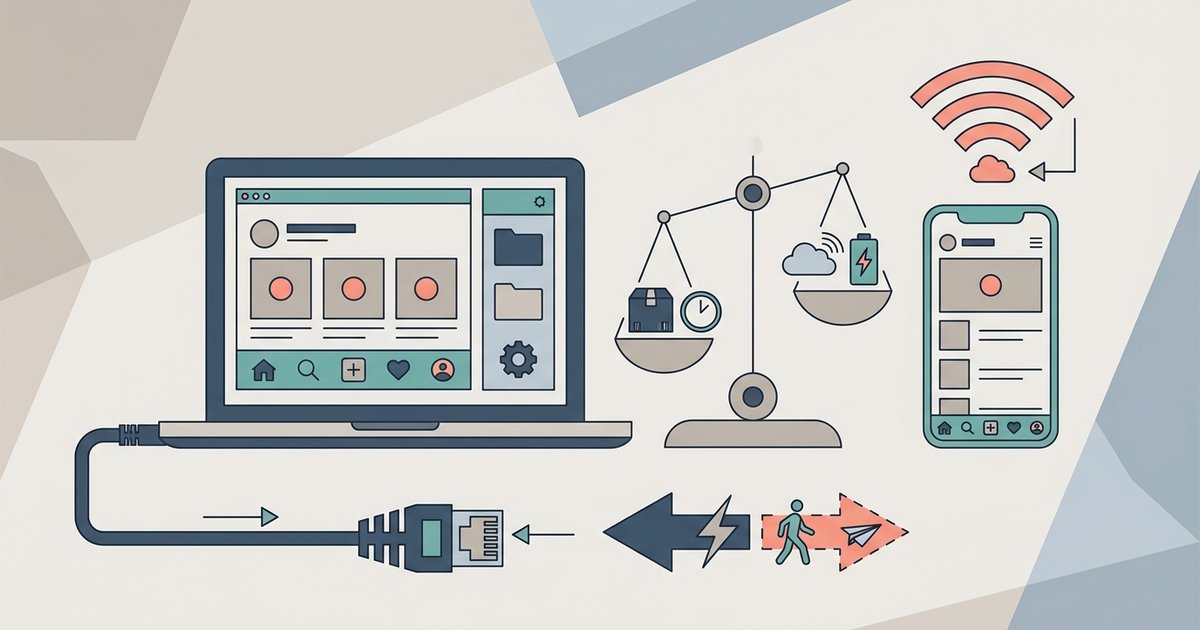
The Instagram desktop app gives you native Windows or macOS notifications and lets you send DMs without keeping a browser tab open. The browser version is superior for managing multiple accounts and avoiding software bloat. Your choice depends entirely on whether you prioritize notification reliability or system resource efficiency, because both tools access the same core Instagram service with different interfaces. If you ever get locked out while switching between them, you'll need Instagram account access and recovery steps to regain entry.
The Instagram desktop app DM and notification trap
Stop clicking the DM icon in your browser and then abandoning the page when you see a prompt to download Instagram on a laptop. Open the DM icon anyway. The browser version supports full direct messaging. You can send text, photos, voice clips, and even react to messages. Do not trust browser notifications in Chrome, Firefox, or Edge. They often fail to appear when the tab is backgrounded. They also disappear after a single system sleep cycle. Install the desktop app if you regularly miss DMs because the browser tab was closed or suspended. The app registers as a native Windows or macOS application, so notifications arrive with the same persistence as a Messenger or Slack alert. Do not use either tool when you need to get Instagram backup code without login. That two-factor recovery process is locked entirely to the mobile app or SMS, regardless of which desktop method you use.
When the browser actually wins
Use the web version for three specific tasks. First, log into multiple Instagram profiles simultaneously using Chrome profiles, Firefox containers, or simple incognito windows. Skip the desktop app for this. The desktop app makes switching between accounts less streamlined than using browser profiles, a tedious process when managing a personal feed alongside a business profile. Second, install a browser extension like "Downloader for Instagram" or "Video DownloadHelper" to directly download Instagram photos and reels with a single click. Avoid the desktop app for downloads. The desktop app provides no built-in download feature and blocks right-click saving. Third, open the browser version if your laptop has 8 GB or less of RAM. The Instagram desktop app is an Electron wrapper that often idles at 400-600 MB of memory. The browser version, when loaded in a single tab, generally uses less memory and releases it when you close the tab. Do not use either tool to hack an Instagram account. Both the app and the browser enforce the same server-side security, and no desktop method bypasses Instagram's login protections.
The upload quality myth
Stop believing the rumor that the Instagram desktop app unlocks higher-resolution photo uploads than the browser. This is false. Both the desktop app and the browser version compress uploaded images. Both strip EXIF data and reduce file size. Post full-quality images only through the mobile app. The mobile app applies less aggressive compression to photos captured within the app's camera interface. Neither desktop tool supports the "original quality" toggle that exists on phones. Upload a 4K photo via the desktop app and it will appear equally pixelated and soft as the same photo uploaded through Chrome. The real limitation is Instagram's server-side processing, not the client software. Ignore upload quality entirely when choosing between app and browser. Base your decision solely on notification behavior and account management preference.



![How to Connect and Use WhatsApp Web [Mac & Windows]](https://robots.net/wp-content/uploads/2020/09/WhatsApp-for-web.jpg)








