You cannot natively export a Google Form with branching logic and images fully intact as a single, interactive file. The only reliable workaround is to print the form as a branching flowchart using a browser extension or manually screenshot each section, then embed images in a Google Doc.
The hard limit of Google Forms exports
Why the standard export fails
When you print a Google Form, the tool flattens your form into a linear list of all questions. Conditional branching, where a "Yes" answer jumps to Section 3 while a "No" answer goes to Section 5, is completely stripped. The export treats every question as if it appears in order, so a respondent who chose "No" would see questions intended only for "Yes" respondents. Images embedded in question blocks also break: they may appear as broken file icons, be resized incorrectly, or vanish entirely. The PDF or printed page shows no arrows, no skip logic markers, and no visual cues about which path leads where. This is because Google Forms exports are designed for static review of question text, not for preserving interactive behavior.
Printing the form as a visual flowchart
To preserve branching logic and images as a static reference, install a browser extension like Form Printer or Formfacade. Open your form in Google Forms, click the extension icon, and select "Print as Flowchart." The extension scans every section, question, and conditional jump, then renders them as a scrollable PDF with arrows connecting each branching path. Images appear in their original positions. You can then save the PDF to your computer or share it, and if you need to archive the raw response data alongside it, you can download Google sheets to desktop. Note that this output is a visual map, clicking a branch in the PDF does not simulate the form’s behavior. For a working copy, you would need to download Google doc and manually recreate the logic, but the flowchart gives you a one-page reference of the full structure.
Manually reconstructing branching in a Google Doc
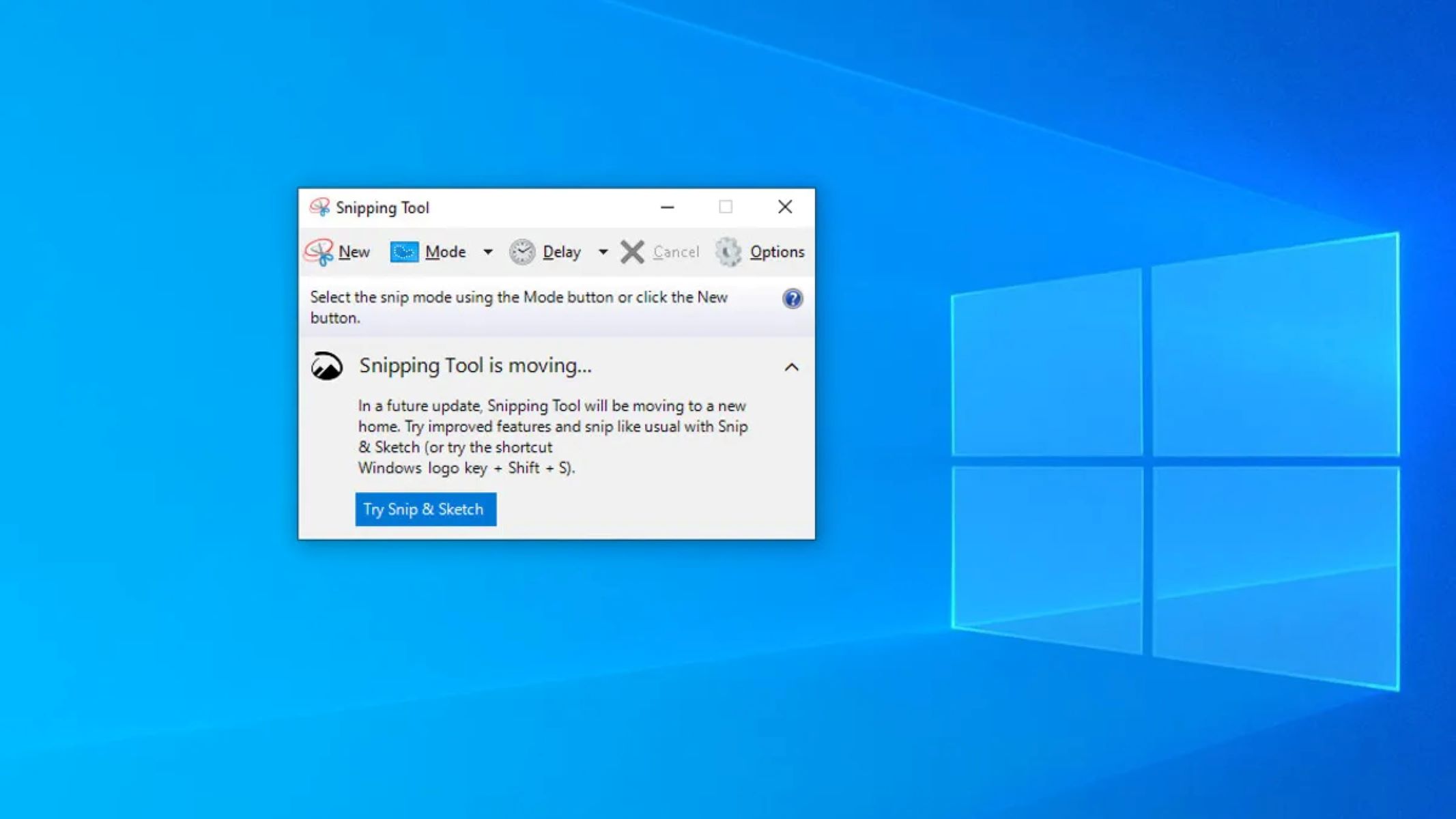
If browser extensions are blocked or unreliable, take a screenshot of each form section using a tool like Windows Snipping Tool or Mac’s Shift+Command+4. Capture each question block with its images visible. Paste those screenshots into a Google Doc, arranging them in the order a respondent would see them based on their answers. Then use the doc’s hyperlink feature to simulate branching: for example, after the screenshot of Section 1, add a line "If Yes, click here" and link that text to the bookmark of the Section 3 screenshot. This method preserves images and shows the path sequence, but it is labor-intensive and brittle, any change to the form requires new screenshots. You can also download a Google Form as a Word document to get a linear text version, but that file will strip images and logic just like the PDF export.
When the answer is no
The hard truth is that no export method retains the interactive, respondent-facing logic; you are only preserving a static visual reference, not a working form. Branching and images depend on Google’s server-side rendering and JavaScript, which no downloadable file format can replicate. A PDF flowchart shows the paths, but clicking a branch does nothing. A Google Doc with hyperlinks looks like a decision tree but cannot collect responses. If you need to share the actual form’s functionality, the only option is to send the Google Form link directly. For archival purposes, you can export the raw response data to a spreadsheet, but neither that nor any other export preserves the branching experience. Accept that the export is a blueprint, not a replica.