Clear the app cache and enable hardware decoding in the app's settings. If that fails, your ISP is likely throttling streaming traffic, and you must use a VPN to bypass the restriction.
Clear the app cache to fix Firestick buffering
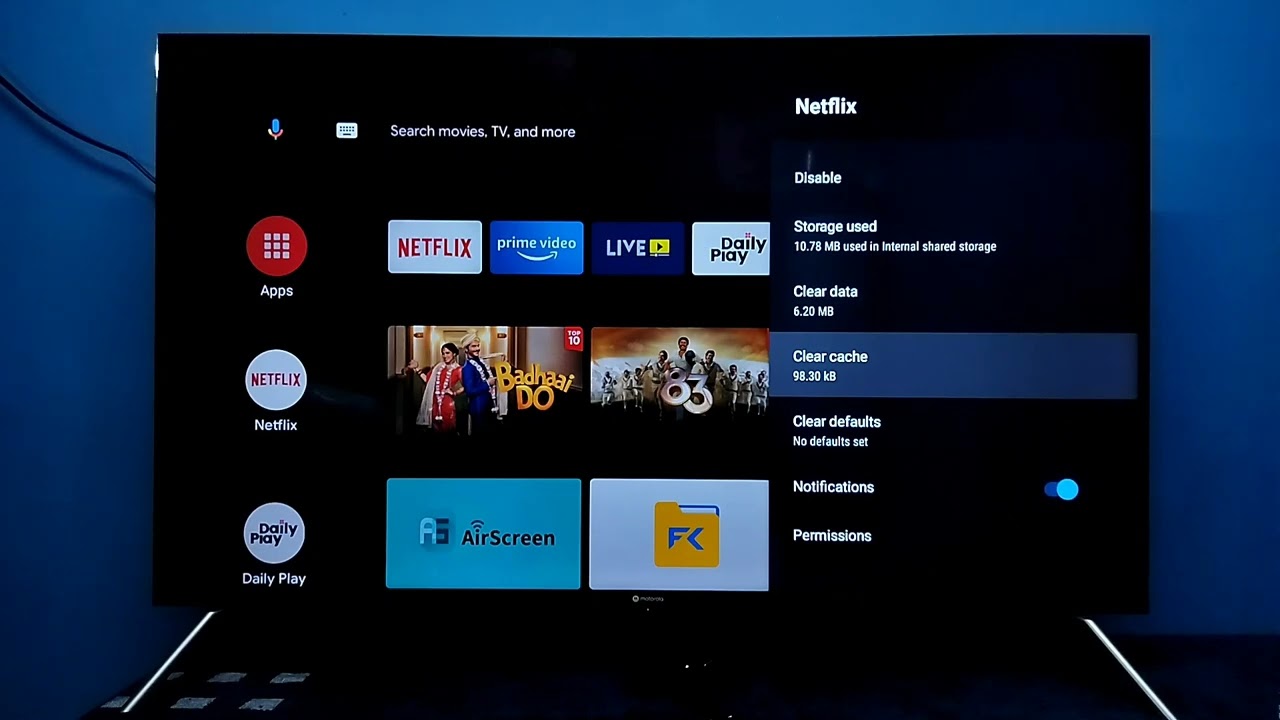
A bloated cache file chokes a sideloaded app's memory, causing micro-stutters that feel like buffering every few seconds. When you stream on a Firestick on a smart TV, the app stores thumbnails, search history, and stream fragments in a temporary folder. That folder can swell to hundreds of megabytes, starving the Firestick’s limited RAM. To fix it, navigate to the app's settings on your Firestick, select your sideloaded app, then choose "Clear cache", do not choose "Clear data" unless you want to lose your login credentials and favorites. After clearing the cache, also force stop the app to kill the process entirely. This frees up memory instantly, and you can test playback without restarting the device. If the lag returns after an hour, repeat the process; some apps cache aggressively, especially if you skipped optimizing performance while setting up a Firestick.
Switch the player to hardware decoding
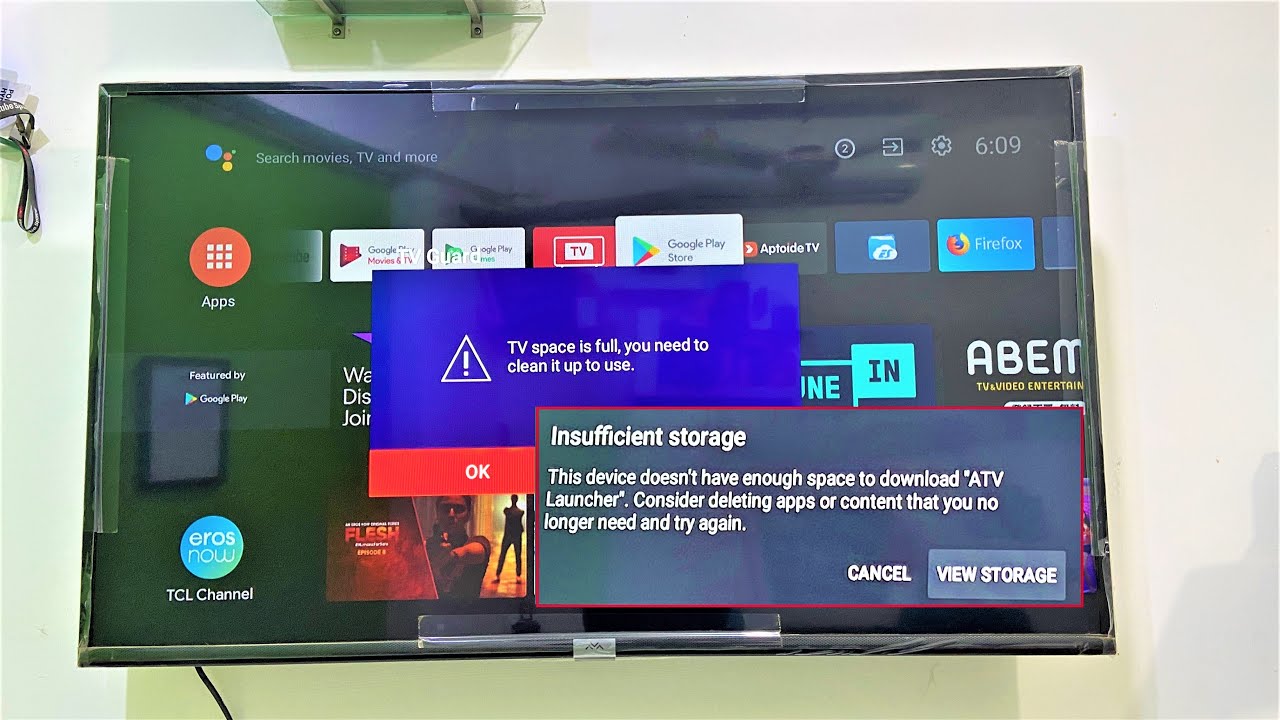
The default software decoder overwhelms the Firestick's weak processor, causing dropped frames and buffering pauses. Most sideloaded apps default to "Software" or "Auto" decoding, which makes the CPU do all the video work. The Firestick’s GPU is designed for this task, but it only activates when you switch to "Hardware decoding" or "HW" in the app’s playback settings. Open the sideloaded app, go to its Settings or Player menu, and change the decoder to "HW" or "Hardware." Some apps let you pick an "External player" like VLC or MX Player, which also uses hardware decoding. Once you switch, the Firestick’s GPU handles the stream, and the CPU stays free for buffering data, the micro-stutters vanish immediately. If you still see lag, check your free storage space on a Firestick, as a nearly full drive chokes system performance. The same decoding limitation applies whether you connect your Firestick to a TV or a laptop screen via HDMI: the Firestick’s processor cannot handle software decoding at high bitrates.
When the real problem is your internet provider
If clearing cache and switching to hardware decoding do nothing, your ISP is throttling your connection specifically for unverified streaming traffic. This is the failure case where clearing data does nothing because your ISP throttles unverified streams. You can confirm this by testing with a VPN. Install a VPN app on your Firestick, connect to a server, then try streaming again. If the buffering stops, the ISP was the culprit. ISPs use deep packet inspection to detect and slow down traffic from sideloaded apps, while leaving Netflix and Prime Video untouched. A VPN encrypts all your data, hiding what you stream. For a permanent fix, choose a VPN that works on a Firestick and has a kill switch to prevent data leaks. If you are still learning the difference between Fire TV and smart TV, remember that both devices rely on the same ISP throttling patterns, a Fire TV stick is simply a streaming dongle for any HDMI port. Before installing a VPN, you must allow Firestick to download from unknown sources, which is the same setting you enabled for the sideloaded app. Go to your Firestick's settings and enable Apps from Unknown Sources for the VPN installer. Once active, the VPN bypasses the throttling, and your buffering should disappear completely.