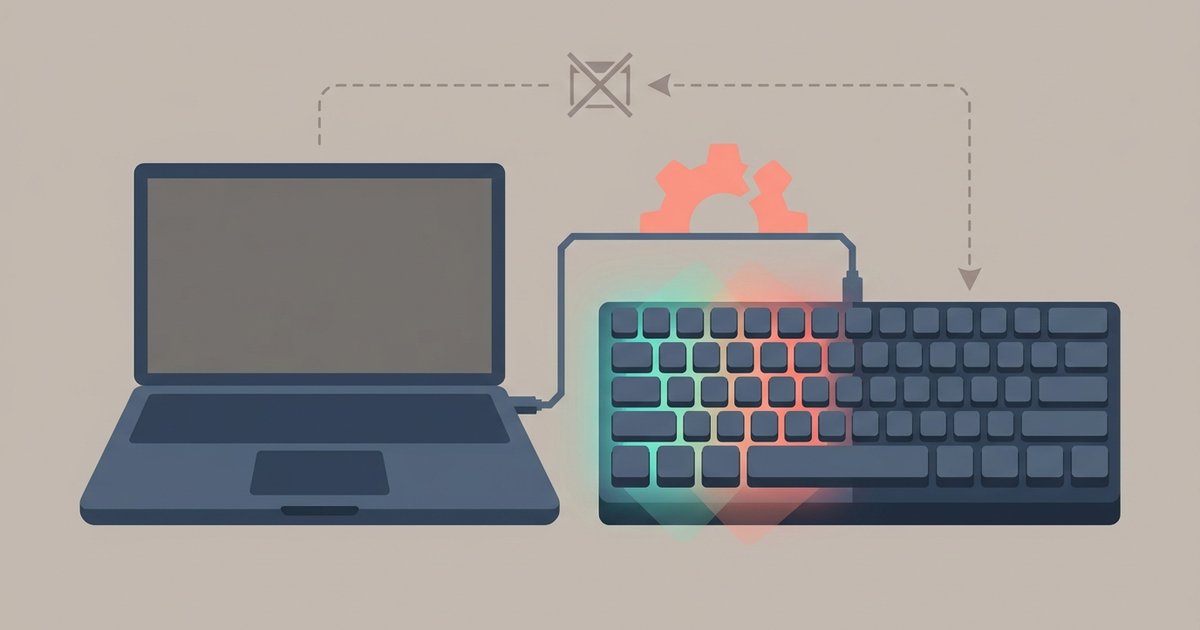
Most AULA keyboards rely on Windows-only software for full RGB control, and some onboard shortcuts may not function as expected on macOS and Linux. You can try basic Fn+arrow or Fn+INS combos, but if those don't work, you'll need temporary access to a Windows machine or a Windows VM to set and save your lighting profile to the keyboard's onboard memory.
Why the AULA RGB Mac fn shortcuts fail
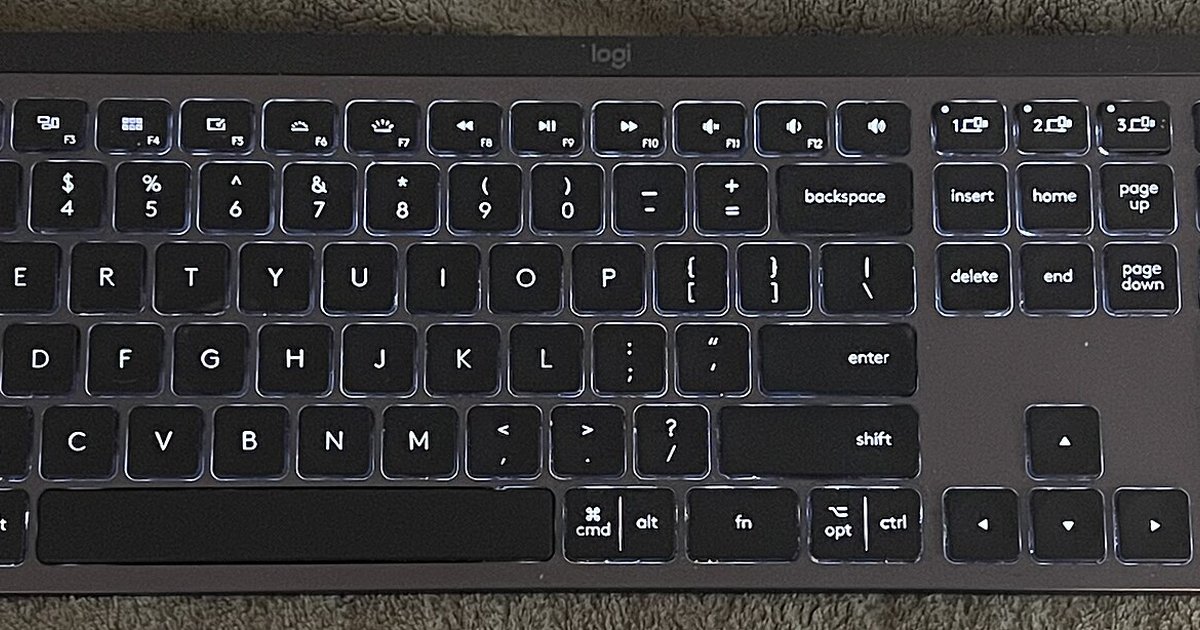
When you press an Fn-combo like Fn+INS or Fn+arrow on your AULA keyboard, the microcontroller sends a scancode that Windows interprets as a lighting command. macOS and Linux see those scancodes as standard key presses. Fn+Up Arrow often appears as a generic key repeat or is ignored entirely because the operating system has no driver to map that scancode to an RGB action. The firmware expects a Windows-specific HID report that Unix-based systems do not generate. The keyboard’s internal lighting controller never receives the instruction. This is why pressing the printed shortcuts produces no response or, in rare cases, triggers a wrong key like a media function instead of a color shift.
Which shortcuts might still work
A small subset of onboard controls sometimes functions without Windows, typically those that don’t rely on complex driver interaction. Fn+Left Arrow or Fn+Right Arrow to adjust brightness often succeeds because brightness is handled at the keyboard’s hardware level, not through the OS. Similarly, Fn+PgUp or Fn+PgDn to cycle through a few preloaded solid colors may work on some AULA models. However, you will never be able to change color of aula gaming keyboard to a custom per-key effect or access software-driven animations like wave or ripple without the Windows utility, though you can configure those effects on a Windows machine using the AULA keyboard software download for f99 and newer models. The onboard memory stores only a limited palette, and the Fn layer cannot send the precise commands needed for full RGB customization.
The Windows-only firmware limitation
AULA’s configuration software, which allows you to change lighting color on gaming mouse models and keyboards alike, is compiled exclusively for Windows. No native macOS or Linux version exists, and the firmware itself is locked to expect that software’s proprietary handshake. This leads to a common misconception: users assume the keyboard is defective when they see no response to Fn combos. In reality the keyboard is fully functional; it simply has no saved profile in its onboard memory. The default state out of the box may vary by model. The keyboard will stay in that state until a Windows machine runs the software and writes a profile to the internal chip. If you have access to a Windows PC, the process is similar to saving profiles on an ibuypower RGB gaming keyboard. AULA keyboards ship with firmware that may require Windows software for advanced lighting customization, though basic onboard shortcuts and web-based configuration are available for some models.
How to save your RGB profile without keeping Windows
The only reliable workaround is to use a temporary Windows environment to run the AULA software once. Install a free virtual machine like VirtualBox or VMware Fusion on your Mac or Linux machine, set up a Windows 10 or 11 trial ISO, and pass through the keyboard’s USB connection to the VM. Open the AULA software, select your desired effect, and click “Apply to Device.” The software writes the profile to the keyboard’s onboard memory. That profile persists even after you unplug the keyboard or reboot into your native OS. If you don’t want to set up a VM, borrow a friend’s Windows laptop for five minutes. After the one-time save, you can return to Mac or Linux and the lighting will remain active. On your AULA keyboard, once the profile is stored, you never need Windows again unless you want to change the effect.