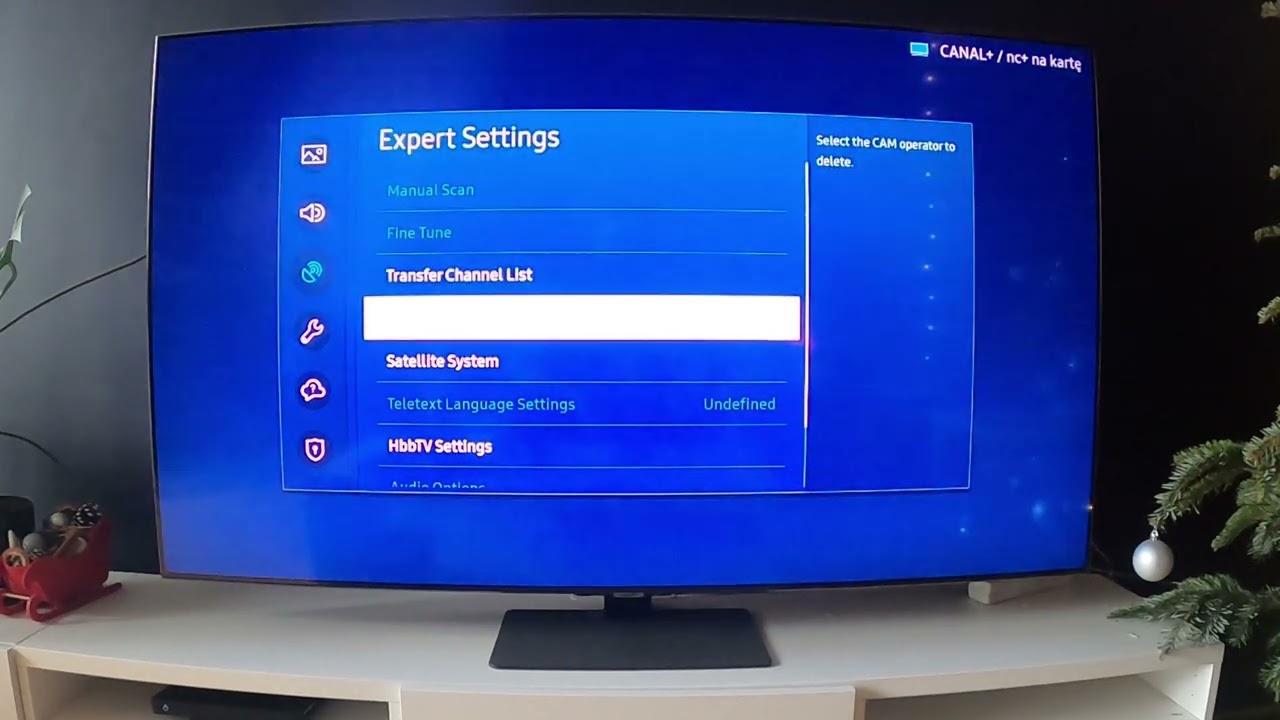
To scan channels on a Samsung Smart TV, you need to open the Broadcasting settings menu and run Auto Program, but only after the TV’s source is set to “TV” and an antenna or direct cable line is connected. The term “broadcasting” here doesn’t mean a feature you switch on, it’s the built-in tuner’s menu for finding over-the-air or cable channels, and it’s hidden unless you meet those two conditions first.
Before You Scan: What 'Broadcasting' Actually Means on Your Samsung TV
On a Samsung Smart TV, “Broadcasting” is the settings section that controls how the TV receives and stores channels through its internal tuner. It is not a toggle you flip to enable live TV; instead, it’s where you scan for and manage over-the-air (OTA) digital channels from an antenna or unencrypted cable channels connected directly to the TV. The hard prerequisite is physical: you must connect a coaxial cable from your antenna or wall outlet to the port labeled “ANT IN” on the back of the TV or on the One Connect Box (if your model uses one). Without that connection, the Broadcasting menu will either be greyed out or the scan will find zero channels. Once your channels are set up, you can get back to regular TV on my Samsung smart TV by switching to the TV source, and then use the channel list to watch live TV on Samsung smart TV.
Step 1: Switch Your TV Source to 'TV' (So the Menu Isn't Grey)
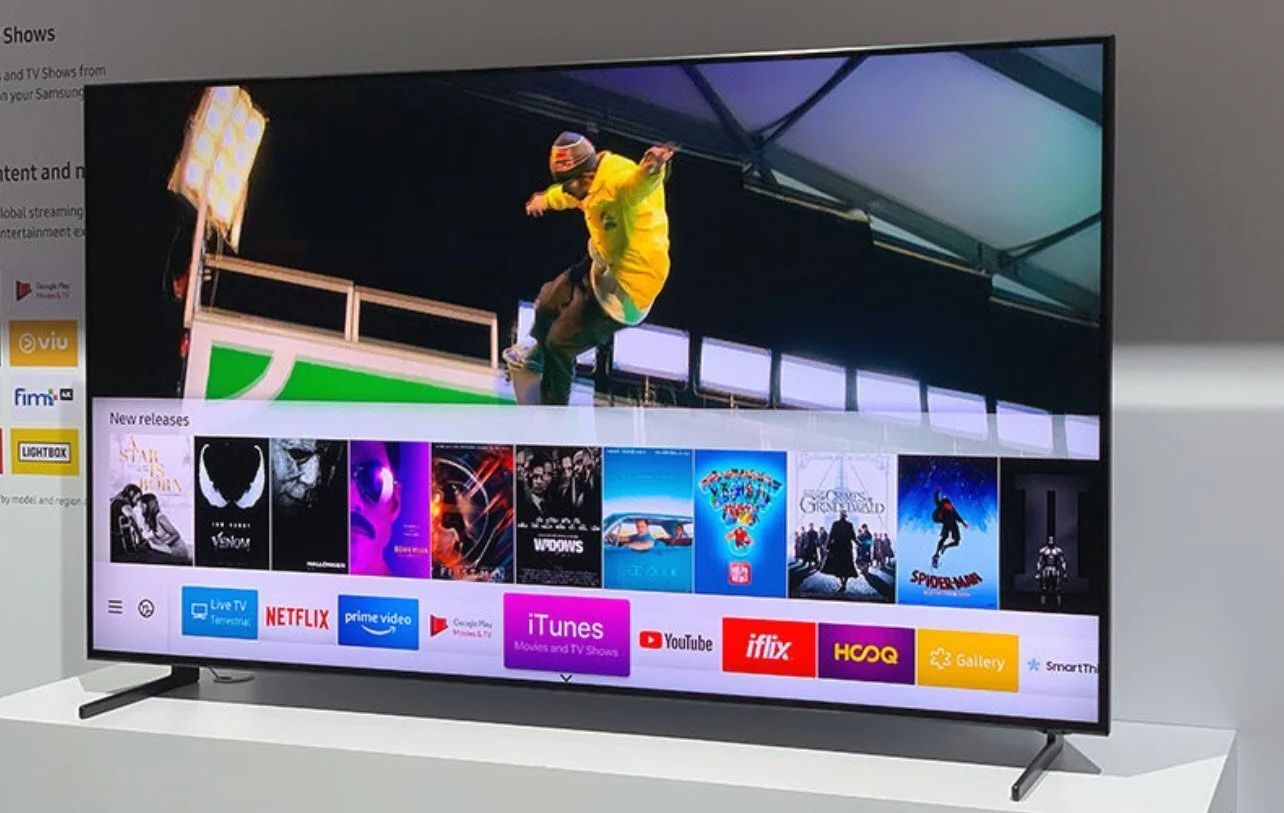
Press the Home button on your remote to bring up the smart hub. Navigate to the Source icon (usually a rectangle with an arrow pointing in) and select “TV” from the list of inputs. The Broadcasting menu is only accessible when the TV source is set to “TV”, if you’re on an HDMI port, streaming app, or any other input, the option will appear greyed out and unclickable.
Step 2: Open the Broadcasting Auto Program Menu
With the source set to TV, press Home, then navigate to Settings (the gear icon). Select All Settings, then go to General & Privacy (on modern models; on older models, it’s simply General). From there, choose Broadcasting. Inside that menu, you’ll find Auto Program (sometimes labeled Auto Tuning on certain firmware versions). This is the option that launches the channel scan.
Step 3: Choose Air, Cable, or Both and Start the Channel Scan
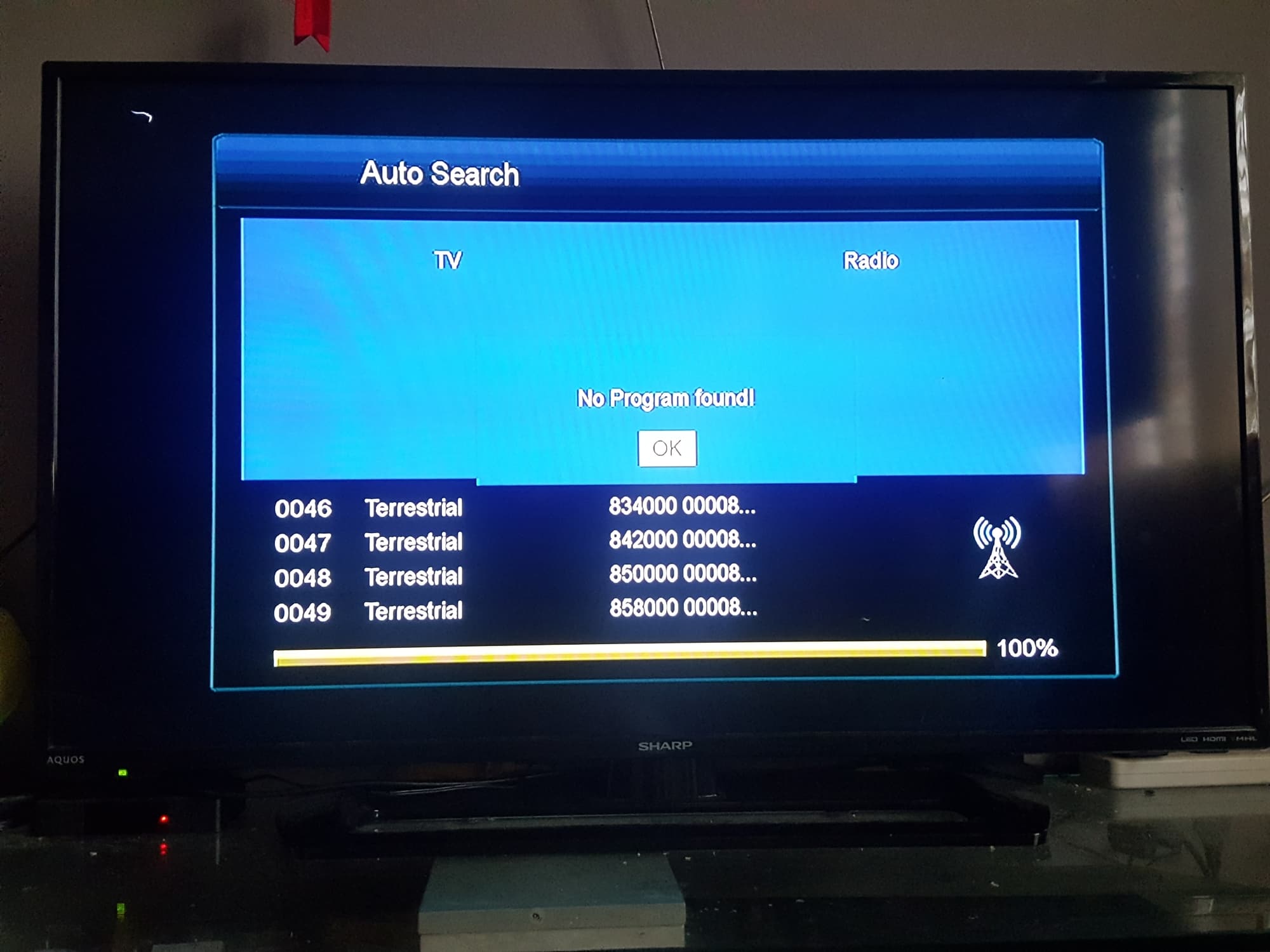
Select Auto Program and press Start. The TV will then ask you to choose your signal type: Air (for an antenna), Cable (for a direct wall cable connection without a set-top box), or Both (to scan for both). Pick the one that matches your setup. The scan will run for a few minutes, searching all available frequencies, and it will automatically save every channel it finds. If you’re using a cable box or satellite box connected via HDMI, skip this entire step, the box handles channel tuning, and the TV should stay on the HDMI input instead of using Auto Program.
Troubleshooting: What to Do When Channels Won't Save
If the scan completes but no channels save, or if your settings reset every few minutes, your TV might be stuck in Retail Mode (also called Demo Mode). This mode is designed for store displays and blocks channel storage. To fix it, go to Settings > All Settings > General & Privacy > Usage Mode and select Home Mode. On 2022-2024 models, the path is Settings > All Settings > General & Privacy > System Manager > Usage Mode > Home Mode. For 2017-2021 models, use Settings > General > System Manager > Usage Mode > Home Mode. After switching to Home Mode, rerun Auto Program. If channels still won’t save, check the antenna connection, make sure the coaxial cable is snug and try repositioning the antenna toward a window or higher location to improve signal strength, especially if you see “Weak” or “No Signal” messages during the scan.
Moving On: Watching Live TV and Adding More Channels
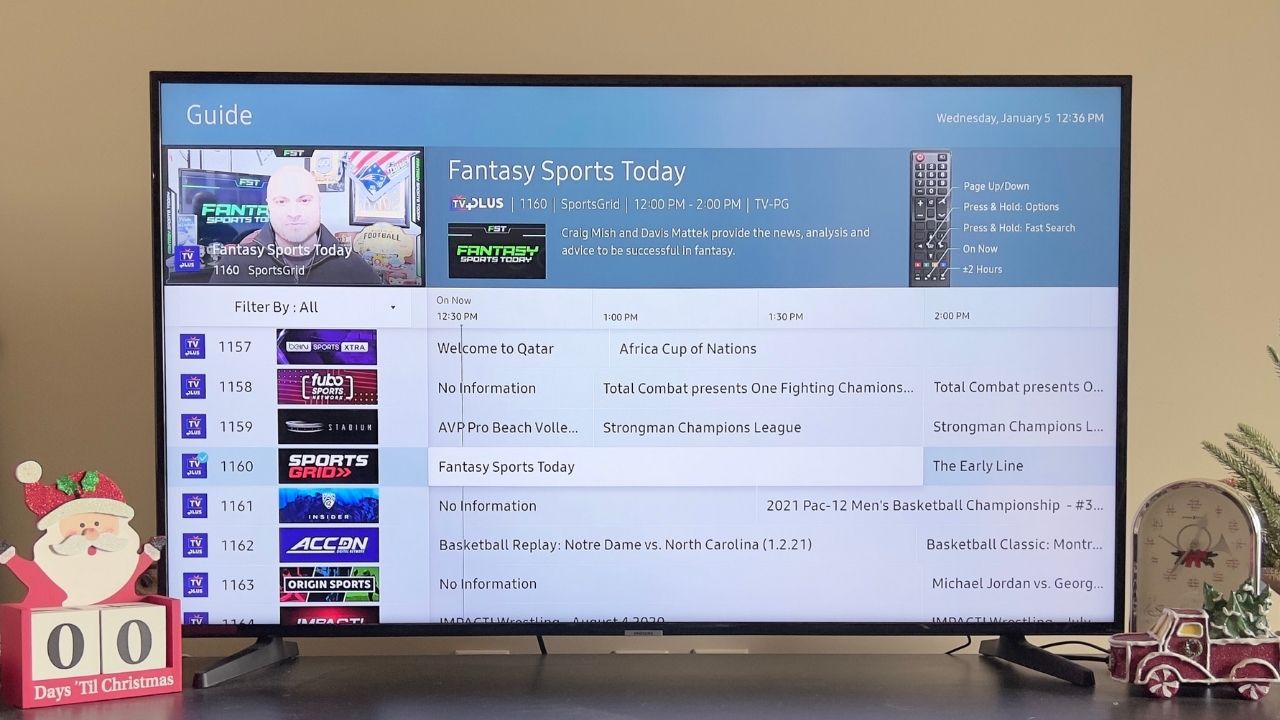
Once the scan finishes, press the Channel Up/Down buttons on your remote or use the on-screen channel list to browse the saved stations. To rescan later (for example, if you move or a new station becomes available), repeat the steps above. Note that Samsung TV Plus, the free streaming service built into the smart hub, is separate from scanned broadcasting; it delivers channels over the internet, not through your antenna or cable line, so it won’t appear in the Broadcasting menu. If you want a broader guide to all live TV options on your set, including streaming services and external boxes, see watching live TV on a smart TV.