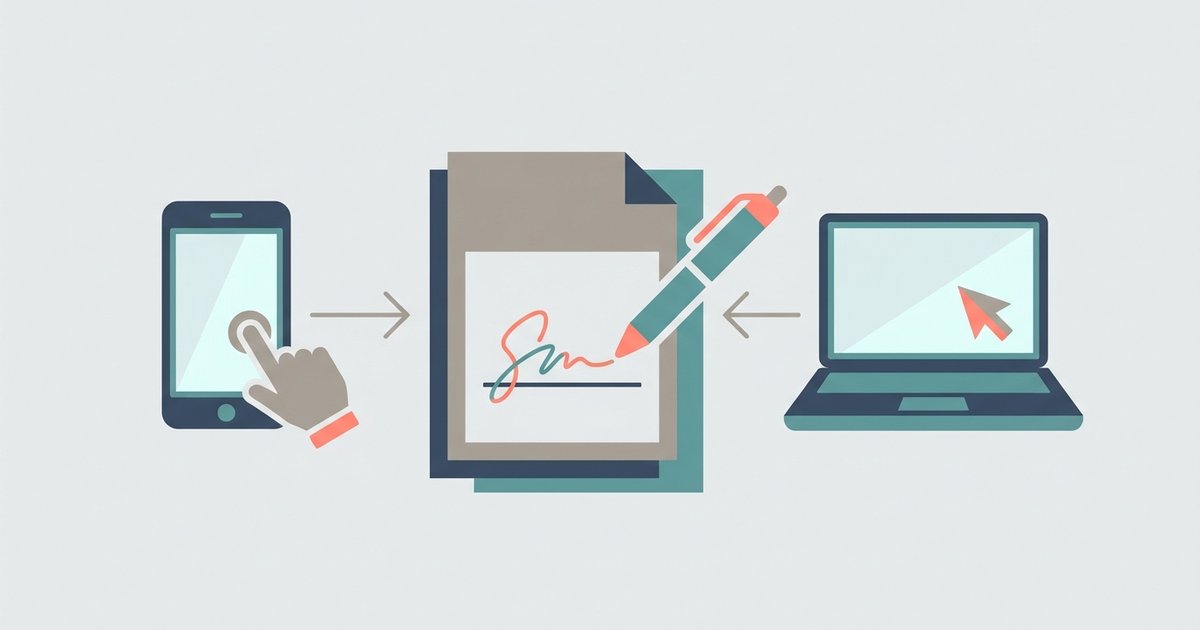
To sign a PDF without printing it, open it in a signing tool, create your signature by drawing, typing or uploading a photo of it, place it on the page and save. You can do this in a browser, on a Mac with Preview, or on a phone with the built-in markup tools. What you create this way is a simple electronic signature, which is what most everyday forms, leases and approvals ask for.
A certificate-based digital signature is a different, more formal thing, and it is covered further down, so you can tell which one you have been asked for.
Sign a PDF online with PDFBEAR
The recommended route is PDFBEAR's eSign PDF tool, which works in any browser on a computer, tablet or phone. The site states that signing is free with no account and accepts files up to 50 MB. To sign a PDF online with PDFBEAR:
- Open the eSign PDF page and upload your document.
- In the signing options, choose Simple Signature, which lets you draw, type or upload your signature.
- Create your signature, then click a field to place it on the document. Signature is the required field.
- Add any optional fields you need: Initials, Name, Date, Text or a Company Stamp.
- Drag each item into position on the right page, then click Sign.
- Download the signed PDF.
The signing screen also lists a Digital Signature option marked as coming soon, so at present the tool produces simple electronic signatures only. With a free account you can save your signature for next time instead of drawing it again. The site notes that a password-protected PDF has to be unlocked before it can be signed, because the tool needs to write to the page. In testing, PDFs downloaded on the free tier carried a small "PDFBEAR.COM - Free Ver." line in the bottom corner of the page, and the pricing page lists removing it as a Premium feature. Check whether that matters for the document you are signing.
If you are signing a form that also has fields to fill in, PDFBEAR's separate Fill PDF Forms tool handles interactive form fields, and you can sign the completed form afterward.
Electronic signature versus digital signature
These terms are often used interchangeably, but they describe different things.
An electronic signature is a broad term for any electronic sign that a person intends to sign a record. A drawn or typed signature placed on a PDF, a click on an "I agree" button and a typed name at the end of an email all fall into this category. It records intent, but the signature image itself does not prove who placed it, and it does not stop someone changing the document afterward.
A digital signature, sometimes called a certificate-based signature, is a specific type of electronic signature that uses a digital certificate issued after the signer's identity has been verified, usually by a certificate authority or trust service provider. The signature is cryptographically bound to the document, so software such as Adobe Acrobat can confirm who signed it and show whether the file has been altered since.
In many countries, including the United States under the ESIGN Act and UETA and the European Union under the eIDAS regulation, electronic signatures are legally recognized for a wide range of documents. Some documents and some organizations require a particular type of signature, and a few kinds of documents are excluded from electronic signing altogether. If you are unsure which one you need, ask whoever sent you the document. They will usually say so explicitly, often by sending it through a specific signing service. This article is general information, not legal advice.
Sign a PDF on a Mac with Preview
Preview can create and store a signature and place it on any PDF. Open the PDF, show the Markup toolbar, and click the signature button. Apple describes three ways to create the signature:
- Trackpad: sign your name on the trackpad with your finger, press any key, then click Done.
- Camera: hold your signature, written on white paper, up to the camera so that it lines up with the blue line on screen.
- iPhone or iPad: choose a nearby device and sign on its screen with your finger or an Apple Pencil.
Then click the signature to add it, drag it into place and use the handles to resize it. If you use iCloud Drive, your saved signatures are available on your other Macs.
Sign a PDF on an iPhone or Android phone
On iPhone, open the PDF from the Files app or Mail, tap the Markup button, tap the Add button, then tap Signature. Choose a saved signature or create a new one, then resize and position it. Apple's instructions describe the same process for documents you scan into Notes.
On Android, there is no single built-in signing feature that every phone shares, and the options vary by manufacturer. The dependable choices are a browser tool such as PDFBEAR's, which works in Chrome on Android, or a PDF app such as Adobe Acrobat Reader, which includes a fill and sign feature.
Sign a PDF on Windows
Windows does not include a dedicated signature tool for PDFs. Microsoft Edge, the default PDF viewer on many Windows computers, lets you draw on a PDF, which works for a rough signature with a mouse or touchscreen. For a cleaner result, use a browser eSign tool or Adobe Acrobat Reader's free fill and sign feature.
Tips for a clean signed PDF
- Sign the final version. Make any edits first. Changing a document after signing it defeats the point.
- Use a clear signature image. If you upload a photo, sign in dark ink on plain white paper and crop tightly.
- Check every page. Many contracts need initials on each page and a full signature at the end.
- Flatten if needed. A signature added as an annotation can sometimes be moved or deleted in another viewer. Flattening the PDF makes it part of the page.
- Keep a copy. Save the signed version under a new name alongside the unsigned original.
If someone has sent you a document through a dedicated signing service, sign it inside that service rather than downloading and signing the PDF separately. The service records who signed and when, and the sender usually needs the signature to arrive that way.
Privacy when signing online
Signed documents often include your address, account numbers or other personal details, and your signature itself. PDFBEAR states that uploads use HTTPS, files are deleted automatically after a period and no person reviews them. If a document is highly sensitive, signing locally in Preview or on your phone avoids uploading it at all.
For most people the choice comes down to where the document is. If it arrived by email on your phone, sign it with Markup and send it back. If you are at a Windows computer without signing software, a browser tool is the quickest way to get a clean result, and it takes a couple of minutes.
\nRelated reading: PDF Guide: Convert, Compress, Merge, Sign and Edit PDFs, How to Convert a PDF to Word (and Word to PDF), and How to Convert PDF to JPG and JPG to PDF.