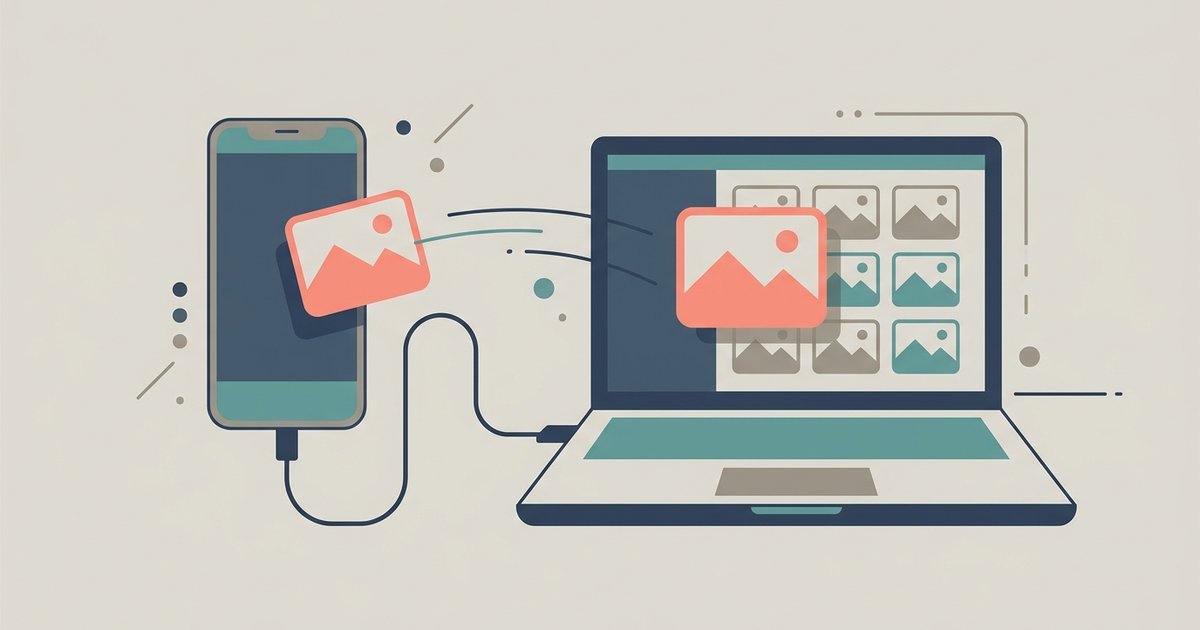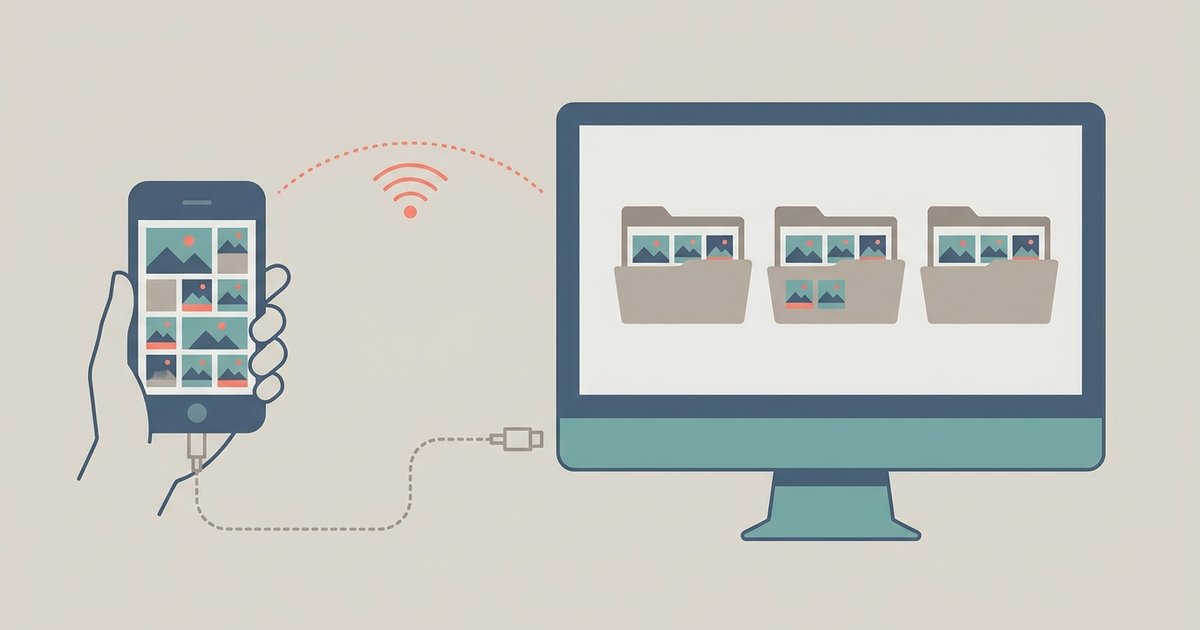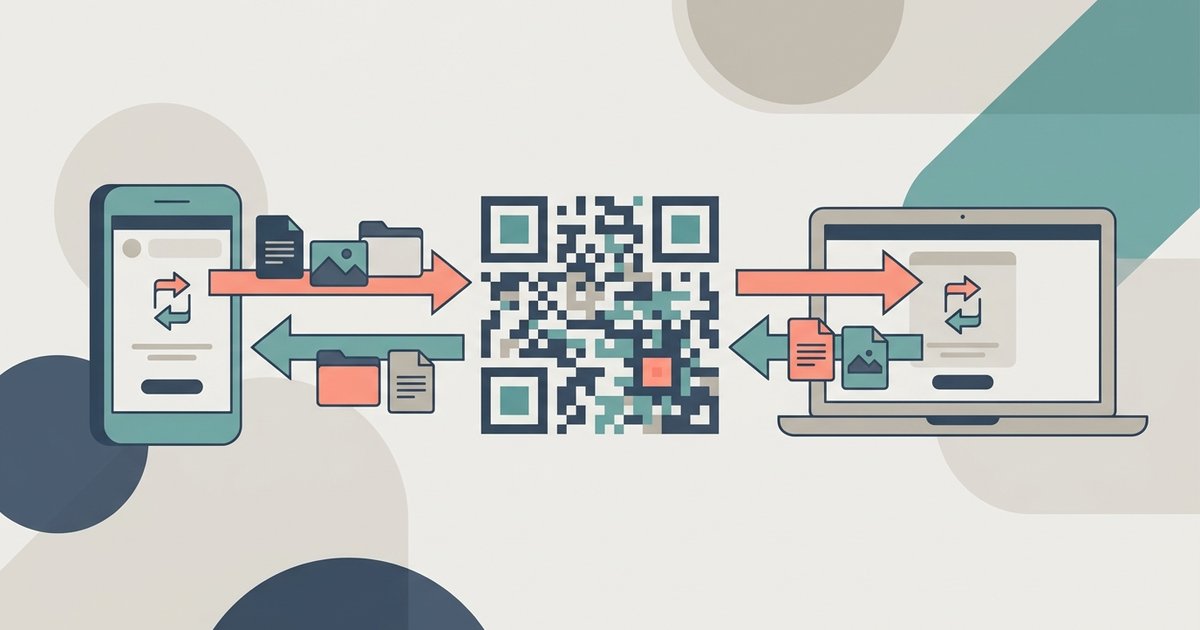
The fastest way to move files between a phone and a computer depends on which two devices you have. When both come from the same family, the built-in option is usually quickest: AirDrop between Apple devices, Quick Share between Android and Windows. When they don't match, such as an iPhone and a Windows PC or an Android phone and a Mac, a browser-based transfer with a link or QR code works on everything without installing anything.
Start With the Built-In Options
Phone and computer makers have closed a lot of the gap in recent years, so check whether your pair already has a native route before reaching for anything else.
- iPhone to Mac, or Mac to iPhone: AirDrop sends files, photos and links wirelessly between Apple devices that are near each other, with Wi-Fi and Bluetooth turned on.
- Android to Windows, or Windows to Android: Quick Share sends files between nearby Android phones and Windows PCs. On Windows it needs Google's Quick Share app installed.
- Android or iPhone with Windows through Phone Link: Microsoft's Phone Link connects a phone to a Windows PC for photos, messages and notifications. What it can do varies by phone, and Android phones get more features than iPhones.
- Cloud storage you already use: iCloud Drive, Google Drive and OneDrive sync files to every device signed in to the same account, which suits files you want to keep rather than just pass across.
These are the right choice for regular transfers between your own devices. They fall short when the devices don't match, when you are on a computer that isn't yours, or when you only want to move a file once without signing in to anything.
The Cross-Platform Problem
AirDrop does not work with Windows or Android. Quick Share does not work with a Mac or an iPhone. Cloud storage works everywhere, but it means signing in to your account on every device, which you may not want to do on a work computer, a library PC or a friend's laptop. A USB cable still works, but only if you have the right cable, and iPhones need extra steps on Windows to show more than photos.
A browser is the one thing every phone and computer has. That makes a browser-based transfer the most reliable fallback when nothing else lines up.
Move Files Through Your Browser With a Link or QR Code
ShareIt.onl's transfer tool moves files between phone, PC, Mac and tablet in the browser, with no app and no account. It works in both directions:
- Open the page on the device that has the files. On a phone, open it in your mobile browser. On a computer, open it in any desktop browser.
- Add the files. Tap to browse your photos or files, or drag and drop on a computer. You can send up to 100 files, or 3 GB in total, per share without signing in.
- Pick how long the link lasts. Without an account you can choose from 1 hour to 7 days.
- Open the link on the other device. Scan the QR code with the phone's camera if you are moving files from a computer to a phone, or copy the short link and open it on the computer if you are going the other way.
- Download. The files download in the browser, and the link expires on the schedule you chose.
The QR code is what makes this fast in practice. Moving a file from a laptop to your phone takes one scan, with no typing and no need to email yourself.
Keep Private Files Private
When the files are personal, such as scanned documents, contracts or family photos, use the extra controls:
- Add a password so the link is useless to anyone who doesn't also have it.
- Delete after first download makes the link stop working as soon as you have fetched the files on the other device.
- Choose the shortest expiry that covers the job. For a transfer between your own devices, an hour is usually plenty.
Links on ShareIt.onl are unlisted and files travel over HTTPS, but as with any link-based service, anyone who has the link can open it until it expires. Don't paste it anywhere public.
Which Method to Use
| Your devices | Best built-in option | When to use a browser transfer instead |
|---|---|---|
| iPhone and Mac | AirDrop | Rarely needed |
| Android and Windows PC | Quick Share or Phone Link | On a PC where you can't install apps |
| iPhone and Windows PC | iCloud for Windows, Phone Link (limited) | Most one-off transfers |
| Android and Mac | None built in | Most transfers |
| Any device and someone else's computer | None you'd want to sign in to | Always |
Tips for Large Files and Videos
- Use Wi-Fi. Uploading a long phone video over mobile data is slow and can eat into your data allowance.
- Keep the screen on while a large upload runs on a phone. Some phones pause browser activity when the screen locks.
- Send folders as one share. On a computer you can add a whole folder instead of picking files one by one.
- Check the file on arrival. Open a large video or archive on the receiving device before you delete the original.
The Bottom Line
Use the built-in route when your phone and computer come from the same ecosystem, and cloud storage for files you want everywhere. For everything in between, such as an iPhone with a Windows laptop, an Android phone with a Mac or any device with a computer that isn't yours, a browser transfer with a QR code is the quickest way across, and it leaves nothing behind once the link expires.
\nRelated reading: How to Move Photos from a Phone or Email to a Computer, How To Sync Google Calendar On Phone And Computer, and How To Transfer Files From Voice Recorder To Computer.