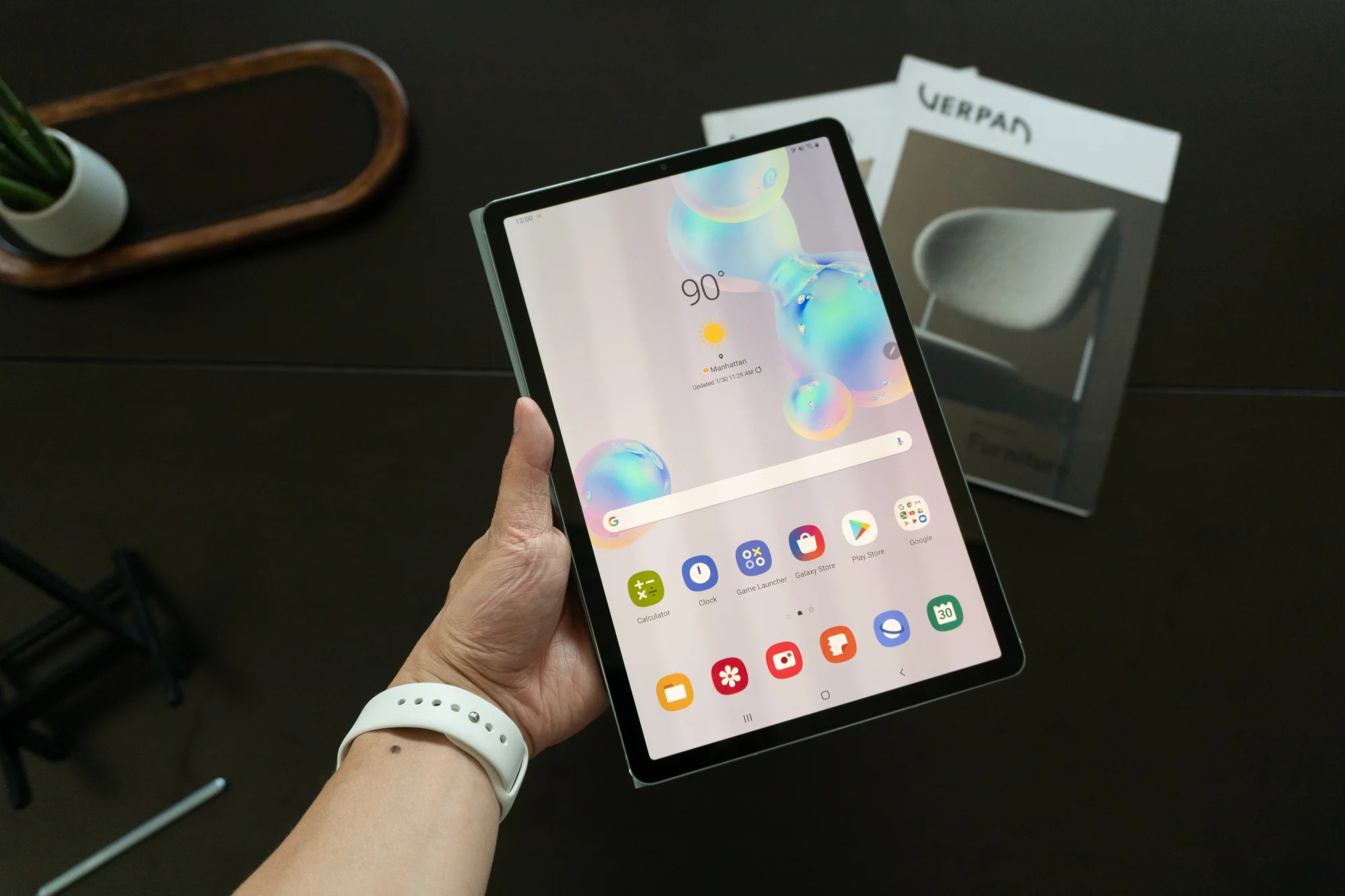
To change storage to SD card on a Samsung tablet, you cannot make the SD card function as internal storage, but you can move apps and files to it to free up space. This guide shows you how to move apps, photos, videos, and documents to the SD card and set the camera to save new media directly to it. If the card isn’t detected, you may need to get my garmin to recognize my sd card first to rule out formatting issues. You can also change the default download location on Android so future files from your browser land directly on the card.
Check if your tablet supports an SD card
Before buying or inserting an SD card, verify that your Samsung tablet has an SD card slot and supports external storage. Most Samsung tablets do, but some budget or older models may not.
- Open the Settings app on your tablet.
- Scroll down and tap Storage or Storage & USB.
- Look for a section labeled SD card or External storage.
- If you see that option, your tablet supports expandable storage. If not, it does not have an SD card slot, and you cannot change storage to an SD card.
If your tablet supports external storage, proceed to the next step. If you are unsure about the exact location of the storage settings, check your tablet's user manual or search online for your model name and "storage settings."
Insert the SD card
Once you confirm your tablet supports an SD card, you need to insert it properly to avoid damage. Always power off the tablet before inserting or removing the SD card.
- Power off your Samsung tablet completely.
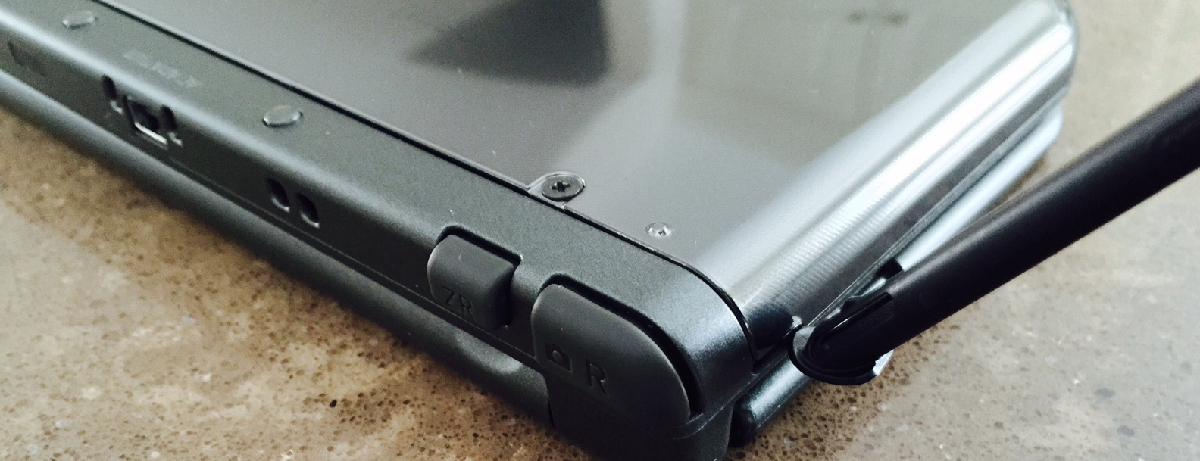
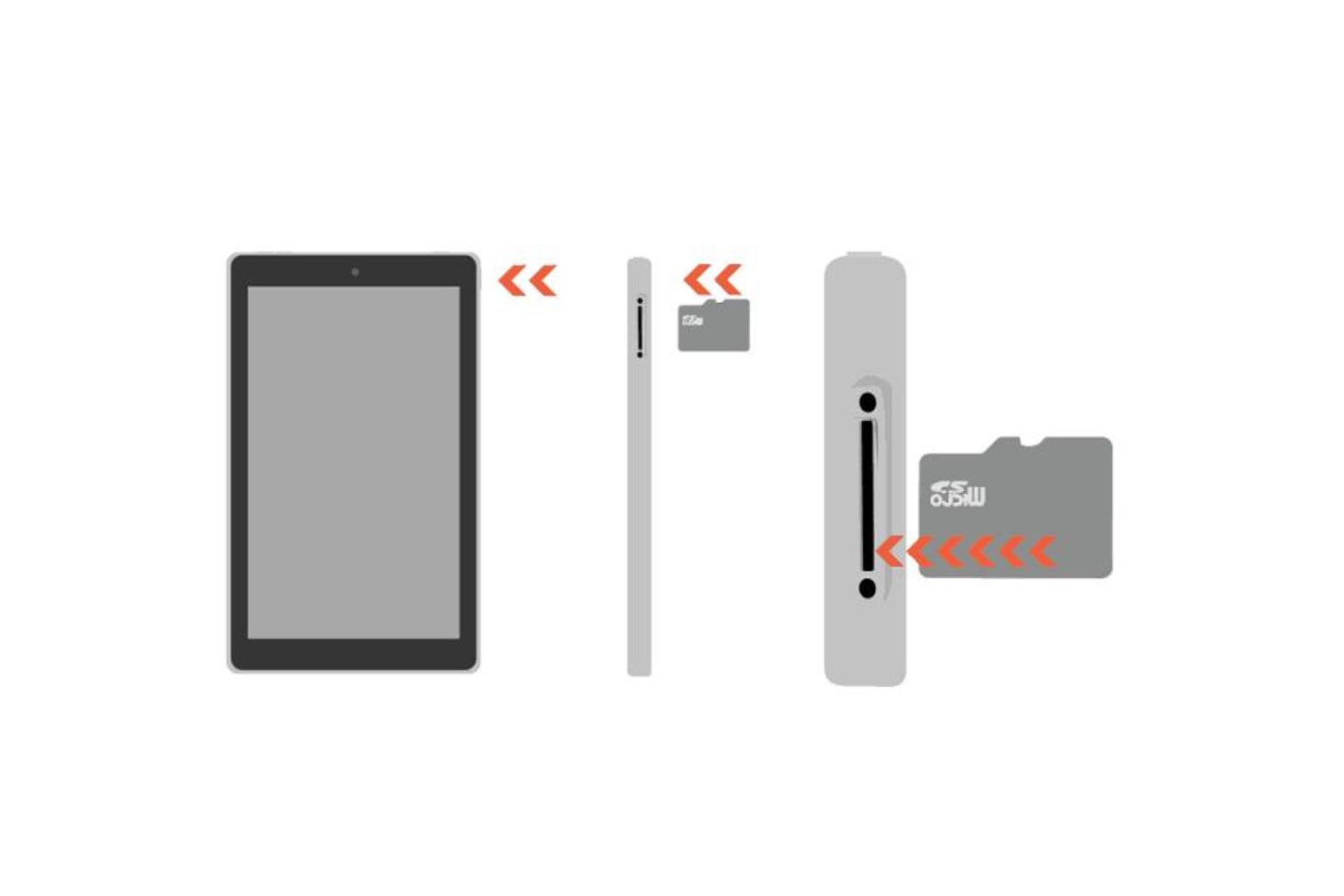
- Locate the SD card tray. It is usually on the side or top edge of the tablet. If you cannot find it, consult your user manual.
- Use the eject tool (or a small paperclip) to gently push into the small hole next to the tray. The tray will pop out.
- Place the SD card into the tray with the gold contacts facing down. Align the notches correctly.
- Push the tray back into the slot until it clicks into place.
- Power on your tablet. It will detect the SD card automatically.
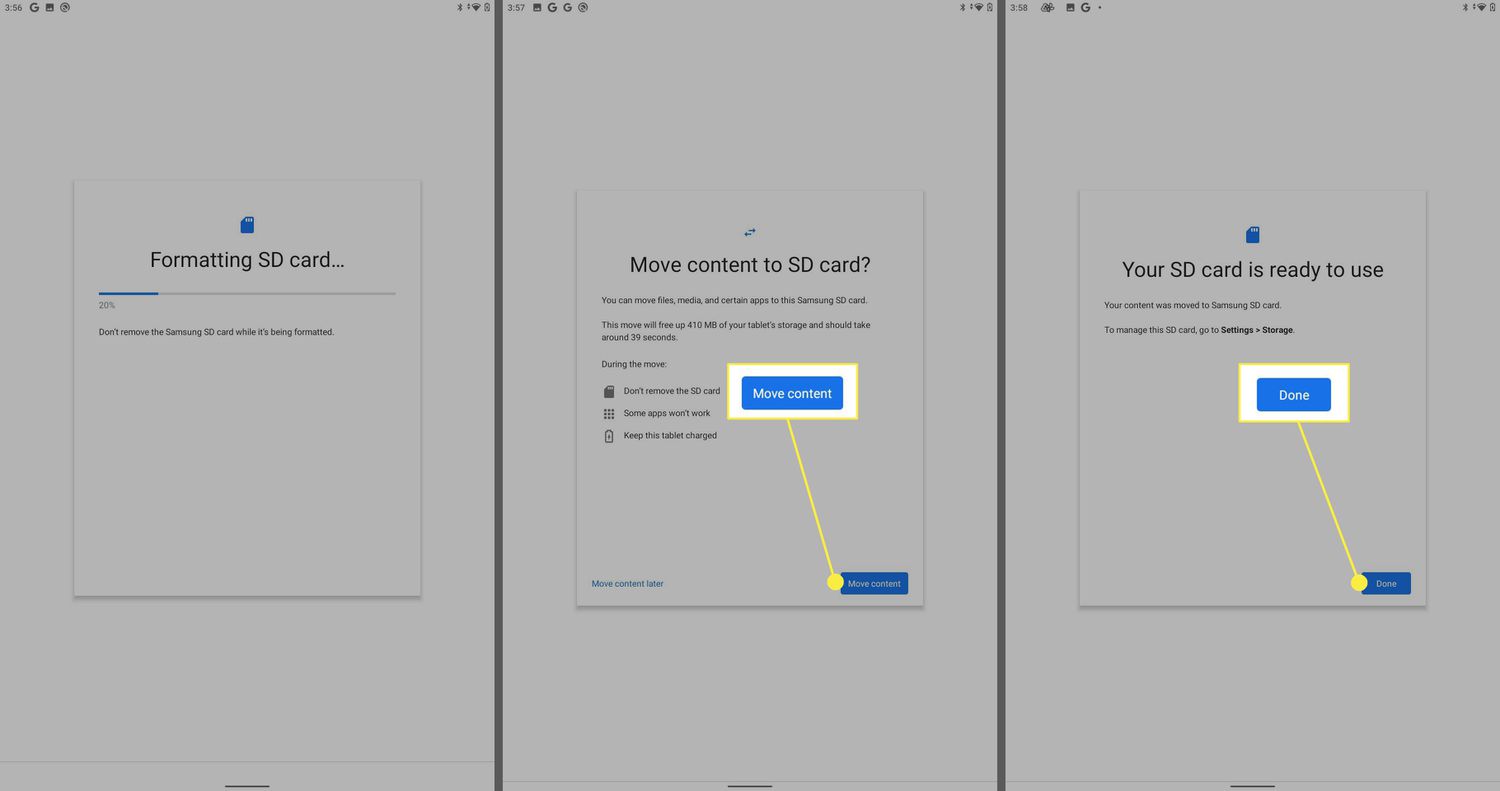
If the tablet prompts you to format the SD card, follow the on-screen instructions. If not, you can format it manually in the next step.
Format the SD card
Formatting prepares the SD card for use with your tablet and ensures compatibility. This step erases all data on the card, so back up any important files before proceeding.
- Open Settings and tap Storage or Storage & USB.
- Under the external storage section, tap your SD card.
- Tap Format or Format SD card.
- Read the warning about data loss, then confirm by tapping Format again.
- Wait for the formatting to complete. You will see a confirmation message when it is done.
After formatting, the SD card is ready to store apps, photos, videos, and documents. Now you can start moving content to it.
Move apps to the SD card
Moving individual apps to the SD card frees up significant internal storage. However, not all apps can be moved because the option depends on the app developer and the app's design.
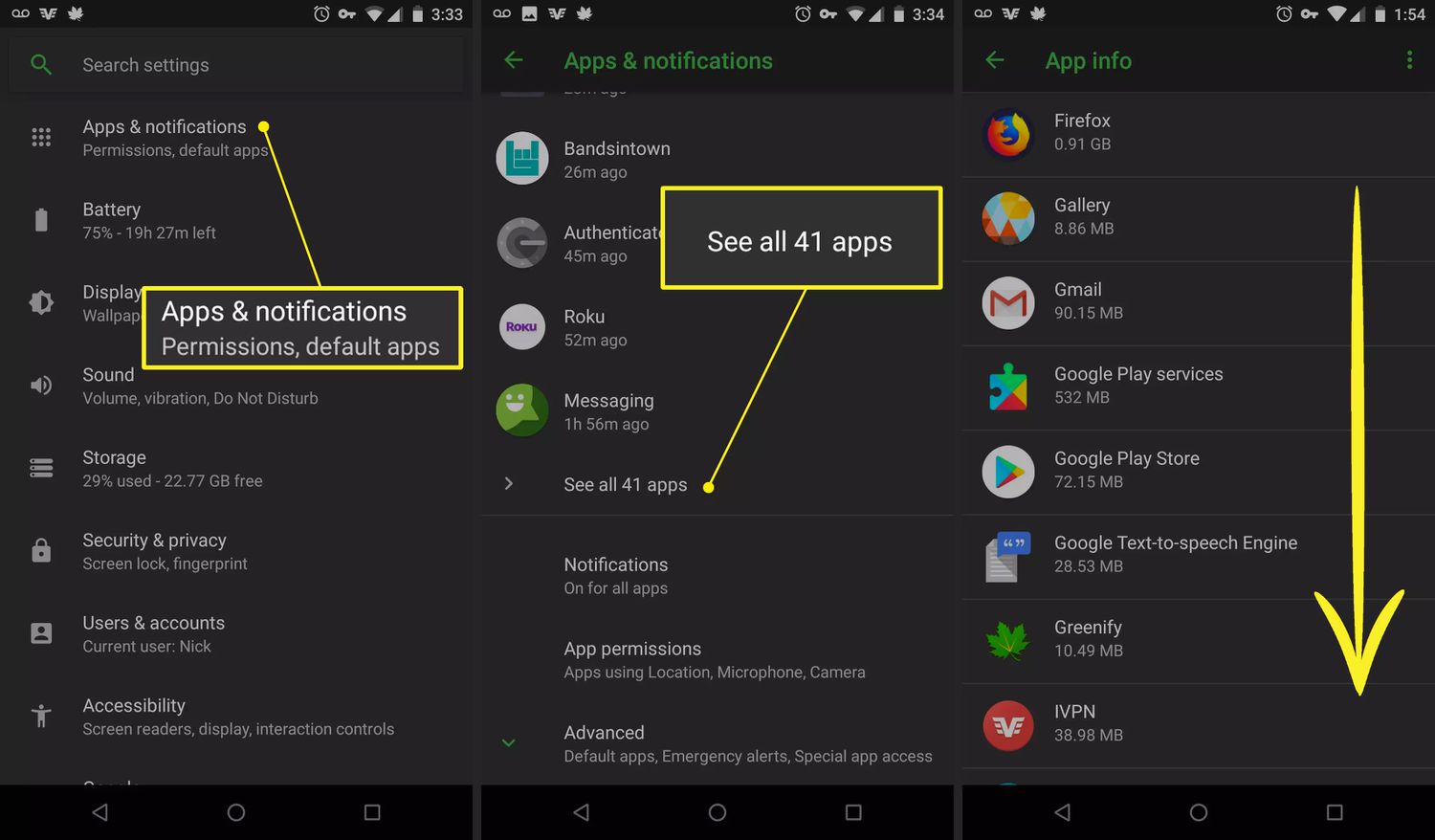
- Open Settings and tap Apps.
- Select the app you want to move from the list.
- Tap Storage.
- If the app supports external storage, you will see a Change button. Tap it.
- Choose SD card from the options.
- Tap Move to transfer the app to the SD card.
The Change option only appears if the app developer has enabled support for external storage. Preloaded system apps cannot be moved, and apps with widgets, background services, or notifications often cannot be moved safely because it may cause them to malfunction. If you do not see the Change option, that app cannot be moved to the SD card.
Move photos, videos, and files to the SD card
Using the My Files app, you can manually move or copy existing media and documents from internal storage to the SD card. This is the most reliable way to free up space for files that cannot be moved through the app settings.
- Open the My Files app on your tablet. If you cannot find it, look for a folder icon labeled "My Files" or "Files."
- Tap Internal storage.
- Navigate to the folder containing the files you want to move (e.g., DCIM for photos, Movies for videos, Documents for PDFs).
- Select the files by tapping and holding one, then tapping others to multi-select.
- Tap Move or Copy at the bottom of the screen.
- Navigate to your SD card from the left menu or by tapping the back arrow and selecting "SD card."
- Choose a destination folder or create a new one.
- Tap Move here or Copy here to complete the transfer.
Moving files this way helps you keep your internal storage clean and ensures you have space for new apps and system updates. Repeat this process periodically to manage your storage effectively.
Set the camera app to save directly to the SD card
To prevent new photos and videos from filling up your internal storage, change the camera's save location to the SD card. This ensures that all future media is stored on the external card automatically.
- Open the Camera app on your tablet.
- Tap the gear icon (Settings) in the top left or top right corner of the camera viewfinder.
- Scroll down to find Storage location or Save to.
- Tap it and select SD card.
- Close the settings. All new photos and videos will now be saved directly to the SD card.
If you do not see this option in your camera settings, your camera app may not support saving to an SD card. In that case, you can use the My Files app to manually move new photos and videos to the SD card as described in the previous section.