Yes, you can play Windows Steam games on a Mac, but the best method depends on whether you have an Intel or Apple Silicon processor. Since macOS Catalina (10.15), Apple dropped support for 32-bit applications, which broke many older "Mac-compatible" Steam games, and Steam itself will soon end support for older macOS versions, requiring macOS 12 or later for future updates.
Can you play Windows Steam games on Mac?
The short answer is yes, but no single solution works for every game. Your Mac's processor type dictates your options: Intel Macs can use Boot Camp for full Windows performance, while Apple Silicon (M-series) Macs rely on compatibility layers like CrossOver or Steam Play. Additionally, Steam's native macOS client only supports games specifically built for macOS, so Windows-only titles require one of the methods below.
Check your Mac processor type first
Open the Apple menu and select "About This Mac." Look at the line labeled "Chip" or "Processor." If it says "Apple M1," "M2," "M3," or "M4," you have Apple Silicon. If it lists an Intel processor, you have an Intel Mac. This matters because Boot Camp is Intel-only, while CrossOver and Steam Play work on both architectures.
Method 1: Use CrossOver or Wine (works on all Macs)
Compatibility layers like CrossOver translate Windows commands into Mac commands, allowing many Windows games to run on macOS without a full Windows installation. This is the best first option for Apple Silicon users, as it avoids the need for a Windows license or dual-booting.
- Download and install CrossOver (commercial) or Wine (free, open-source).
- Locate the Windows Steam installer file (SteamSetup.exe).
- Right-click the installer and select "Open With," then choose CrossOver or Wine.
- Follow the on-screen instructions to install Steam within the compatibility layer.
- Launch Steam from the CrossOver or Wine interface, log in, and download your Windows games.
Before committing, check the CrossOver compatibility database or WineHQ for per-game ratings. Not all games work perfectly, but many popular titles run well.
Method 2: Enable Steam Play (Proton) in Steam for macOS
Steam's built-in Steam Play feature uses Proton, a compatibility layer that translates Windows calls to macOS equivalents. No additional software is required beyond the Steam client, making it the most hassle-free option.
- Open Steam and go to Steam > Settings.
- Navigate to the "Steam Play" section.
- Check "Enable Steam Play for supported titles."
- Select the desired compatibility option from the drop-down menu.
- Click "OK" to save changes.
- Browse the Steam Store for Windows-only games; Steam Play will handle compatibility automatically.
Valve maintains an official compatibility list where you can check which games are supported. While not all games work flawlessly, Valve continues to improve Proton with each update.
Method 3: Install Windows with Boot Camp (Intel Macs only)
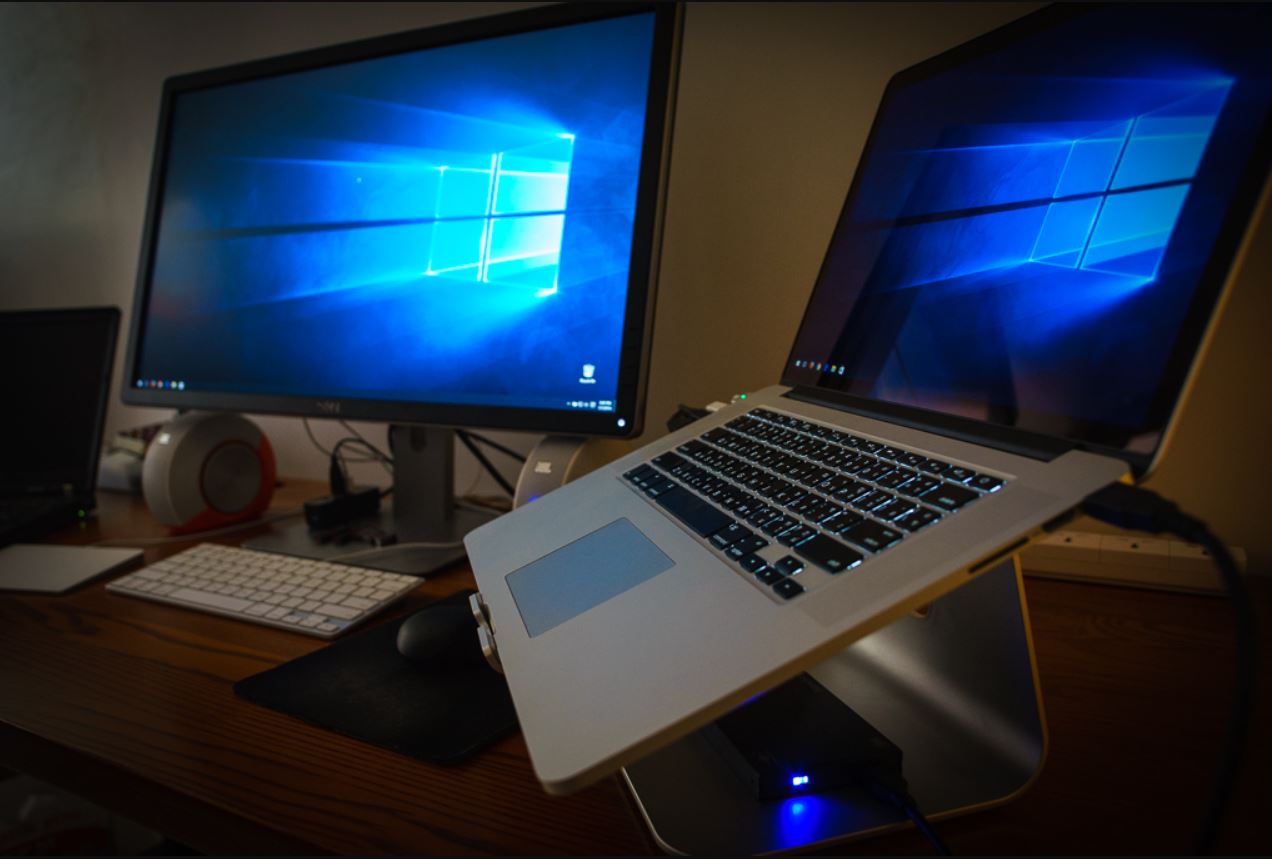
For Intel Macs, Boot Camp Assistant allows installing Windows on a separate partition, enabling you to dual-boot into Windows for playing Steam games with near-native performance. This is the best option if you want maximum performance and full compatibility.
- Open Boot Camp Assistant from the Applications > Utilities folder.
- Click "Continue" and select "Create a Windows 10 or later install disk."
- Choose the Windows ISO file and a USB flash drive for the installation media.
- Boot Camp Assistant will format the drive and create a bootable installer.
- Partition your Mac's internal storage to allocate space for Windows.
- Follow the on-screen instructions to install Windows.
- After installation, your Mac will boot into Windows automatically.
- Download and install the Steam client for Windows, then log in and play your games.
To switch between macOS and Windows, restart your Mac and hold the Option key during startup to access the boot menu. Note that Boot Camp is not available on Macs with Apple Silicon processors.
Method 4: Run Windows in a virtual machine
Virtual machine software like Parallels Desktop, VMware Fusion, or VirtualBox lets you run a simulated Windows environment within macOS. This is ideal if you need simultaneous access to both operating systems without rebooting.
- Install your chosen virtual machine software on your Mac.
- Create a new virtual machine and provide a Windows installation ISO file.
- Allocate RAM and hard drive space according to your game's requirements.
- Start the virtual machine and install Windows.
- Install drivers and necessary software within the virtual machine.
Performance for 3D games is limited due to GPU passthrough constraints, and you'll need to allocate sufficient RAM for a smooth experience. Virtual machines work on both Intel and Apple Silicon Macs, but Apple Silicon versions run an ARM version of Windows, which further limits game compatibility.
Why some older Mac-compatible Steam games stopped working
Since macOS Catalina (10.15), Apple dropped support for 32-bit applications, meaning many older "Mac-compatible" Steam games will no longer launch natively. Additionally, Steam will cease support for macOS 10.15 (Catalina) on February 15, 2025, and macOS 11 (Big Sur) on October 15, 2025. To continue receiving Steam updates and playing supported games, update to macOS 12 or later.
Choosing the right method for your setup
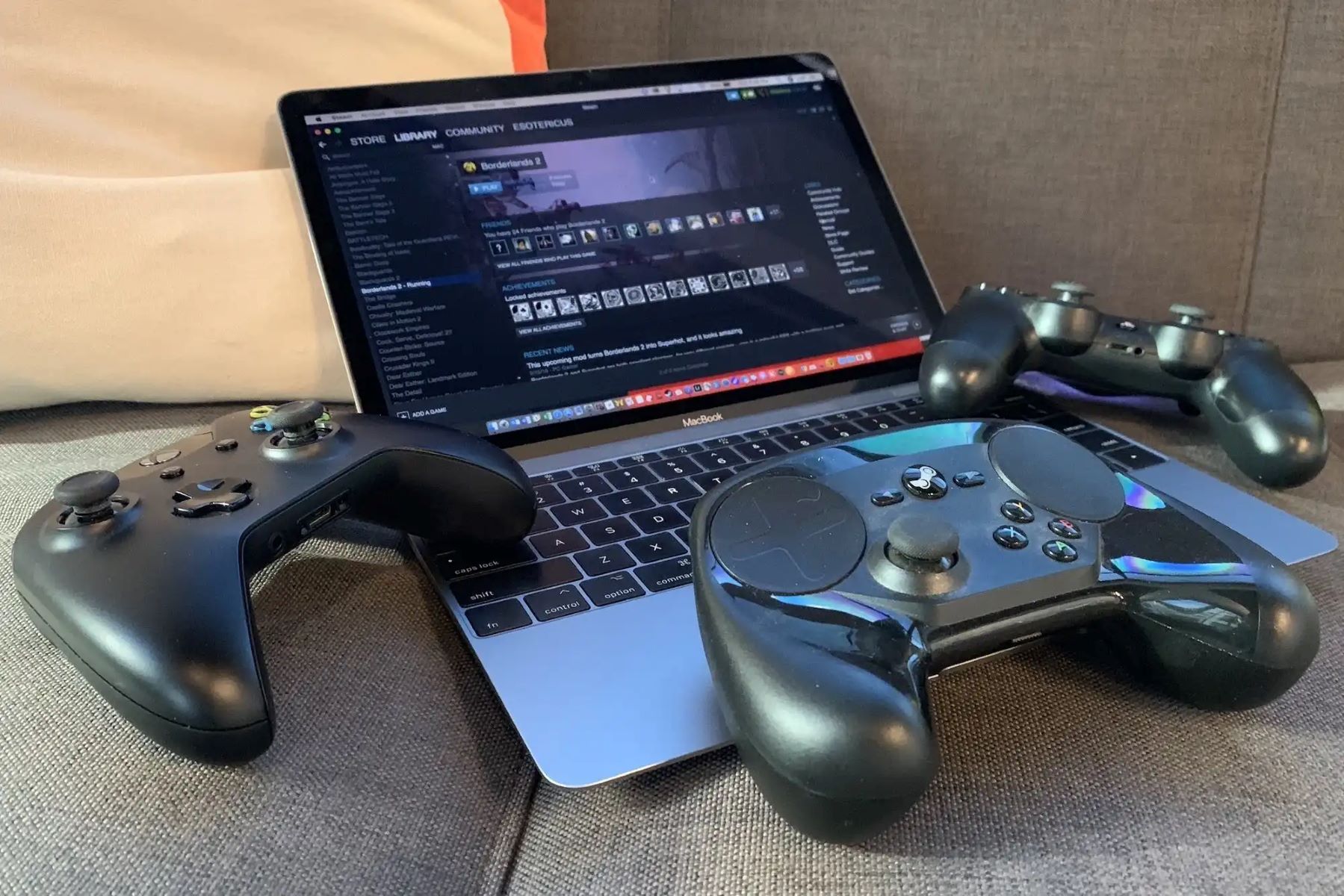
For Apple Silicon users, start with CrossOver or Steam Play, as these avoid the need for a Windows license or dual-booting. Intel users wanting maximum performance should use Boot Camp for near-native Windows gaming. Those needing simultaneous macOS access should consider virtual machines, though 3D game performance will be limited. Once your games are running, you can use a game controller on mac with Steam to get a more console-like experience. Always check per-game compatibility databases before committing to a method.
\nRelated reading: How To Install Windows Bootcamp On External Hard Drive and How To Use An External Hard Drive Formatted For Mac On A PC.