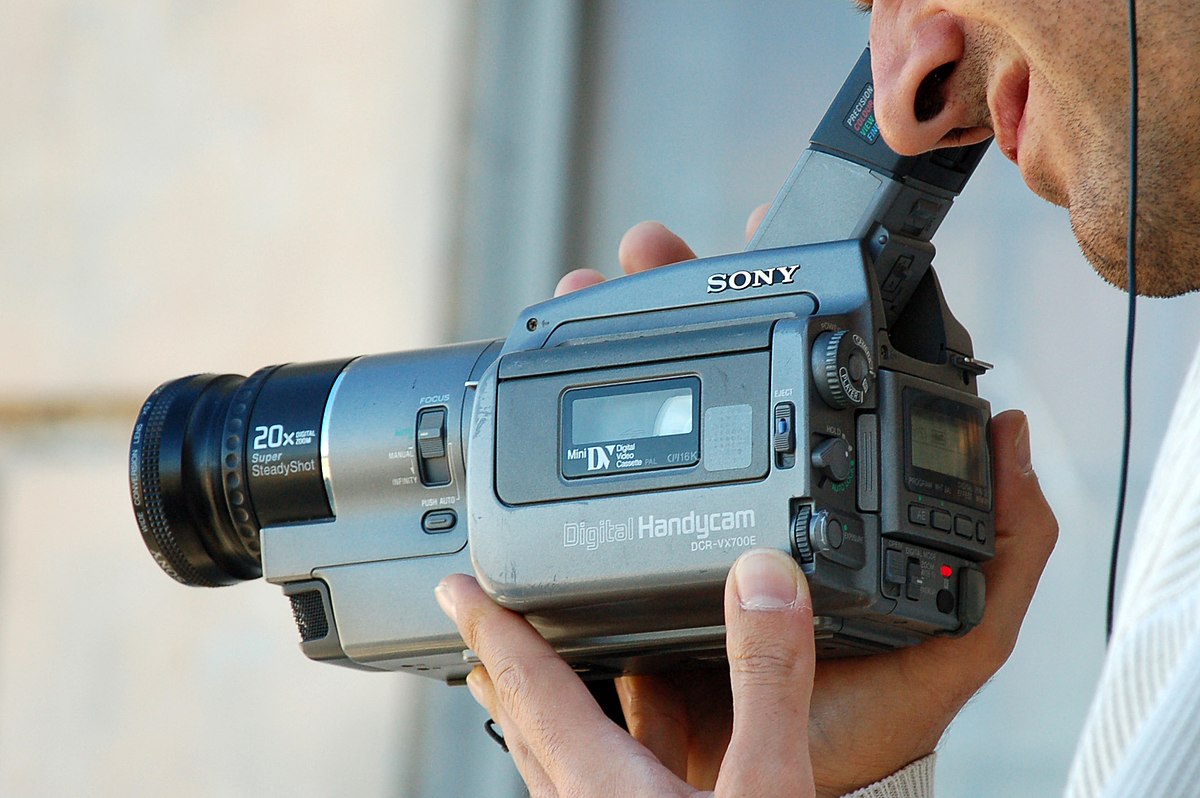
To connect your old camcorder to a smart TV, you need to identify your camcorder's output port, get the right cable, and then switch the TV to the correct input. The two main connection types are composite AV (using yellow, red, and white plugs) and HDMI, and this guide covers both.
Identify your camcorder's output port
Look at the side or back of your camcorder for its output port. Most older camcorders have one of three types: a standard AV port with three color-coded round jacks (yellow for video, red and white for audio), a single 3.5mm headphone-style jack that combines all three signals, or a rectangular HDMI port. If you see three separate round holes in yellow, red, and white, you have a standard AV output. If you see a single small round jack that looks like a headphone plug, you have a 3.5mm AV output. If you see a flat, trapezoidal port with multiple pins, you have an HDMI output. If you spot a port labeled RFU DC OUT, that is a proprietary Sony connection, so learn how the rfu dc out plug on a Sony camcorder differs before buying cables.
Get the right cable for your connection
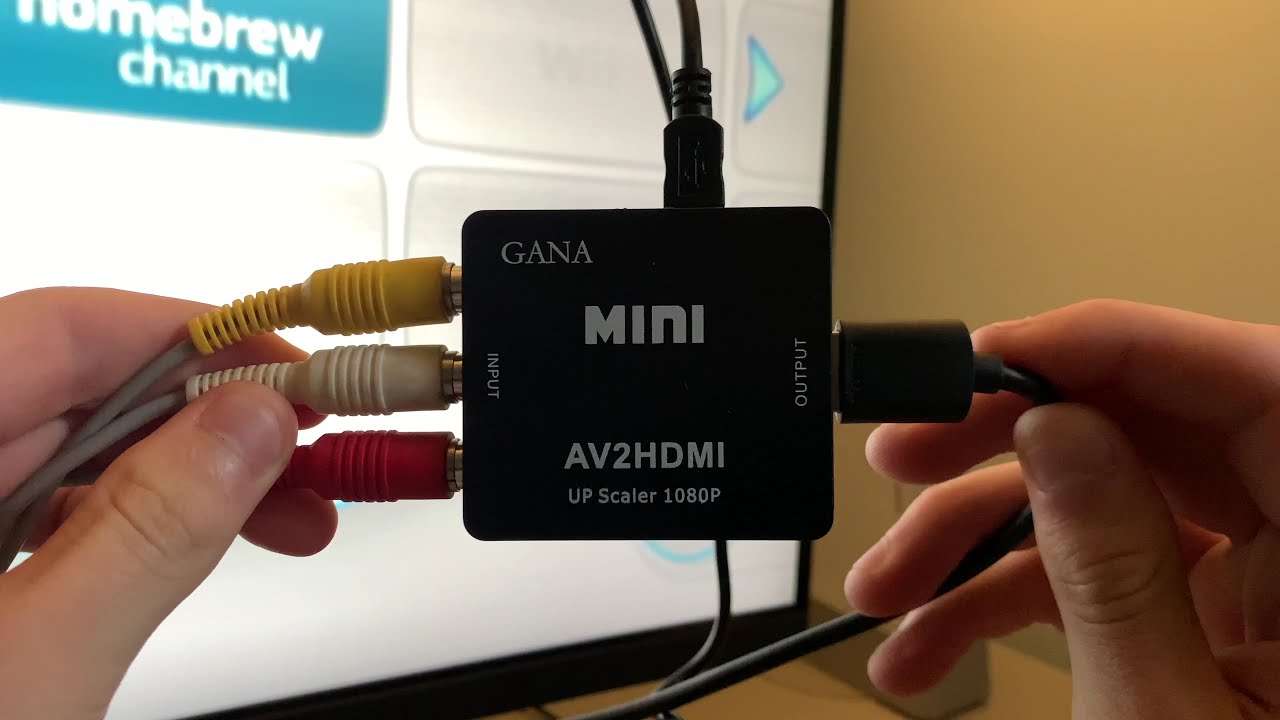
Once you know your camcorder's output port, purchase the matching cable. For a standard AV output, you need a standard AV cable with three male RCA plugs on each end (yellow, red, white). For a 3.5mm AV output, you need a 3.5mm-to-RCA adapter cable, which has a 3.5mm plug on one end and three RCA plugs (yellow, red, white) on the other. For an HDMI output, you need a standard HDMI cable.
Connect the camcorder to your TV
- For an AV connection: Plug the yellow, red, and white connectors on one end of the cable into the matching color-coded ports on your camcorder. Then, plug the other end of the cable into the matching color-coded composite input ports on your smart TV.
- For a 3.5mm AV connection: Plug the 3.5mm end into your camcorder's output jack. Then, plug the yellow, red, and white RCA connectors into the matching composite input ports on your smart TV.
- For an HDMI connection: Plug one end of the HDMI cable into the camcorder's HDMI output port. Plug the other end into any available HDMI input port on your smart TV.
Switch your TV to the correct input
Turn on your camcorder and set it to playback mode. Pick up your smart TV remote and press the button labeled "Input," "Source," or "AV." A list of input ports will appear on the screen. Press "OK" or "Enter" to confirm. The camcorder footage should now appear on your smart TV screen. If you are watching live TV on a smart TV, simply press the Input button again to switch back to your TV tuner.
Troubleshooting common problems
Then, double-check that you have selected the correct input on your TV. If the picture appears in black and white, ensure the yellow video plug is firmly connected to the yellow composite input port on your TV, and not mistakenly plugged into a green component video port (which is part of a red, green, blue set of inputs).
\nRelated reading: How To Connect DVR To Smart TV.