To find Safari settings on an iPhone or iPad, open the Settings app and tap Safari; on a Mac, open Safari and choose Settings from the Safari menu. The exact path differs by device, but both lead to the same core controls for search, privacy, and browsing data.
How to Find Safari Settings on iPhone & iPad
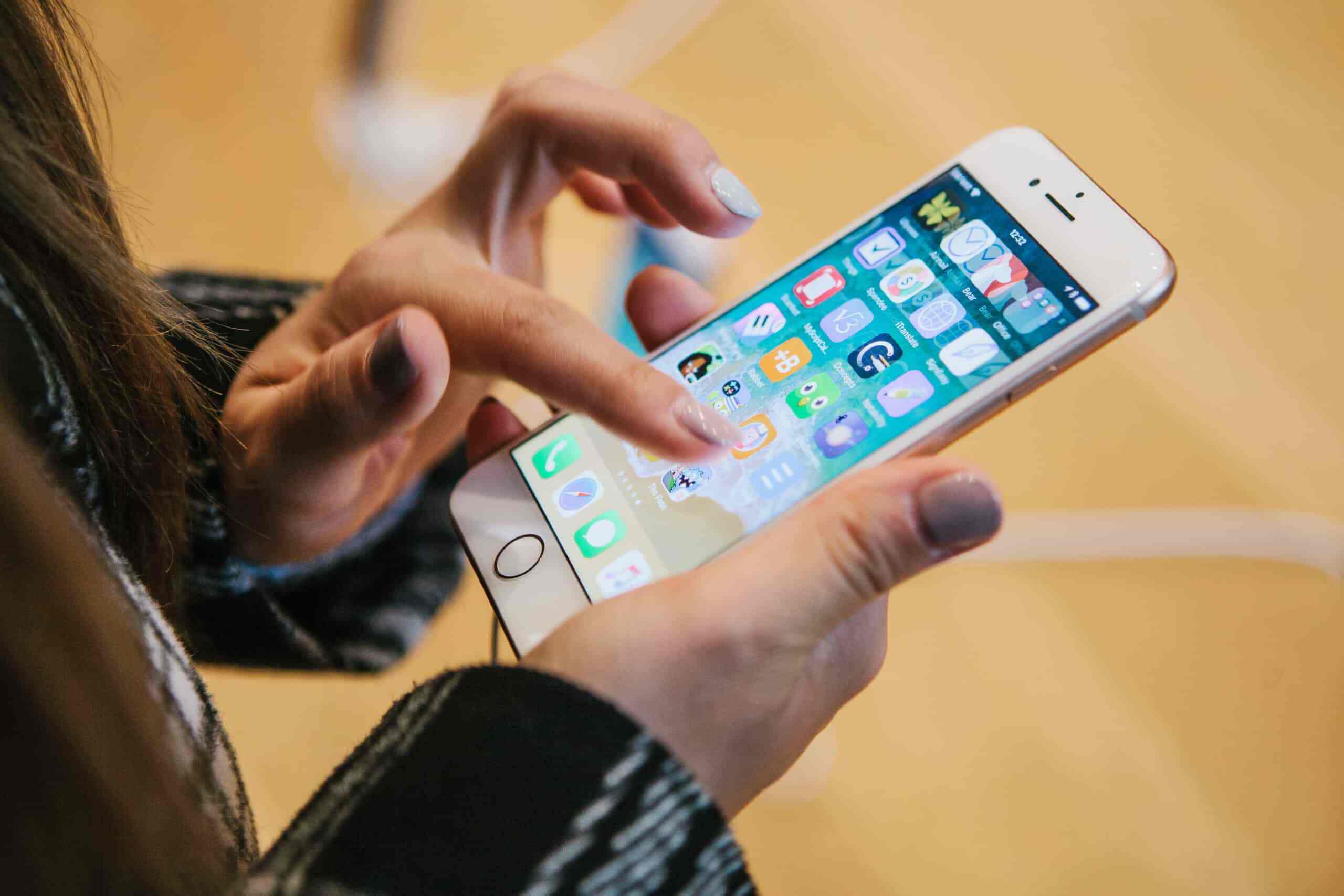
On iPhone and iPad, Safari does not have its own in-app settings button. Instead, all configuration options live inside the main iOS Settings app. This is where you change the default search engine, manage privacy features, or clear your history.
- Open the Settings app from your home screen (the gear icon).
- Scroll down the list of apps until you see Safari, then tap it.
- You now see every Safari preference, from search and autofill to privacy and downloads.
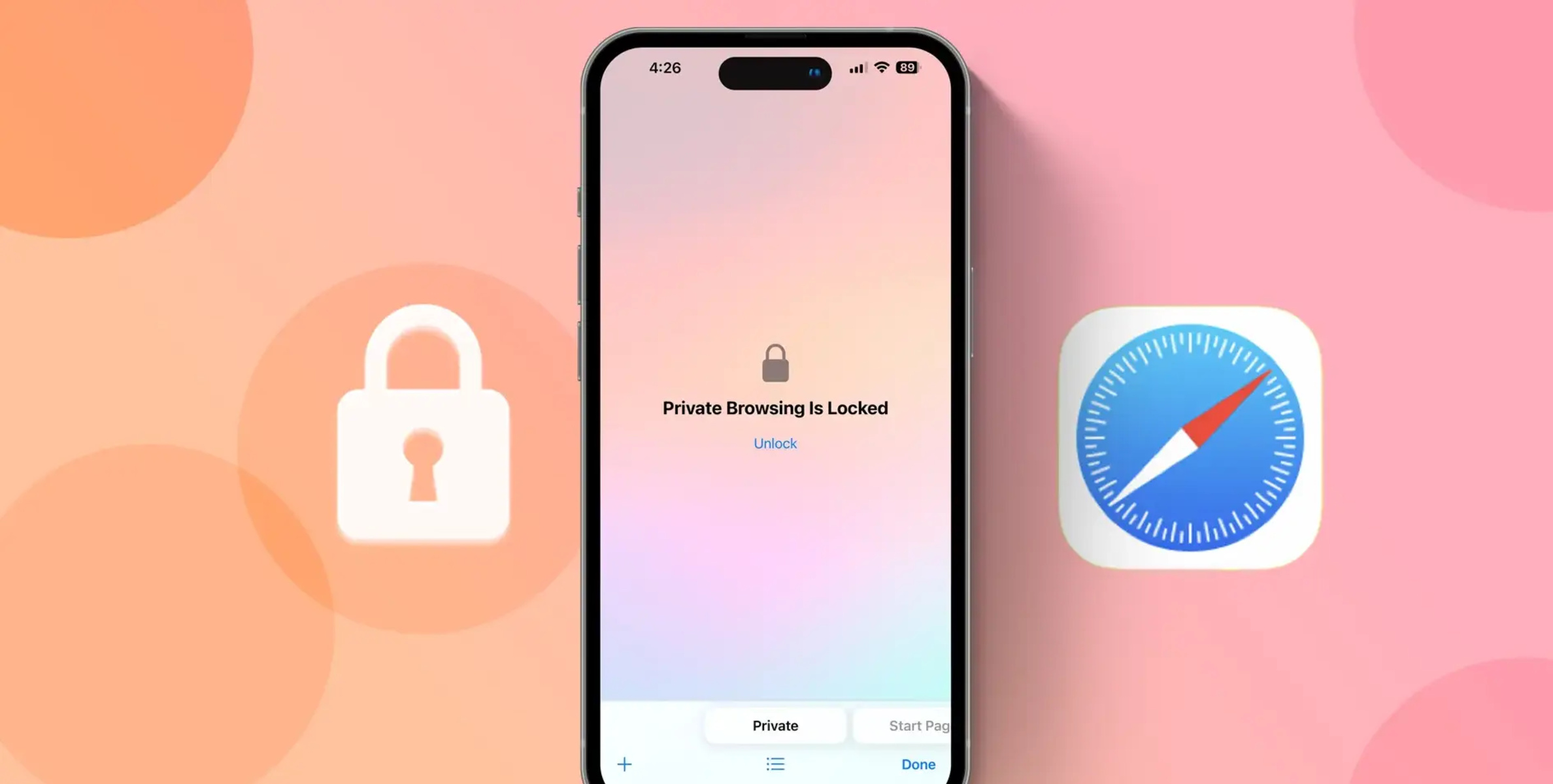
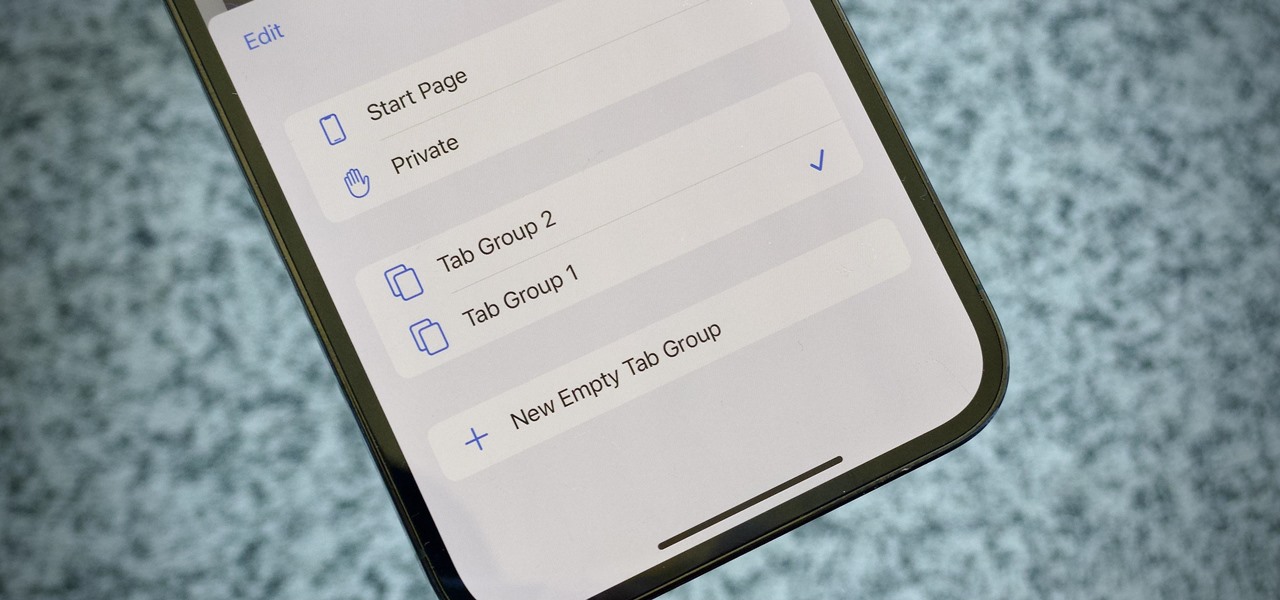
Since this is the only place to adjust mobile Safari, bookmarking this mental path saves time. You will return here for nearly every adjustment, including the Locked Private Browsing feature that requires Face ID, Touch ID, or a passcode to unlock on iOS 17 and later.
How to Find Safari Settings on Mac
On macOS, Safari settings are inside the browser itself, not in System Settings. This keeps them close to the action, but the menu bar location can be easy to miss if you are new to Mac.
- Open the Safari app from the Dock or Applications folder.
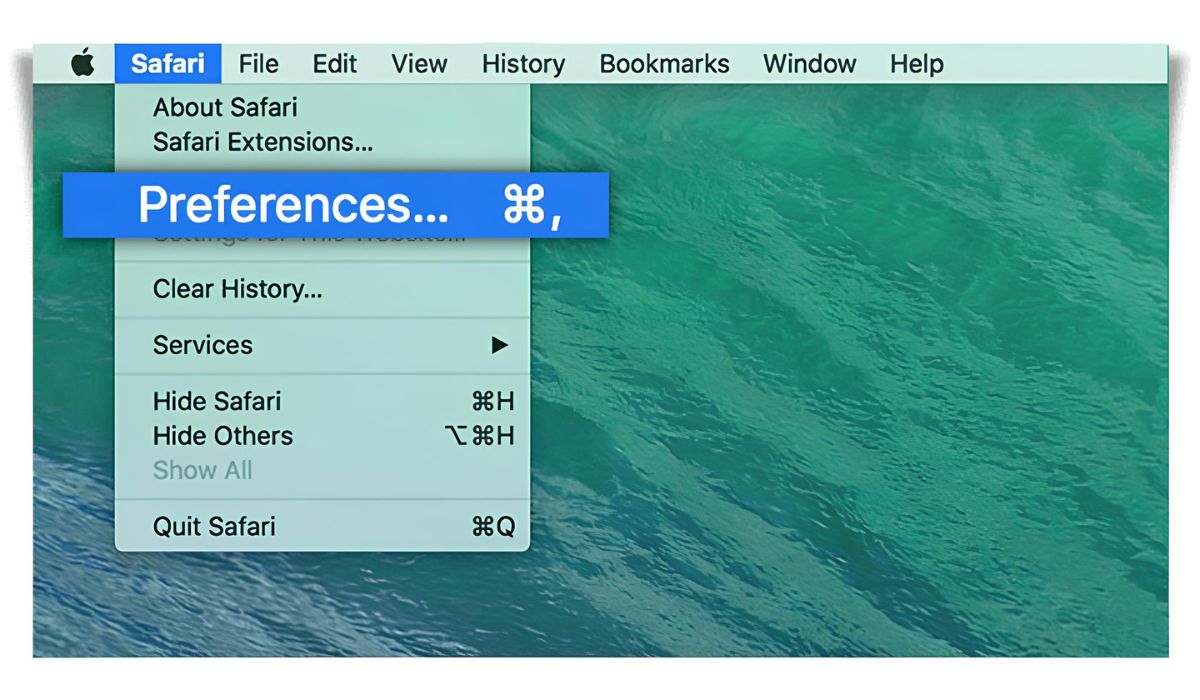
- Click Safari in the top-left menu bar.
- Choose Settings from the drop-down menu (on older macOS versions, this is called Preferences).
The Settings window opens with a row of tabs: General, Tabs, AutoFill, Passwords, Privacy, Security, Websites, Profiles, Extensions, Search, and Advanced. Each tab groups related options, so you can jump directly to the pane you need rather than scrolling through a long list.
Key Privacy & Security Settings to Check
Both mobile and desktop Safari include privacy controls that are worth reviewing. On iPhone and iPad, go to Settings > Safari and scroll to the Privacy & Security section. There you will find toggles for Prevent Cross-Site Tracking, Hide IP Address, and Fraudulent Website Warning. These three options work together to reduce tracking and alert you to known malicious sites.
On Mac, open Safari > Settings > Privacy to see the same core protections. Additionally, Safari 17 on macOS Monterey, Ventura, and Sonoma enables Locked Private Browsing by default. This means a Private Browsing window locks after a period of inactivity, requiring your Mac password or Touch ID to reopen. You can manage this under Settings > Privacy.
For a deeper layer of control, the Websites pane on Mac lets you set permissions per site for content blockers, pop-ups, camera, microphone, and Reader mode. On iPhone and iPad, these same per-site controls are under Settings > Safari > Website Settings.
Changing Your Default Search Engine
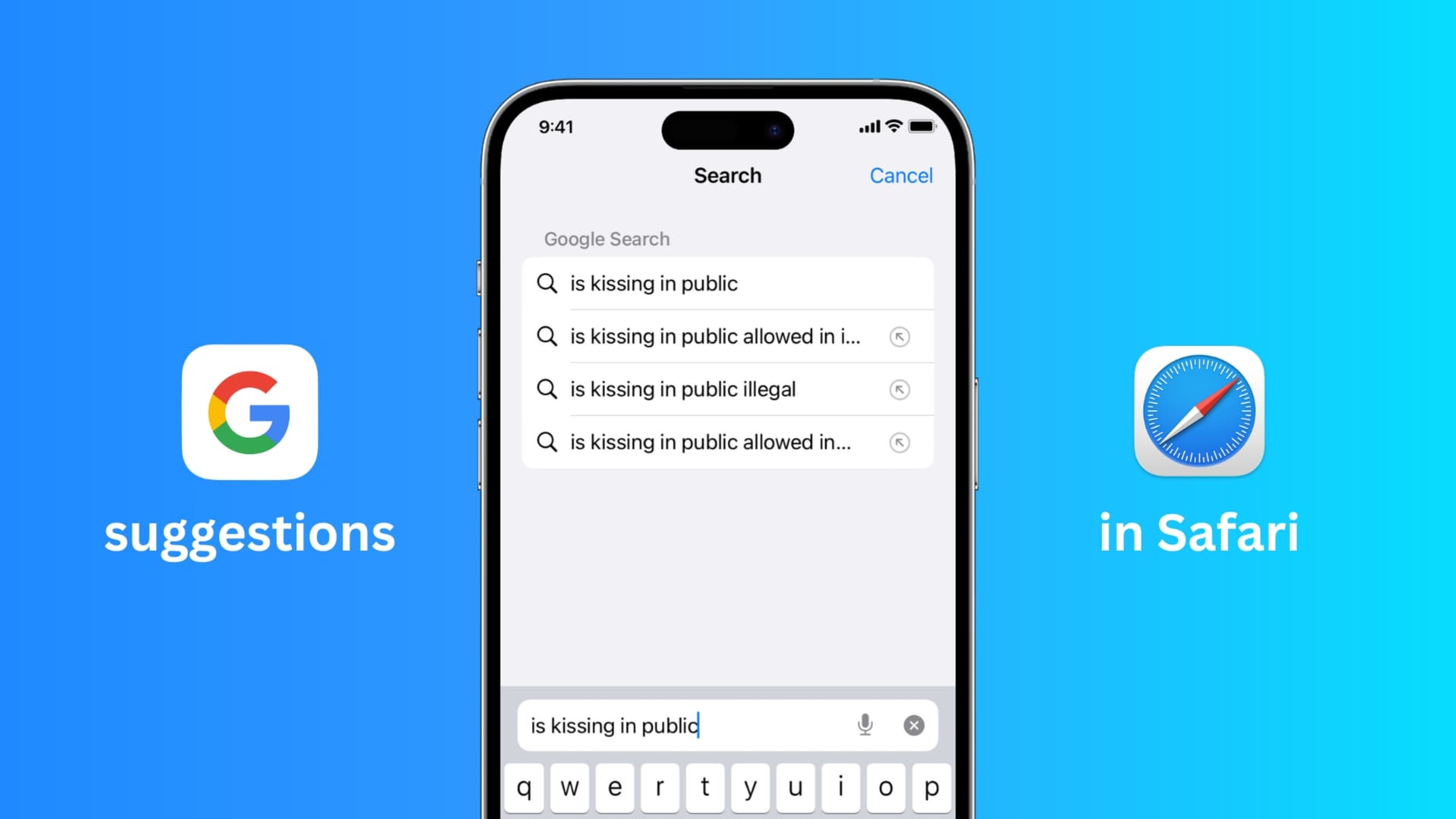
You can pick a different search engine for regular browsing and a separate one for Private Browsing. On iPhone or iPad, open Settings > Safari and tap Search Engine to choose from the available options. Then tap Private Browsing Search Engine to set a distinct one for private tabs.
On Mac, go to Safari > Settings > Search. The first dropdown sets the default engine for normal browsing, and the second dropdown, labeled Private Browsing Search Engine, controls what is used in private windows. This separation is useful if you prefer one engine for everyday queries and another for more sensitive searches.
How to Clear Your Browsing History and Data
Clearing history and website data is a routine maintenance task that also protects your privacy. On iPhone or iPad, the path is Settings > Safari > Clear History and Website Data. This removes your browsing history, cookies, and cached files from all devices signed into the same iCloud account.
On Mac, the process is slightly different. Open Safari, then click History in the menu bar and choose Clear History. A dropdown lets you select the time range, the last hour, today, today and yesterday, or all history, before you confirm. Note that this clears history only; to remove cookies and site data on Mac, you must go to Settings > Privacy > Manage Website Data.
A Note on Safari Updates
Safari does not have its own update mechanism inside the browser. It is updated only through operating system updates, iOS, iPadOS, or macOS. To get the latest Safari features and security fixes, update your device’s operating system via Settings > General > Software Update on iPhone/iPad, or System Settings > General > Software Update on Mac. If you are ever wondering whether you have the newest Safari, check for an OS update first. This also means you cannot force a Safari update on an older OS version, so keeping your device current is the only way to stay protected. And if you ever need to use Safari on Android, that is not possible, since Safari is exclusive to Apple devices.