The easiest way to transfer Firefox bookmarks to a new computer is to use Firefox Sync, which automatically syncs your data across devices with no manual file handling. This method ensures your bookmarks, passwords, and other settings stay current without needing to export or import files.
The easiest way to transfer Firefox bookmarks: use Firefox Sync
Firefox Sync is the simplest and most reliable method because it keeps your bookmarks continuously updated across all your devices. You can use this method if you want to avoid manually moving files, and it works for bookmarks, passwords, open tabs, add-ons, and settings.
- On your old computer, open Firefox, click the menu button (☰), then select "Sign in to Sync" or go to "Settings" > "Account and Sync."
- Sign in to your free Mozilla account. If you don't have one, create it during this step.
- In the "Manage synced data" settings, ensure "Bookmarks" is selected for synchronization.
- On your new computer, install Firefox, click the menu button (☰), then "Sign in to Sync" and log in with the same Mozilla account.
- Firefox Sync automatically transfers your bookmarks, passwords, browsing history, open tabs, add-ons, and settings to the new computer.
Firefox Sync is for continuous synchronization, not a traditional one-time backup, as it constantly updates changes across your devices.
How to manually export Firefox bookmarks to an HTML file
If you prefer a manual backup or cannot use Firefox Sync, exporting bookmarks to an HTML file gives you a portable copy you can store anywhere. You can use this method if you want a static backup file that you control.
- Open Firefox on your old computer, click the menu button (☰), then go to "Bookmarks" > "Manage bookmarks" (or "Show All Bookmarks").
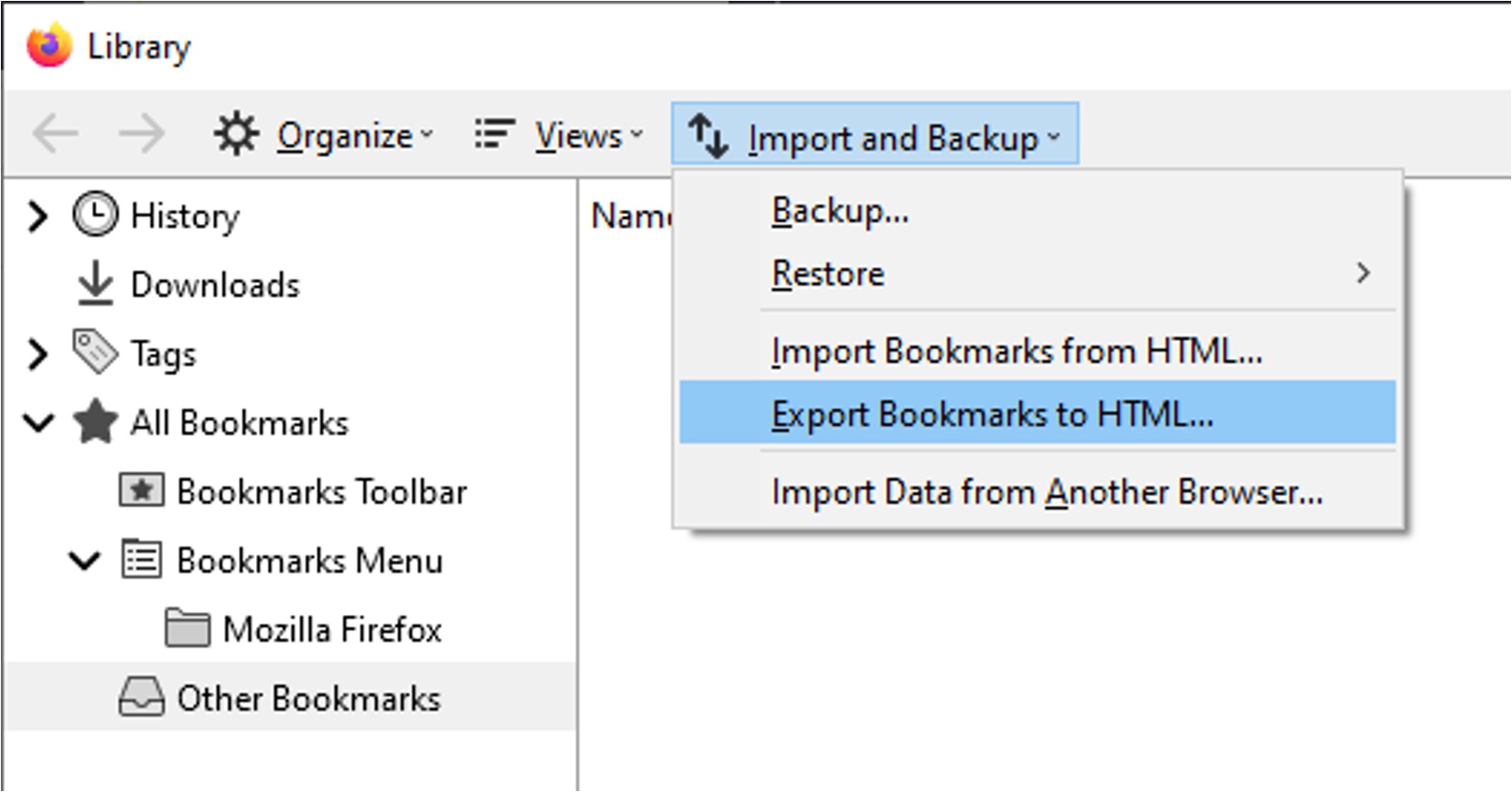
- In the Library window, click "Import and Backup" in the top menu bar.
- Select "Export Bookmarks to HTML..." from the drop-down menu.
- Choose a location to save the file (the default name is
bookmarks.html) and click "Save."
This file contains all your bookmarks in a standard HTML format that can be opened by any browser.
Transferring the bookmarks file to your new computer
Once you have the HTML file saved, you need to move it to your new computer. You can use this method if you want flexibility in how you transfer the file.
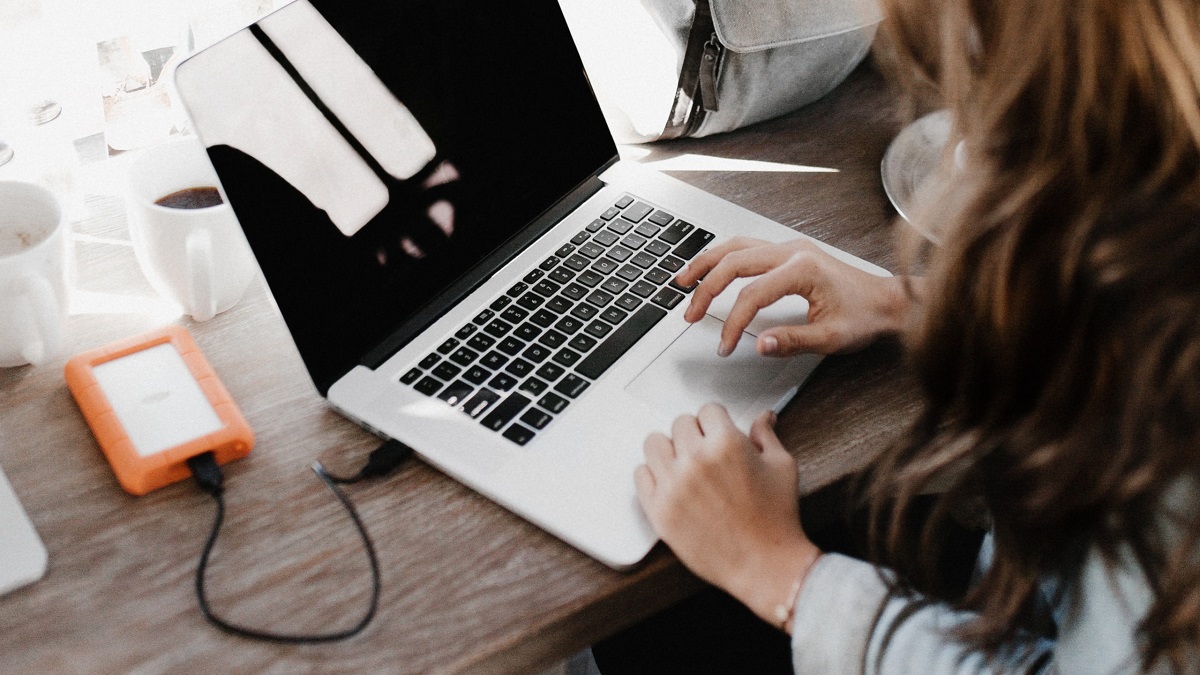
- USB drive: Copy the
bookmarks.htmlfile to a USB flash drive, then move it to your new computer. - Network transfer: If both computers are on the same network, use shared folders or your operating system's file transfer tools.
- Cloud storage: Upload the file to a service like Google Drive, Dropbox, or OneDrive from your old computer, then download it on your new computer.
Choose the method that best fits your setup and available resources.
Importing the bookmarks file into Firefox on the new computer
After transferring the file, import it into Firefox on your new computer to restore your bookmarks. You can use this method if you want to add the bookmarks without replacing your existing ones.
- Open Firefox on your new computer, click the menu button (☰), then go to "Bookmarks" > "Manage bookmarks."
- In the Library window, click "Import and Backup" and select "Import Bookmarks from HTML..."
- Navigate to the location of your saved
bookmarks.htmlfile, select it, and click "Open."
Importing bookmarks from an HTML file adds them to your existing bookmarks, typically within a new folder, so your current bookmarks remain untouched.
An advanced method: copying your Firefox profile folder
For users who want to transfer all Firefox data, including bookmarks, passwords, extensions, and settings, copying the entire profile folder is an option. You can use this method if you need a complete migration beyond just bookmarks.
- On your old computer, open Firefox, go to "Help" > "More Troubleshooting Information," and click "Open Folder" (or "Show in Finder" / "Open Directory") next to "Profile Folder."
- Close Firefox completely before copying the profile folder.
- Copy the entire profile folder to a USB drive or cloud storage.
- On your new computer, use the Firefox Profile Manager to create a new profile, then copy the contents of your old profile folder into the newly created profile folder, overwriting existing files.
This method is more complex and requires following Mozilla's official guide carefully, as directly replacing the entire profile folder might not work if the folder names do not match exactly. Using the Profile Manager to point to the copied folder is a more reliable approach.
\nRelated reading: How To Move Favorites From Chrome To Edge, How To Download Freestyle Libre 2 Data To Computer, and How To Import Microsoft Edge Bookmarks To Chrome.