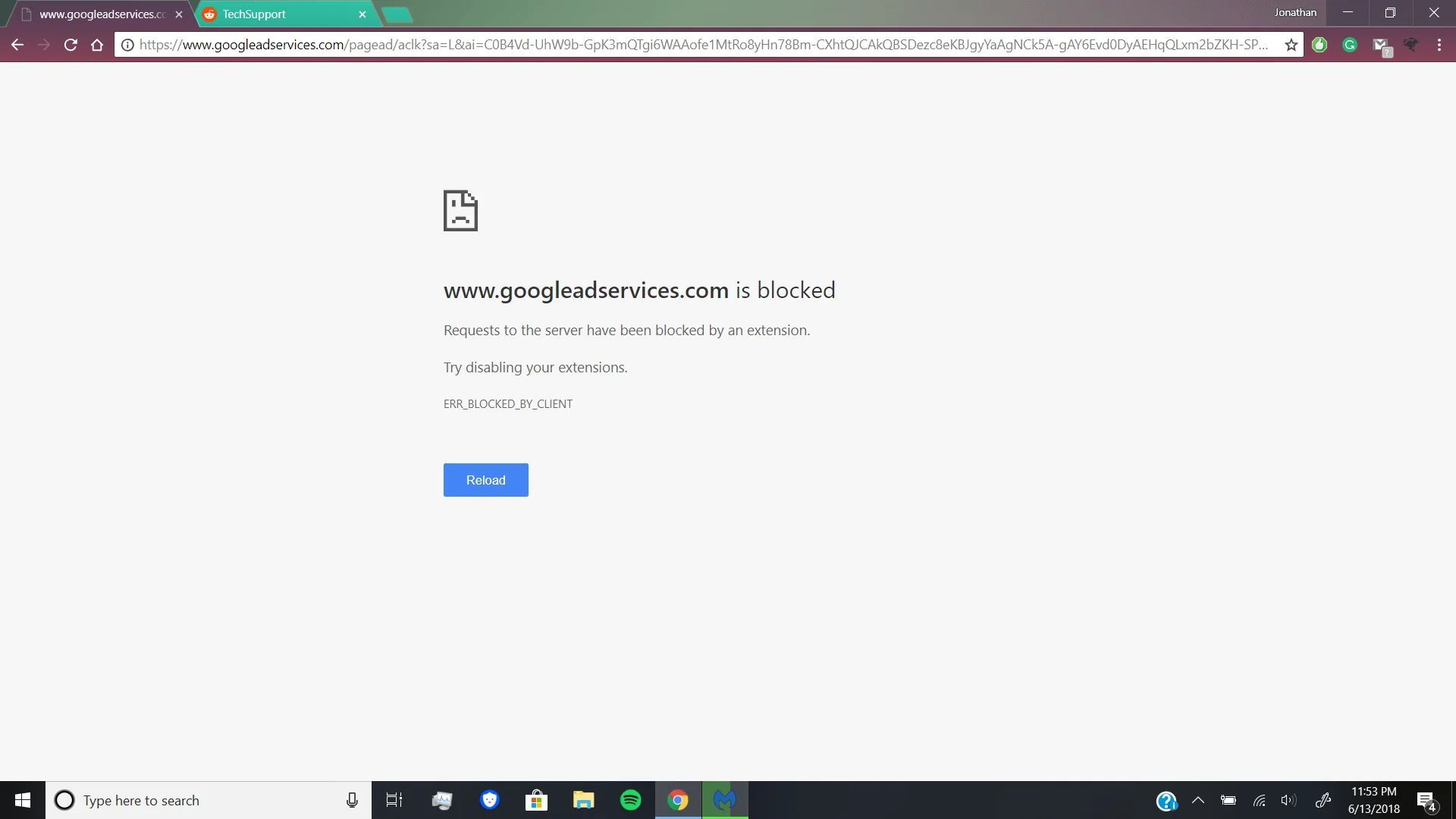
To remove googleadservices from Chrome, you need to address both the tracking domain and the adware that often causes the intrusive pop-ups and redirects you're experiencing. The core solution involves blocking third-party cookies and resetting Chrome settings, as googleadservices.com itself is a legitimate Google domain that adware can abuse to deliver unwanted ads.
What googleadservices.com is and why you want to remove it from Chrome
Googleadservices.com is a legitimate domain used by Google to serve targeted advertisements and track user behavior across websites. However, if you are experiencing excessive pop-ups, unwanted redirects, or a slow browser, it might indicate adware or malware, which can sometimes impersonate or abuse legitimate services like Google Ad Services. The symptoms that suggest a real problem include sudden pop-up ads that appear even when no websites are open, unwanted redirects to unfamiliar pages, and a noticeable slowdown in browser performance. If similar intrusive ads are disrupting your tablet, you can get rid of pop up ads on my tablet with steps tailored to that device. If you need to allow legitimate pop-ups from trusted sites after cleaning up the intrusion, you can unblock pop-ups on Chrome safely. These issues often mean that adware has installed itself on your system and is using googleadservices.com as a cover for its intrusive activity.
How to remove googleadservices from Chrome by blocking third-party cookies
To prevent googleadservices.com from tracking your activity, you can block third-party cookies in Chrome settings. This stops the domain from placing tracking cookies on your browser when you visit other websites. Here is how to do it:
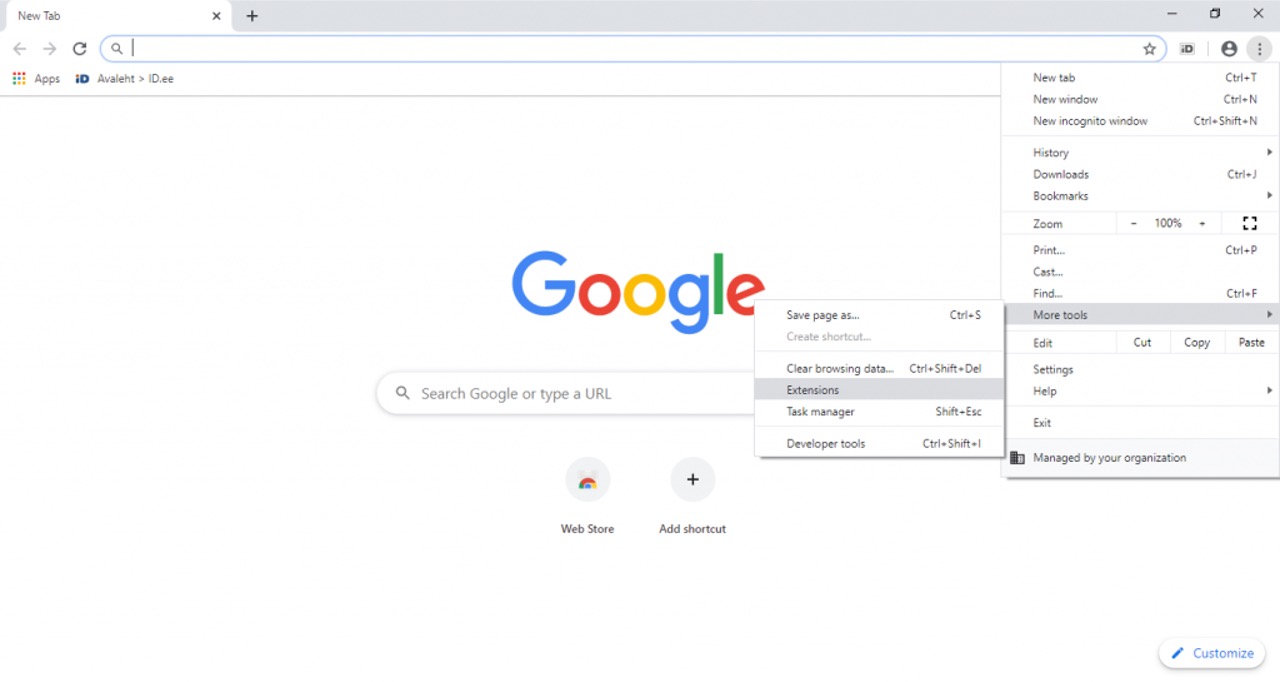
- Open Chrome and click the three dots menu in the top-right corner.
- Select "Settings" from the dropdown menu.
- In the left sidebar, click "Privacy and security."
- Click "Third-party cookies."
- Choose "Block third-party cookies."
This setting prevents googleadservices.com and similar domains from tracking your browsing activity across different sites, which is a key step in eliminating the targeted pop-ups you want to stop.
How to block intrusive ads with Chrome's built-in ad blocker
Chrome has a built-in ad blocker that automatically blocks intrusive or misleading ads on websites that violate the Better Ads Standards. This feature specifically targets the kind of disruptive ads that adware often forces into your browser. To ensure it is active:
- Open Chrome, click the three dots menu, and select "Settings."
- Go to "Privacy and security," then click "Site settings."
- Scroll down and click "Additional content settings."
- Click "Intrusive ads."
- Ensure the setting is "Block on sites that show intrusive or misleading ads."
This native ad blocker works silently in the background to filter out the most aggressive ad formats, reducing the chance of fake googleadservices pop-ups appearing.
How to clear your browsing data to remove tracking cookies
Clearing your browsing data, especially "Cookies and other site data," can help remove tracking cookies associated with googleadservices.com. Even after blocking third-party cookies, residual trackers may still be stored from before you changed the setting. To clear them:
- Open Chrome and click the three dots menu.
- Go to "More tools" and select "Clear browsing data."
- Choose a time range, such as "All time," to remove everything.
- Check the box for "Cookies and other site data."
- Click "Clear data."
This action wipes out any stored cookies from googleadservices.com and other tracking domains, giving you a clean slate.
How to reset Chrome settings to remove adware causing fake googleadservices pop-ups
Resetting Chrome settings can resolve issues caused by unwanted changes from apps or extensions, disabling extensions and reverting settings to default without deleting bookmarks or passwords. This is the most effective step when adware has modified your browser without your knowledge. To perform the reset:
- In the left sidebar, click "Reset settings."
- Click "Restore settings to their original defaults."
- In the confirmation dialog, click "Reset settings."
This process disables all extensions and resets your startup page, new tab page, and search engine to their defaults. It will not delete your bookmarks, saved passwords, or browsing history, but it will remove any malicious extensions that were causing the fake googleadservices pop-ups.
Still seeing ads? Scan for malware
If you continue to see unwanted pop-ups or redirects after completing the steps above, the underlying issue is likely adware that has infected your computer beyond Chrome's settings. Run a reputable malware scanner to detect and remove the adware program that is generating the fake googleadservices ads. A full system scan will identify and eliminate the root cause, ensuring the intrusive behavior stops permanently.