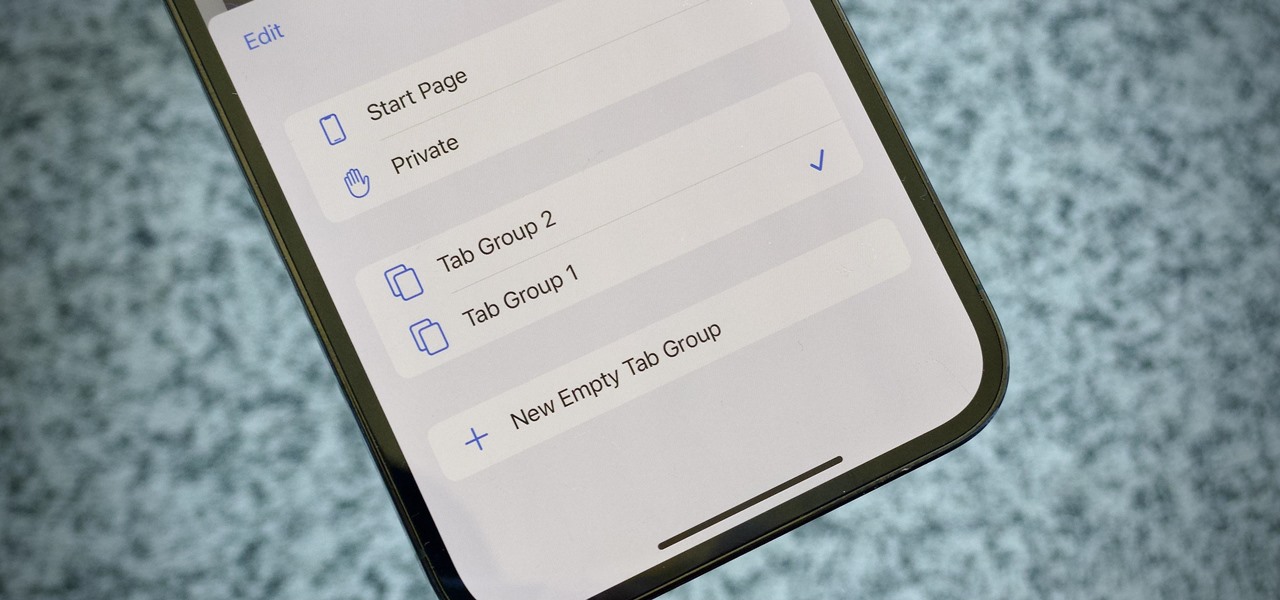
Deleting tab groups in Safari is the fastest way to remove a saved set of tabs and its name from your sidebar, instantly decluttering your browser. When you delete a tab group in Safari, the group’s tabs are either closed or returned to your regular tab window, and the group name disappears from the sidebar for good. If you're also looking to streamline your browser's toolbar, you can remove Grammarly extension from Safari to free up space, or remove puzzle piece from Safari to eliminate unused extension icons cluttering your toolbar.
What deleting tab groups in Safari does
Removing a Tab Group in Safari closes or ungroups the tabs that were saved inside it, and it deletes the group’s name from the sidebar so you no longer see it as an option. This action is permanent, there is no undo, so you’ll want to be sure you no longer need that specific set of tabs before you confirm the deletion.
How to delete a Tab Group on Mac
The exact process on a Mac takes only a few seconds and uses the sidebar’s contextual menu. Here are the three steps:
- Open the Safari app on your Mac, then click the Sidebar button in the toolbar if the sidebar isn’t already open.
- In the sidebar, Control-click (or right-click) the Tab Group you want to delete.
- Choose “Delete” from the contextual menu.
Safari will show a confirmation dialog asking if you’re sure. Click the affirmative option to finish, and the group is removed immediately.
Deleting a shared Tab Group
If the Tab Group you want to delete is one that you share with other people, the steps are identical, but there are a few requirements for the group to exist in the first place. All participants must be signed into their Apple Account, have Safari enabled in iCloud settings, and have two-factor authentication turned on. Additionally, shared Tab Groups can accommodate up to 100 participants, so if you’re managing a large group, you’ll want to keep that limit in mind. Deleting a shared group removes it for everyone, not just for you, so make sure all members are aware before you confirm.
What happens after you delete
Once you confirm the deletion, Safari closes the Tab Group and its tabs are either returned to the regular window or closed entirely, depending on your browser’s default behavior. The group’s name vanishes from the sidebar, and you won’t see it again unless you manually recreate it. This means your browsing environment is immediately tidier, and you can start fresh with a new set of tabs or continue working in the standard tab view without the extra layer of organization.
\nRelated reading: Why Does My Safari Go Black.