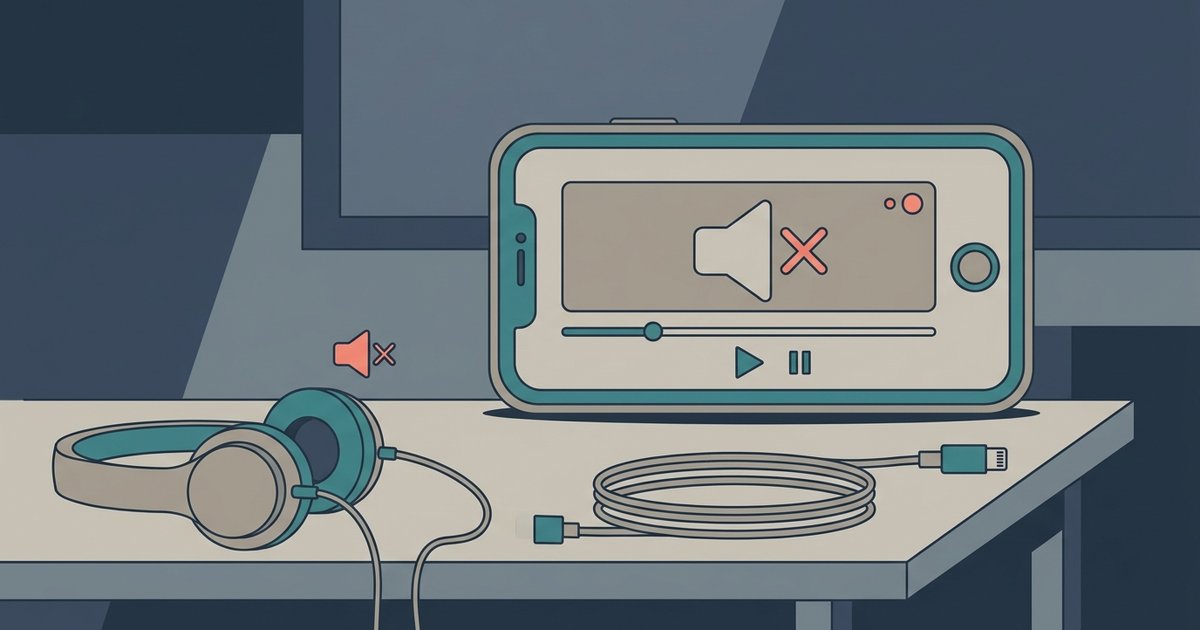
Tubi uses DRM (Digital Rights Management) that blocks internal audio capture during screen recording. The only way to record with sound is to use an external microphone to capture audio playing through your speakers.
The Tubi Screen Recording No Sound DRM Block You Can’t Bypass
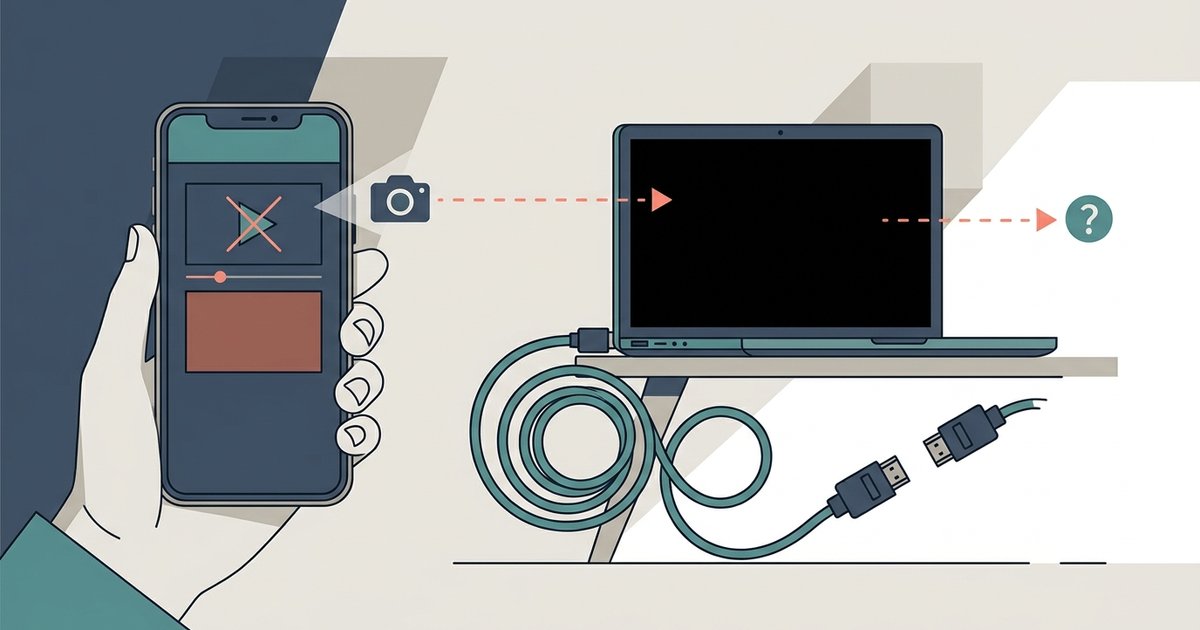
Tubi’s streaming platform employs DRM to prevent unauthorized copying of its licensed content. This is the same technology used by Netflix and Disney+. When you start a screen recording, the operating system requests an audio stream from the Tubi app. The DRM layer intercepts that request and delivers silence instead. No app setting can toggle this off. That includes Tubi’s in-player controls, your phone’s screen recorder options, and third-party software like OBS. Even if you enable “record system audio” in Windows 11’s Game Bar or turn off “mute recording” in iOS’s control center, the audio pipeline remains blocked. The DRM operates at the kernel level, which is also why Tubi screen recordings showing a black screen are a common companion problem. Some users mistakenly believe that changing the audio output format or disabling hardware acceleration will help. These adjustments only affect playback, not the DRM’s grip on internal capture.
The External Microphone Workaround
The only method that produces audio is pointing an external microphone at your device’s speakers to record the sound acoustically. On a laptop, you can plug a USB microphone into the recording device and position it near the speaker. On a phone, you can use a Bluetooth headset’s mic or the built-in front microphone while the Tubi video plays from the rear speaker. This workaround introduces significant quality trade-offs. You will hear room echo, fan noise, and any ambient sounds from your environment. The audio will be mono instead of stereo. The volume level also depends entirely on your speaker loudness. Turn it too high and you risk distortion. Turn it too low and the dialogue becomes buried under background hiss. To minimize noise, close windows, set your speaker volume between 50% and 70%, and place the microphone no more than six inches from the speaker grille. This is the same technique you would use to record a movie playing on a TV. It works across all devices because the DRM cannot block physical sound waves.
When the Answer Is No
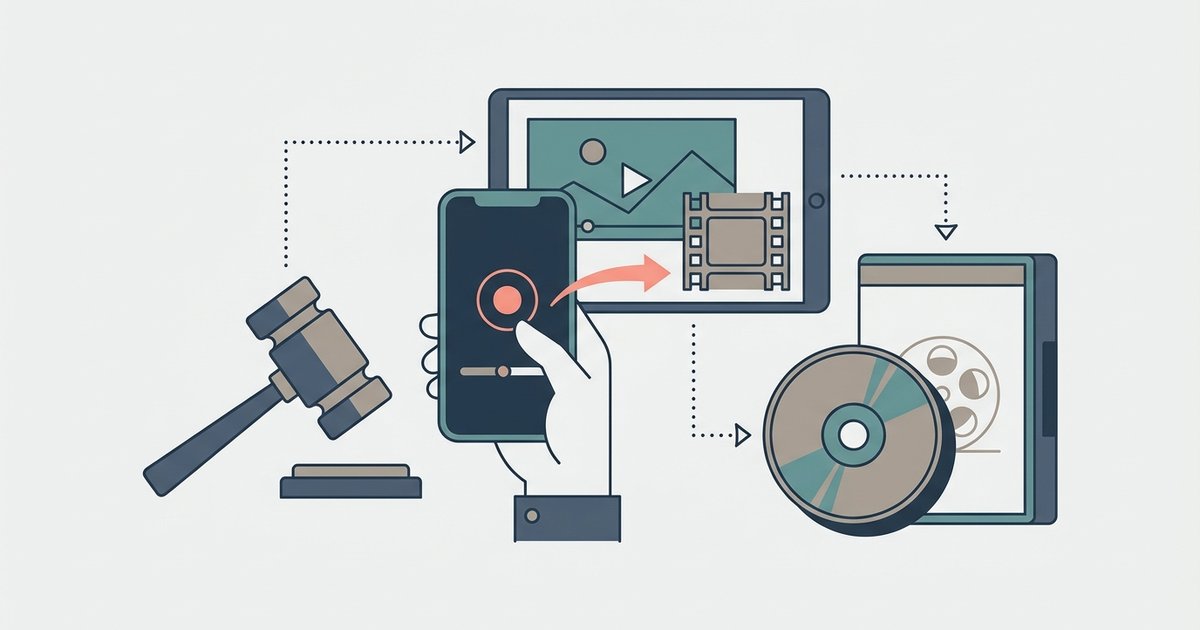
Even the microphone workaround fails in certain scenarios. On iOS devices, iPhones and iPads may automatically mute any screen recording that starts while a DRM-protected app is in the foreground. You will get a silent video regardless of your mic setup. On Android, some manufacturers may have added system-level restrictions that disable the external mic during screen recording when a DRM app is detected. This varies by OS version. Additionally, recording any portion of a Tubi stream, even with an external mic, likely violates Tubi’s terms of service, which prohibit “reproducing, duplicating, copying, selling, reselling or exploiting” content. Legally, this crosses into unauthorized reproduction of copyrighted material, similar to why you cannot legally use a tool to download videos from Tubi without permission. The same principle applies to other services. If you try to download from Disney plus on laptop using screen capture, the audio block works identically. Users often ask, “why cant I download Netflix” for the same DRM reasons. Attempting to download Amazon prime movies to USB flash drive via screen recording will also yield silent files. Before attempting any workaround, understand the risks of screen recording Tubi movies legally, as doing so can expose you to copyright infringement claims. In short, if your goal is to keep a permanent copy of a Tubi movie, no recording method, internal or external, is both functional and compliant with the platform’s rules.
Tubi’s DRM operates at the kernel level to block internal audio capture, so the only way to record sound is to use an external microphone to capture audio playing through your speakers acoustically.