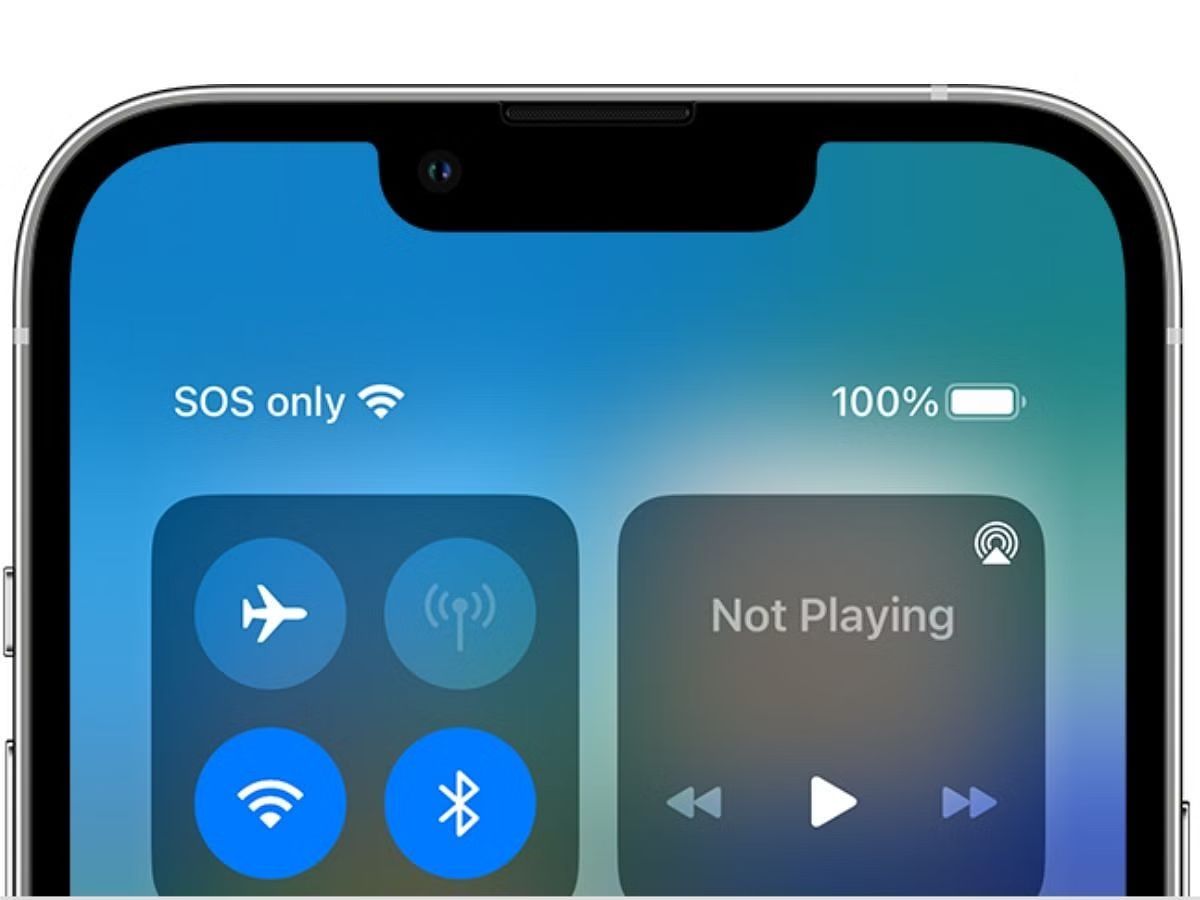
If your SIM card tray won't come out, the fix is usually simple: use the correct ejector tool, apply steady straight pressure into the right pinhole, and clear any debris blocking the slot. Before you try anything, however, check whether your phone even has a physical SIM tray: iPhone 14 models or later purchased in the United States, and certain iPhone 17 series models, support eSIM only and have no tray to eject at all. If the tray is out but the phone still shows no service, see resolving "sos only" SIM card issue for next steps, or if you see a "network locked" message instead, you may need fixing "network locked" issue with SIM card.
Why your SIM card tray won't come out
A stuck tray is rarely a sign of a serious defect. The most common culprits are debris lodged in the slot, a tray that was inserted at a slight angle and is now misaligned, or simply using the wrong tool or pinhole. Dust, pocket lint, and tiny grit particles can pack into the gap over time, creating just enough friction to stop the tray from sliding out. Misalignment happens when the tray is pushed in unevenly, one corner catches on the phone's frame, and the whole thing jams. Before you do anything else, confirm your phone actually has a tray. If you own a US-model iPhone 14 or newer, or one of the specific iPhone 17 models that ship eSIM-only, there is no pinhole and no tray; skip straight to contacting support if you need help moving your service to eSIM.
Locate the correct SIM tray pinhole
The single most important step is finding the right hole. The SIM tray pinhole is small, round, and sits directly beside the tray itself, it is not the microphone or speaker opening. On iPhones, the location varies by generation: iPhone 12 and 13 series trays are on the left edge, while iPhone X, XR, XS, 11 series, and SE generations have them on the right edge. If you are unsure, look at the phone's manual or the manufacturer's support page for your exact model. Poking a pin into a microphone hole can damage the internal microphone, so take a second to verify before you insert anything.
Check for obstructions in the slot
Once you have confirmed the correct pinhole, inspect the slot itself. Use a flashlight to illuminate the gap around the tray and the pinhole. Look for visible dust, lint, or tiny particles that might be wedged against the tray's edges. If you see debris, do not use a needle, toothpick, or any sharp object to dig it out, you risk scratching the phone's finish or pushing debris deeper. Instead, use a can of compressed air to blow gently into the slot, holding the phone so the dislodged particles fall out rather than into other openings. A soft-bristled brush, like a clean dry toothbrush, can also sweep away surface dust from the tray seam and pinhole. After clearing the slot, try the ejection process again; many stuck trays free up with nothing more than a clean slot.
Insert the ejector tool straight into the pinhole
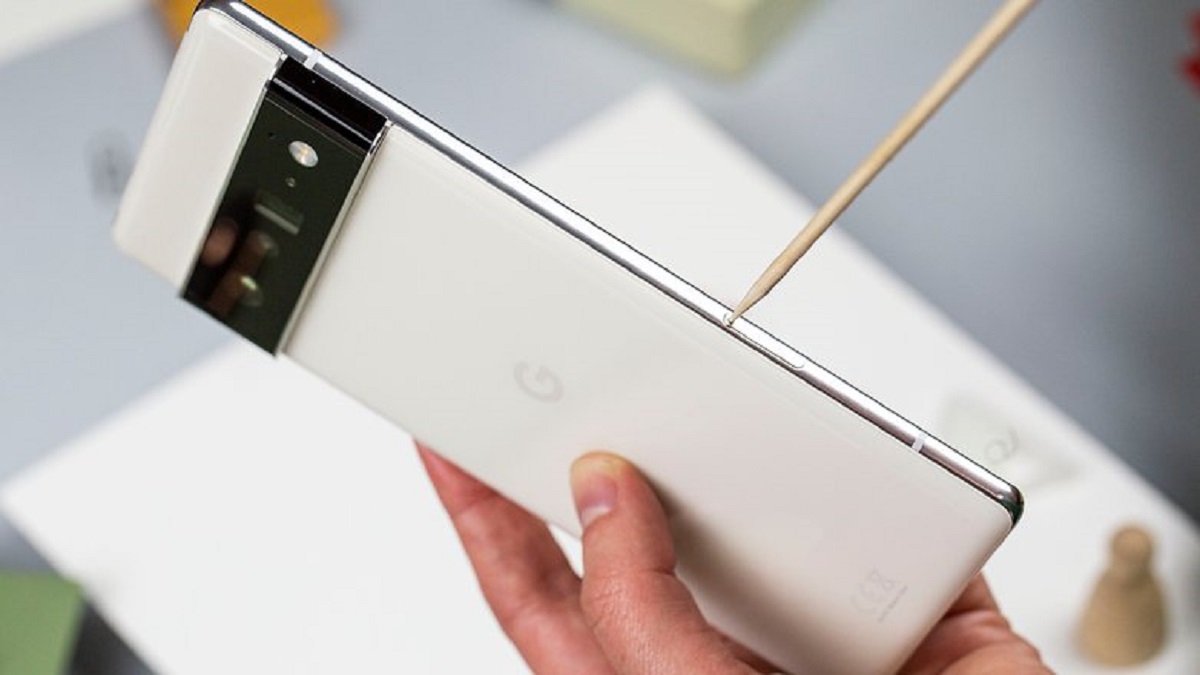
With the slot clear, take the official SIM ejector tool that came with your phone, or a straightened paperclip with rounded edges, a sharp or jagged tip can damage the ejection mechanism. Insert the tool straight into the pinhole, perpendicular to the phone's surface. Do not angle it or wiggle it sideways; the internal mechanism is designed to receive pressure along a single axis. Apply firm but gentle, steady pressure until the tray pops out slightly. This usually happens within a few seconds. If you feel resistance, stop and re-check that you are in the correct hole and that no debris remains. Forcing the tool harder will not help and can bend the ejector pin or crack the tray housing.
Pull the tray out and inspect
Once the tray has popped out a millimeter or two, switch from the tool to your fingers. Grip the tray by its outer edges and pull it straight out, keeping it level to avoid bending the tray or the SIM card inside. Place the tray on a clean, soft surface. Inspect both the tray and the slot: look for bent pins, cracked plastic, or any remaining debris that might have caused the jam. If the tray itself is warped or the slot shows visible damage, do not try to force it back in, that is a sign of a mechanical issue that needs professional attention. If everything looks clean and straight, you can reinsert the tray carefully, aligning it with the slot's guides and pressing it in until it clicks flush.
When to contact customer support
If the tray remains stuck after you have cleared the slot, used the correct tool, and applied steady straight pressure, do not push your luck. Continuing to force it risks breaking the tray, damaging the SIM card reader, or cracking the phone's frame. Contact your carrier, an Apple Store, a Samsung service center, or a reputable phone repair shop for professional assistance. Have your phone's exact model number, a description of what you have already tried, and any visible symptoms (like a tray that is partially out but won't move further) ready when you call. A technician can safely disassemble the phone if necessary and replace any damaged components without causing further harm.