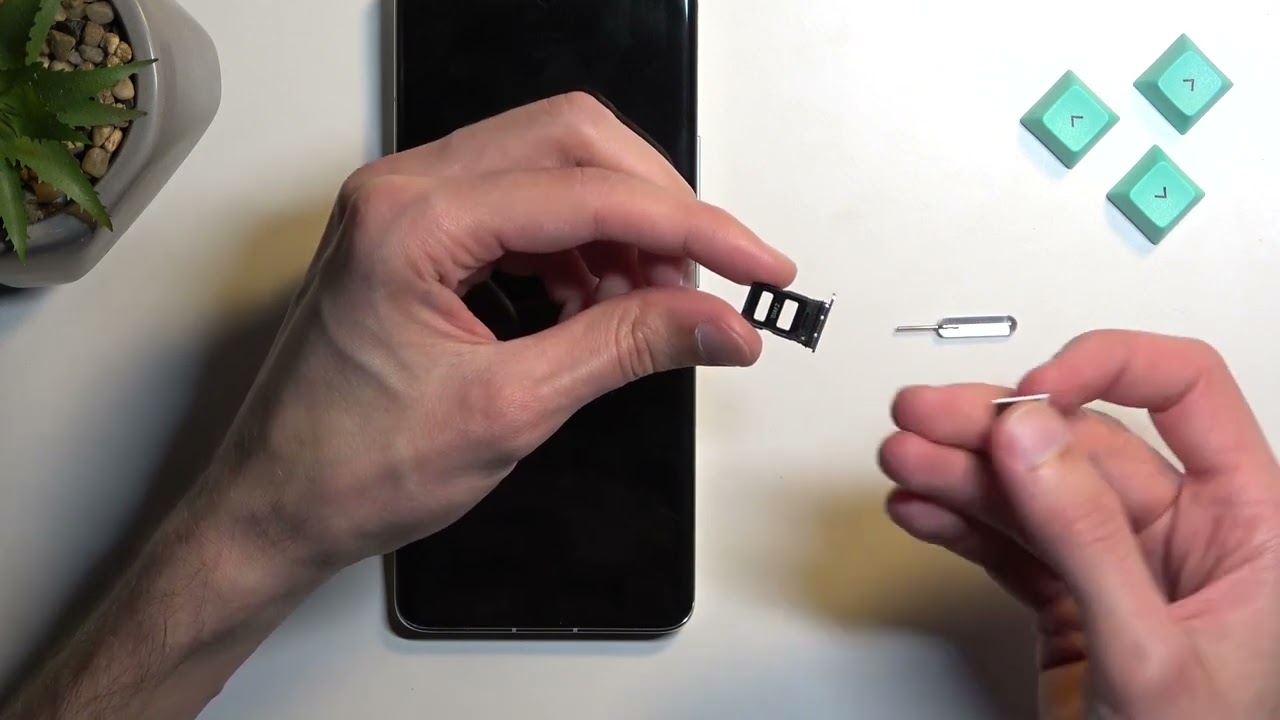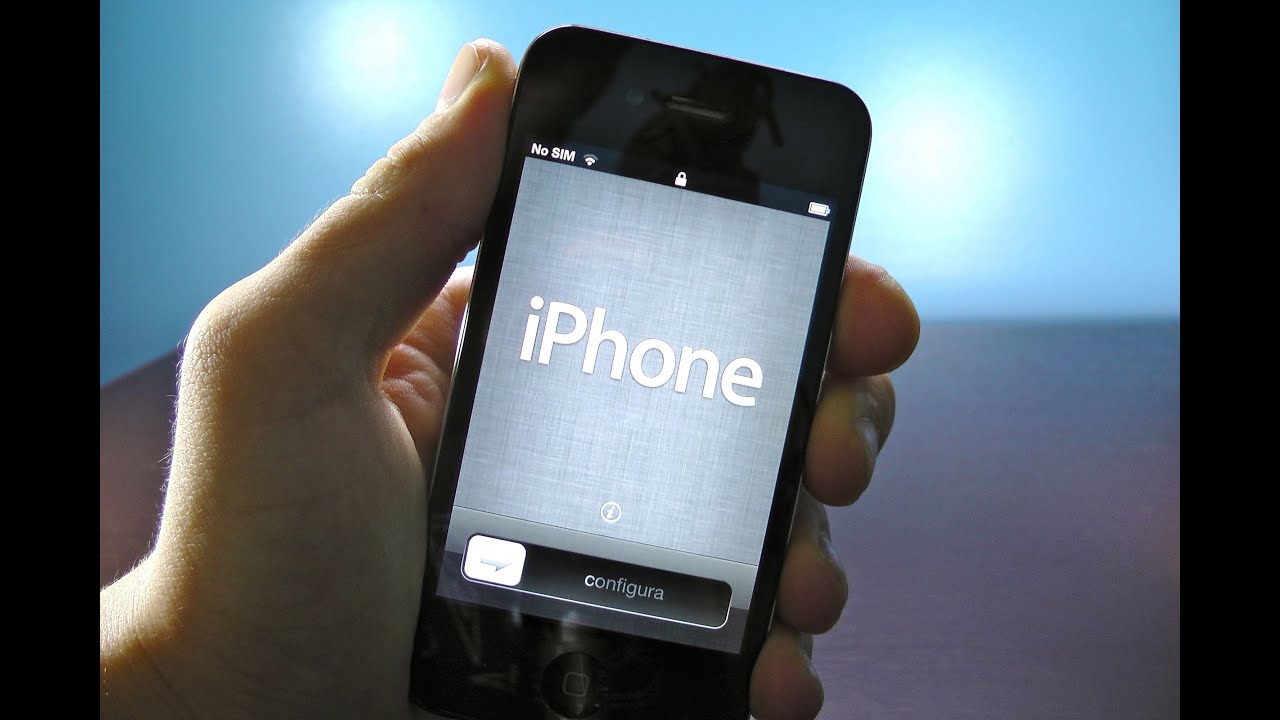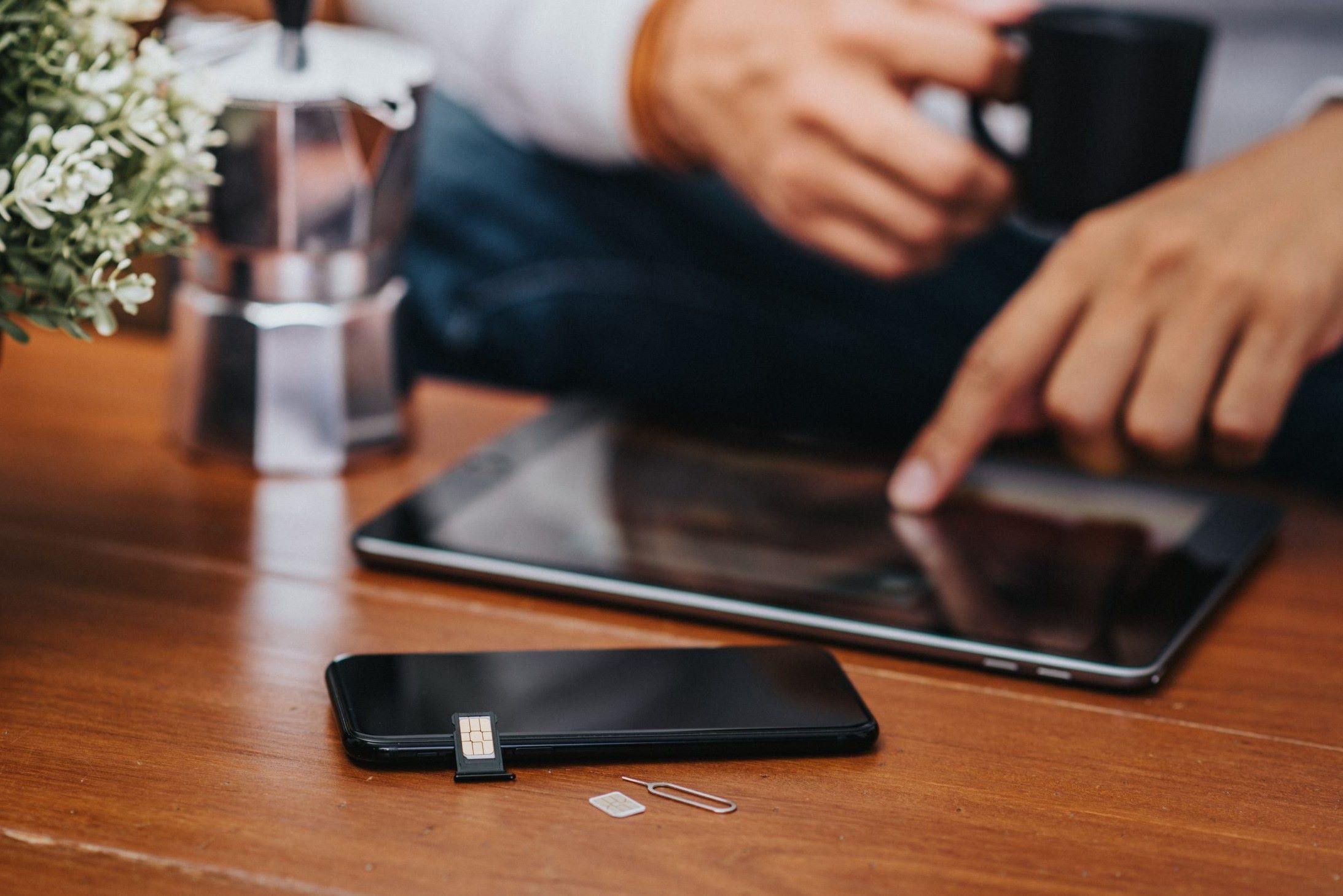
To swap a SIM card in an iPhone, you will need a SIM-eject tool or a paper clip and a new nano-SIM card, and you should power off the device first. Before you begin, it is critical to confirm that your iPhone actually has a physical SIM tray, as US iPhone 14 and later models are eSIM-only and lack one entirely.
Before you swap: does your iPhone have a SIM tray?
iPhone 14 models and later purchased in the United States are eSIM-only and do not have a physical SIM tray. If you own one of these devices, you cannot swap a physical SIM card, and you should instead follow instructions for setting up an eSIM. For all other iPhone models with a physical tray, continue with the steps below.
What you need to swap a SIM card on iPhone
Gather the following items before starting: a SIM-eject tool (included with your iPhone) or a straightened paper clip, and the new nano-SIM card from your carrier. It is recommended to power off your iPhone before swapping the SIM card to avoid any potential damage.
Locate the SIM tray on your iPhone model
The location of the SIM tray depends on your model. For iPhone 12, 13, 14, and 15 models (that have a physical tray), the tray is on the left side of the device. For older models like iPhone 11, XS, XR, and X, the tray is on the right side. If you are having trouble locating it, the process for locating the SIM card slot on iPhone 14 is the same as for iPhone 12 and 13 models with a tray, check the left side.
Eject the SIM card tray
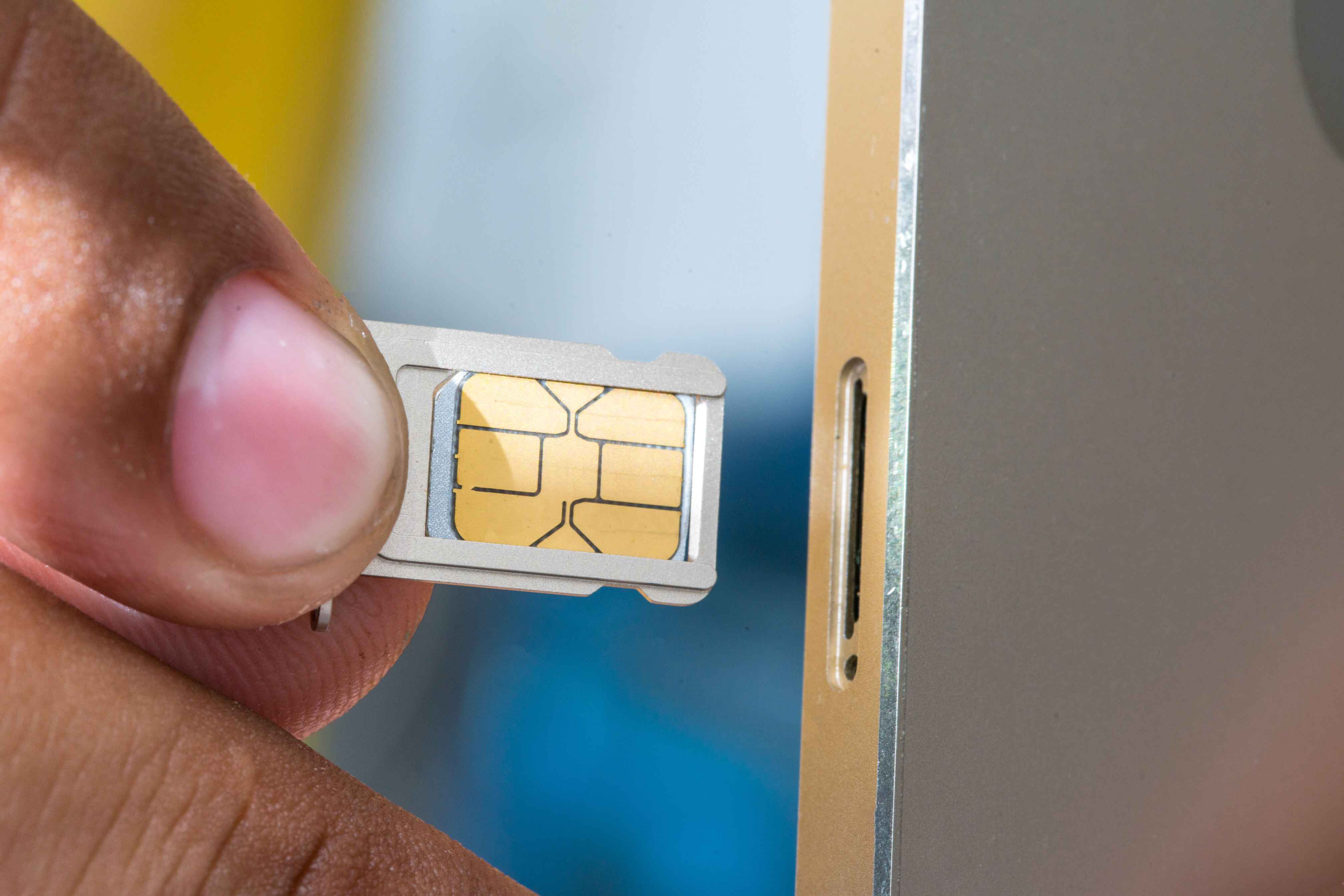
- Insert the SIM-eject tool or straightened paper clip into the small hole beside the tray.
- Push firmly and straight in until the tray pops out.
- Carefully pull the tray out of the iPhone.
If the SIM card tray won't come out, double-check that you are using a thin enough tool and pushing straight into the pinhole. Do not force it; if it still does not eject, contact Apple Support.
Remove the old SIM card and insert the new one
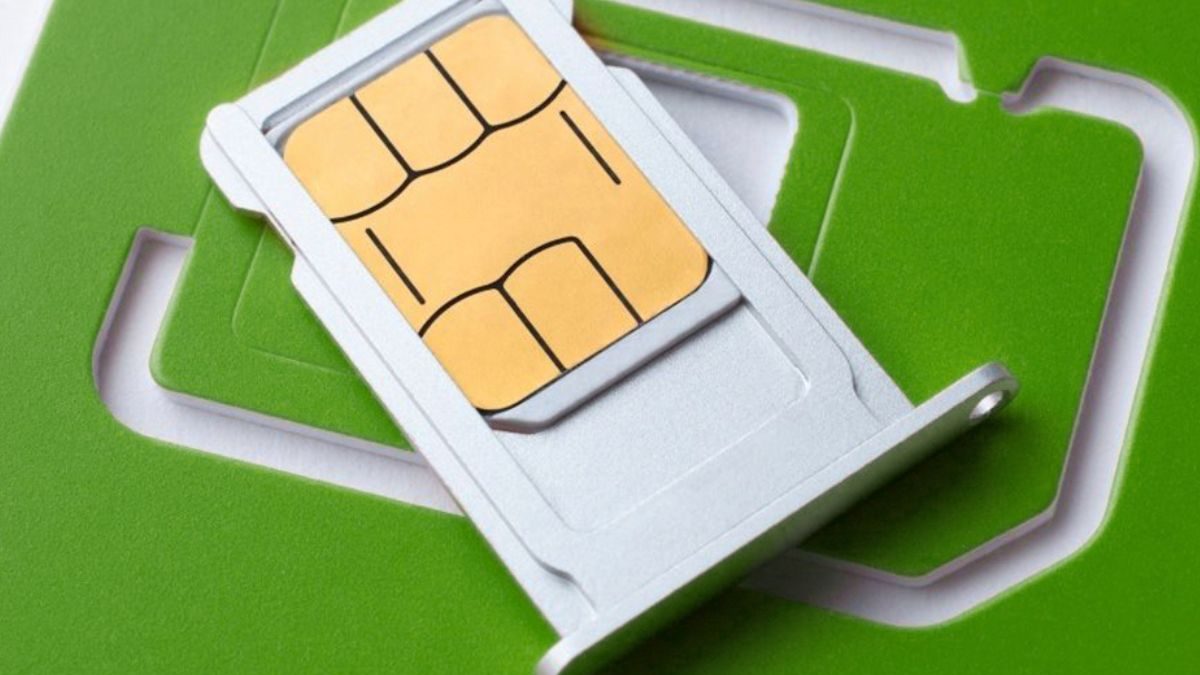
- Remove the existing SIM card from the tray.
- Place the new nano-SIM card into the tray, ensuring the notched corner aligns with the cutout, as it fits only one way.
- Make sure the card sits flat and does not protrude above the tray surface.
If you are unsure about the orientation, note that the notched corner is key to inserting a SIM card correctly. After placing the new card, you can verify its status later by checking if your iPhone recognizes the network; this is part of checking whether your SIM card is working.
Reinsert the tray and power on your iPhone
- Insert the tray back into the iPhone completely and in the same orientation you removed it.
- Press gently until it clicks into place.
- Power on your iPhone by pressing and holding the side button until the Apple logo appears.
- If you previously set up a PIN on the SIM, carefully enter the PIN when prompted after reinserting.
If you are switching carriers, you may also need to check with your previous carrier to confirm the line is active. A common step in identifying whether your SIM card is locked is to try it in another unlocked phone or check with your carrier.
Using Dual SIM with a physical card and an eSIM
Many iPhones support Dual SIM, allowing one physical nano-SIM and one eSIM to be active simultaneously. iPhones from iPhone XS, XR, and later support eSIM, and iPhone 13 models and later support Dual eSIM (two eSIMs active at once). To use two different carriers with Dual SIM, your iPhone must be unlocked. Note that in China mainland, Hong Kong, and Macao, certain iPhone models feature Dual SIM with two physical nano-SIM cards instead. If you plan to use an eSIM alongside your physical card, eSIM setup typically requires an internet connection.