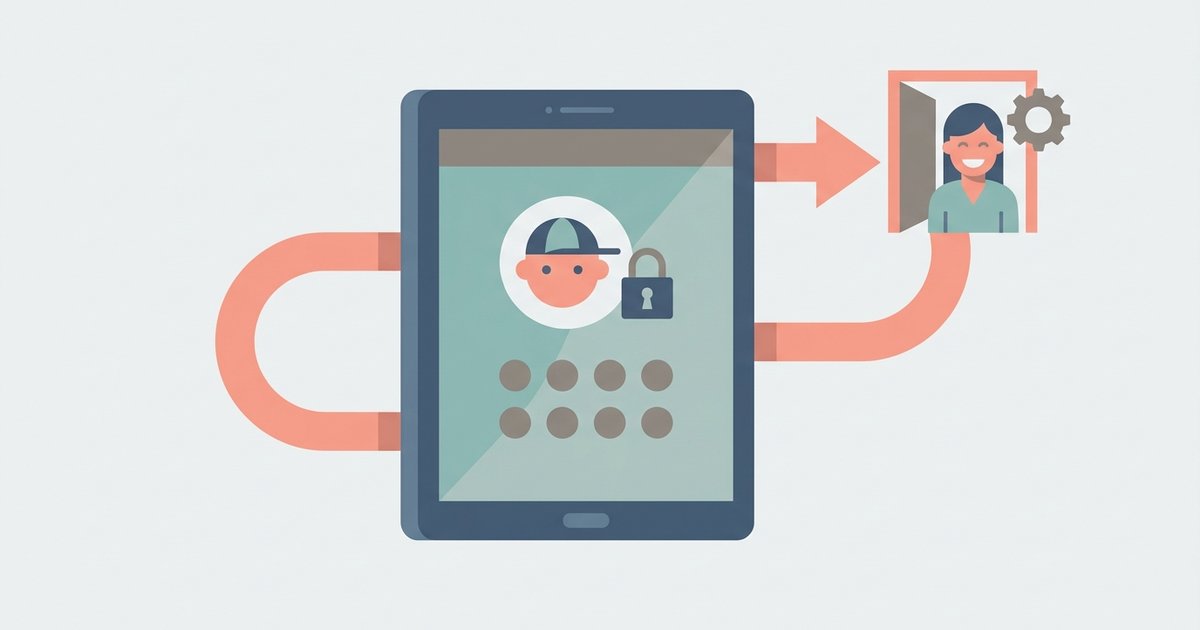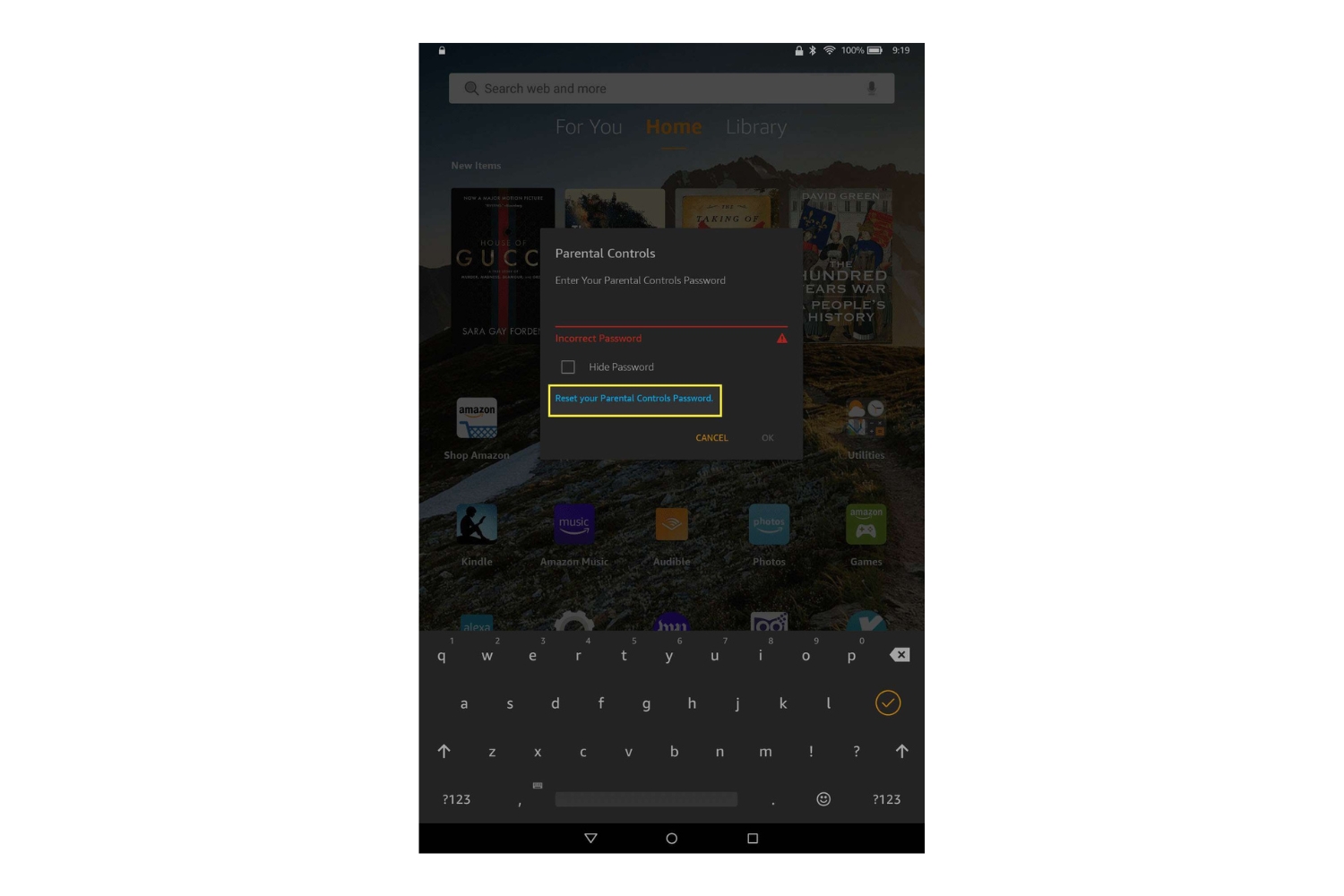
No, a factory reset will not remove the child profile if you don't know the PIN. On an Amazon Fire tablet, the reset process itself may require the parental controls PIN to complete, so you cannot bypass the lock this way.
Why the factory reset child profile removal fails without the PIN
The technical reason a factory reset is blocked lies in how Amazon Fire tablets handle parental controls. When you navigate to the factory reset option in Settings, the operating system does not immediately begin erasing data. Instead, it triggers a security check that requires the parental controls PIN. You set this PIN when creating the child profile. The PIN is stored separately from user data. The tablet’s firmware is designed to refuse any wipe command until that exact PIN is entered. Without it, the reset routine halts at the PIN prompt. The device never proceeds to the actual factory reset. This safeguard exists specifically to prevent a child from bypassing restrictions by resetting the tablet. It also blocks a parent who has forgotten the PIN.
What happens when you try anyway
If you attempt to reset the tablet through the settings menu without the PIN, the device may restart and return you to the locked child profile. After you tap “Reset” and the PIN prompt appears, the tablet will not let you proceed. If you repeatedly enter the wrong PIN, the device may show a “Too many attempts” message and lock you out for a short period. It will not wipe itself or automatically lift the lock. When you power the tablet off and on again, it boots directly back into the child profile’s home screen. You still need the parent PIN to access any settings or apps. You see the same lock screen each time, with no option to bypass it via a hardware button combination or recovery mode. The tablet’s software simply refuses to forget the child profile because the PIN verification never succeeded.
The only way to reset a locked kid profile
The only way to reset a locked kid profile when you do not know the local PIN is to use your Amazon account password through the Device Management page on a computer or phone. First, go to the Amazon website and sign in to the parent account that created the child profile. Navigate to “Manage Your Content and Devices” and select the “Devices” tab, then click on your Fire tablet’s name. Under the device details, find the option to “Deregister” the tablet. Confirming this action will remove the child profile and all associated parental controls from the device. After deregistration, you can perform a full factory reset from the tablet’s boot menu (hold Volume Down + Power while restarting) without needing the PIN. This works because the child profile no longer exists. This method succeeds because the PIN is only stored locally; the Amazon server-side deregistration overrides the local lock. For step-by-step help, you can refer to guides on how to unlock my Amazon tablet or reset the parental pin on an Amazon Fire tablet, but the critical action is deregistering the device via your Amazon account. If you need to restore the tablet to a child-friendly state later, you can create a new profile after the reset. For related troubleshooting, articles on how to reset an Amazon kid tablet or factory reset a kids Fire tablet often assume you know the PIN. The deregistration route is the only reliable path when the PIN is lost.
The PIN is only stored locally; the Amazon server-side deregistration overrides the local lock.