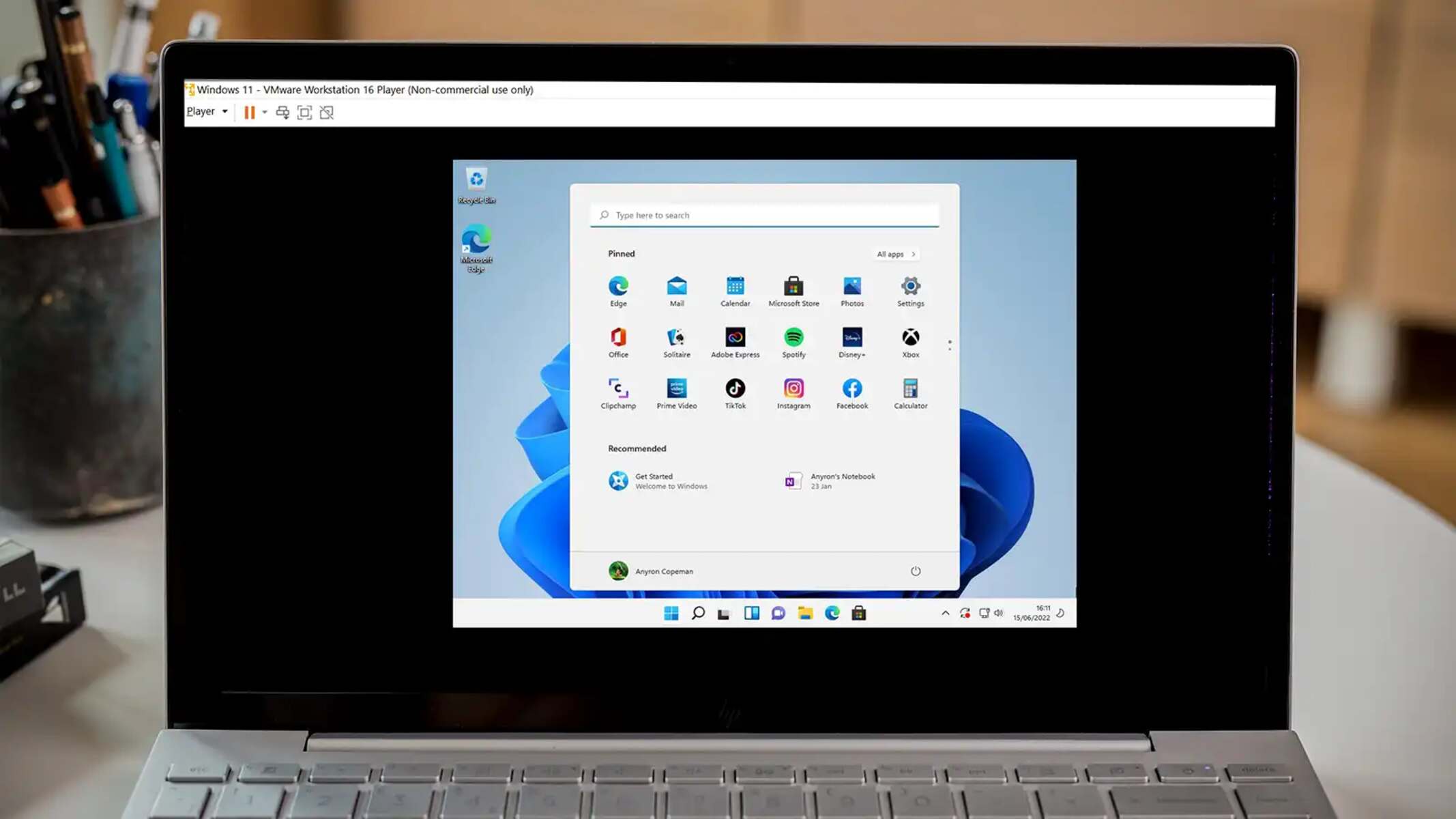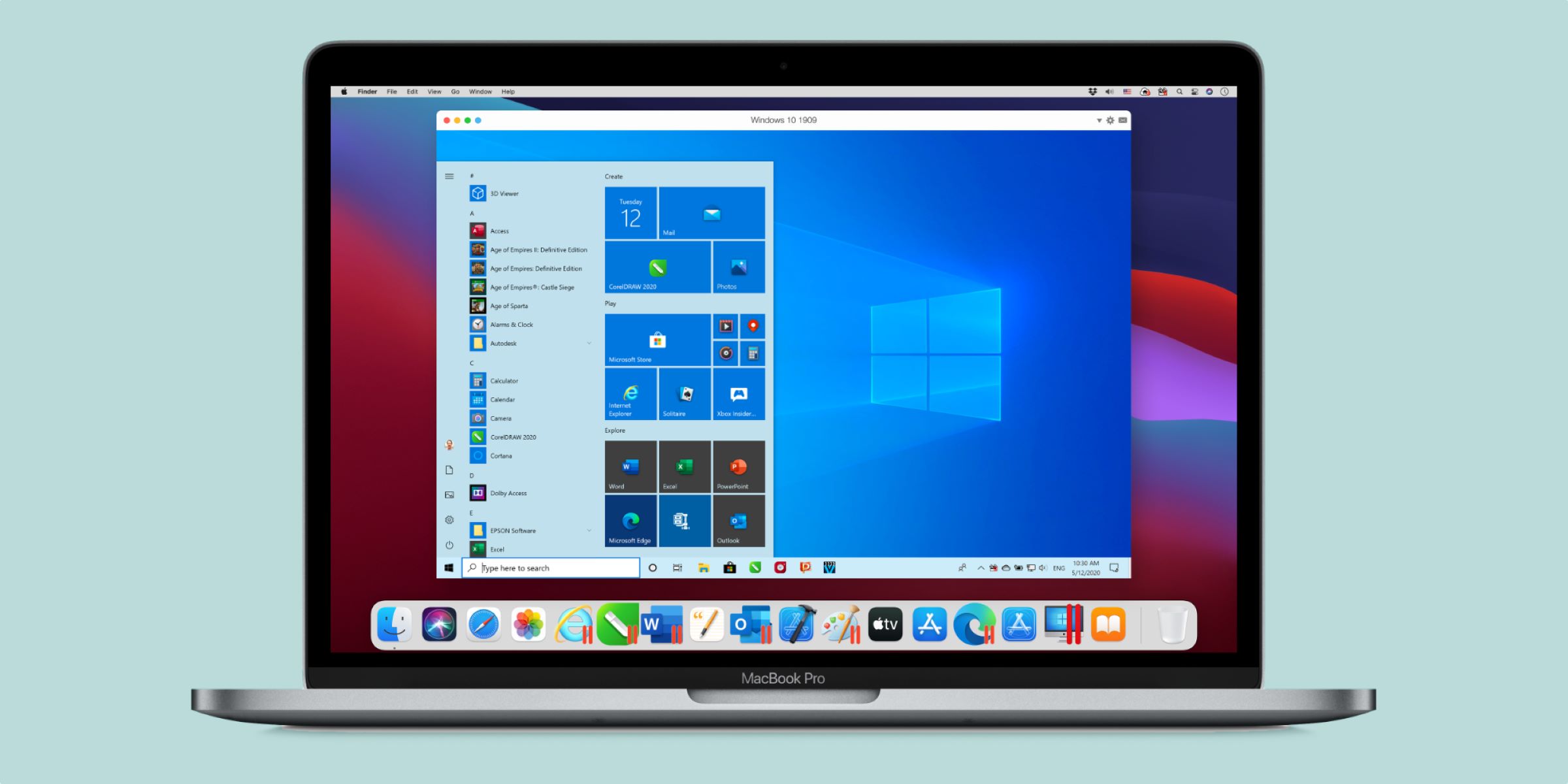
If your virtual machine black screen appears instead of the expected desktop or login screen, the problem is almost always caused by missing or outdated guest tools, incorrect display settings, or a graphics driver conflict. Fixing it usually requires reinstalling the hypervisor's integration components and adjusting the virtual graphics hardware.
Why your virtual machine black screen happens
A virtual machine relies on special software, Guest Additions, VMware Tools, or Hyper-V Integration Services, to communicate with the host's graphics hardware. When these tools are missing, outdated, or corrupted, the guest operating system cannot properly initialize its display, resulting in a black screen. Incorrect display settings, such as an incompatible graphics controller or insufficient video memory, can also prevent the screen from rendering. Additionally, a graphics driver conflict within the guest OS or on the host machine can block the display output entirely.
Install or reinstall guest additions and tools
This is the most common fix for a black screen. Missing, outdated, or corrupted Virtual Machine Guest Additions (VirtualBox) or VMware Tools/Hyper-V Integration Services can cause display problems, including a black screen. Reinstalling these components forces the guest OS to load the correct display driver and enables proper screen resolution and rendering.
- Boot the virtual machine. If you cannot see anything, try pressing a key or moving the mouse to wake the display.
- From the hypervisor menu, select the option to insert the Guest Additions or VMware Tools installation disc.
- Inside the guest OS, run the installer and choose the option to repair or reinstall.
- Restart the virtual machine after the installation completes.
If the guest OS is Linux, you may need to run the VBoxLinuxAdditions.run script from a terminal after mounting the disc. For Hyper-V, ensure Integration Services are up to date through the host's Hyper-V Manager.
Adjust virtual machine display settings
Incorrect display settings, such as insufficient video memory or an incompatible graphics controller, can lead to a black screen. Adjusting these settings in the hypervisor can resolve the issue immediately.
VirtualBox
- Shut down the virtual machine.
- Open Settings > Display.
- Change the Graphics Controller to VBoxVGA or VMSVGA. VMSVGA is often the best choice for Linux guests.
- Start the virtual machine and check for a normal display.
VMware
- With the virtual machine powered off, go to Action > Edit Settings.
- Incompatible video cards configured for the virtual machine, such as `vmvga` or `VGA`, can cause a black screen; try switching between them in the VM's settings.
- Save the changes and power on the virtual machine.
Hyper-V
- In Hyper-V Manager, select the virtual machine and click Settings.
- Under Hardware, select the display adapter and increase the video memory allocation.
- Ensure Enhanced Session Mode is enabled on the host if you are using it.
Fix incompatible graphics drivers in the guest OS
An incompatible graphics driver can often be the culprit behind a black screen issue in a virtual machine. Updating or replacing the driver inside the guest OS can restore the display.
- Boot the virtual machine into Safe Mode. For Windows guests, press F8 repeatedly during startup or interrupt the boot process three times to trigger automatic repair, then select Safe Mode.
- Open Device Manager and expand Display adapters.
- Right-click the current virtual graphics adapter and select Update driver. If that does not work, select Uninstall device, then restart the virtual machine to let Windows reinstall a basic driver.
- For VMware, if a black screen appears after installing VMware Tools, boot the virtual machine into Safe Mode, go to Device Manager, and change the VGA card driver to the standard MS VGA Driver, then uninstall and reinstall the correct VMware Tools version.
Be aware that VMware Tools version 13.1.0 (and later) can cause black screens when connecting to Windows VMs using Horizon View 7.8 (and earlier); a resolution is to upgrade Horizon View or perform a custom VMware Tools installation deselecting the SVGA driver.
Check resource allocation on the host
If the virtual machine does not have enough memory, CPU, or disk space allocated to it, it may result in a black screen. Insufficient resources can cause the virtual machine to crash or become unresponsive, leading to a black screen.
- Open the virtual machine settings in your hypervisor.
- Verify the allocated memory. Increase it if the guest OS is running low, Windows 10/11 guests typically need at least 4 GB.
- Check the CPU allocation. Assign at least two cores if the workload allows.
- Increase the video memory setting.
- Ensure the virtual disk has enough free space. If the disk is full, the guest OS may fail to start the graphical interface.
Resolve an unresponsive virtual machine
If your virtual machine becomes unresponsive or frozen, it can result in a black screen. This can occur due to excessive resource usage, software conflicts, or a malfunctioning application running within the virtual machine.
- Force restart the virtual machine from the hypervisor's controls (e.g., right-click the VM and select Power > Reset).
- After restart, open Task Manager inside the guest OS and identify resource-hogging applications. End those processes or uninstall the problematic software.
- If the black screen persists and the VM remains unresponsive, restore from a snapshot or backup as a last resort. This reverts the guest OS to a state before the issue began.
Enhance your host machine's performance
If the host machine running the virtual machine does not meet the system requirements or is experiencing performance issues, it can negatively impact the virtual machine's display and result in a black screen.
- Close unnecessary background applications on the host to free up CPU and memory.
- Enable hardware virtualization in the host's BIOS settings. This allows the hypervisor to use CPU virtualization extensions, improving VM performance.
- Verify that the host meets the system requirements for the hypervisor and the guest operating system. If the host is underpowered, consider upgrading RAM or switching to an SSD.
Related reading: How To Increase The Screen Size In VMware Workstation, How To Change Resolution When Opening VMware Workstation, and How To SSH Into Virtual Machine.