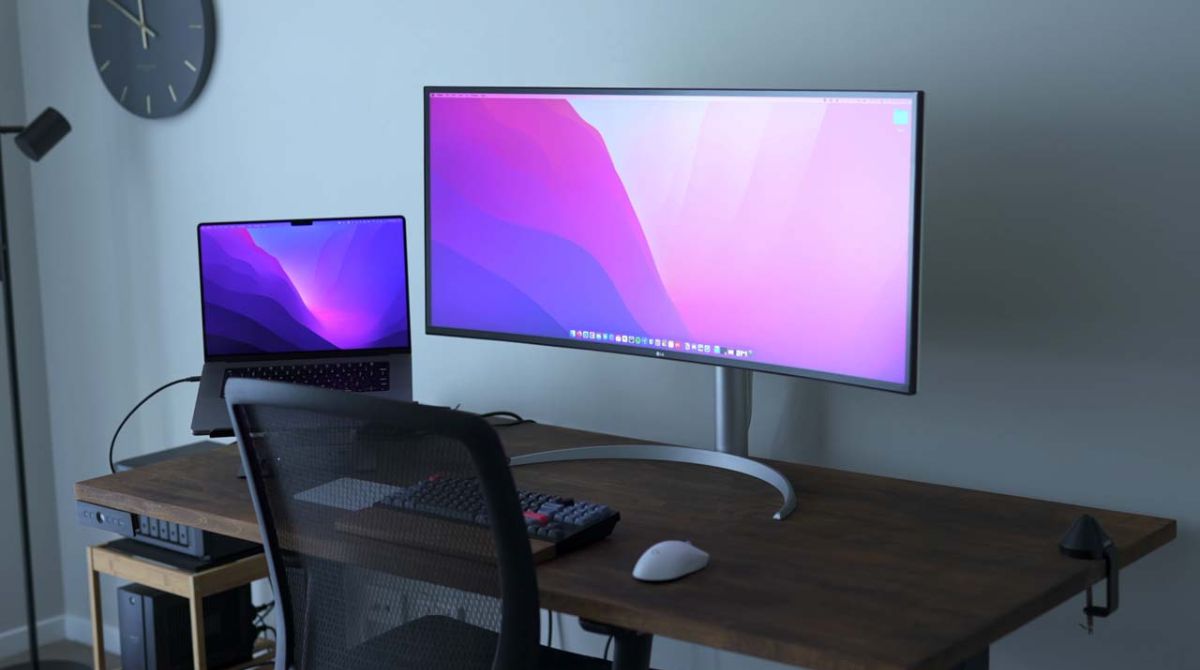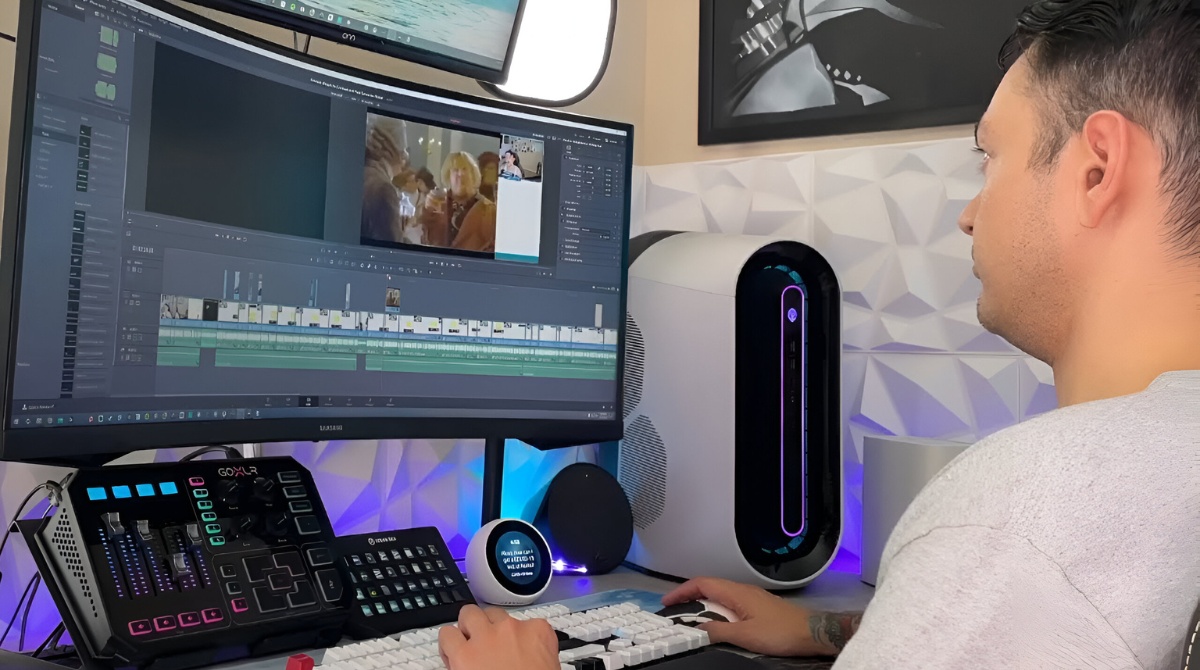
Text looks blurry because macOS has disabled subpixel antialiasing and your ultrawide monitor likely has a low pixel density that falls into a scaling dead zone where Apple's Retina scaling algorithms can't engage. The only true fix is to use a 4K-resolution ultrawide or force the display to run at a perfect integer-scaled 'looks like' resolution using a tool like BetterDisplay.
Why mac ultrawide blurry text starts with subpixel antialiasing
Beginning with macOS Mojave in 2018, Apple removed subpixel antialiasing from the operating system. This technique used the red, green, and blue subpixels of each physical pixel to simulate higher resolution along character edges. It made text appear sharper on low-density screens. On Windows, this feature remains active and aggressively tuned for non-Retina panels. That is why the same ultrawide monitor often looks crisp on a PC but fuzzy on a Mac. Without subpixel rendering, macOS relies entirely on grayscale antialiasing. This blurs edges equally in all directions. The exact system settings that no longer work are documented in the guide to using an ultrawide monitor with a Mac.
The low-PPI scaling dead zone
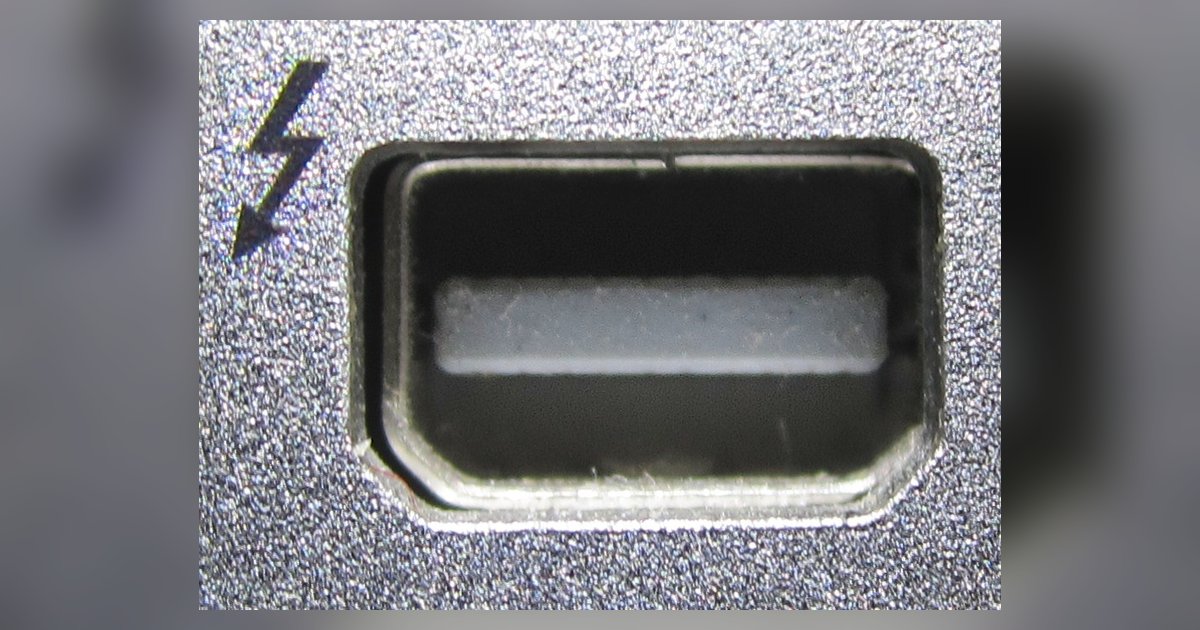
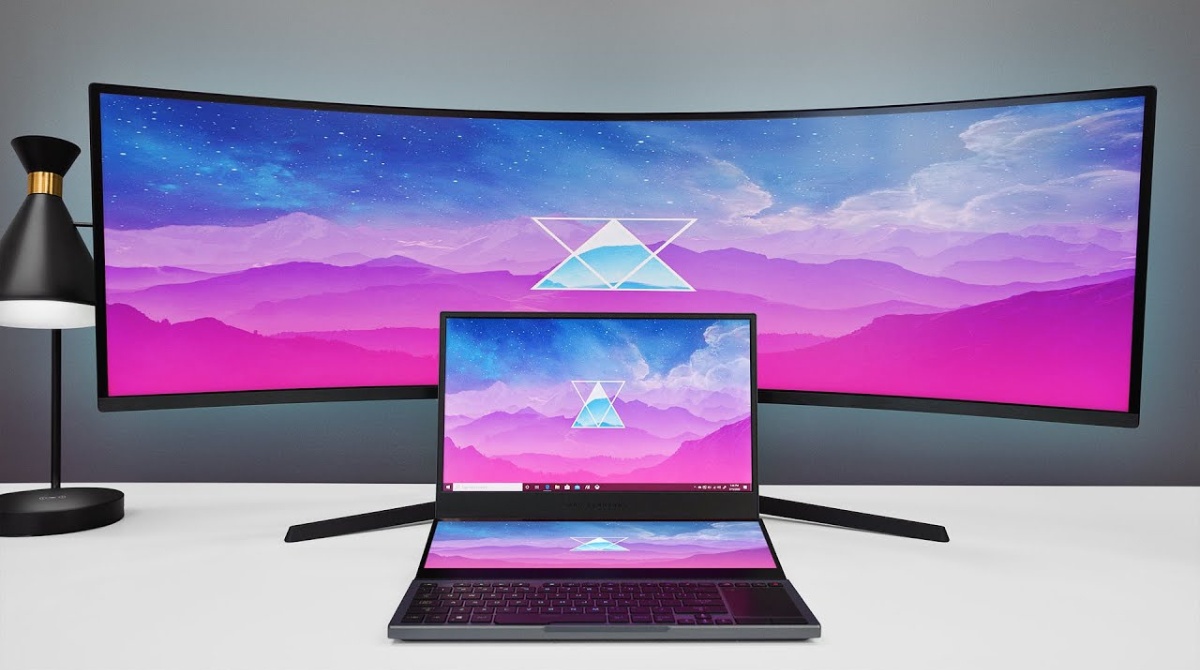
Most standard ultrawide monitors have a pixel density around 110 PPI. A 34-inch 3440×1440 model is a typical example. Apple’s HiDPI mode only activates when the system can treat two physical pixels as one logical pixel. That requires at least 220 PPI on a desktop display. At 110 PPI, macOS sees the monitor as a standard-resolution screen and applies no Retina scaling at all. This creates a dead zone. The panel is too dense for standard macOS rendering to look smooth, yet not dense enough to trigger HiDPI. You can check this by opening System Settings > Displays, selecting the external display, and looking for a list of scaled resolutions labeled as 'Looks like' options. If you only see a list of resolutions without these 'Looks like' scaled choices, you are stuck in this zone. The common pitfalls with Thunderbolt and HDMI bandwidth limits that can further degrade image quality appear in the walkthrough for displaying on an ultrawide monitor using a laptop.
When the monitor is the problem, not the setting
No amount of tweaking the “Scaling” dropdown or toggling “Show all resolutions” can fix text that appears blurry on a 1080p ultrawide or a 1440p ultrawide. The physical pixel density is simply too low for macOS's rendering model. A 29-inch 2560×1080 panel has roughly 96 PPI. That is worse than a standard 24-inch 1080p monitor. A 34-inch 3440×1440 panel sits at 110 PPI. Even with BetterDisplay forcing HiDPI mode at a half-resolution, you lose significant desktop space. The image also becomes slightly soft because the monitor has to upscale non-native input. The only hardware-level fix is a 5K2K ultrawide or a 38-inch 3840×1600 panel. Both exceed 140 PPI and allow macOS to render crisp text with integer scaling. USB-C audio and DisplayPort audio can conflict with resolution settings, though sound quality does not affect text sharpness. The connection details appear in the explanation of how to get sound from an LG ultrawide monitor. Overscan and scaling adjustments in the monitor’s own OSD menu will not correct the fundamental pixel-density problem. The steps for fixing a cut-off or stretched screen image are in the instructions for getting your computer screen to fit on an ultrawide monitor.
No other mainstream desktop operating system has both abandoned subpixel antialiasing and restricted high-PPI smoothing to displays above approximately 220 PPI in the same way as macOS.