To remove profile picture on Zoom, you must use the Zoom web portal, it is the only method that deletes the image from your account and syncs the change across your desktop and mobile apps. Unlike editing or uploading, deletion is not available inside the Zoom desktop or mobile applications themselves, so the web portal is your single official route. This works whether you want to remove profile picture on Zoom for privacy reasons, because you uploaded the wrong image, or simply because you prefer to appear with your initials in meetings.
Why remove your Zoom profile picture?
Your profile picture is visible in several places beyond your meeting tile. When your video is off, participants see your picture instead of a blank screen, and it also appears in in-meeting chat (unless the host disables that feature), in your contacts list, and to account owners and admins. If you value privacy or dislike having a photo attached to your account, deleting it ensures that only your name or initials appear. Keep in mind that an account owner or admin may have restricted profile picture settings, in which case you will not see the delete option at all, you would need to contact them directly to request a change. Meeting hosts also have the ability to hide all participant profile pictures during a session, showing only names, but that is a host-side control and does not remove your picture from your own profile.
How to remove profile picture on Zoom via the web portal
Sign in to the Zoom web portal using your preferred browser. Once signed in, follow these steps:
- In the navigation menu on the left, click Profile.
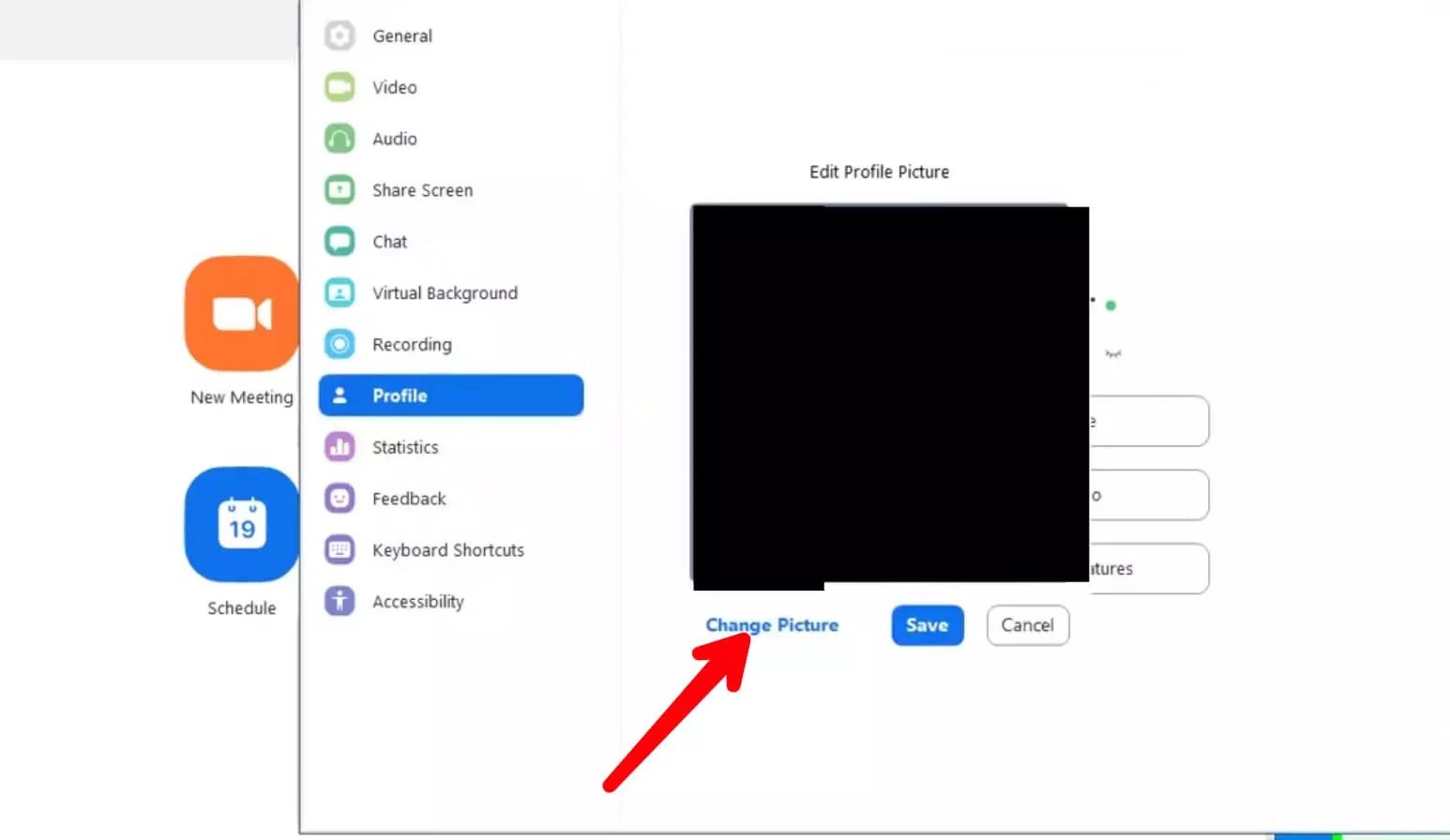
- Locate the section displaying your name and personal details. Your current profile picture will appear there.
- Click the pencil icon that appears in the picture frame.
- A pop-up box will appear; click Delete.
- Confirm the deletion by clicking Yes when prompted.
Because the change is made on the web portal, it will automatically apply to the Zoom desktop app, mobile app, and any other device where you are signed in with the same account. There is no need to repeat the process on each device.
Troubleshooting after removing your picture
In most cases, the deletion takes effect immediately across all devices. However, if you still see your old profile picture in the Zoom application, sign out of your account and sign back in. This forces the app to refresh its cached data and pull the updated profile information from Zoom’s servers. To confirm the picture is gone, open the Zoom app, go to your profile settings, and check that the image no longer appears. If you continue to see the old picture after signing back in, close the application completely and relaunch it before checking again. If the issue persists, your account may be subject to an admin restriction that prevents profile picture changes, in which case you should reach out to your account owner or IT administrator for assistance. Remember that the web portal is the authoritative source for your profile, so as long as the picture is deleted there, it is officially removed from your account even if a device temporarily displays a cached version.
\nRelated reading: How To Remove Spotify History, How Do I Download Zoom, and How To Host A Zoom Meeting.