To change Facebook screen size on tablet, use the pinch-to-zoom gesture directly on the screen to instantly resize the page. This is the quickest fix when the display feels too large or too small, letting you adjust it in real time without digging through menus.
How to change Facebook screen size on tablet with a pinch
The fastest way to resize Facebook on your tablet is by using a simple pinch gesture. Place two fingers on the screen and pinch them together to make everything smaller, or spread them apart to zoom in. This works instantly on any Facebook page, whether you are scrolling your feed, viewing a photo, or reading a post. It gives you immediate control without opening any settings, making it the ideal first step when the display feels off.
Reset your Facebook screen to normal size
If your Facebook screen is stuck at an odd zoom level or you want to quickly revert to the default view, resetting it is straightforward. Double-tap the screen with two fingers may return to the standard zoom level on some devices, but this gesture varies by tablet. This method ensures you can always get back to a comfortable baseline whenever the screen size feels wrong.
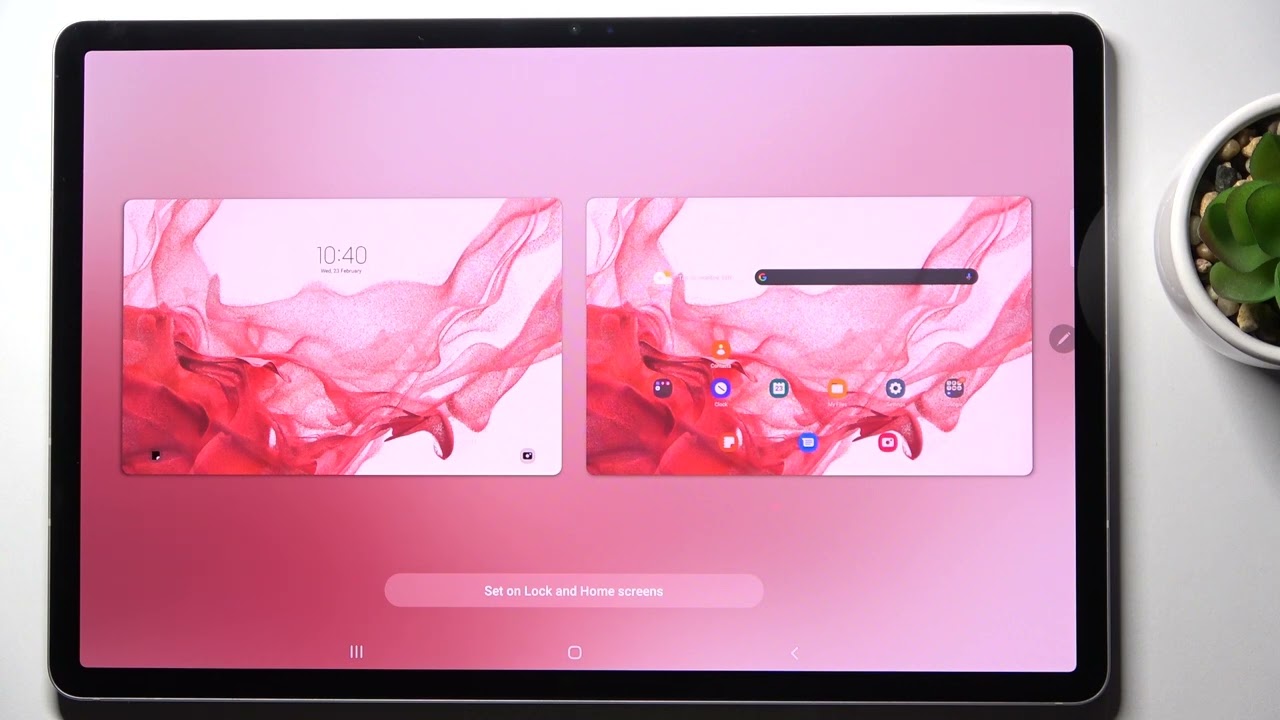
Adjust your tablet's display settings
For a permanent fix that affects Facebook and all other apps, change your tablet's system-wide display settings. Sliding the control to the left makes everything smaller, while sliding it to the right enlarges elements. This method changes how Facebook appears without needing to tweak the app itself.
- Open your tablet's Settings app.
- Find the Display section (on Android) or Display & Brightness (on iPad).
- Adjust the screen zoom or display size slider to your preference.
- Open Facebook to see the changes applied across the entire interface.
This approach is useful if you consistently find Facebook too large or too small, as it sets a new default for your whole tablet experience.
Use accessibility settings for more control
When standard display adjustments are not enough, the tablet's accessibility menu offers finer control. Enable screen magnification to zoom in on specific parts of Facebook by triple-tapping the screen with three fingers. Alternatively, turn on larger text options to make fonts easier to read without changing the overall zoom. These settings are found under Accessibility in your tablet's main Settings menu. They provide an alternative method for better visibility, especially useful if you have visual preferences that go beyond simple size adjustments.
- Go to Settings and select Accessibility.
- Turn on magnification and practice the triple-tap gesture to zoom in and out on Facebook.
- If you prefer larger text, adjust the font size slider within the same menu.
Using these settings lets you fine-tune the Facebook display to match your exact needs, giving you more flexibility than the basic zoom or display size options.
\nRelated reading: How Do I Get My Facebook Page Back To Normal Size On My Tablet, How To Screen Share HBO Max, and How To Call On Amazon Fire Tablet.