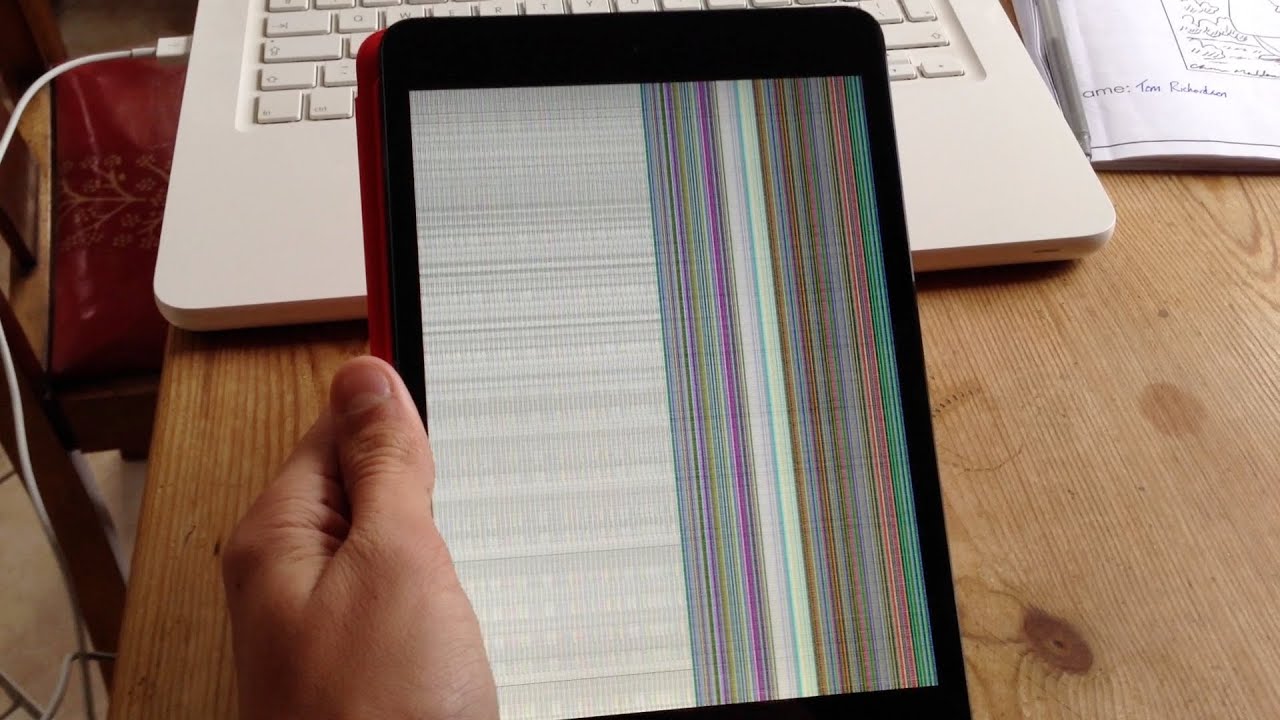
If your tablet screen black, the cause is almost always one of three things: a completely drained battery, a software freeze, or, less commonly, a hardware failure. Before you assume the worst, know that most black screen cases are fixable at home with a few simple steps, so you can often avoid a costly repair or replacement.
Why Your Tablet Screen Is Black: The Three Root Causes
A tablet screen black situation typically stems from three root causes: a drained battery, a software freeze, or hardware failure. The good news is that a completely drained battery and a software freeze are the most common culprits, and both are usually fixable at home without any special tools. Hardware failure, such as a cracked display or a loose internal connection, is less common but still possible. It's a common misconception that a black screen automatically means the tablet is permanently damaged; often, it's a fixable software glitch or battery issue, so don't panic and start troubleshooting methodically.
Charge Your Tablet First
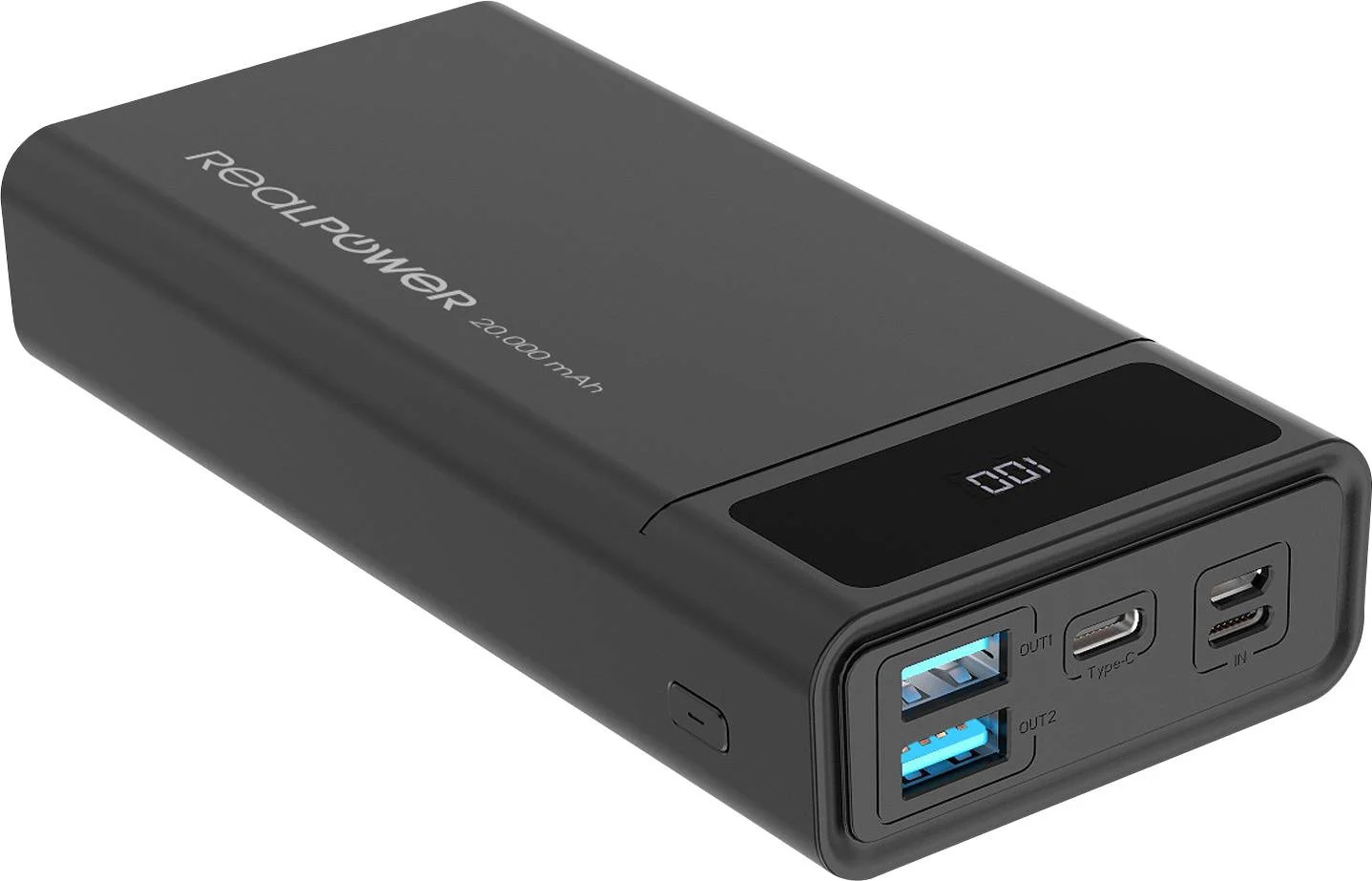
Before you do anything else, plug your tablet into a reliable charger and let it sit for at least 10-15 minutes, or up to 45 minutes for a deeply discharged battery. A deeply discharged battery is a frequent cause of a black screen, where the tablet cannot power the display until it has charged for a period. If the battery was the culprit, you'll see the charging icon or the screen will spring back to life once it has enough juice. This simple step can save you from unnecessary stress, so always rule out a dead battery before assuming a worse problem.
Force Restart Your Tablet
If charging doesn't work, the next step is to perform a force restart, which can resolve software freezes without deleting data. This is a safe and effective way to clear a temporary glitch that's preventing the screen from turning on.
For iPads Without a Home Button
Quickly press and release the Volume Up button, then quickly press and release the Volume Down button, then press and hold the Top button until the Apple logo appears. This forces the iPad to reboot and is a standard fix for a black screen.
For iPads With a Home Button
Press and hold the Top button and the Home button simultaneously until the Apple logo appears. This combination is your best bet for older iPad models that still have a physical Home button.
For Most Android Tablets (Including Samsung Galaxy Tabs)
Press and hold the Power button and the Volume Down button simultaneously for 7 to 30 seconds until the device reboots. This works for most modern Android tablets and is the first thing to try if your tablet screen black is due to a software freeze.
Test with an External Display
If your tablet supports external display output (e.g., via USB-C to HDMI), connect it to an external monitor to determine whether the internal screen or its connection is faulty. If the external display works, the tablet's screen hardware needs repair. This test is a smart way to isolate the problem: if you see your tablet's interface on the TV or monitor, you know the device is functioning and the issue lies with the internal screen or its ribbon cable. This step gives you a clear answer before you spend any money on repairs.
Boot into Safe Mode
If a specific app or recent software update caused the issue, try booting into Safe Mode on Android to temporarily disable third-party apps. To enter Safe Mode, press and hold the power button, then tap and hold the "Power off" option until the Safe Mode prompt appears. Once in Safe Mode, your tablet runs only essential system apps, so if the black screen disappears, you'll know a third-party app is the culprit. You can then uninstall recently downloaded apps or updates to identify the problem without losing your personal data.
Factory Reset as a Last Resort
If all else fails, performing a factory reset through recovery mode can often be performed even with a black screen, but it will erase all data on your tablet. This is a last resort that should only be done if you've exhausted other options and you've backed up anything important. Be absolutely certain you're ready to lose everything, as this step will wipe your device clean.
When to Seek Professional Repair
If the tablet screen remains black even after trying all the steps above, or if you notice signs of physical damage like cracks or liquid exposure, it's time to consult a professional. Persistent black screen after all steps indicates a hardware issue that requires specialized tools and expertise. Additionally, if you're not technically confident or you're worried about voiding your warranty, a certified technician can diagnose and fix the problem safely. Attempting complex repairs without the necessary skills can further damage your tablet, so don't risk it if you're unsure.
How to Prevent a Black Screen in the Future
To avoid this frustrating issue altogether, keep your software updated, as updates often include bug fixes that prevent screen-related glitches. Avoid overheating by not using your tablet in direct sunlight or on soft surfaces that block ventilation, and give it a break if it feels excessively hot. Use quality chargers and cables that are compatible with your device, and adjust your sleep settings to a reasonable timeout so the screen isn't constantly powering down unexpectedly. Finally, handle your tablet with care and use a protective case to guard against physical damage that can lead to a black screen down the road.
\nRelated reading: Why Does My Tablet Flicker, Why Is My Tablet Charging So Slowly, and How To Get Rid Of Split Screen On Samsung Tablet.