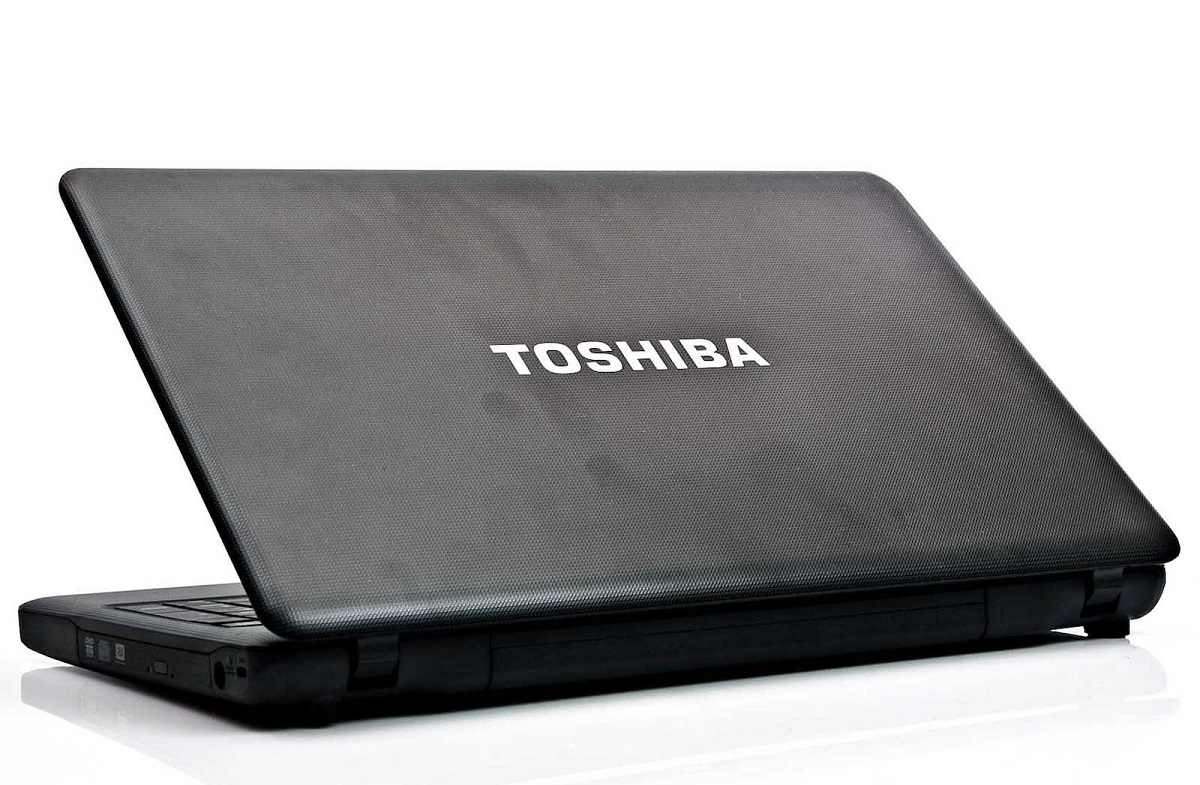
How to remove Toshiba laptop HDD password: the direct path
To remove Toshiba laptop HDD password, you need to clear the firmware-level ATA password stored on the drive itself, not a Windows or BIOS login. The safest methods are using your laptop's BIOS settings (if you know the password) or the official TOSHIBA Password Utility from Dynabook support, and neither of these erases your data.
What is a Toshiba HDD/SSD password?
An HDD/SSD password is a security feature that locks the storage device at the firmware level, separate from the BIOS password or your Windows login. When you set this password, it is stored in the drive's own controller, not in the operating system or the laptop's BIOS chip. This means the password prompt appears before the operating system boots, and even if someone bypasses the Windows login, they still cannot read the drive without the correct HDD/SSD password. On Toshiba laptops (now sold as Dynabook), this password is managed through the BIOS setup or the TOSHIBA Password Utility, which lets you set, change, or remove the drive password from within Windows. If you are dealing with a forgotten password on a different brand of external storage, you may need to retrieve password from Samsung portable SSD using its own recovery steps.
Before you start: critical safety steps
Before attempting any removal, take these precautions to avoid data loss or system damage. First, connect the laptop charger and keep it plugged in throughout the process, a power drop during a BIOS change can corrupt settings. Second, back up any important files to an external drive or cloud service as a precaution, especially if you might fall back on a secure erase. If you are also locked out of a separate drive, you may need to unlock wd external hard drive forgot password before you can complete that backup. Third, verify you have administrative access to the laptop, because both the BIOS method and the official utility require admin rights to change security settings. If you cannot log into Windows, skip to the forgotten-password section below.
Method 1: Remove the password via BIOS settings (if you know it)
If you remember the current HDD/SSD password, the built-in BIOS option is the cleanest way to remove it without touching your data. This method works on most Toshiba and Dynabook laptops and does not erase any files.
- Shut down the laptop completely.
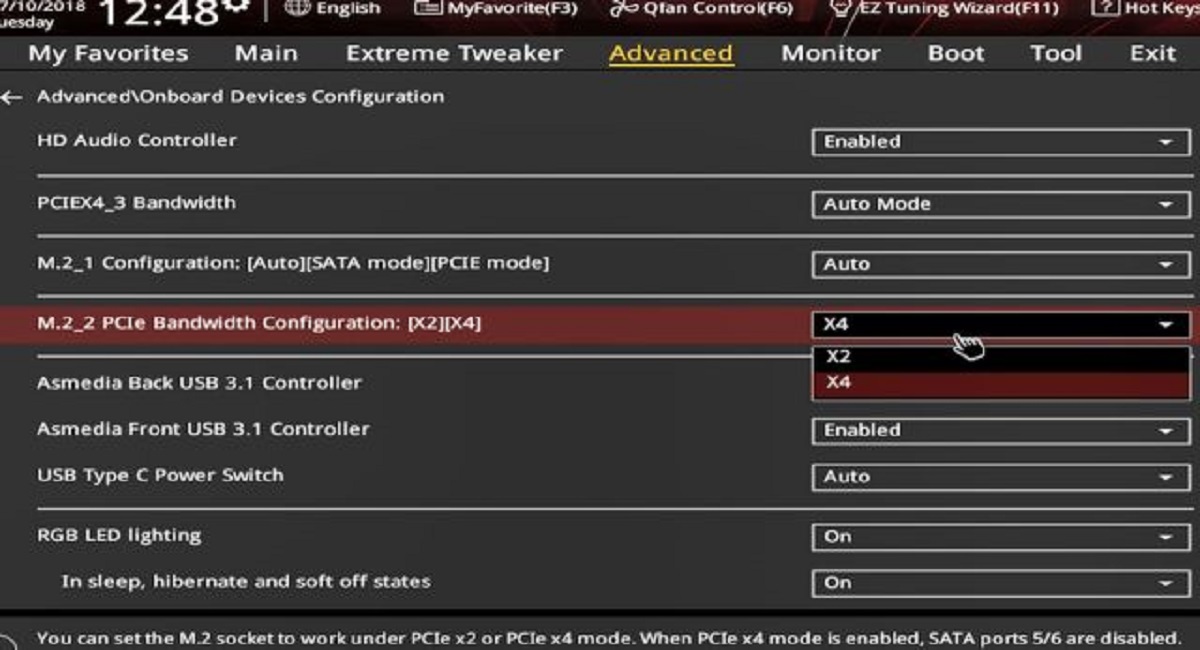
- Press the power button, then immediately tap the F2 key repeatedly until the BIOS setup screen appears.
- Use the arrow keys to navigate to the Security tab (sometimes labeled Password).
- Find the option for HDD/SSD Password or Hard Disk Password. The exact wording varies by model and BIOS version.
- Select that option, and when prompted, enter the current HDD/SSD password.
- Choose Set or Change, then leave the new password fields blank. Confirm the blank entry.
- Press F10 to save changes and exit. The laptop will restart, and the drive password prompt should no longer appear.
This method only clears the password, it does not erase or reformat the drive, so all your files remain intact. If your BIOS does not show a separate HDD/SSD password option, check the user manual for your specific model or proceed to Method 2.
Method 2: Use the official Toshiba Password Utility
The TOSHIBA Password Utility is a free tool from TOSHIBA Corporation that runs inside Windows and lets you manage the drive password without entering the BIOS. It is the official first-party option, so it is safer than third-party software. The utility supports a maximum length of 32 characters for an HDD password, so if your current password is longer, shorten it before using this tool.
- Go to the Dynabook support website and search for the TOSHIBA Password Utility for your laptop model. Download the installer to your Windows desktop.
- Run the installer and follow the on-screen prompts to install the utility. You will need administrative privileges.
- Open the TOSHIBA Password Utility from the Start menu or desktop shortcut.
- In the main window, select the drive you want to manage (usually the primary HDD or SSD).
- Choose the option to Change or Remove the password. If the utility asks for the current password, enter it.
- To remove the password, leave the new password fields empty and confirm. The utility will apply the change to the drive's firmware.
- Restart the laptop. The drive should boot without a password prompt.
This method is ideal if you know the password but want a more user-friendly interface than the BIOS. It does not erase data, and it works on compatible Toshiba and Dynabook models. If the utility does not list your drive or reports an error, your model may not support it, fall back to the BIOS method or contact Dynabook support.
What if you forgot your password?
If you have forgotten the HDD/SSD password, the situation is serious: the drive cannot be unlocked, and you will no longer be able to access the data on that drive. This is by design, the password is stored in the drive's firmware, and there is no backdoor in the operating system. The only reliable path is to contact a Toshiba Authorized Service Provider, who may be able to remove the password, but they will typically require proof of purchase and your credentials to verify ownership. Be wary of online “master password generators” or third-party software that claims to bypass the password with a universal code. These are unreliable, often do not work on modern Toshiba models, and can risk permanent damage to the drive or data corruption. If you cannot provide proof of purchase, the service provider may refuse, and your only remaining option is a secure erase (see below).
Last resort: secure erase to reuse the drive
If data recovery is impossible or you do not need the files, a secure erase is the final way to remove the HDD/SSD password and make the drive usable again. This function is built into many laptop BIOS setups or available through manufacturer diagnostic tools. It permanently wipes all data on the drive, including the password, so the drive returns to a factory-like state and can be reused. To perform a secure erase, enter the BIOS (F2 at boot), look for a Secure Erase or Drive Erase option under the Security or Tools tab, and follow the prompts. Alternatively, you can use a bootable manufacturer utility from the drive maker (e.g., a diagnostic ISO from the drive's vendor) to run the erase. After the erase completes, the password is gone, and you can install a fresh operating system. This method is only recommended when you have no need for the data, because the erase is irreversible and you will lose everything on the drive.
For any locked drive holding important data, your best course is to contact Dynabook support or a Toshiba Authorized Service Provider with proof of purchase. They are the only ones who can remove a forgotten password without data loss. Always note your HDD/SSD password in a secure password manager or a written record kept in a safe place, because unlike a Windows password, there is no reset link for a firmware-level lock.
\nRelated reading: How To Configure SSD In Bios.