Press and hold the microphone mute button on the back of the device for about 15 seconds until you hear a chime and the lights turn orange, then release. The device will confirm the reset and restart.
Locate the factory reset button on your device
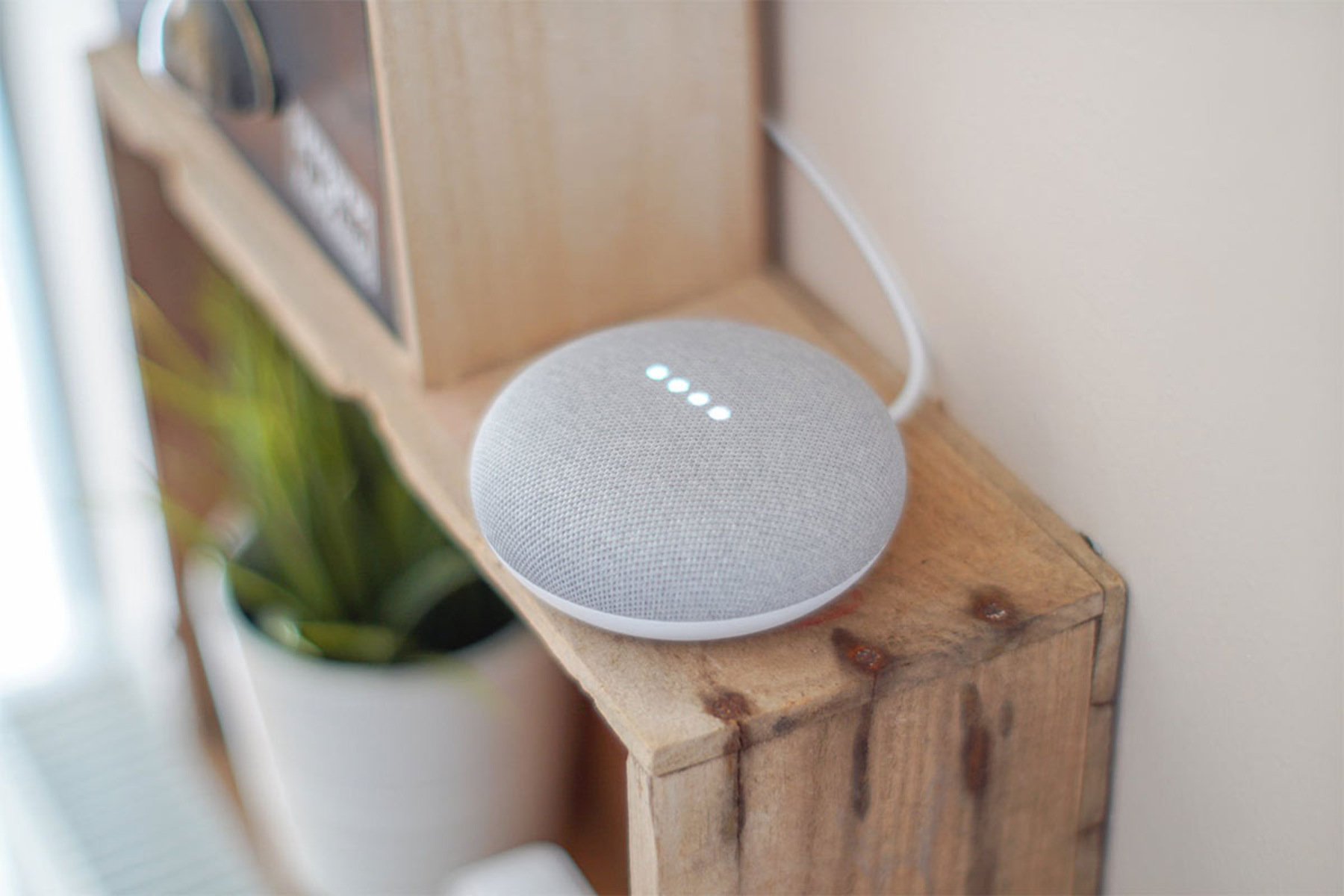
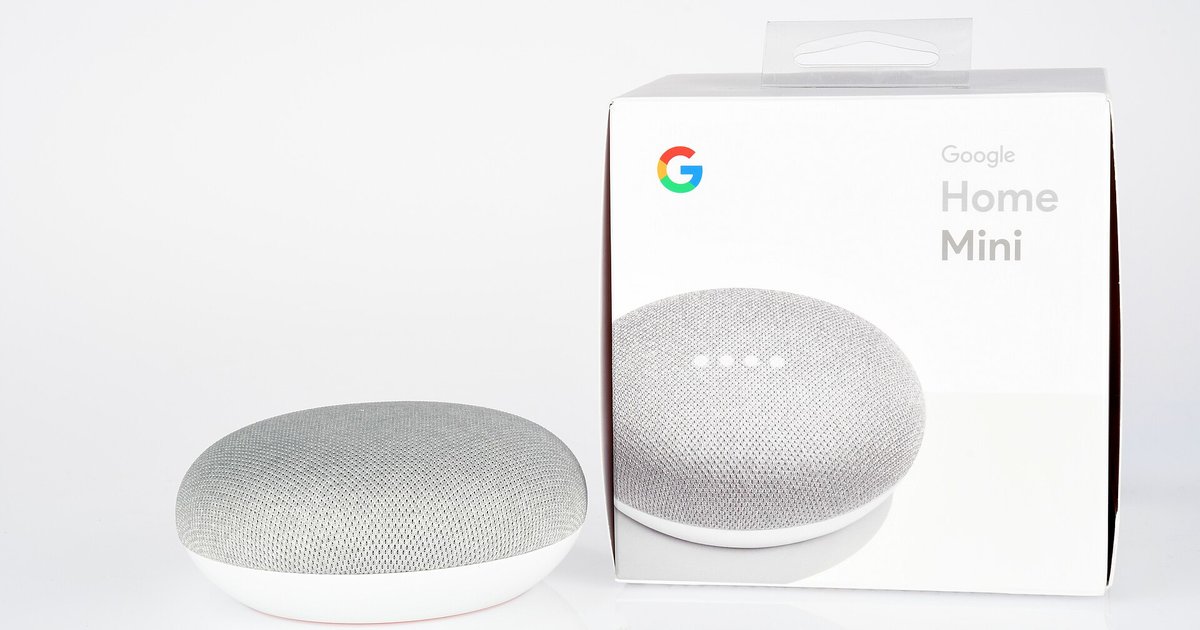
On the original Google Home, locate the factory reset button on the device. Press and hold it for the 15-second reset sequence. For the Google Home Mini, first and second generation, locate the factory reset button on the device. Press and hold it for 15 seconds until the lights flash orange. The Nest Mini uses a button on the top center of the speaker. First switch off the mic using the switch on the side (lights will turn orange), then press and hold the top center for 15 seconds. On the Nest Audio, locate the factory reset button on the device. Press and hold it for 15 seconds. For the Nest Hub and Nest Hub Max, press and hold both volume buttons simultaneously on the back of the device (on the right side of the screen) for approximately 10-15 seconds until the device announces it's resetting or Google Assistant confirms. If you need to connect your Google Nest to a new Wi-Fi network, use this factory reset to force the device onto a new network when the app cannot reach it. After the reset, you will need to connect Google smart speaker to Wi-Fi again to complete the fresh setup.
When the reset doesn't start
Press and hold the button for a full 15 seconds without letting go, even if the device lights up or makes noise earlier. Wait for the lights to turn solid orange, not pulsing white or blinking blue. Wait for the device to emit a distinct chime. Only then should you release. If you let go before the chime and orange light, the device will simply mute or do nothing. If the reset fails after 15 seconds, unplug the device for 30 seconds. Plug it back in. Repeat the hold while the device is booting up. A partially held button leaves the old Wi-Fi credentials intact, and you will still be offline.
What happens after the chime
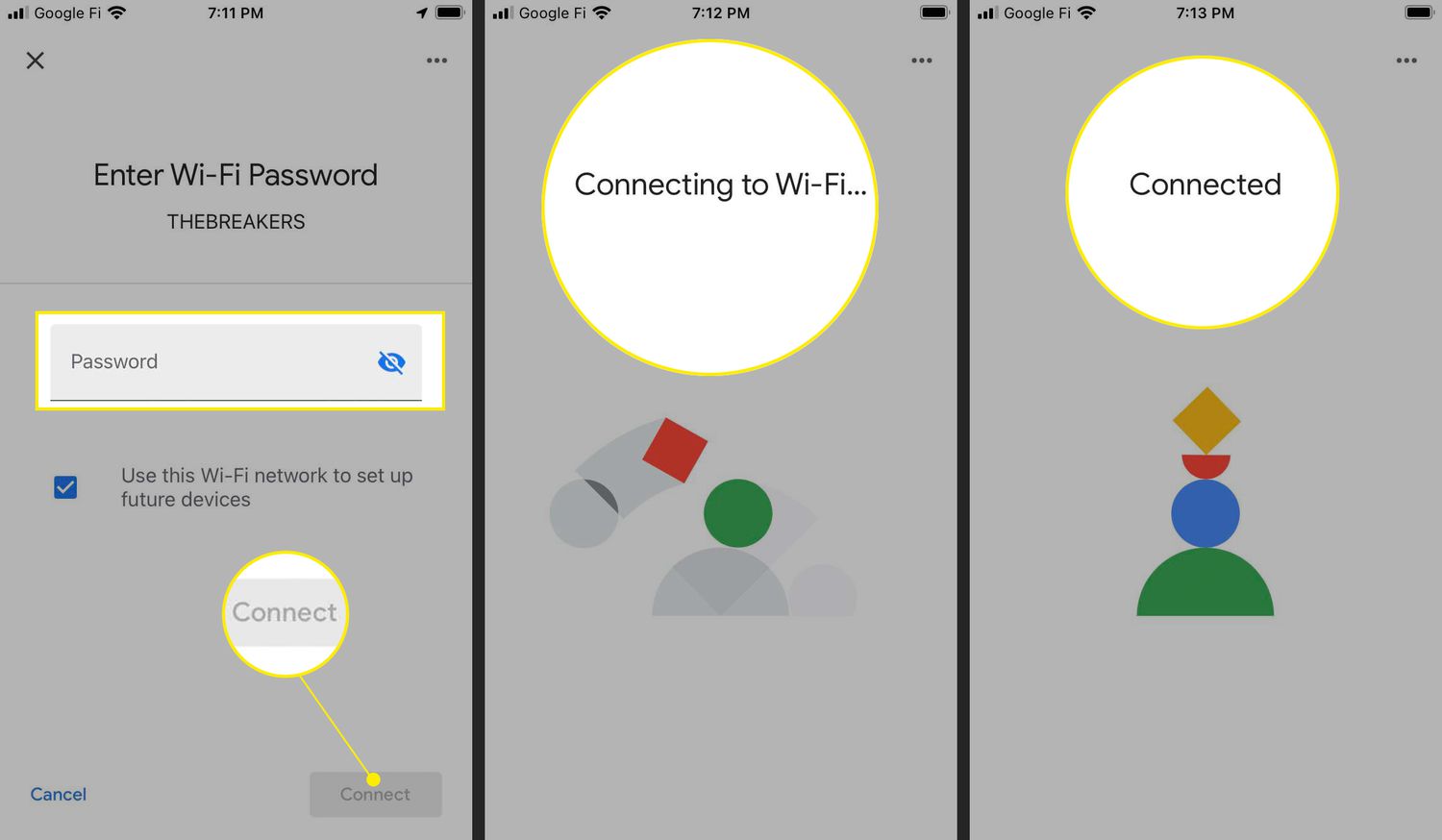
Release the button after the chime. The device will announce "Factory resetting" in a clear voice, then reboot itself. After the reboot, the lights will pulse white or the screen will show a setup code. This means the device has entered setup mode and forgotten all previous Wi-Fi and account information. Now open the Google Home app on your phone. Tap the plus icon. Select "Set up device." Add it as a new device on your current, correct Wi-Fi network. The factory reset erases every stored network credential, so the device will behave exactly as it did when you first unboxed it. This is the recommended first step before you set up a Nest Wifi network, because a clean device ensures no conflicts with the new router's settings. Mastering this physical reset is the only recovery method when the app cannot connect, and it guarantees you can always regain control of a stranded device without needing a secondary phone or computer. This hardware-level control is the non-negotiable foundation for building your own helpful smart home.