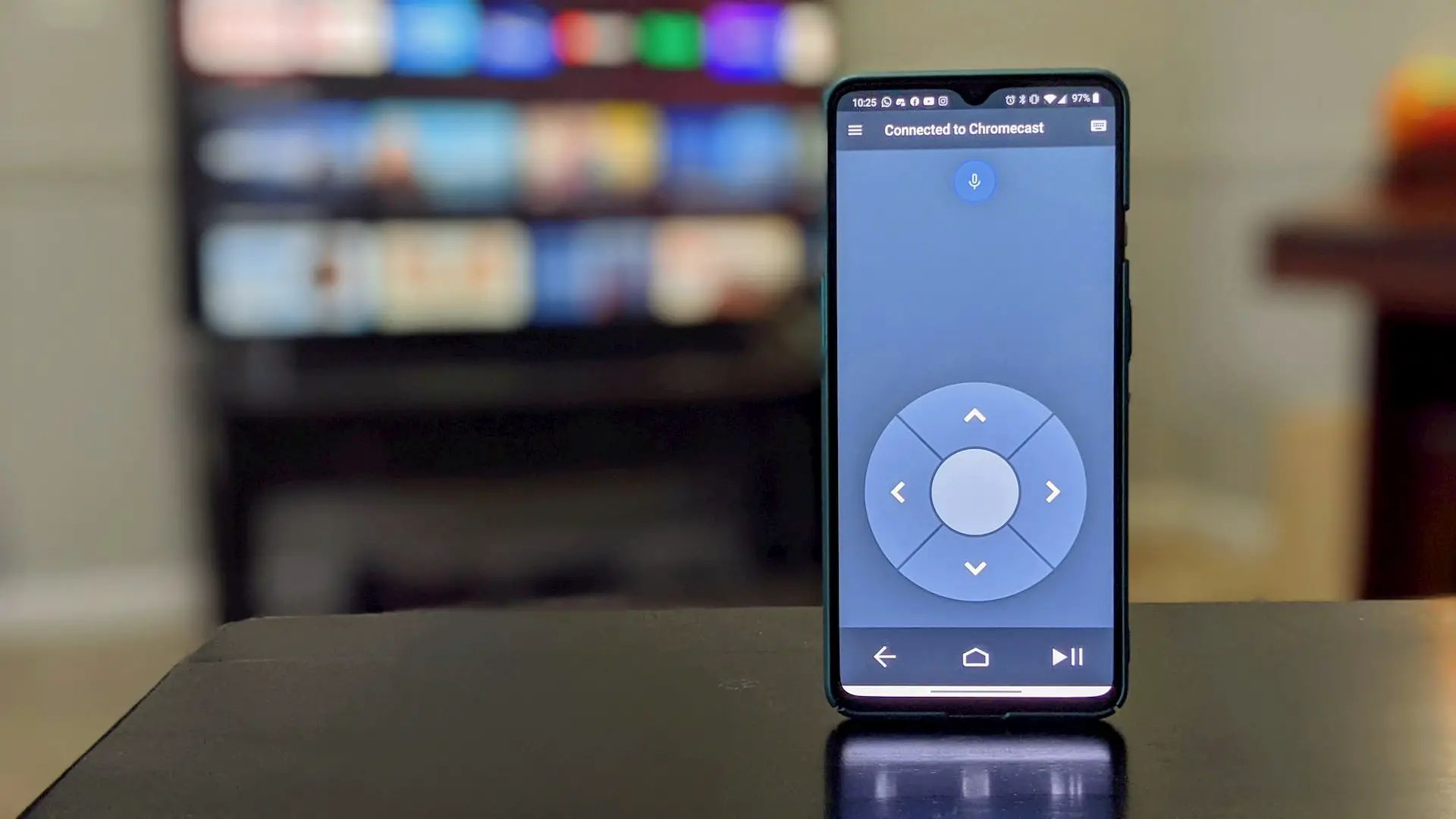
To setup Chromecast without remote, the only reliable method is to use the Google Home app on a compatible smartphone or tablet. This app replaces the physical remote entirely, guiding you through the entire process from factory reset to connecting to Wi-Fi.
Before you begin: what you need to setup Chromecast without a remote
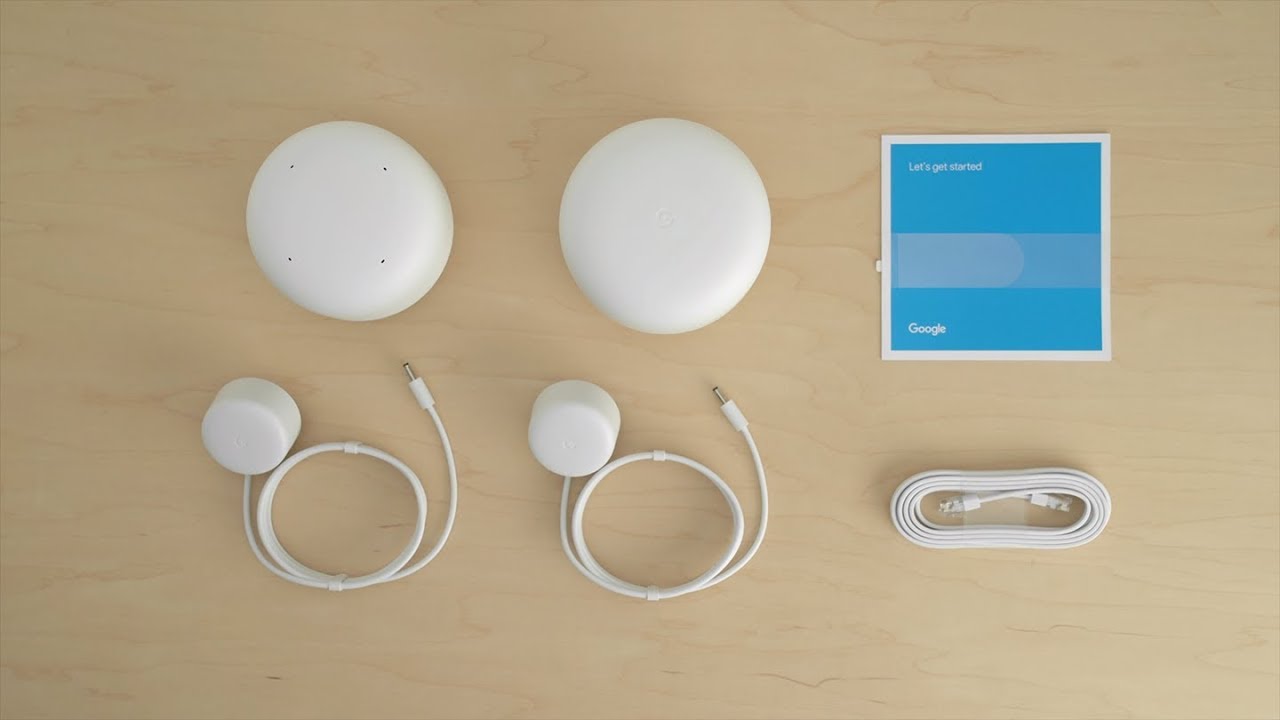
Before starting, gather the following items. You will need a mobile device running Android 8.0 or later, or iOS 14.0 or later. You must have the Google Home app installed on that device and be signed into a Google Account. Your TV must have an HDMI port that supports HDCP 1.3 or higher (HDCP 2.2 is required for 4K content). Plug your Chromecast into that HDMI port and connect it to power. A computer cannot be used for this setup; a mobile device is required.
Step 1: Factory reset your Chromecast (if it was previously set up)
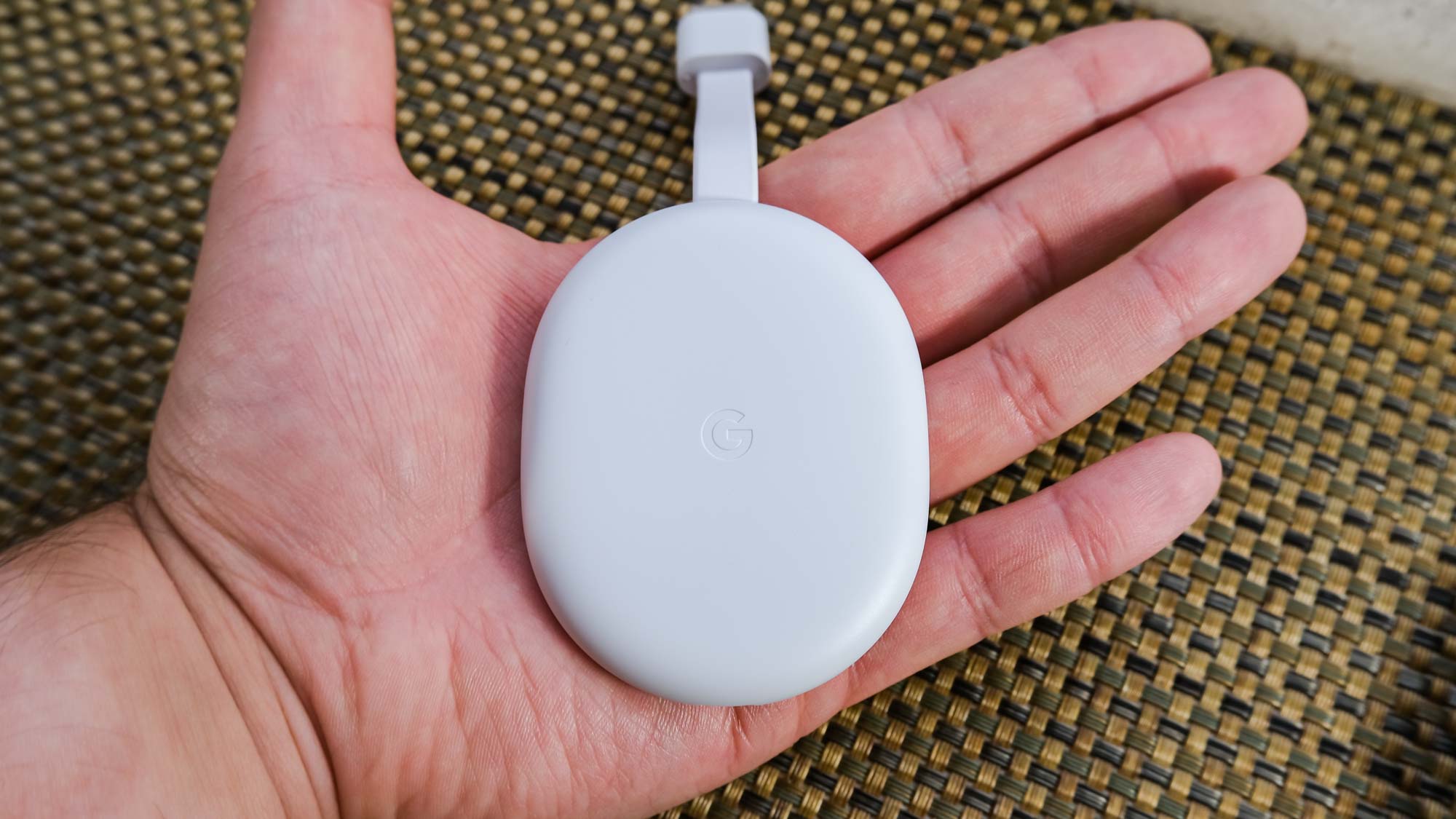
If your Chromecast was already used with a different Wi-Fi network or account, a factory reset is necessary. This clears all previous settings so the Google Home app can discover it as a new device. Locate the physical reset button on the Chromecast. Press and hold it until the status light begins to flash. The device will reboot and return to factory settings, ready for you to set up Chromecast on new wifi network using just your phone.
Step 2: Set up Chromecast with the Google Home app
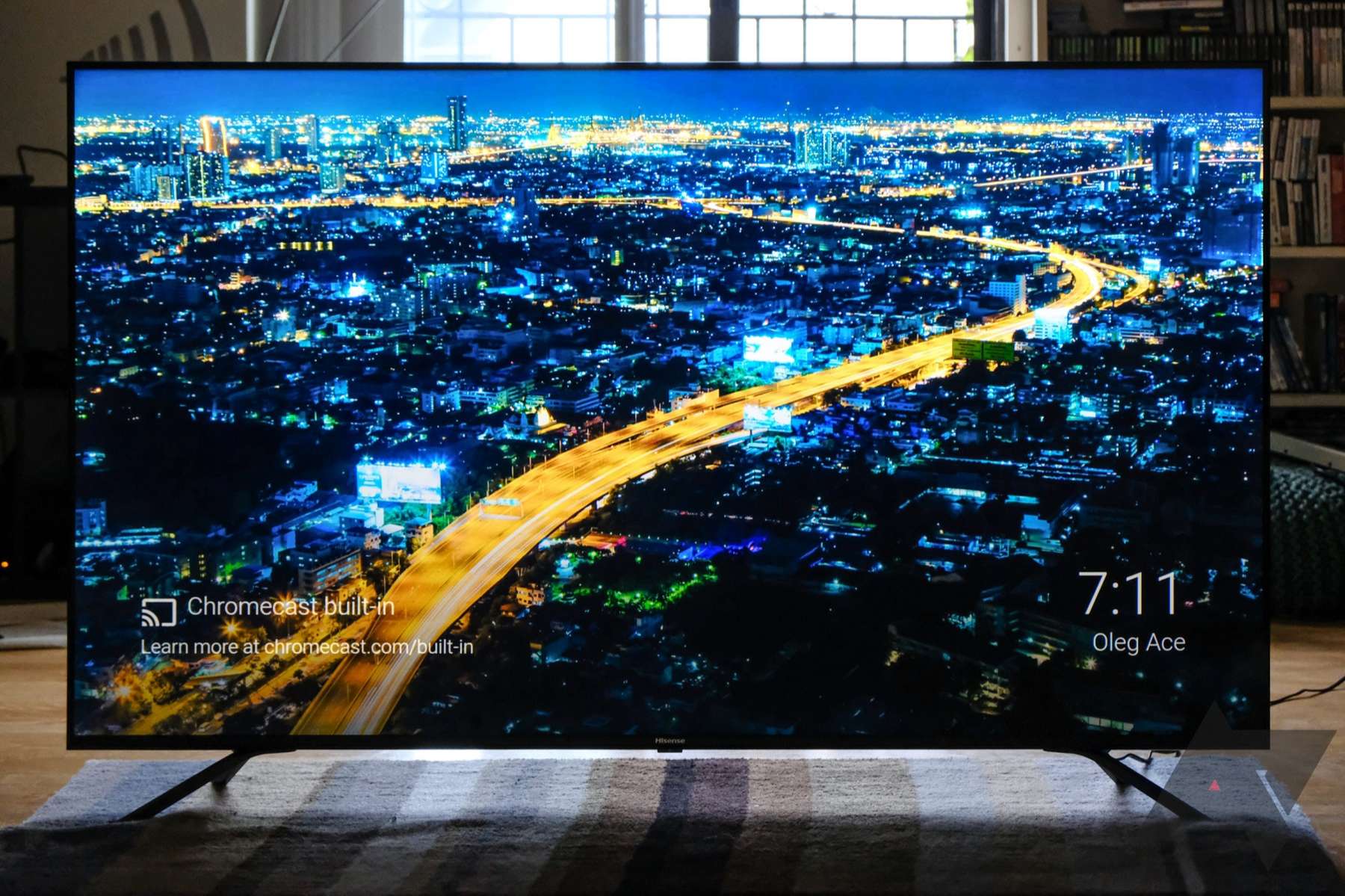
Once the Chromecast is reset and showing its setup screen on the TV, follow these steps on your mobile device:
- Open the Google Home app.
- Tap the Add icon (+), then tap "Set up device."
- Select "Set up new devices in your home" (or "Google Nest or partner device").
- The app will search for nearby devices. When your Chromecast appears, tap it.
- You will be asked to scan the QR code displayed on your TV screen, or manually enter the setup code shown on the TV.
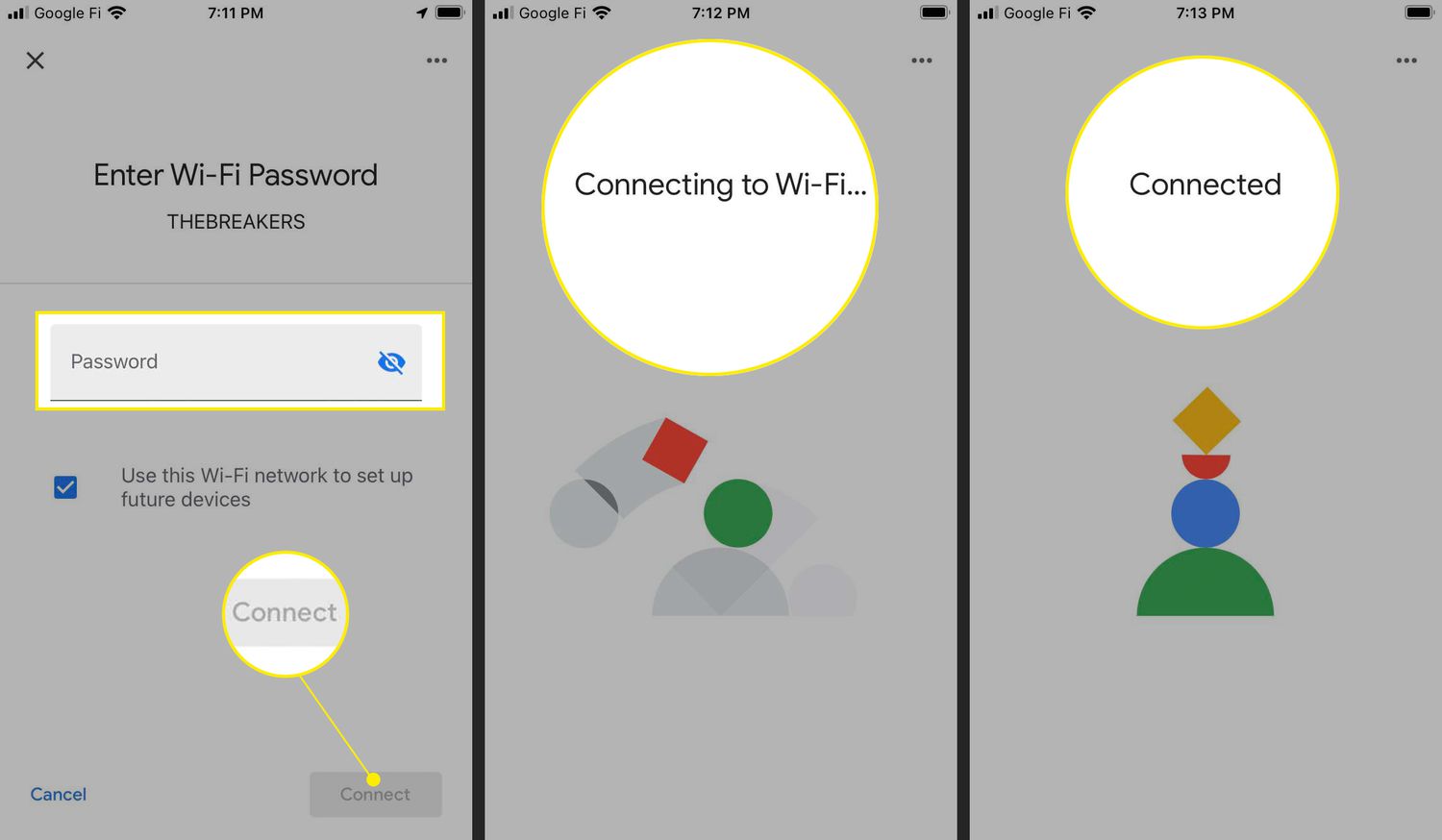
- Follow the on-screen prompts to connect your Chromecast to your Wi-Fi network. Ensure your mobile device is connected to the same Wi-Fi network you intend to use for the Chromecast.
- Name your Chromecast when prompted.
During this process, the Google Home app will request location, Bluetooth, and camera permissions. You must enable all of these for the setup to complete successfully.
Troubleshooting: Chromecast not found during setup
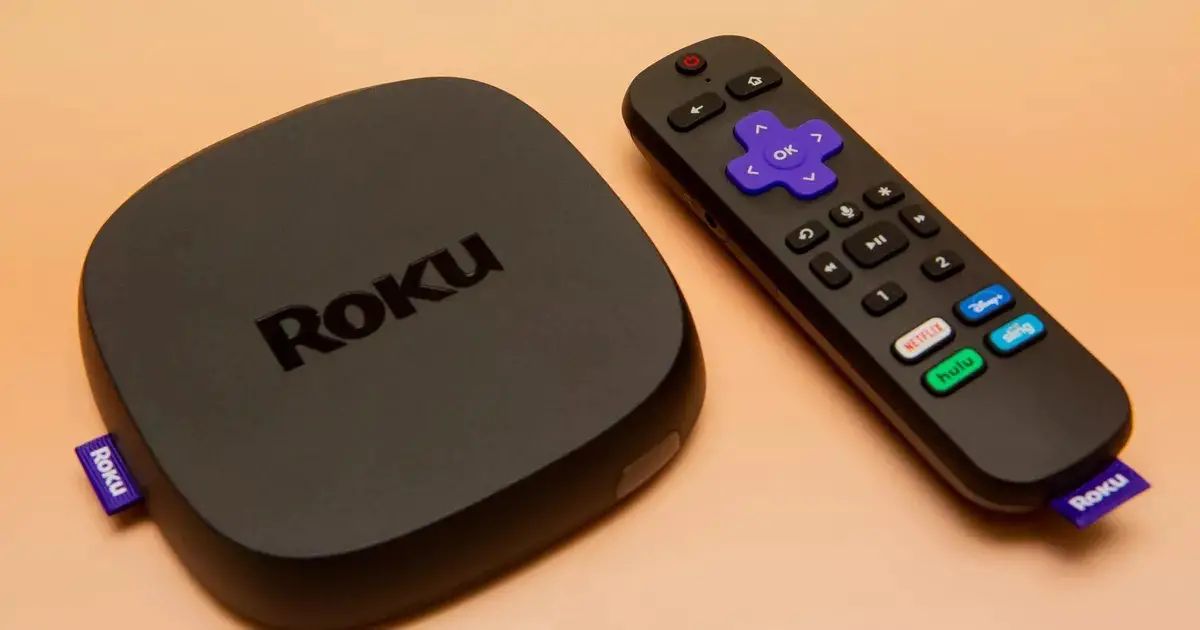
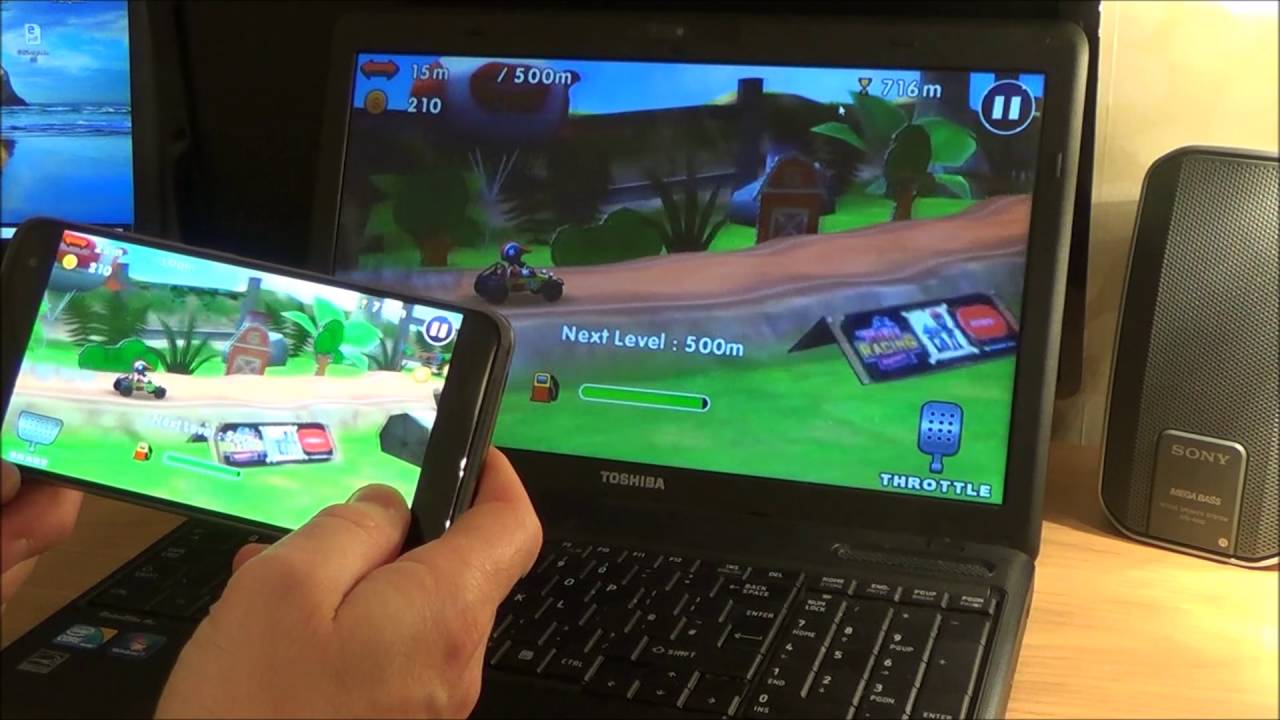
If the Google Home app does not find your Chromecast, double-check that the factory reset was performed correctly and the device is showing the setup screen on your TV. Verify that your phone is connected to the same 2.4GHz or 5GHz Wi-Fi network you plan to use. Also confirm that location, Bluetooth, and camera permissions are granted for the Google Home app in your device settings. If you are trying to cast content from a streaming service, note that using a Chromecast on Roku is not possible; Chromecast is a separate device that requires its own setup process. Once set up, you can even Chromecast from phone to PC to view your mobile content on a larger laptop screen.