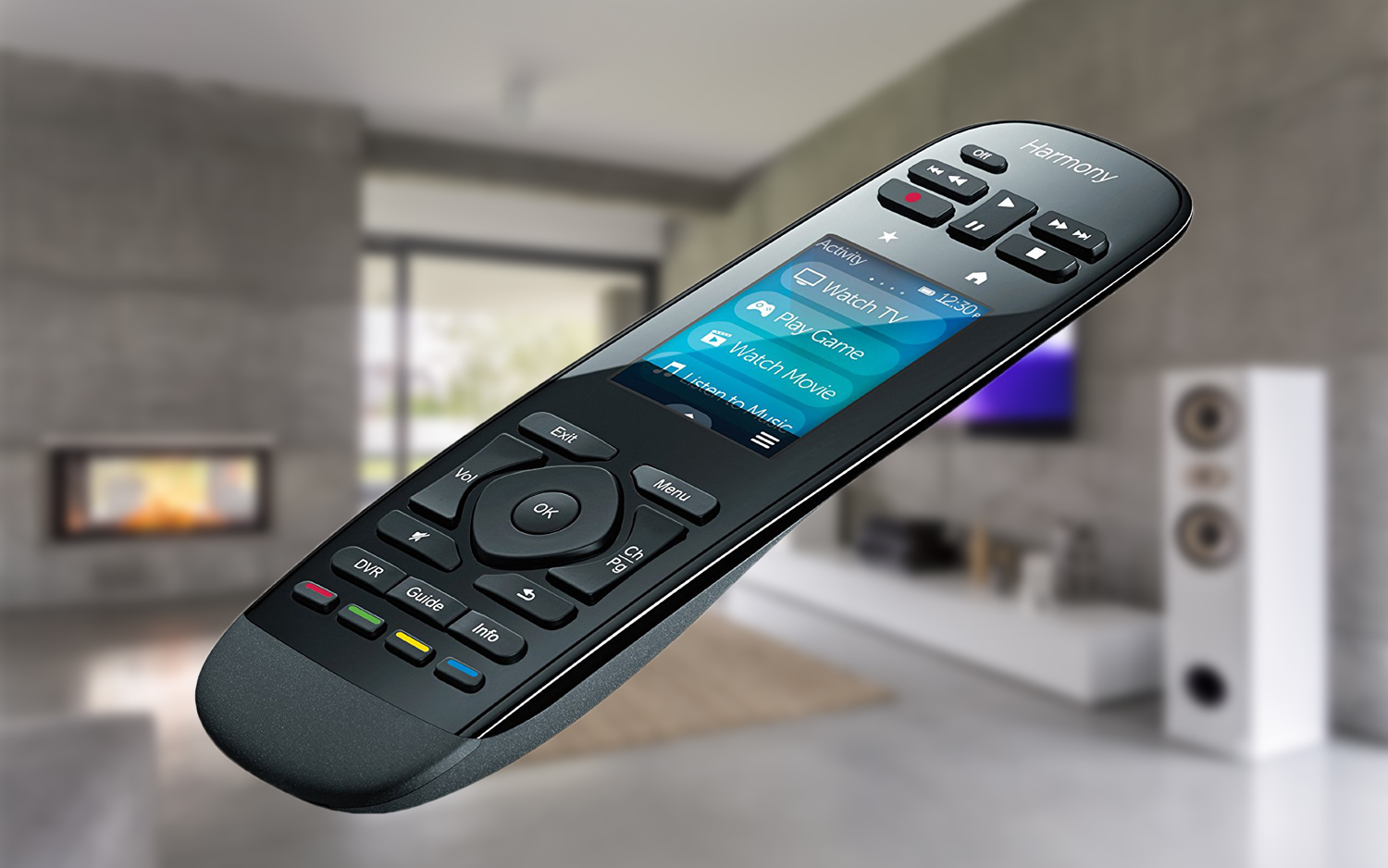
To reset a Logitech Harmony remote, press and hold the Menu and Off buttons together for 20 seconds on touchscreen models, or use the Power button trick on basic models; for Hub-based systems, you also need to reset the Hub itself. If you are troubleshooting a standalone keyboard instead, you can reset Logitech mx keys keyboard to clear its pairing list. A factory reset wipes all your device and activity customizations from the remote, but your MyHarmony account data stays safe, so you can re-sync your setup afterward.
Before you reset your Logitech Harmony remote: try a reboot
If your remote is frozen, unresponsive, or acting erratically, a full factory reset might be overkill. On Harmony Pro, Elite, Ultimate, Ultimate One, and Touch models, simply hold the Off button for about 15 seconds. This forces a reboot without erasing any of your settings or paired devices. Most temporary glitches, like a blank screen or delayed button response, clear up with this quick fix, saving you the hassle of reconfiguring everything.
What a factory reset does to your Logitech Harmony remote
A factory reset wipes all device information, activity setups, and button mappings from the remote itself. It is the go-to solution when you are troubleshooting persistent issues or preparing to hand the remote to someone else. Importantly, the reset only clears the remote’s local memory, your MyHarmony account, including your saved configurations, remains intact on Logitech’s servers. After the reset, you must re-sync the remote to pull that configuration back down, so you are not starting from scratch unless you choose to.
How to factory reset Harmony touchscreen remotes (Pro, Elite, Ultimate, Ultimate One, Touch)
For any touchscreen Harmony remote, the reset process is identical. You do not need a paperclip or any special tool, just the buttons on the device itself.
- Press and hold the Menu button (located above Channel Up) and the Off button together.
- Keep holding both buttons for 20 seconds. The screen will turn off, then turn back on.
- When the display shows an image of a remote with a circular arrow, release both buttons. The remote has been factory reset.
If your touchscreen remote is part of a Hub-based system (Pro, Elite, Ultimate, Ultimate One), you must also reset the Harmony Hub. Otherwise, the Hub may keep stale settings and cause sync conflicts.
How to factory reset the Harmony Hub
The Hub is the brain of many Harmony systems, and resetting it clears all its stored commands and connections. This is essential after resetting a touchscreen remote or when the Hub itself is not responding to IR or Bluetooth commands.
- Unplug the Harmony Hub from power.
- Locate the Pair/Reset button on the back of the Hub.
- Hold that button down while you plug the Hub back into power.
- Keep holding until the light on the front of the Hub flickers red for about 30 seconds.
- Release the button. The Hub has now restored to factory defaults.
How to factory reset Harmony 200, 300, and 350 remotes
These basic, non-touchscreen remotes use a different reset method that involves the battery compartment. It is quick and requires no software.
- Remove one of the batteries from the back of the remote.
- Press and hold the Power button on the remote.
- While still holding Power, reinsert the battery.
- Watch the device buttons, when they blink, the remote has been reset.
Release the Power button after the blink. Your Harmony 200, 300, or 350 is now back to factory condition and ready for a fresh setup.
Reset notes for Harmony Smart Control, Smart Keyboard, and Express
Harmony Smart Control and Harmony Smart Keyboard remotes do not have a direct reset function. You cannot factory reset these handheld remotes on their own, they are entirely dependent on the Harmony Hub. To reset them, you must reset the Hub using the steps above, which will erase the paired remote’s configuration along with everything else. After the Hub reset, you will need to re-pair the Smart Control or Smart Keyboard through the Harmony app.
Harmony Express, which uses a voice-controlled blaster instead of a traditional remote, resets differently. Open the Harmony Express app, go to Room Settings, and select Delete this Room. Then unplug the blaster, press and hold the button on its bottom, and plug the AC adapter back into power while holding it. Keep holding for about 15 seconds, the light on the front will flicker white for roughly ten seconds, confirming the reset. This process also clears the room from your account, so you will need to set it up fresh.
Setting up your remote after the reset
If you are setting up from scratch, you can add devices and create activities through the same interface.
For Hub-based systems, pay attention to your Wi-Fi network. The Harmony Hub only works with 2.4GHz Wi-Fi frequencies, it will not connect to a 5GHz network. Make sure your router is broadcasting a 2.4GHz signal, and avoid using Wi-Fi passwords that contain emojis, as the Hub does not support them. After syncing, test a few commands to confirm everything is responsive, and you are back in control.
If you ever need to troubleshoot a different Logitech device, the same principles apply: know which model you have and follow its specific reset path. For instance, you might need to reset a Logitech wireless keyboard if it stops pairing, or reset a Roku remote if it loses its connection. Each device has its own reset procedure, but the Harmony family is the most involved because it combines handheld remotes, hubs, and blasters. Start with the reboot, escalate to a factory reset only when needed, and always re-sync afterward to restore your setup.