The companion app needs location permissions enabled in your phone's system settings, not just the app's internal settings. Granting precise location access allows the app to use Bluetooth scanning to discover your headset after you turn on a VR headset.
Enable VR companion app location on Android
On Android, open the Settings app and navigate to Apps or App Management. Find your VR companion app in the list, then tap Permissions. Under the Location permission, you must select "Allow only while using the app" and then toggle on the sub-option for "Precise location" (the exact wording varies slightly by manufacturer, but it is usually a switch labeled "Use precise location"). A common mistake is granting only "Approximate location" instead of "Precise location", this still prevents Bluetooth scanning from seeing your device, so pairing will fail silently. If you previously granted "Approximate," revoke the permission completely, then re-grant it with the precise setting active. After changing this, force-close the companion app and reopen it.
Enable location on iOS
On iOS, open the Settings app, scroll to the list of apps, and tap your VR companion app. Under "Location," select "While Using the App." Then, directly below that, toggle the switch for "Precise Location" to the on (green) position. Simply having Bluetooth enabled in Control Center is not enough for the initial pairing handshake; iOS explicitly ties Bluetooth discovery to the location permission for privacy reasons. If the toggle is off, the app will see Bluetooth is on but will never receive the unit’s advertising packets. After enabling precise location, force-quit the companion app by swiping it away in the app switcher, then relaunch it.
When granting permissions doesn't fix it
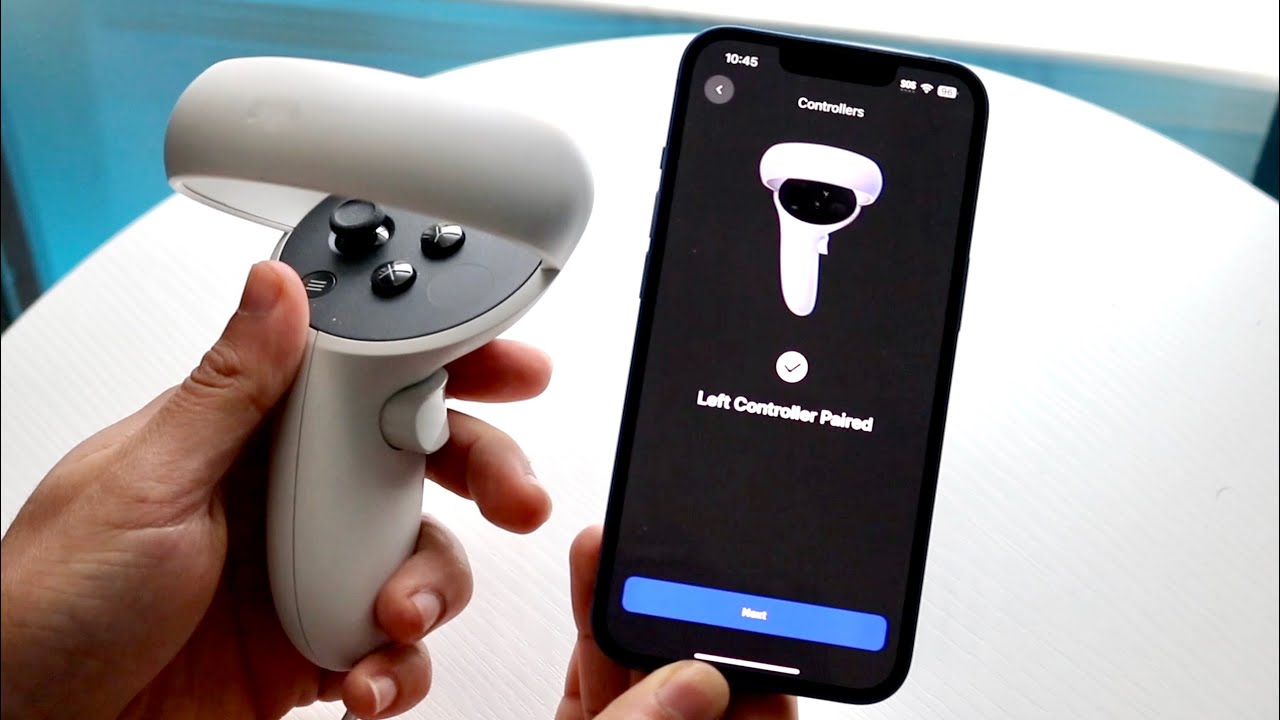
If location permissions are correctly set to precise and while-in-use, but the hardware still isn’t found, the issue is often that the visor is not in pairing mode or is already bound to another account. To enter pairing mode, follow the instructions in your headset's companion app, which typically involves putting the headset into a discoverable state. If the unit was previously used with a different phone or account, you may need to reset it. To reset a VR headset, consult your manufacturer’s guide for the specific button combination. Also check that the wearable is not already connected to another device via Bluetooth settings; if it is, forget that connection before trying again. Finally, ensure the device is not bound to a different companion app account by opening the app’s account settings and signing out, then signing back in fresh. If the headset still refuses to pair, you may need to turn on a VR headset in a different room away from other Bluetooth devices to reduce interference, and confirm you can connect VR controller to VR headset to rule out a broader hardware fault. Unlike other guides, we pinpoint that iOS silently discards Bluetooth advertising packets when Precise Location is toggled off, even if the app has general location access.
Granting precise location access allows the app to use Bluetooth scanning to detect your headset. If you have already restarted both devices and reinstalled the app, the most likely remaining cause is that the operating system has blocked the Bluetooth discovery process, which requires location permission on both Android and iOS.