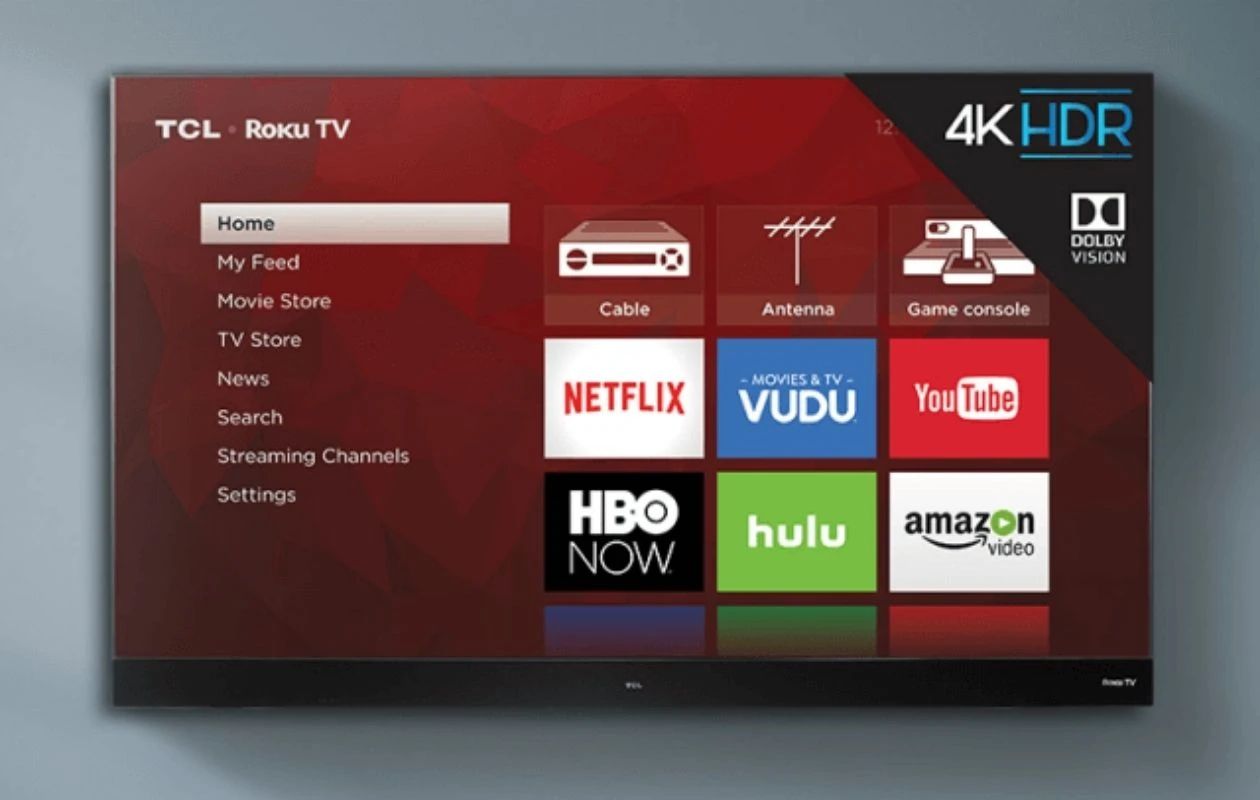
If your TCL remote is dead, missing, or broken, you can still connect TCL smart TV to Wi-Fi without remote by using a temporary Ethernet cable with a phone app, the TV’s physical buttons, or a WPS button on your router. The most reliable method is the Ethernet-plus-app route, which works on most TCL Google TV and Roku TV models, but the right choice depends on your TV’s ports and your router’s features. If your TV lacks an Ethernet port, you can connect insignia TV to wifi without remote using a similar app-based workaround. Once online, you can connect my laptop to TCL smart TV to use it as a wireless display or control hub.
How to connect TCL smart TV to Wi-Fi without remote: start here
Ranked by reliability, your three main options are: 1) Ethernet cable plus a mobile app (best for most TVs, especially Roku and Google models), 2) WPS button on your router (fast, no password typing, but requires router support), and 3) the TV’s built-in physical buttons (works on every TCL but slow for password entry). The Ethernet method is the easiest for most people because it gives you a stable connection immediately, and the app acts as a full remote for navigating settings. The WPS method is second-best if your router has that button, and physical buttons are the fallback that always works but requires patience.
Use an Ethernet cable and a mobile app (easiest for most TVs)
This method works on TCL Roku TVs (like the 6-Series and 5-Series) and TCL Google TVs (like QM8 and QM7). You’ll temporarily give the TV a wired internet connection, then use your phone to switch it over to Wi-Fi.
- Plug one end of an Ethernet cable into your router and the other end into the LAN port on the back of your TCL TV.
- Power on the TV. It will automatically pick up the wired connection.
- On your smartphone, connect to the same router’s Wi-Fi network (not mobile data).
- Install the appropriate app: the official Roku app for Roku TVs, or the TCL Home app for Google TVs. A universal remote app like Universal TV Remote also works on iPhone.
- Open the app. It should auto-discover your TV because both devices are on the same network.
- Using the app’s virtual remote, go to Settings → Network (or Network & Internet) → Wi-Fi (or Wireless).
- Select your Wi-Fi network name from the list.
- Enter the Wi-Fi password using the app’s on-screen keyboard, then confirm or save.
- Once the TV shows it’s connected to Wi-Fi, unplug the Ethernet cable.
The TV will stay on Wi-Fi, and you can keep using the app as your remote for streaming and settings. This method is the most reliable because it avoids typing a long password with physical buttons.
What to try if your TCL TV doesn't have an Ethernet port
Some TCL models, particularly smaller 5-Series TVs, do not include a physical Ethernet port. If your TV lacks a LAN jack, you have two alternatives. First, plug a USB keyboard and mouse into the TV’s USB port. TCL TVs recognize these as input devices, so you can use the keyboard to type your Wi-Fi password far faster than with on-screen arrows, and the mouse to click through menus. Second, fall back to the TV’s physical buttons, which are always present even on port-less models. The buttons are slow for text entry, but they work for selecting your network and entering the password character by character.
Connect via WPS (Wi-Fi Protected Setup) without typing a password
If your router has a WPS button, you can skip password entry entirely. This is the fastest method when you have no remote and no Ethernet cable handy.
- Locate the WPS button on your router. It’s usually labeled “WPS” or marked with a icon of two arrows forming a circle.
- On the TV, access network settings using the physical buttons (or the app if you already have it installed).
- Navigate to Network → Wi-Fi and select the WPS option.
- Press the WPS button on your router within a few seconds.
- Wait for the TV to automatically detect the router and establish the connection.
You’ll see a confirmation on screen when it’s done. Check your router’s manual or admin page if the button doesn’t work.
Navigate with the TV's built-in physical buttons
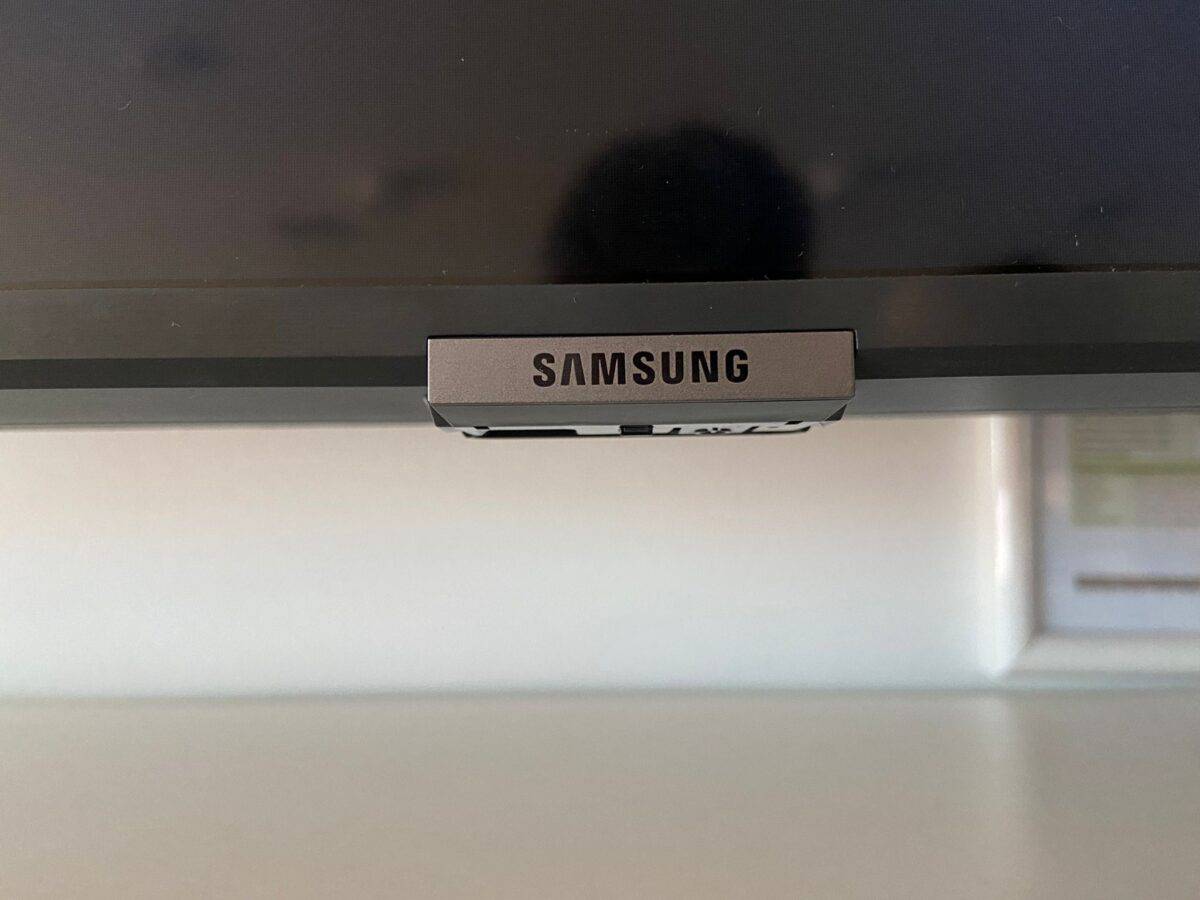
Every TCL smart TV has a physical control panel, usually on the bottom-center edge or the rear panel. The buttons include power, volume, channel, and a menu/settings button. This method is slow but requires no extra hardware beyond the TV itself.
- Locate the control panel and press the Menu or Settings button.
- Use the directional buttons (up, down, left, right) to highlight Network or Wireless.
- Select Wi-Fi from the network options.
- Wait for the TV to scan for available networks, then highlight your network’s name.
- Press OK or Enter to select it.
- Use the directional buttons to move through the on-screen keyboard and enter your Wi-Fi password. Remember that passwords are case-sensitive.
- Highlight Connect or OK and press Enter.
- Wait for the confirmation message or the Wi-Fi icon to appear.
This method is tedious for long passwords, but it’s the universal fallback that works on every TCL model, regardless of ports or router features.
Troubleshooting: apps, Wi-Fi bands, and remote pairings
If the app can’t find your TV, the most common cause is that your phone is on a different network than the TV. During the Ethernet setup, both must be on the same router, your phone on Wi-Fi, the TV on the wired connection. Also, many TCL apps, including the TCL Home app, require your phone to be on a 2.4 GHz Wi-Fi network during initial pairing. If your router broadcasts both 2.4 GHz and 5 GHz bands, temporarily disable the 5 GHz band or connect your phone to the 2.4 GHz SSID before launching the app. If Ethernet doesn’t auto-connect, check that the cable is firmly seated in both the TV’s LAN port and the router, and try a different cable if you have one. As a last resort, you can factory reset the TV using the physical buttons (usually holding the power and volume-down buttons together for several seconds), which will restart the setup process and may clear any stuck network state. After a reset, you’ll need to go through the initial setup again, but you can use any of the methods above to get online. Remember that connecting a smart TV to Wi-Fi is the goal, but the app and Ethernet methods are the most reliable paths when your remote is gone.