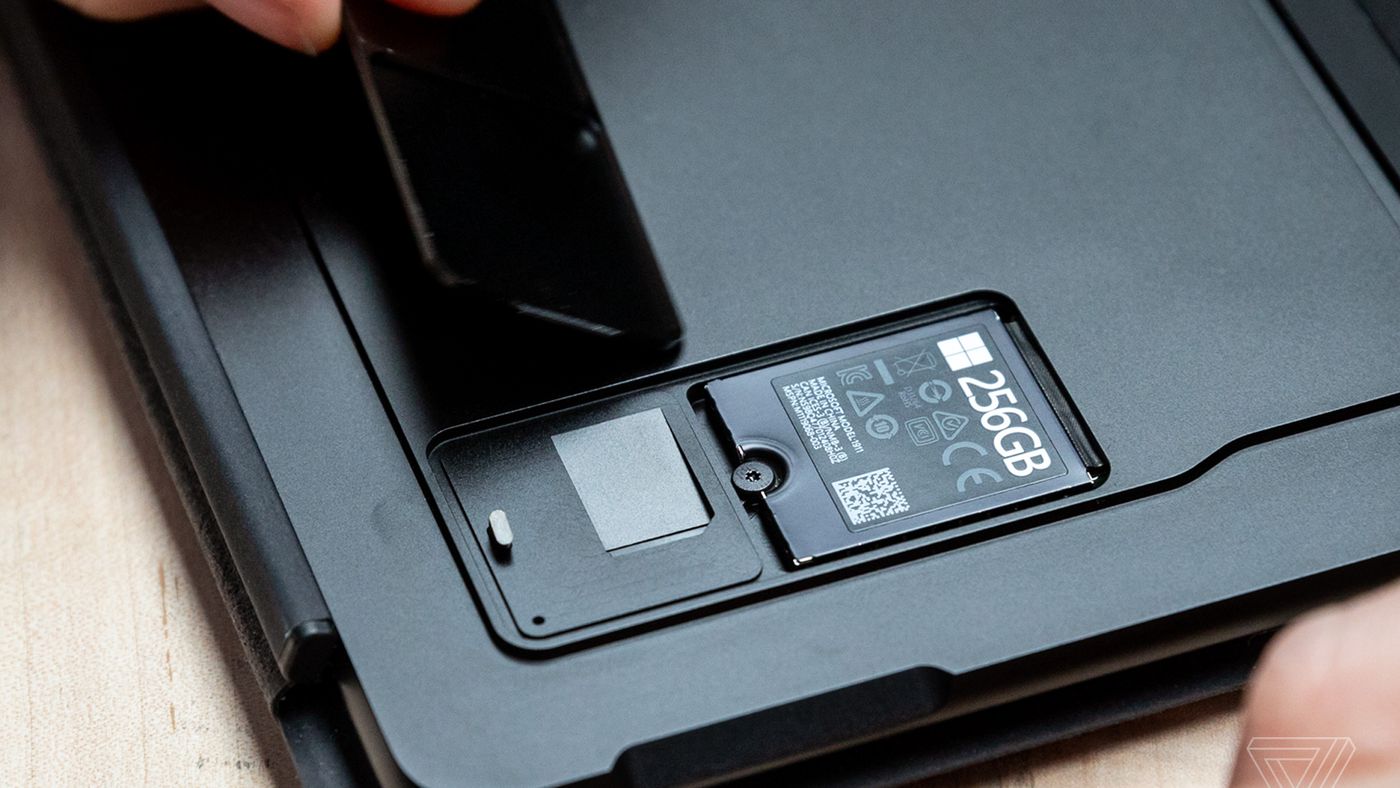
You cannot add RAM to a Surface Pro 3, and the search for how to add RAM to Surface Pro 3 ends here: it is physically impossible because the memory is soldered to the motherboard. Every Surface Pro 3 model uses LPDDR3 memory that is permanently fixed, with no RAM slots and no expansion options, so no tool, screwdriver, or module will change that.
Can you add RAM to a Surface Pro 3?
No, you cannot add RAM to a Surface Pro 3. All Surface Pro 3 models come with LPDDR3 memory soldered directly to the motherboard, and there are no additional RAM slots for expansion. This means the amount of RAM you bought is the amount you will always have, and no upgrade path exists for this device.
Why the RAM cannot be upgraded
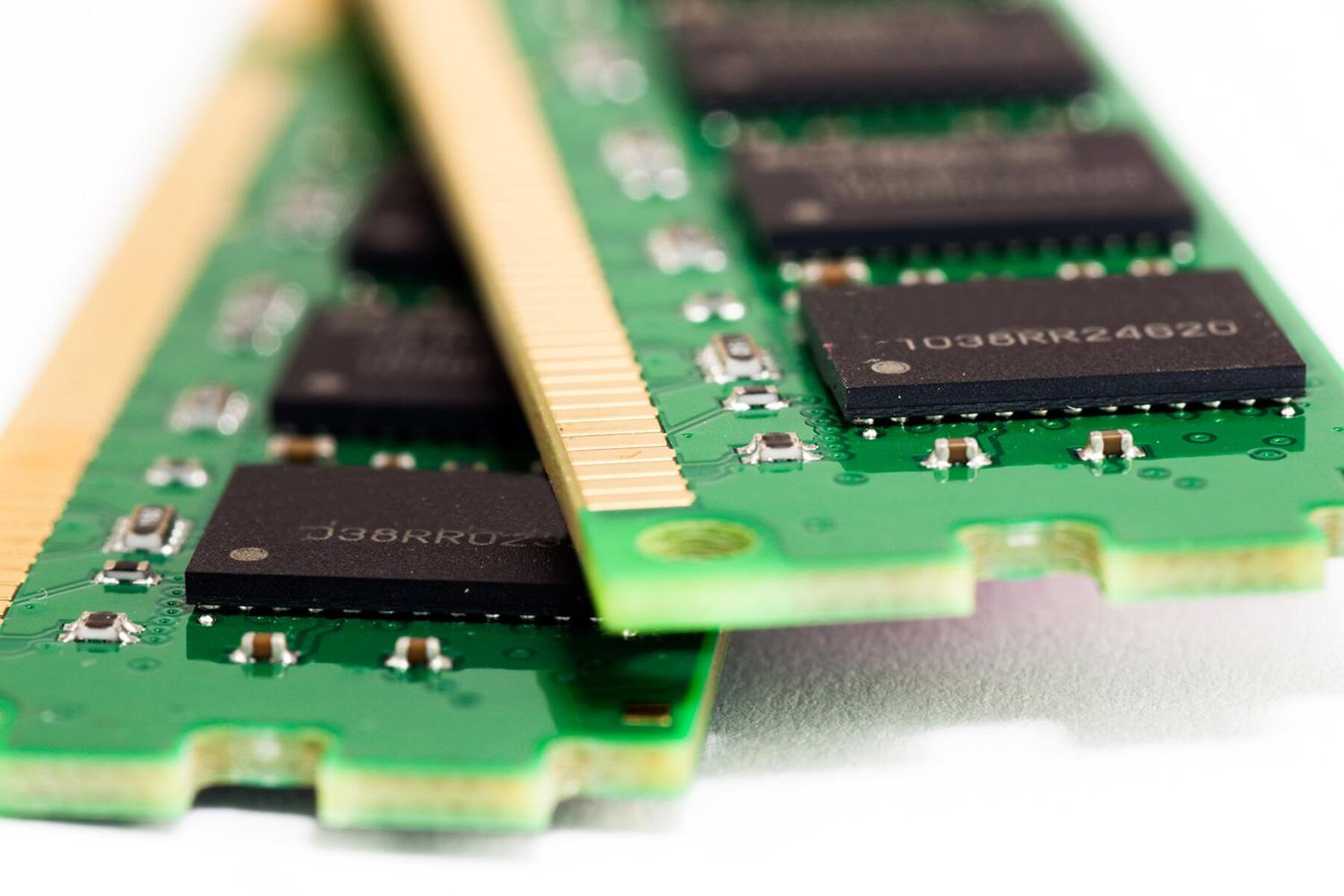
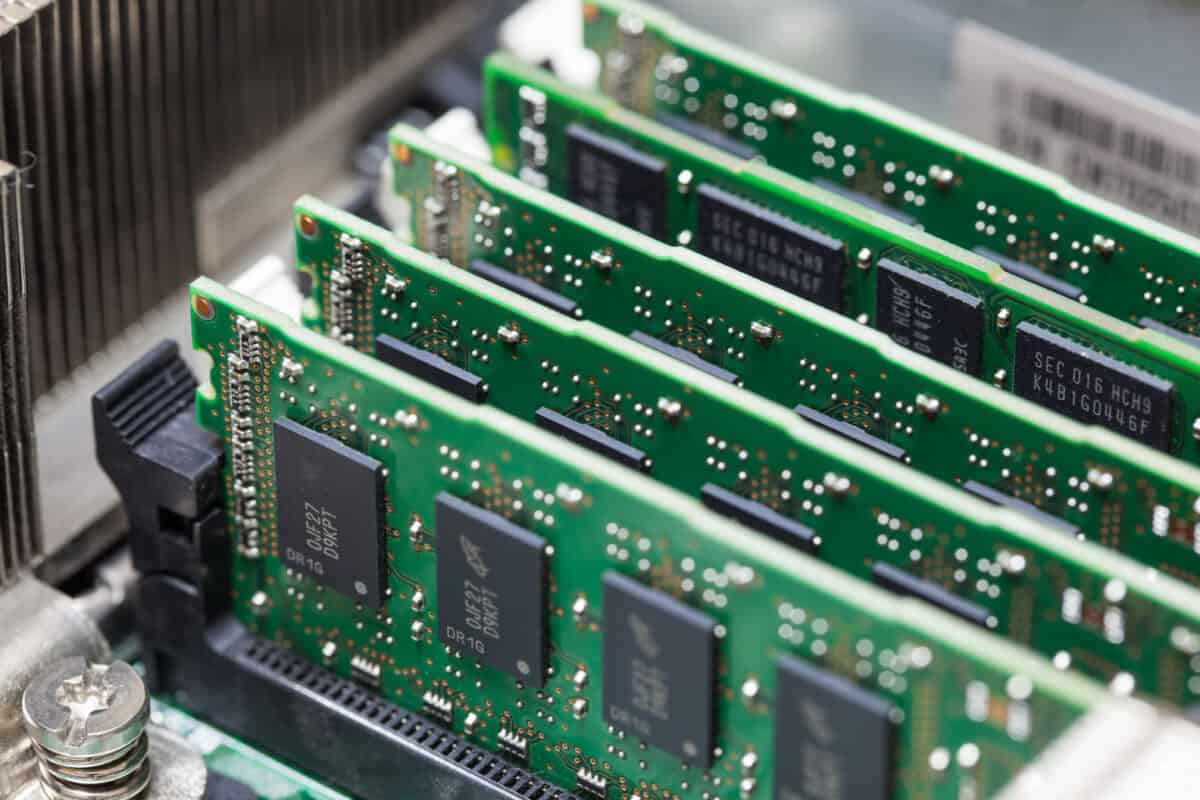
The technical reason is straightforward: the Surface Pro 3 uses LPDDR3 memory running at 1600MHz, and this memory is soldered onto the motherboard during manufacturing. Microsoft made this design choice to achieve the device’s thin, lightweight form factor and to maximize power efficiency, which is critical for a portable tablet-laptop hybrid. Soldering eliminates the space and connectors needed for removable RAM slots, so there is no physical way to access, remove, or replace the memory without destroying the motherboard. Unlike desktop PCs or some older laptops, the Surface Pro 3 was never designed with user-serviceable components in mind, and this includes its RAM.
Original Surface Pro 3 RAM and storage configurations
When you purchased a Surface Pro 3, you had to make a one-time choice between two RAM options because upgrades were never possible. The factory configurations were either 4GB of RAM paired with 64GB or 128GB of storage, or 8GB of RAM paired with 256GB or 512GB of storage. These were the only choices available at the time of purchase, and they remain fixed for the life of the device. If you bought the 4GB model, you cannot turn it into the 8GB model later, regardless of your needs or budget.
What to do if your Surface Pro 3 feels slow
Since adding RAM is off the table, you need to optimize what you already have. Adjust visual effects by going into System Properties and selecting “Adjust for best performance” to reduce the graphical load on the system. Run a malware scan with Windows Defender or a trusted third-party tool, because infections can silently consume memory and CPU. If the device still feels sluggish, consider resetting the OS to factory settings, which clears years of accumulated clutter and restores the original performance baseline. Finally, free up storage by moving files to cloud services like OneDrive or an external drive, since a nearly full SSD can slow down the entire system, including virtual memory operations.
How to choose the right RAM when buying your next device
When you shop for a new laptop or tablet, check whether the RAM is soldered or socketed before you commit to a purchase. Many ultraportables, including newer Surface models, follow the same soldered design as the Surface Pro 3, meaning you cannot upgrade later. For any device with soldered RAM, select the highest RAM configuration you can afford at purchase time, because that choice is final. If you need 16GB or 32GB for future-proofing, pay for it upfront rather than hoping for an upgrade path that will not exist. For devices with socketed RAM, confirm the maximum supported capacity and the number of available slots, so you know your options for later expansion. This simple check before buying saves you from the frustration of discovering, after ownership, that your memory is permanently locked in place.
\nRelated reading: How To Setup Microsoft Wireless Keyboard 800 and Microsoft Wireless Keyboard 3000 V2.0 How To Connect.