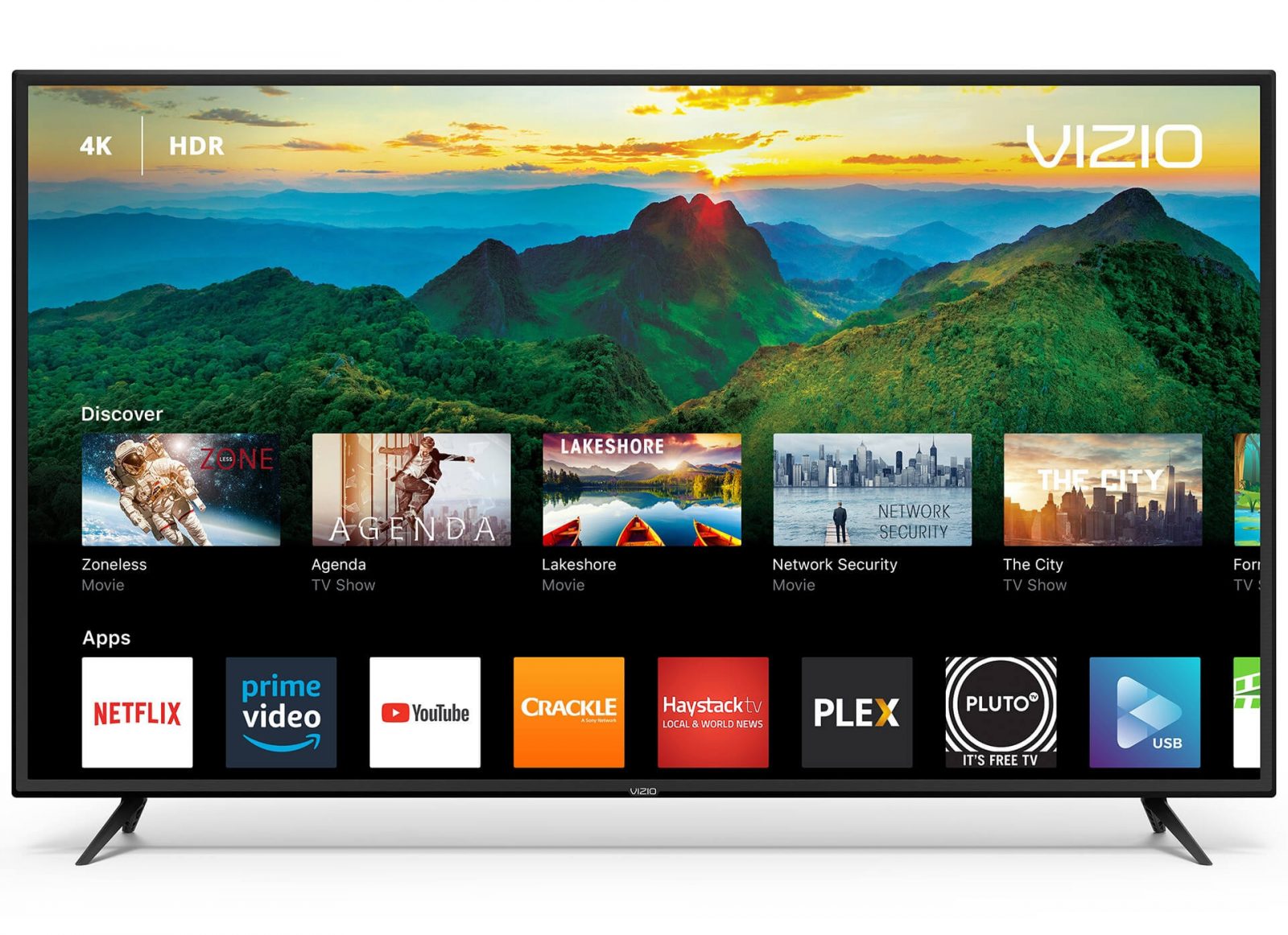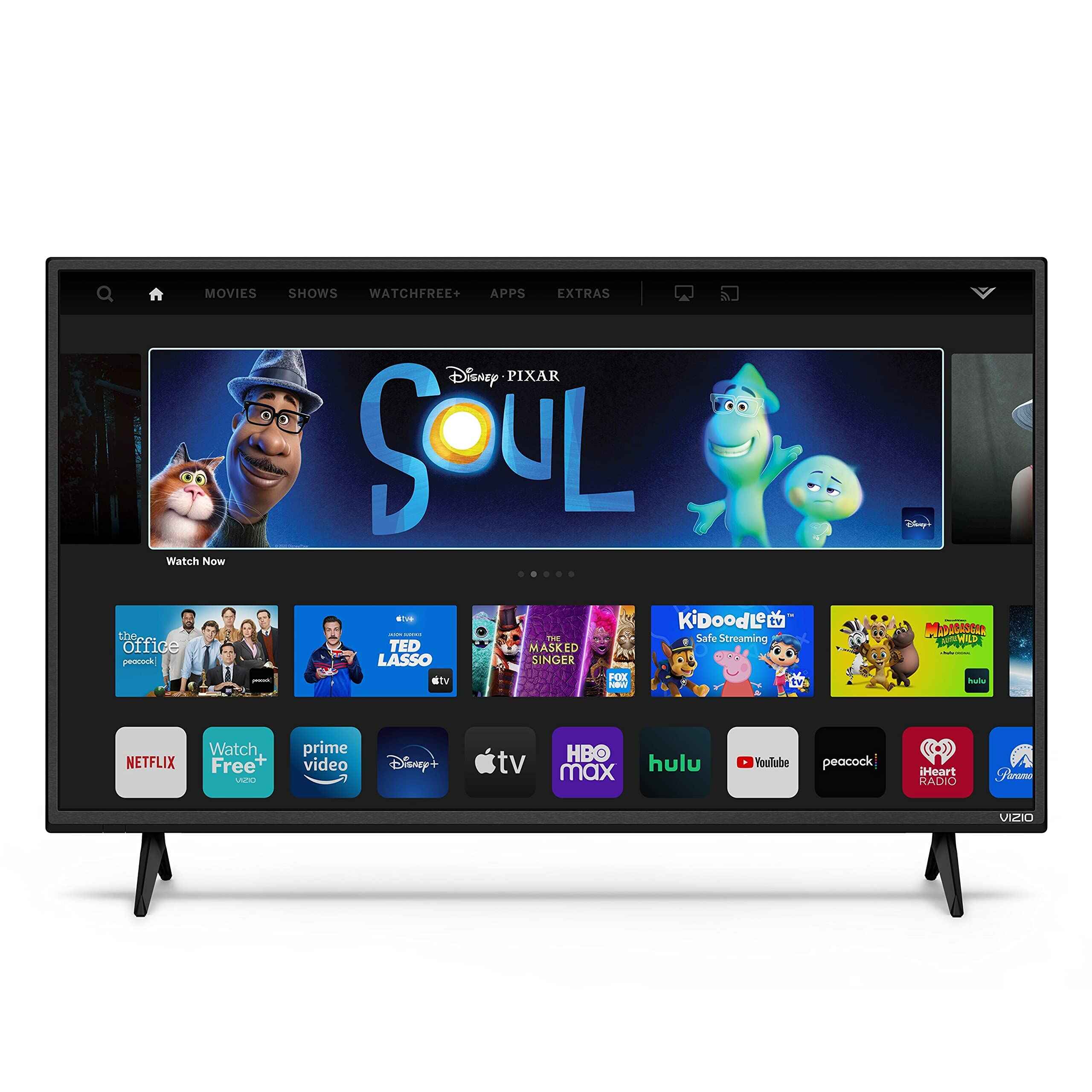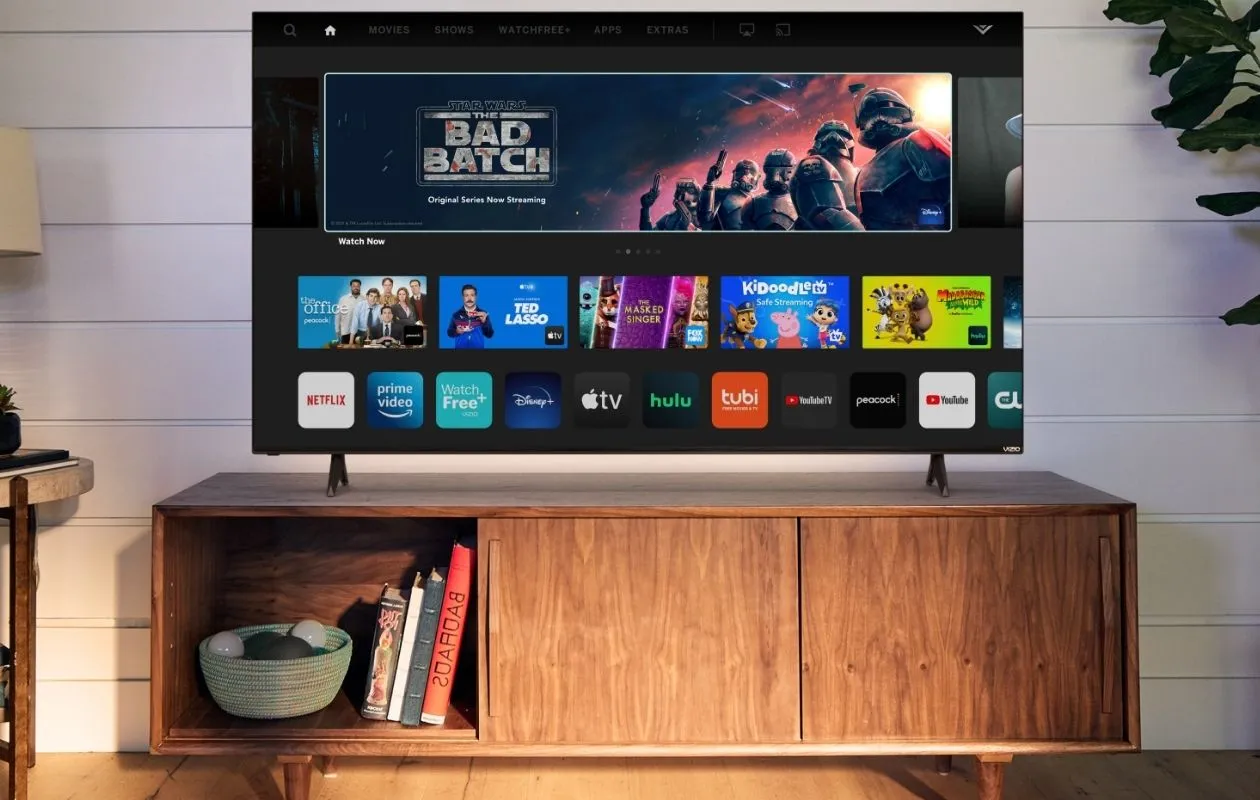
You cannot install the Roku operating system on a Vizio Smart TV, but you can get Roku on a Vizio Smart TV by using The Roku Channel app or connecting a physical Roku streaming device. If you choose the app route, you can add Roku app to Vizio smart TV to stream free movies and shows without extra hardware. Vizio TVs run on their own proprietary Vizio OS (formerly SmartCast), which does not support installing the Roku OS directly, so these two methods are your reliable options for accessing Roku content and functionality.
Can you get Roku on a Vizio smart TV?
The direct answer is yes, but only through workarounds. You cannot replace the Vizio SmartCast OS with the Roku OS because Vizio TVs use their own proprietary operating system. However, you can still enjoy Roku content by installing The Roku Channel app from the Vizio app catalog or by connecting a physical Roku device via HDMI.
What you need to know before you start
Vizio SmartCast TVs come with preloaded apps and automatically receive updates, but you generally cannot download new apps that are not already part of the Vizio OS catalog. This means The Roku Channel app is your only app-based option. If you want the full Roku experience, including a dedicated remote, all Roku channels, and features like voice control, you will need to connect a physical Roku streaming device.
Method 1: Install the Roku Channel app on your Vizio TV
This method gives you access to Roku’s library of free and premium content directly through your Vizio TV without any extra hardware. Follow these steps:
- Press the "V" key or "Home" key on your Vizio remote to open the SmartCast home screen.
- Navigate to the "Apps" section on the SmartCast home screen.
- Select "App Search" and type "The Roku Channel" to find the app.
- Select the app and install it on your TV.
- Launch The Roku Channel app, sign in to your Roku account or create a new one, and start browsing content.
Once installed, you can navigate through the app using your Vizio remote. The Roku Channel app provides a user-friendly interface optimized for Vizio TVs, giving you access to movies, TV shows, and live sports without needing any external devices.
Method 2: Connect a Roku streaming device to your Vizio TV
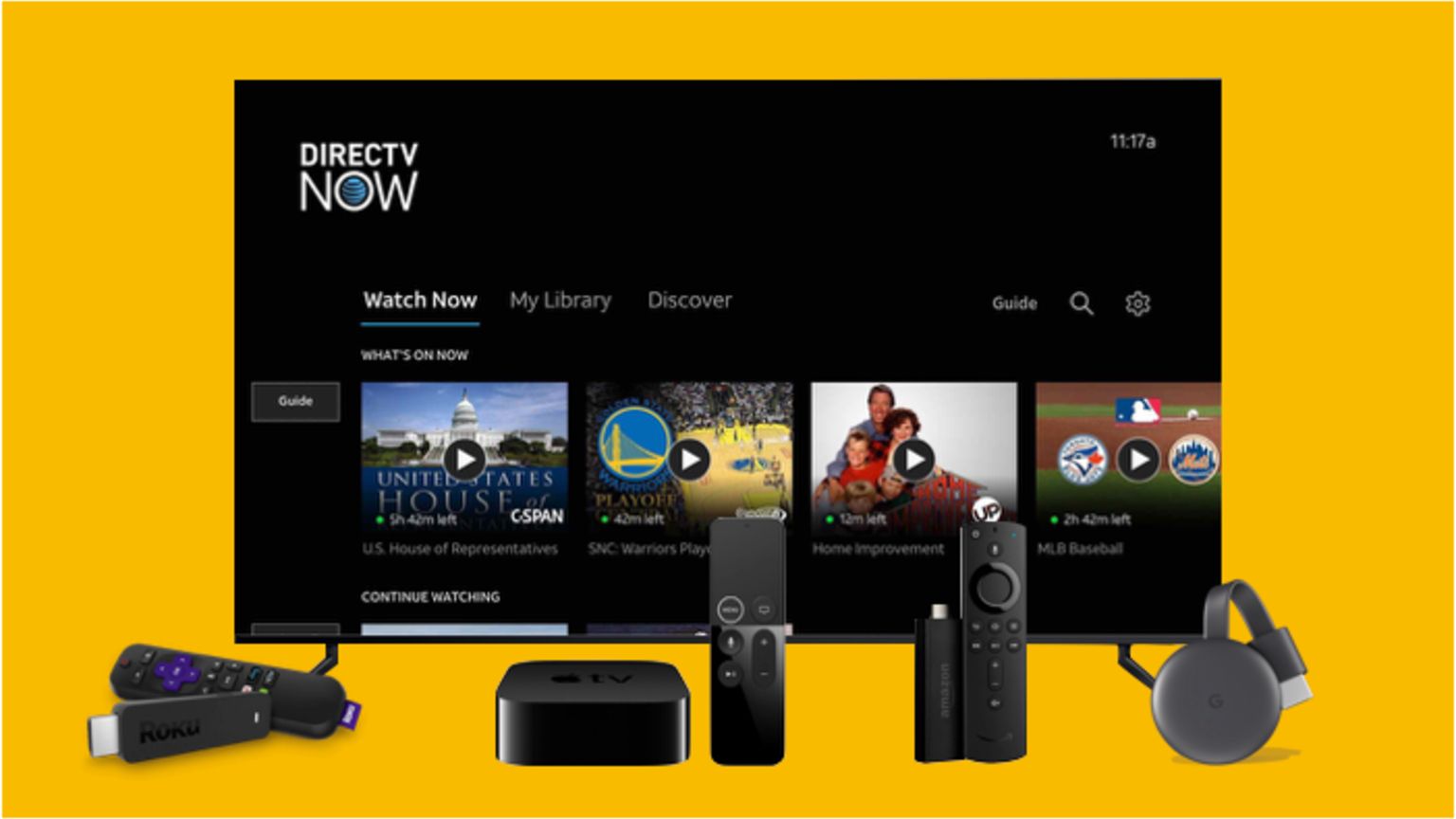
For the full Roku experience, including all streaming channels, a dedicated remote, and features like 4K streaming if supported, connect a physical Roku player or stick to your Vizio TV. This method works with any Roku model, such as the Roku Streaming Stick, Roku Express, or Roku Ultra.
- Purchase a Roku streaming device compatible with your TV.
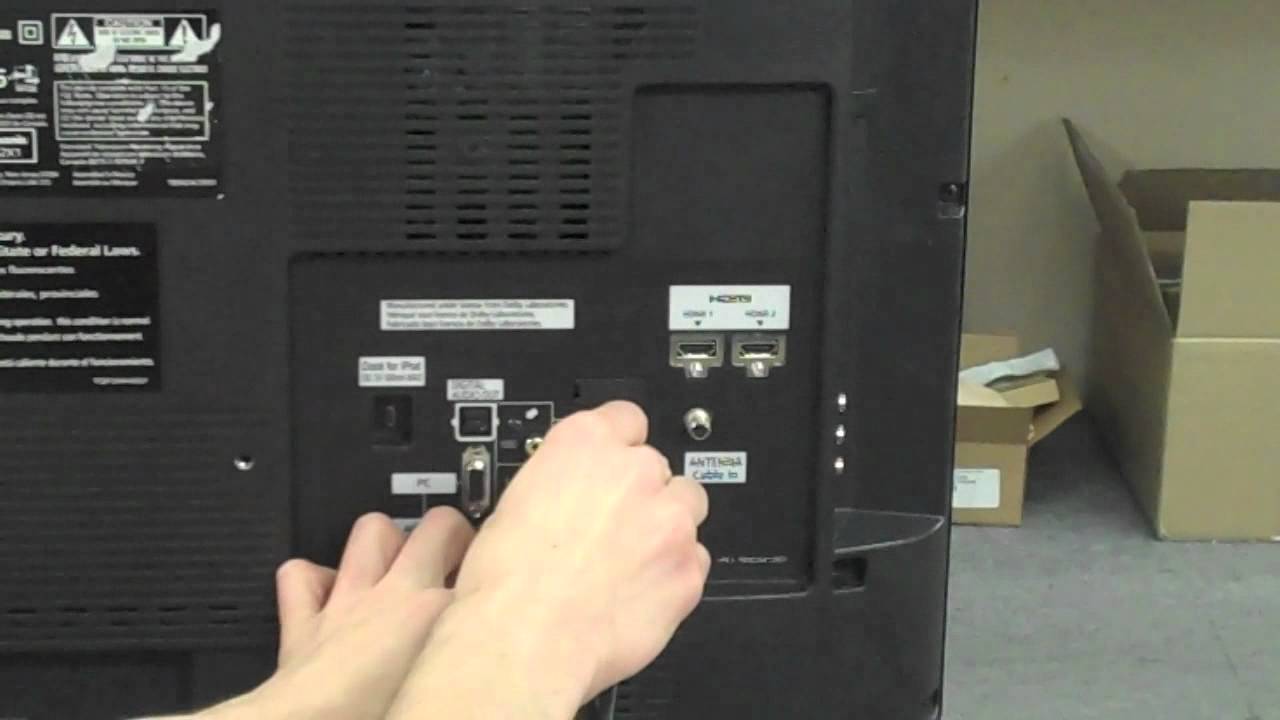
- Connect the Roku device to an available HDMI port on your Vizio Smart TV.
- Plug the Roku device into a power outlet using the provided power adapter or USB cable.
- Turn on your Vizio TV and select the corresponding HDMI input source.
- Follow the on-screen instructions to set up the Roku device, including connecting to your Wi-Fi network and signing in to your Roku account.
After setup, you can use the Roku remote to navigate the Roku interface, select channels, and control playback. This gives you access to popular services like Netflix, Hulu, Amazon Prime Video, and Disney+, all from your Vizio TV. If you want to update your Vizio smart TV to ensure the best compatibility, check the TV’s settings menu for system updates before connecting the Roku device.
Method 3: Cast Roku content from your phone to your Vizio TV
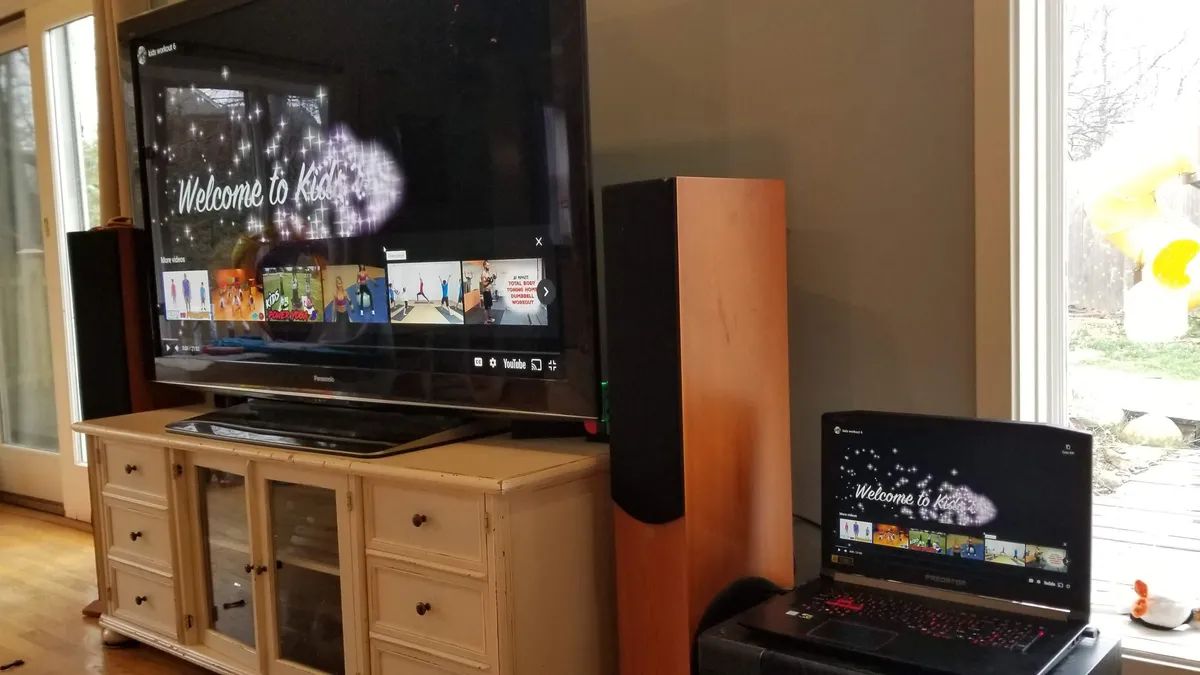
If you do not want to install an app or buy extra hardware, you can cast Roku content from the Roku mobile app on your smartphone or tablet directly to your Vizio TV. Vizio SmartCast TVs come with built-in Chromecast and Apple AirPlay 2 support, making this a convenient workaround.
- Ensure your phone or tablet and Vizio TV are connected to the same Wi-Fi network.
- Tap the cast icon within the app and select your Vizio TV from the list of available devices.
- The content will begin playing on your Vizio TV screen.
Casting is a quick way to send Roku content to your TV without a physical connection, though it relies on your phone as the controller and may introduce slight lag.