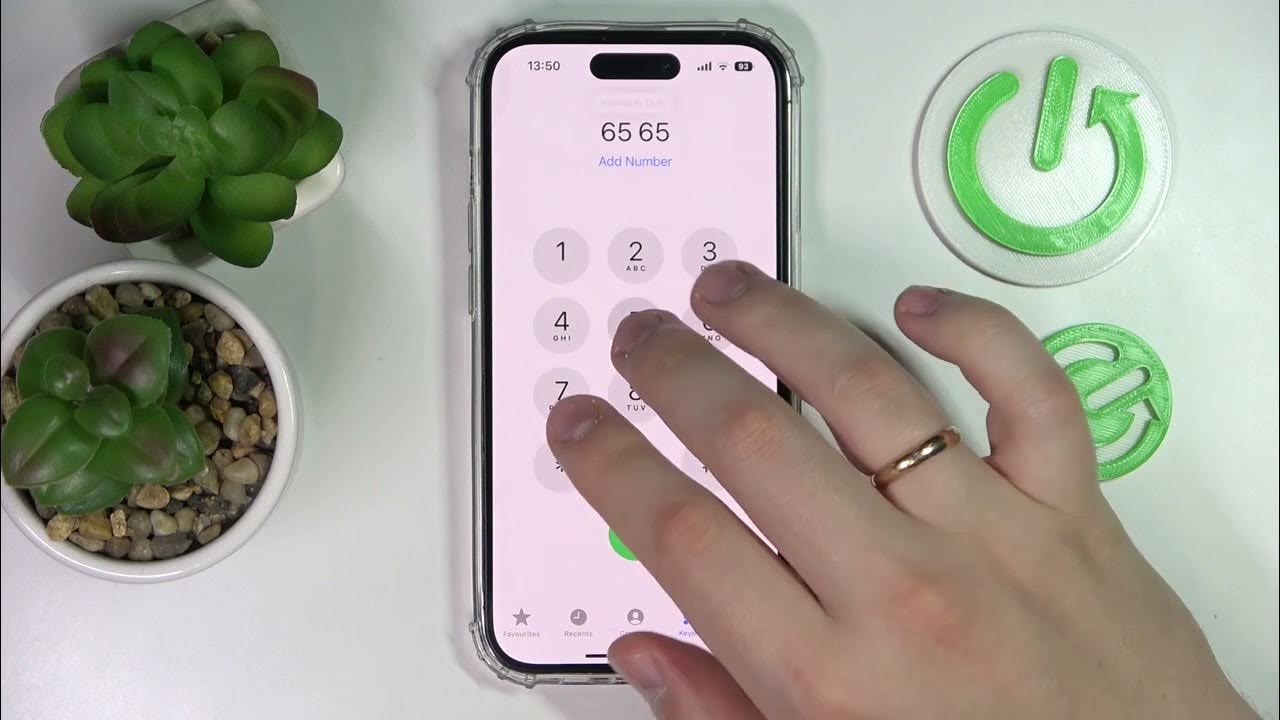
To turn off iPhone speaker during a call, open Control Center and tap the speaker icon to switch audio back to the private earpiece. This is the quickest way to stop audio from playing through the loud bottom speaker or speakerphone.
How to turn off iPhone speaker during a call
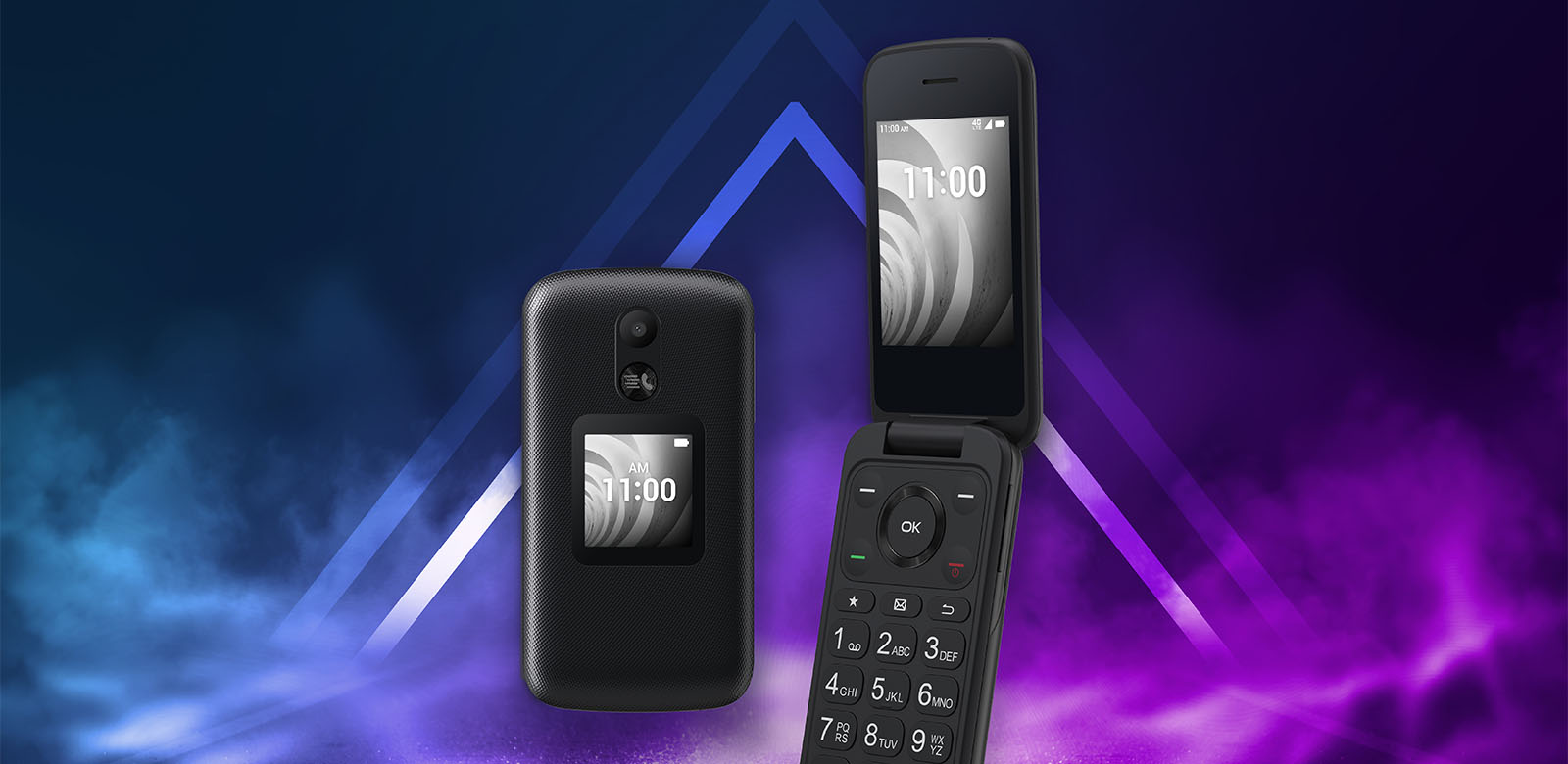
When you are on an active call and audio is playing through the speakerphone, you can switch back to the private earpiece without ending the call. Open Control Center by swiping down from the top-right corner of the screen (on iPhone X and later) or swiping up from the bottom (on models with a Home button). Look for the speaker icon, which resembles a speaker emitting sound waves. Tap it once. The icon will appear grayed out or with a line through it, confirming that the speakerphone is now off. Your call audio will immediately route through the earpiece, making your conversation private again. This process is the same whether you are turning speaker mode on and off during a call, though the steps differ if you're enabling speaker mode on TCL flip phones.
How to silence your iPhone speaker with the Ring/Silent switch
If you want to silence ringtones and alerts entirely, not just during a call, use the physical Ring/Silent switch. This switch is located on the left side of the iPhone, above the volume buttons. Flip the switch toward the back of the phone to enable Silent mode. An orange indicator will appear on the switch, showing that Silent mode is active. This silences incoming rings and alerts, though vibrations may still occur. Note that this method does not silence all media playback, such as music or videos.
How to use Do Not Disturb to turn off speaker sounds
To temporarily silence all calls, alerts, and notifications, activate Do Not Disturb, which is a Focus mode. Open Control Center by swiping down from the top-right corner. Tap the Focus icon, then select Do Not Disturb from the list. This will mute incoming calls, alerts, and notifications until you turn it off or schedule it to end. You can customize which people or apps are allowed to interrupt you by going to Settings > Focus and adjusting the permissions for Do Not Disturb.
Testing your iPhone speaker after making changes
After you have switched audio from the speakerphone to the earpiece, place a test call to confirm the change worked. Dial a contact and listen to ensure the audio comes through the earpiece and not the loudspeaker. If you used Silent mode or Do Not Disturb, check that incoming calls and alerts do not produce sound from the speaker. If you need to manage speaker settings on a different device, see this step-by-step guide to activating speaker mode on Android phones. This quick test verifies that your settings are behaving as expected.
Important notes about system sounds and regional settings
Even when Silent mode is enabled, some system sounds may still play. These include Camera shutter sounds, Voice Memos, and Emergency Alerts. Whether these sounds play depends on regional regulations. For example, in some countries, the Camera shutter sound cannot be silenced by the Ring/Silent switch due to local laws. Be aware that these exceptions apply regardless of your Silent mode or Do Not Disturb settings.