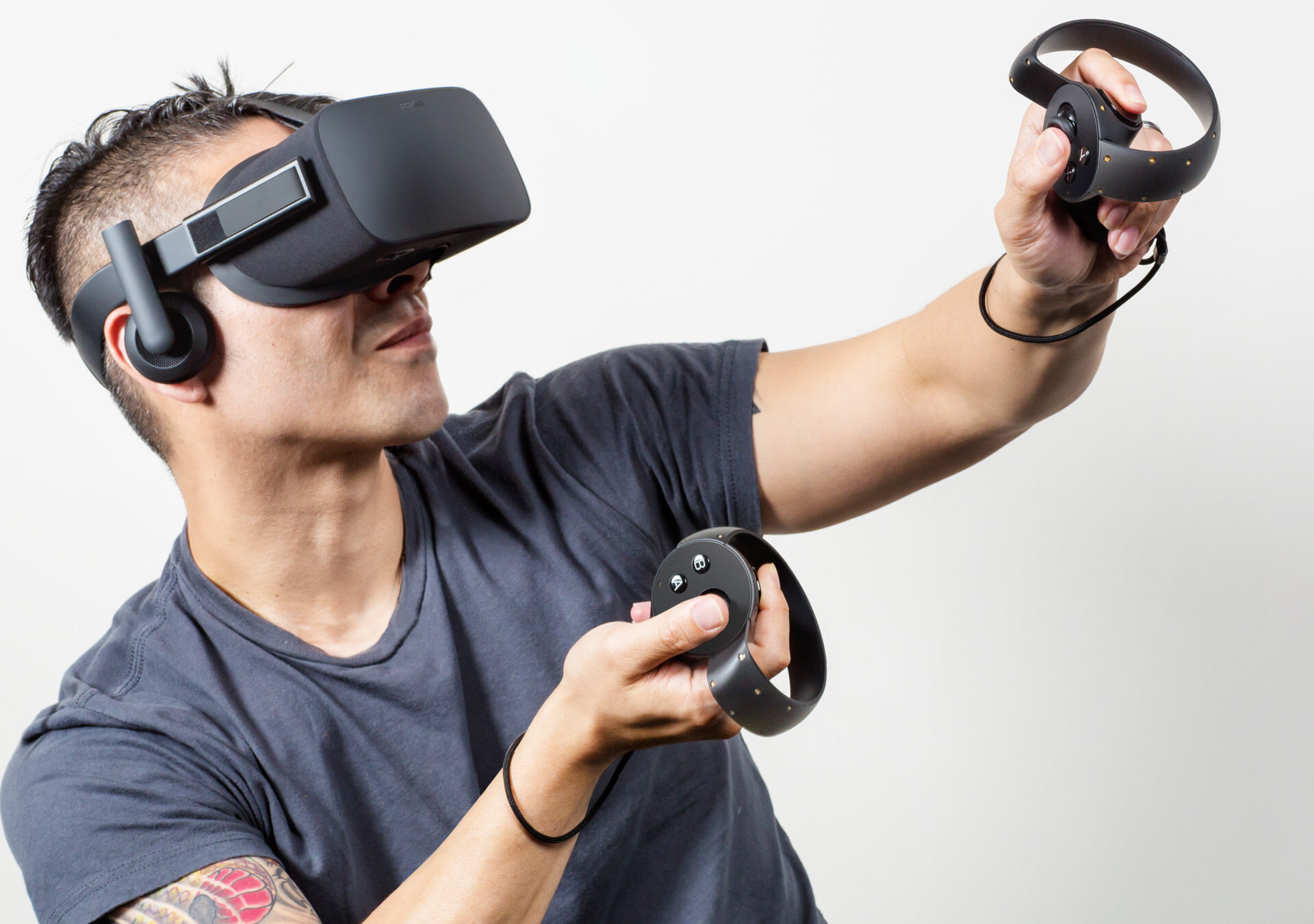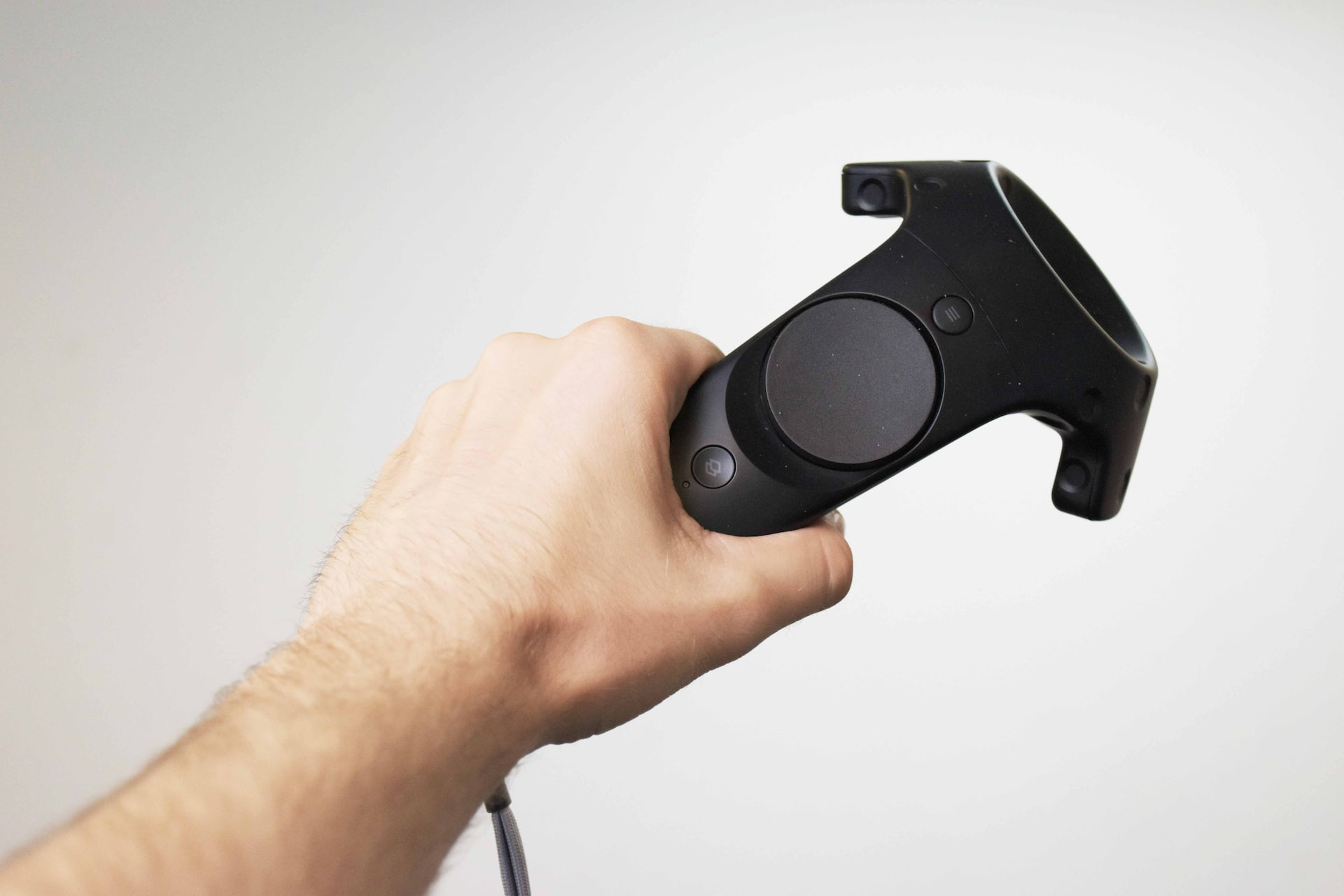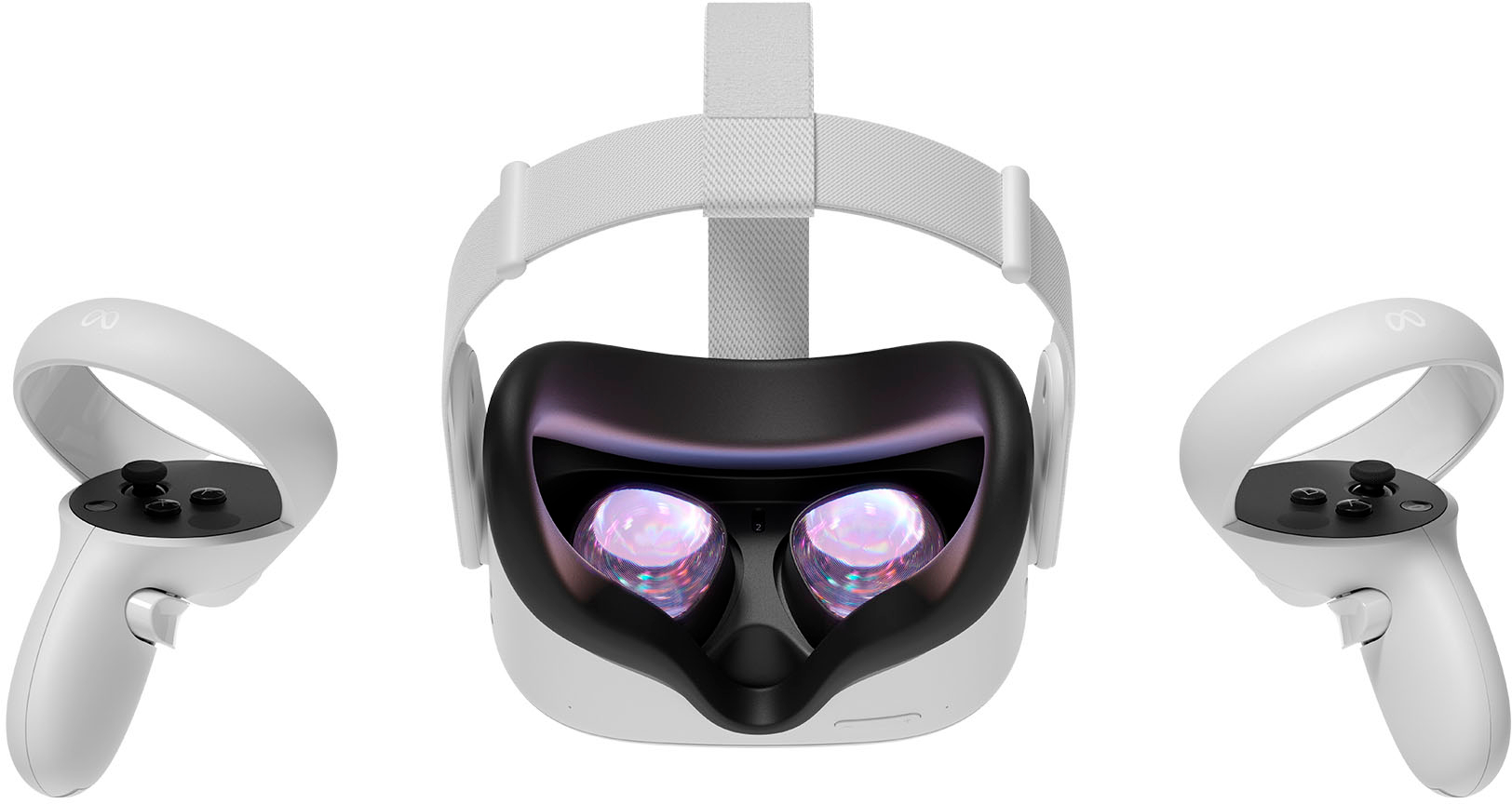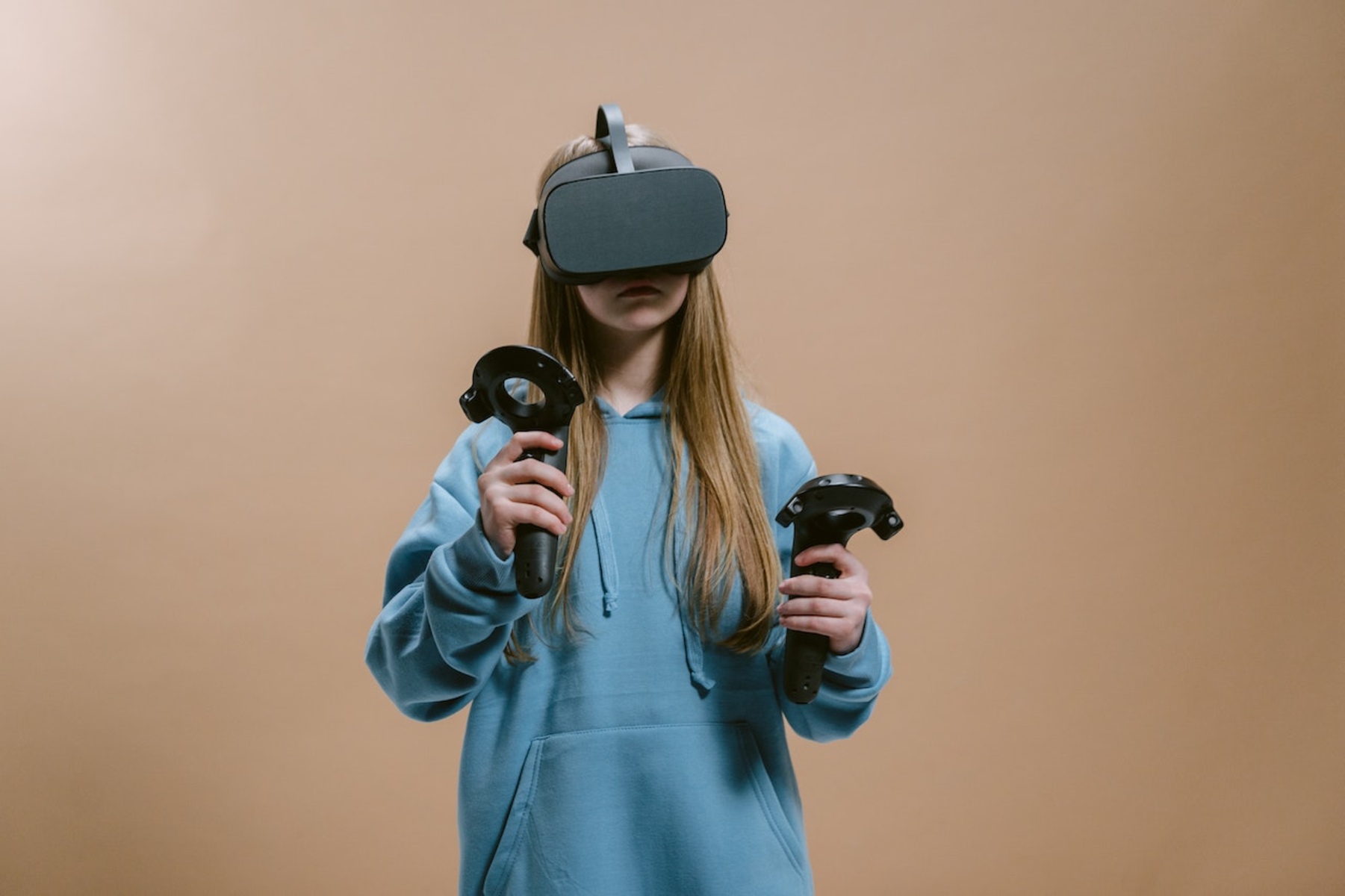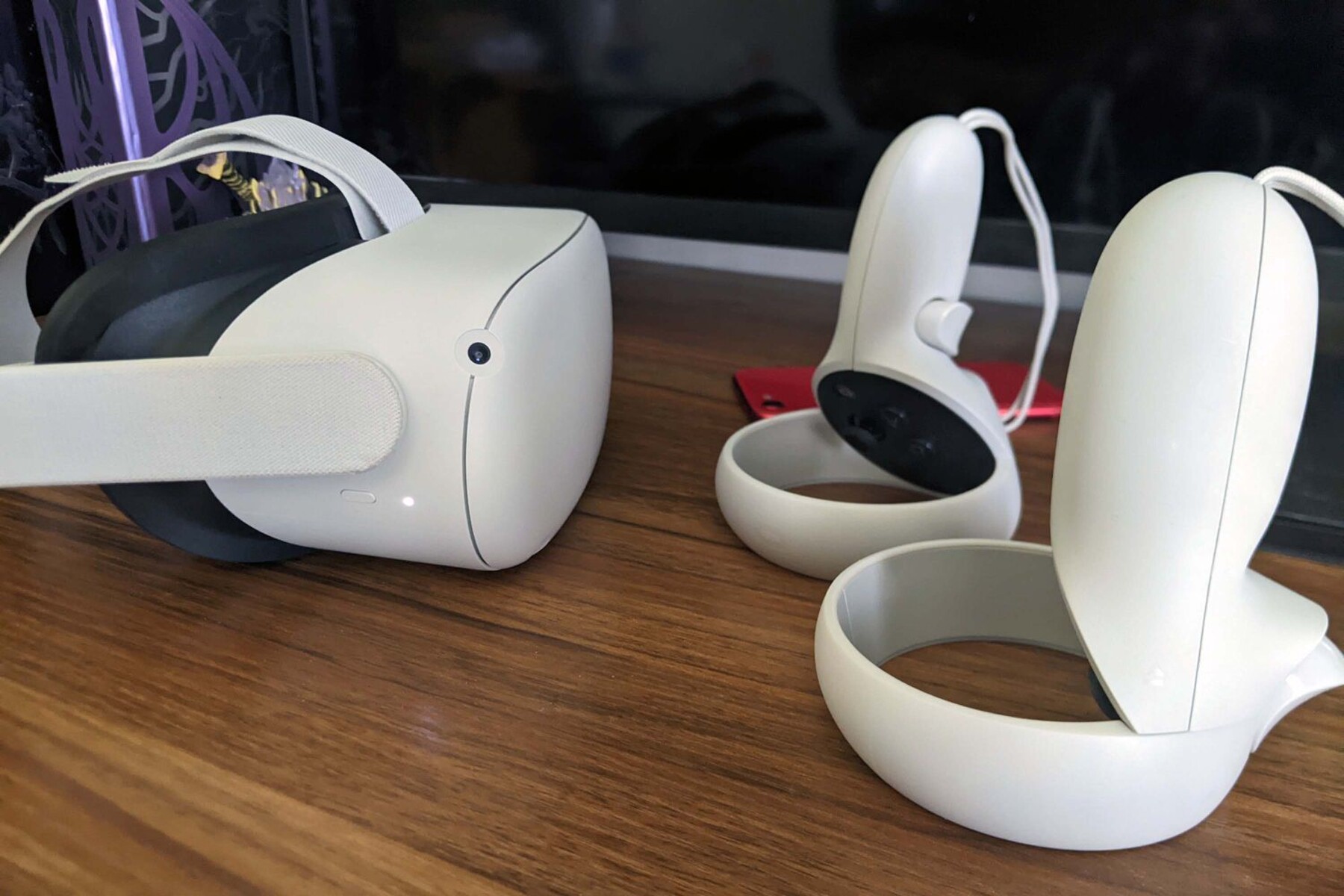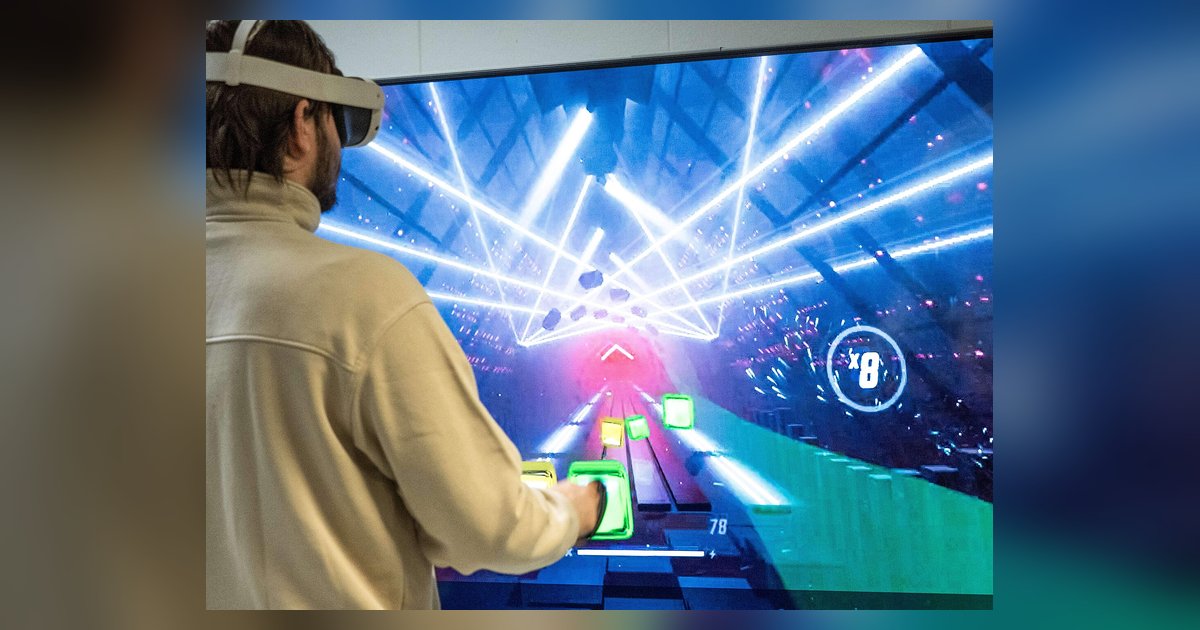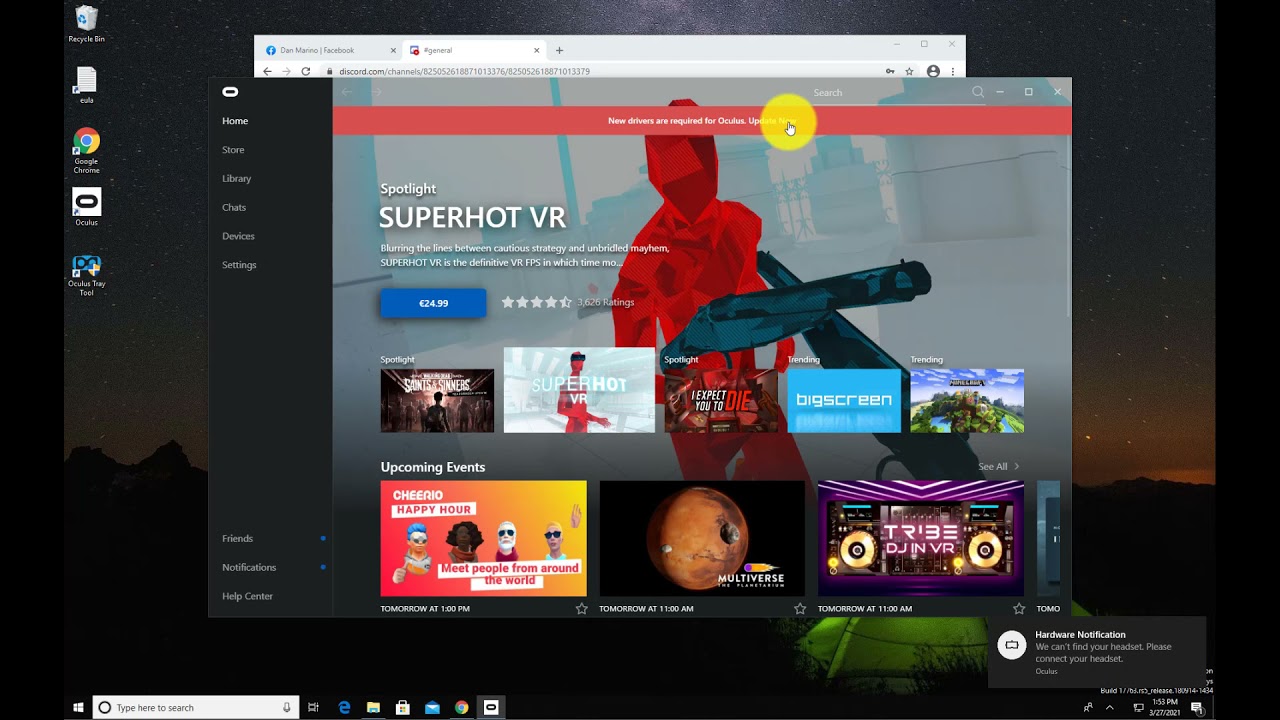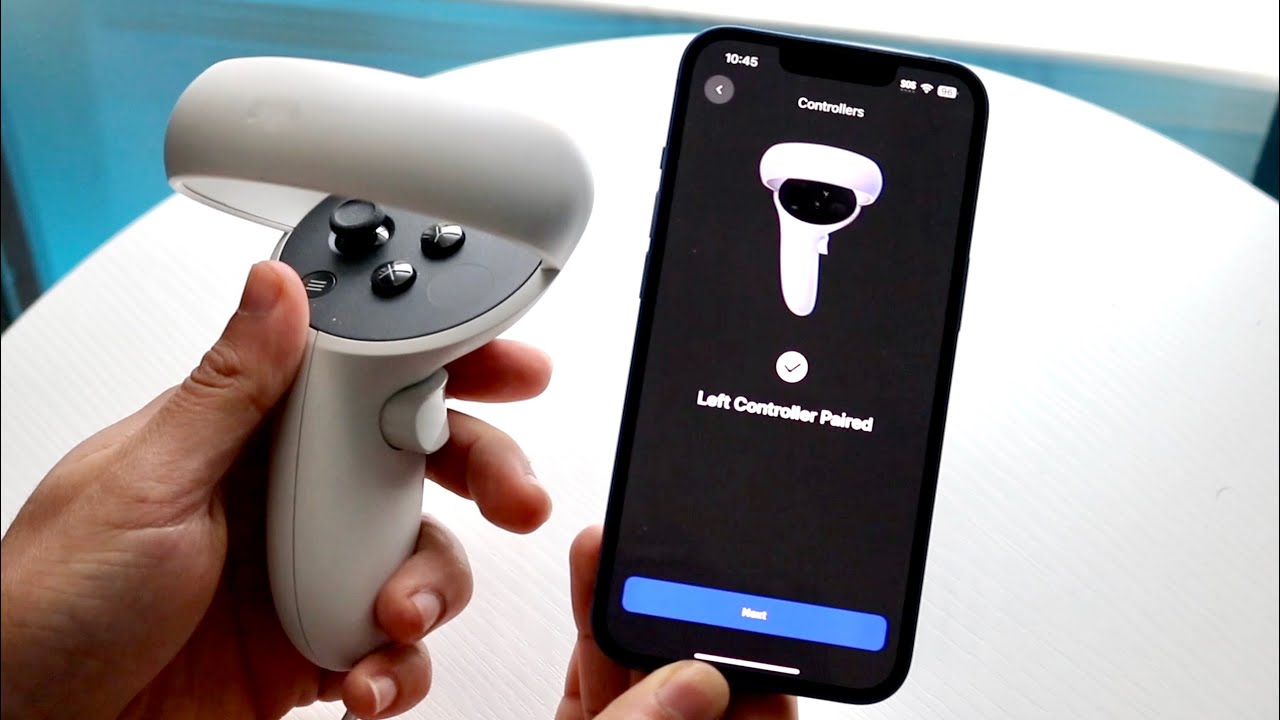
Oculus controller pairing connects your Meta Quest Touch controllers to your headset through the Meta Horizon mobile app, establishing a Bluetooth link that enables precise motion tracking in virtual reality. This process is essential whether you are setting up a new headset, replacing a lost or broken controller, or adding a second pair for enhanced gameplay.
How oculus controller pairing works
Pairing is handled entirely through the Meta Horizon mobile app on your smartphone, not through the headset itself. The app sends a pairing signal to the headset, which then establishes a direct Bluetooth connection with the controller. Once paired, the controller communicates wirelessly with the headset to track your hand movements and button inputs in real time. This method ensures that the controller is securely linked to your specific headset and will automatically reconnect whenever both devices are powered on and within range.
Before you begin pairing
Before starting the pairing process, make sure your Meta Quest headset is turned on and unlocked. Your phone must have Bluetooth enabled and be connected to the same Wi-Fi network as the headset. These conditions allow the Meta Horizon app to detect and communicate with your headset. If you need to start fresh, you can reset a VR headset to factory settings, which clears all paired devices and lets you begin the setup process again. For first-time users, you will need to set up your VR headset using the app before you can pair any controllers.
Steps to pair your controller with the Meta Horizon app
- Open the Meta Horizon mobile app on your smartphone.
- Tap Menu (or your avatar picture) at the bottom of the screen, then tap Devices.
- Select the specific headset you want to pair the controller with from the list of devices.
- Tap Headset settings, then tap Controllers.
- Tap Pair New Controller to begin the pairing process.
- For the right controller, press and hold the Meta button and B button simultaneously until the LED blinks and then lights up. For the left controller, press and hold the Menu button and Y button simultaneously until the LED blinks and then lights up.
- Once the controller appears in the app, the pairing is complete. The controller will now automatically connect to your headset each time it is turned on and nearby.
If you need to connect a VR controller to your VR headset for the first time, this same app-based method works for all supported Touch controller models.
Understanding the controller LED lights
The LED lights on your controller provide visual feedback during pairing. When you press the correct button combination, the controller may show a blinking blue and white light, indicating it is searching for a connection. For Meta Quest Touch Pro controllers, a blue light that blinks three times confirms successful pairing. After that, the LED will remain steady to show an active connection. If the light does not appear or blinks continuously without connecting, repeat the pairing steps from the app.
Pairing a gamepad to your headset
Gamepads, such as Xbox Wireless Controllers, pair directly with your Meta Quest headset without using the mobile app. To pair a gamepad, put on your headset and go to Settings > Devices > Gamepad, then select Bluetooth settings. Put the gamepad into pairing mode, and it will appear in the headset's list of available devices. This method is ideal for connecting a game controller for non-VR games or media consumption.
Troubleshooting controller pairing issues
If your controller fails to pair or loses connection, start by ensuring both the headset and controllers have the latest firmware updates installed. Outdated software is a common cause of pairing difficulties. Remove any unsupported third-party accessories such as sleeves, covers, or stickers from the controller, as these can interfere with the Bluetooth signal or block the tracking sensors. Check for sources of wireless interference, like other Bluetooth devices or physical obstacles between the controller and headset. Also verify that your controller model is compatible with your headset: Meta Quest Touch Plus controllers are exclusively compatible with Meta Quest 3 or Meta Quest 3S headsets, while Meta Quest Touch Pro controllers work with Meta Quest Pro, Meta Quest 3, and Meta Quest 2. If problems persist, restart both the headset and the controller, then repeat the pairing process from the app.