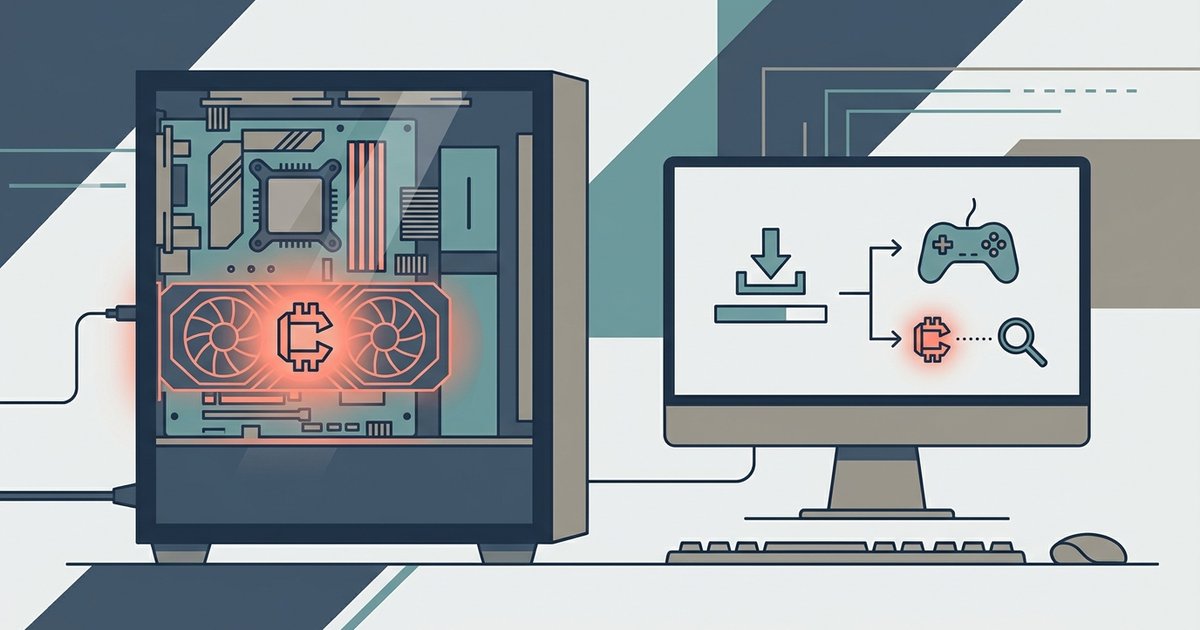
Open Task Manager and look for your GPU spiking to 90-100% while the game is closed, or use Resource Monitor to spot the installer's .exe making sustained outbound connections to a mining pool port.
Check GPU usage for crypto miner game activity
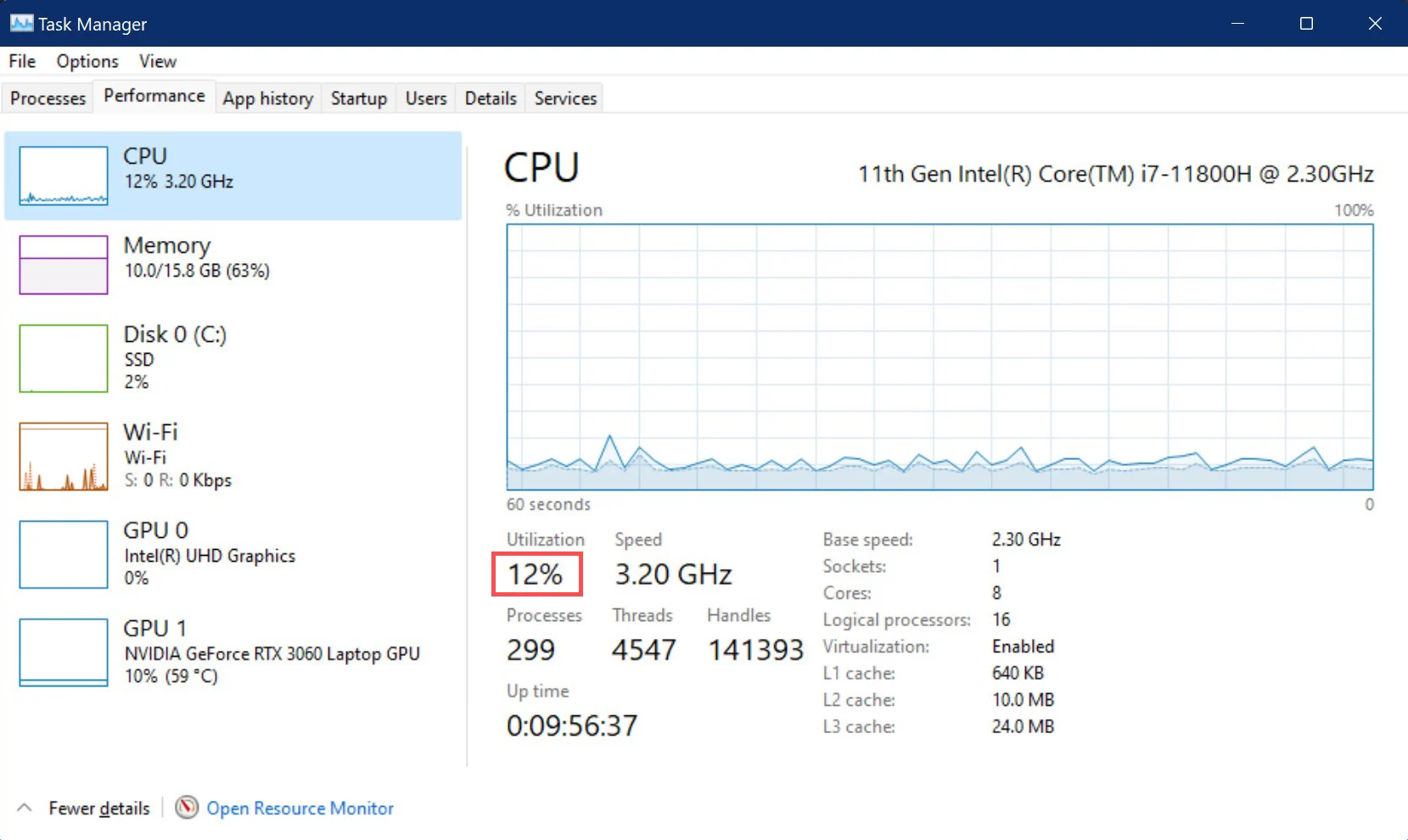
Press Ctrl+Shift+Esc to open Task Manager, then click the "Processes" tab and sort by "GPU" usage to identify applications consuming excessive resources. Close every visible application, including your browser, Discord, and the game installer itself if it appears to have finished. Watch the GPU utilization graph for at least thirty seconds. If it stays locked at 90-100% with no game running, a miner is almost certainly active. The miner hides its window or runs as a background service, but it cannot hide its GPU load. This is the most obvious signature because modern miners use your graphics card's compute cores, not just your CPU, so the spike is unmistakable. If you see a flat line at 0-5% after closing everything, you are likely safe, but proceed to the next section to double-check.
Trace the suspicious process in resource monitor
Open Resource Monitor by typing "resmon" into the Windows search bar. Click the "Network" tab, then check "TCP Connections" at the bottom. Look for any process, often named something generic like "svchost.exe," "service.exe," or even a leftover installer name, that shows a remote port commonly associated with mining pools. These are common mining pool ports. If you see a connection to an IP address or domain associated with a known mining pool, that is your confirmation. The miner may have injected itself into a legitimate-looking process, but Resource Monitor reveals the outbound traffic regardless. If the process is making sustained connections every few seconds to a non-standard port, delete the installer folder and run a full antivirus scan immediately. This method works even if the miner tries to hide from antivirus by using a renamed executable.
Why high CPU alone is not proof
Many gamers panic when they see 100% CPU usage after running a repacked game installer, but that is often just legitimate decompression or patching. Installers for repacked games extract gigabytes of compressed data, which can spike your CPU to maximum for minutes at a time. This is normal and stops once the extraction finishes. In contrast, a miner keeps your GPU at full load indefinitely, even after the installer window closes. If you only see high CPU usage and your GPU stays idle (0-5%), you are likely watching the installer do its job, not a miner. The failure case here is mistaking normal game patching for mining, which leads to false alarms and wasted effort. Always check GPU usage first, then network traffic, before accusing the installer of running a miner. If you want to download free games without this risk, start by reading our main guide on the subject. For a curated list of reputable sources, see the related article: 17 Best Free Game Download Sites for PC & Consoles. If you prefer indie titles, check out the related article: How To Download Paid Itch.Io Games For Free. And for general safety tips, the related article: How To Download Pirated Games Safely covers the basics of avoiding bundled malware. But the immediate test above, GPU spike and port 4444, will tell you right now whether your PC is secretly mining.