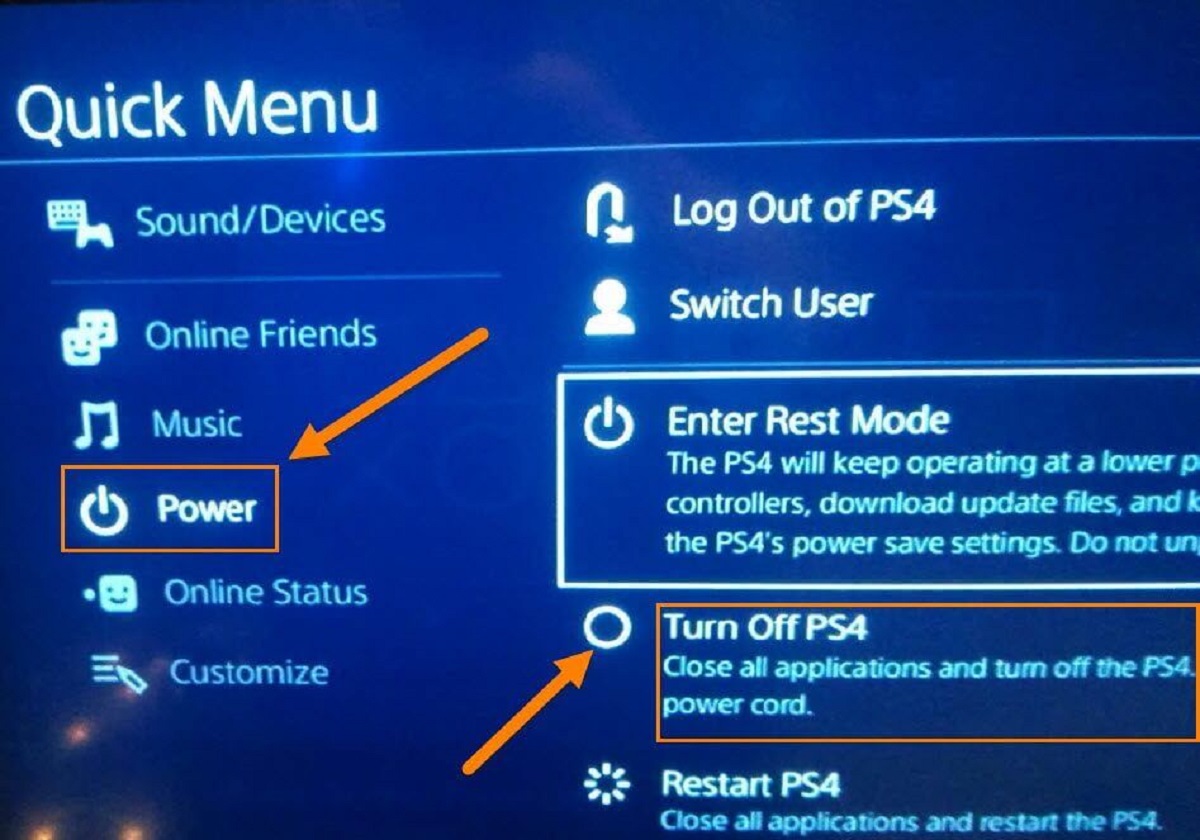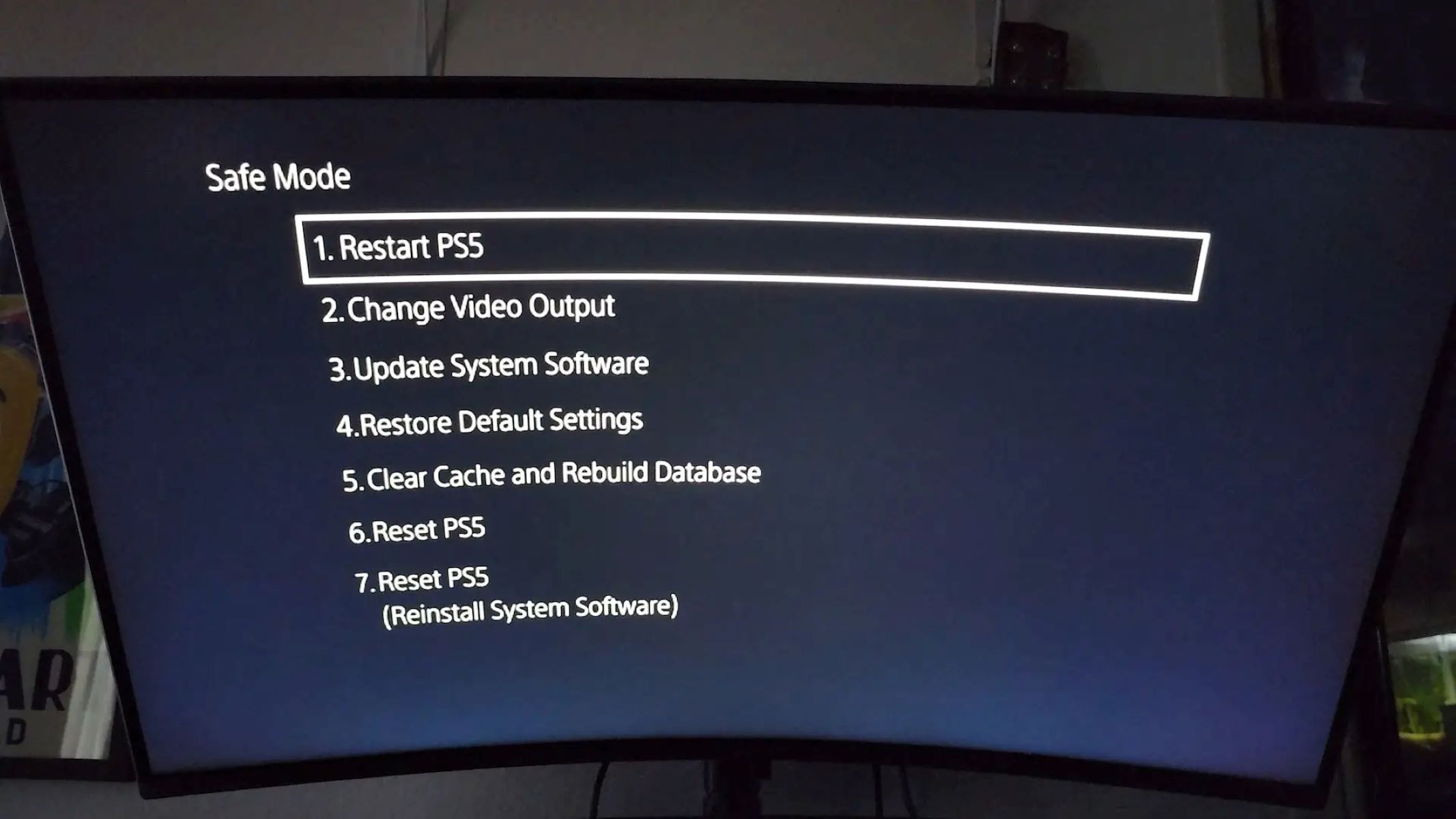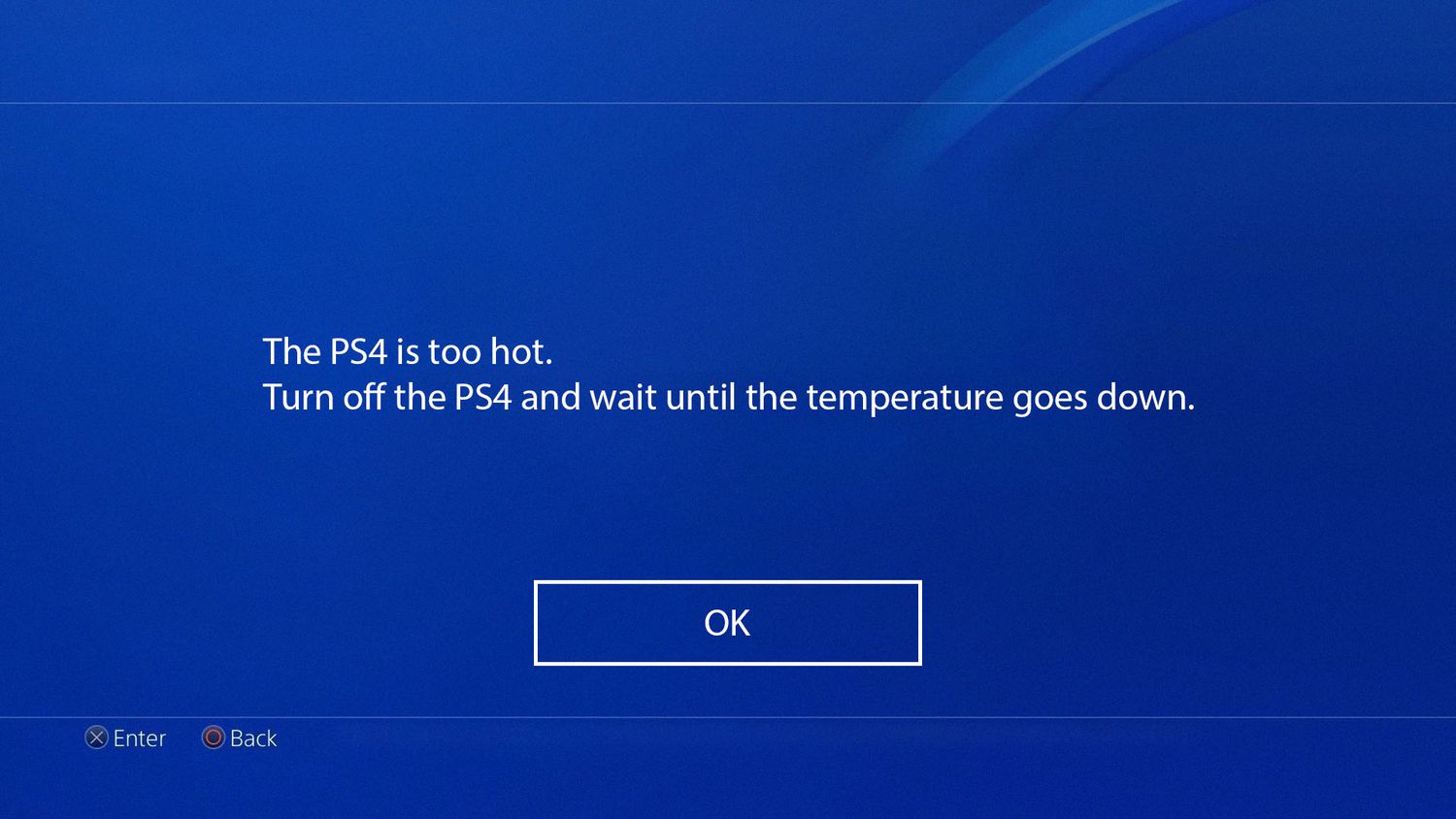
Your PlayStation keeps overheating because dust buildup, poor ventilation, and intense gaming sessions combine to overwhelm its cooling system. If you see a "Your PS5 is too hot" or "The PS4 is too hot" warning, immediately turn off the console, unplug it, move it to a cooler, well-ventilated area, and let it rest for at least 30 minutes before restarting to diagnose the problem. Persistent overheating can also degrade internal components, which may lead to issues like PS5 controller drift.
Why your PlayStation keeps overheating: first steps
When your console displays a temperature warning or shuts down unexpectedly, the first priority is to cool it safely. Turn off the console, unplug all cables, and place it in an open, cool area away from walls or other electronics. The recommended 30-minute cool-down period allows internal components to return to a safe temperature before you attempt any troubleshooting. During this time, check for obvious issues like blocked vents or a hot power cable, and let the console rest for the full 30 minutes before restarting.
Check for blocked ventilation and improper placement
Poor ventilation is the most common reason your PlayStation keeps overheating. The console needs at least 10 cm (4 inches) of clearance on all sides for PS5, and 6 to 8 inches for PS3, to allow hot air to escape. Avoid placing it in enclosed TV cabinets, on soft surfaces like carpets or rugs that block intake vents and shed dust, or against walls. For PS5, Sony confirms the console is designed to work both vertically and horizontally without causing overheating, provided the official stand is used and proper ventilation is maintained. Ensure the stand is correctly attached to prevent airflow obstruction.
Clean out dust from vents and the internal fan
Dust accumulation clogs the console's vents and fans, restricting airflow and making the system work harder, which generates unwanted heat. Regular cleaning is essential. Use compressed air or a soft brush to clean exterior vents. For PS5, you can remove the side panels to access the dust catchers and the fan without voiding the warranty. Gently blow compressed air through the dust catchers and fan blades to dislodge debris. Avoid using vacuum cleaners, which can create static electricity. For older consoles, deep cleaning may require professional disassembly.
Identify a failing internal fan
A faulty or failing internal fan prevents the console from effectively dissipating heat. Listen for grinding, whirring, or rattling noises that indicate a malfunction. If the fan is not spinning properly or makes unusual sounds, it cannot circulate enough air to cool the processor. A fan that stops working entirely requires professional replacement, as attempting to replace it yourself may void the warranty or damage the console. If basic cleaning does not resolve fan noise, seek repair from an authorized service center.
Understand the impact of high room temperature
High ambient room temperatures above 35°C (95°F) for PS5 and PS4 make it difficult for the cooling system to function efficiently. Keep the console away from direct sunlight, radiators, heaters, and other heat-emitting devices. Even in a well-ventilated room, extreme heat can overwhelm the console's thermal management. If your gaming area is consistently warm, use a fan to improve room airflow or move the console to a cooler location.
Recognize when thermal paste has degraded
On older consoles, the internal thermal paste can dry out over time, reducing its ability to transfer heat from the processor to the cooling system. This causes components to run hotter, leading to persistent overheating even after cleaning and proper placement. Degraded thermal paste requires professional repair to replace the compound. If your console is several years old and still overheats after addressing ventilation and dust, thermal paste degradation is a likely cause.
Prevent future PlayStation overheating
Follow this checklist to keep your console running cool:
- Dust exterior vents monthly with compressed air; clean PS5 dust catchers every few months.
- Keep system software updated, as updates can include fan control optimizations.
- Maintain a permanent, well-ventilated location with at least 10 cm clearance on all sides.
- Avoid soft surfaces and direct sunlight.
- Take breaks during long gaming sessions to let the console cool down.
- If you're managing a PlayStation account, remember that overheating can cause unexpected shutdowns that interrupt online play.
- For urgent issues, check the PlayStation support phone number and live chat hours for professional assistance.
- If you experience a PlayStation turning off by itself, follow the triage steps above before assuming hardware failure.