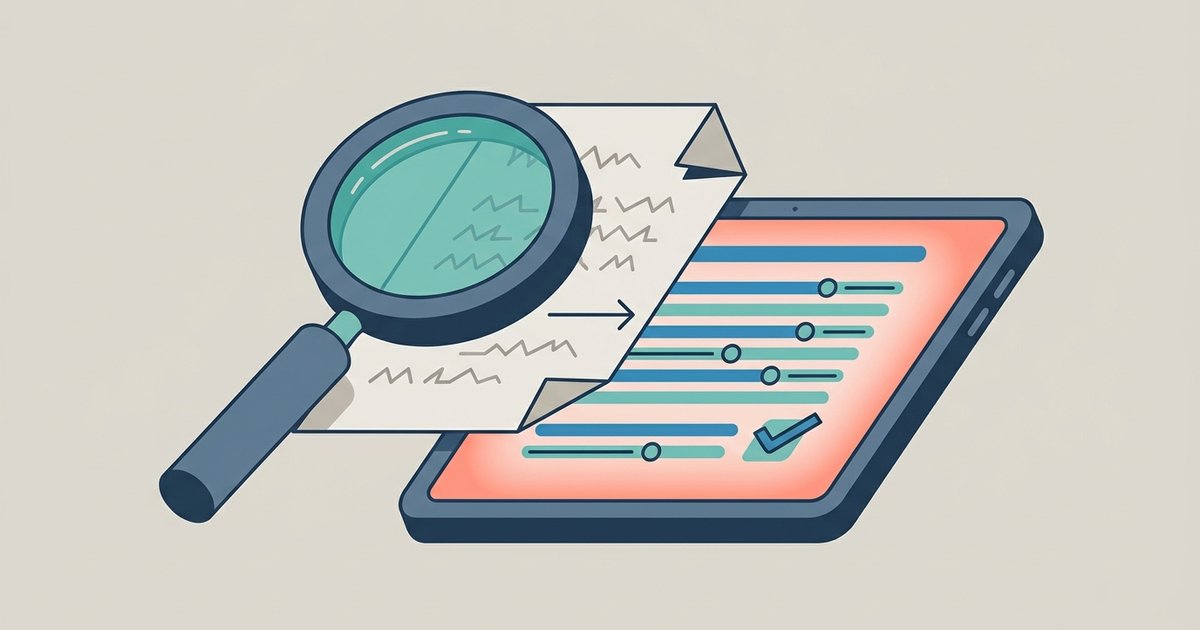
To make a scanned PDF searchable, run it through OCR (optical character recognition), which reads the shapes of the letters on each page and adds a hidden text layer behind the image. The page looks the same afterward, but you can search it, select text and copy it. Accuracy depends mostly on the scan: clean, straight, printed pages work very well, while blurry photos and handwriting do not.
You can tell whether a PDF needs OCR by trying to select a word or search for one. If nothing highlights or the search finds nothing, the page is an image.
OCR a scanned PDF with PDFBEAR
The recommended tool is PDFBEAR's OCR PDF, which produces a searchable PDF rather than a separate text file, so you keep the original look of every page. Unlike PDFBEAR's standard tools, OCR is a Premium feature. It requires an account, and the site states that Premium starts with a 7-day free trial and that OCR accepts files up to 50 MB. To make a scanned PDF searchable with PDFBEAR's OCR tool:
- Sign in to PDFBEAR, or create an account and start the trial.
- Open the OCR PDF page and upload the scanned or image-based PDF.
- Choose the language of the document, so that accents and special characters are recognized correctly.
- Run the OCR. The tool reads each page and builds the text layer.
- Download the searchable PDF and test it by searching for a word you can see on the page.
The site says it recognizes many languages, keeps the original page images unchanged, and is designed for printed and typed text rather than handwriting. It recommends scanning at 300 DPI or higher and notes that pages below about 150 DPI, or photographed at an angle, can produce garbled text. If you cancel during the trial, the site states you are not charged.
If you want an editable Word document rather than a searchable PDF, run OCR first and then convert the result to Word. PDFBEAR's PDF to Word tool also has a Premium AI-powered method that it says works on scanned PDFs directly.
Check whether a PDF already has text
Not every PDF that came from a scanner needs OCR. Many office scanners and phone scanner apps run OCR automatically, and some PDFs that look like scans were created digitally. Before you process anything, open the file and try three quick checks:
- Press Ctrl+F on Windows or Command+F on a Mac and search for a word you can see on the page.
- Try to drag across a line of text to select it.
- Copy a sentence and paste it into a note. If it pastes as readable text, the layer is there and it is accurate enough to use.
If all three work, you can skip OCR entirely. If selection works but pastes gibberish, the existing text layer is poor, and running OCR again on a clean scan will usually fix it.
Getting accurate results
OCR engines are good now, but they cannot recover detail that is not in the scan. The biggest improvements come before you run the tool:
- Scan at 300 DPI. Lower resolutions make small letters ambiguous. Higher resolutions can help, especially for monochrome scans where 600 DPI is recommended, though they do make larger files.
- Keep pages straight. A page photographed at an angle or with a curled edge produces more errors. Phone scanner apps correct the angle for you.
- Use good light and contrast. Shadows across the page and faint photocopies are common causes of misread characters.
- Pick the right language. This matters most for text with accents or non-Latin scripts.
- Proofread what matters. OCR mistakes tend to be letters that look similar, such as rn read as m, or the digit 0 read as the letter O. For numbers in contracts and invoices, check them against the image.
Handwriting is the main limit. Most general OCR tools are built for printed text and will skip or garble handwritten notes, so keep those as images and review them by eye.
Free alternative: Google Drive and Google Docs
Google Drive can run OCR on a PDF for free, though the result is a Google Doc rather than a searchable PDF. Upload the PDF to Drive, right-click it, and choose Open with then Google Docs. The recognized text appears in a new document that you can edit, copy from or download as a Word file.
Google's own guidance sets clear limits. The file should be 2 MB or smaller, the text should be at least 10 pixels high, pages should be the right way up, and common fonts such as Arial or Times New Roman work best. Google says bold, italics, font size, font type and line breaks are likely to carry over, while lists, tables, columns, footnotes and endnotes are not likely to be detected. That makes it a good way to pull the words out of a short scan, and a poor way to keep a layout.
Copying text from scans on Apple devices
Recent iPhones, iPads and Macs include Live Text, which recognizes text in photos and images so you can select and copy it. Apple's Preview app on iPhone supports Live Text for copying text from scans, and on a Mac you can often select text directly in an image or scanned page in Preview. This does not add a permanent searchable layer to the PDF, but for grabbing a paragraph or an address from a scan, it is the fastest free option and it never leaves your device.
Microsoft Word and scanned PDFs
Word can open a PDF and convert it to an editable document, but Microsoft says the feature works best on PDFs that are mostly text, and that pages that look like they came from a copier will not be formatted well. For a clean scan it may recover the words, but it is not a substitute for proper OCR on poor-quality pages.
Adobe Acrobat
Adobe Acrobat's paid version includes OCR that makes scanned PDFs searchable and editable in place, with options for correcting recognized text. If you process scans in volume, it is the standard desktop tool for the job.
Starting from paper
If you are scanning the document yourself, the scanner apps on your phone produce cleaner input than a regular photo. On iPhone, use Scan Documents in the Files or Notes app. On Android, the Google Drive app has a scan button that can save the result as a PDF. Both crop and straighten the page, which is exactly what OCR needs.
Scans are often sensitive
The documents people scan tend to be the private ones: tax forms, medical letters, IDs and signed contracts. PDFBEAR states that uploads use HTTPS, that files are deleted automatically after a period and that no person reviews them. For documents you would rather not upload anywhere, Live Text on an Apple device or OCR in desktop software keeps the work local.
Once a scan has a text layer, test it straight away by searching for a name or number you can see on the page. If the search finds it, the OCR worked. If it misses, rescan that page at a higher resolution and run it again rather than correcting errors by hand.
\nRelated reading: How to Convert a PDF to Word (and Word to PDF), How to Convert PDF to JPG and JPG to PDF, and How to Merge and Split PDF Files.