Use the in-game quick chat wheel for basic communication, or set up a platform-agnostic voice call using your console or phone's built-in party system. True automatic proximity chat is not possible without a mod or a third-party app like Discord.
Using the built-in quick chat wheel for crossplay voice chat
Every version of Among Us includes a quick chat wheel that works across all platforms. To access it during a game, press the chat bubble icon on your screen or the corresponding button on your controller. The wheel contains pre-written phrases like "I saw [color] vent," "Where?" and "Sus." You can also create custom quick phrases from the main menu. These messages appear as text on every player's screen. This happens regardless of whether they are on PC, Xbox, PlayStation, Nintendo Switch, or mobile. To coordinate with specific people, you must first add a friend in Among Us using the in-game friend code system found in the "Online" menu. Once added, you can invite them to a lobby. Use the quick chat wheel to share observations during meetings. The wheel does not work during free roam. It only activates during emergency meetings or when a body is reported. This is the only official, built-in method for crossplay communication without an external app.
Using console and phone party systems
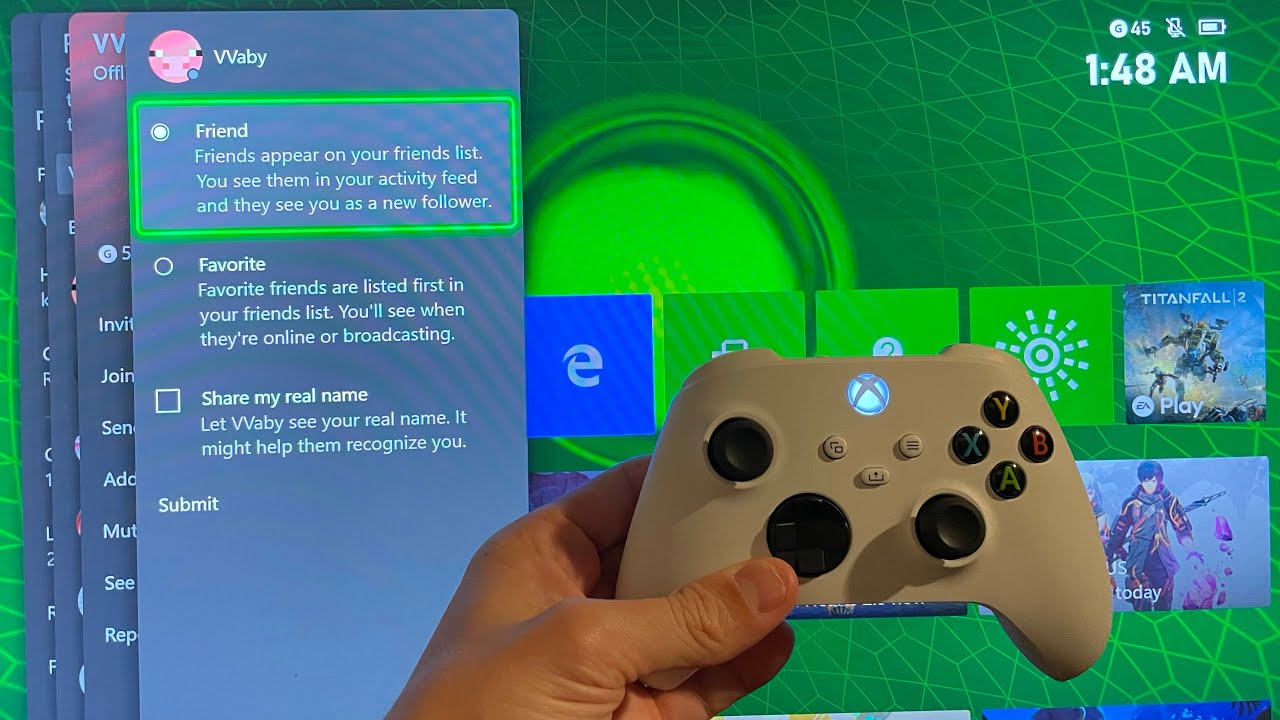
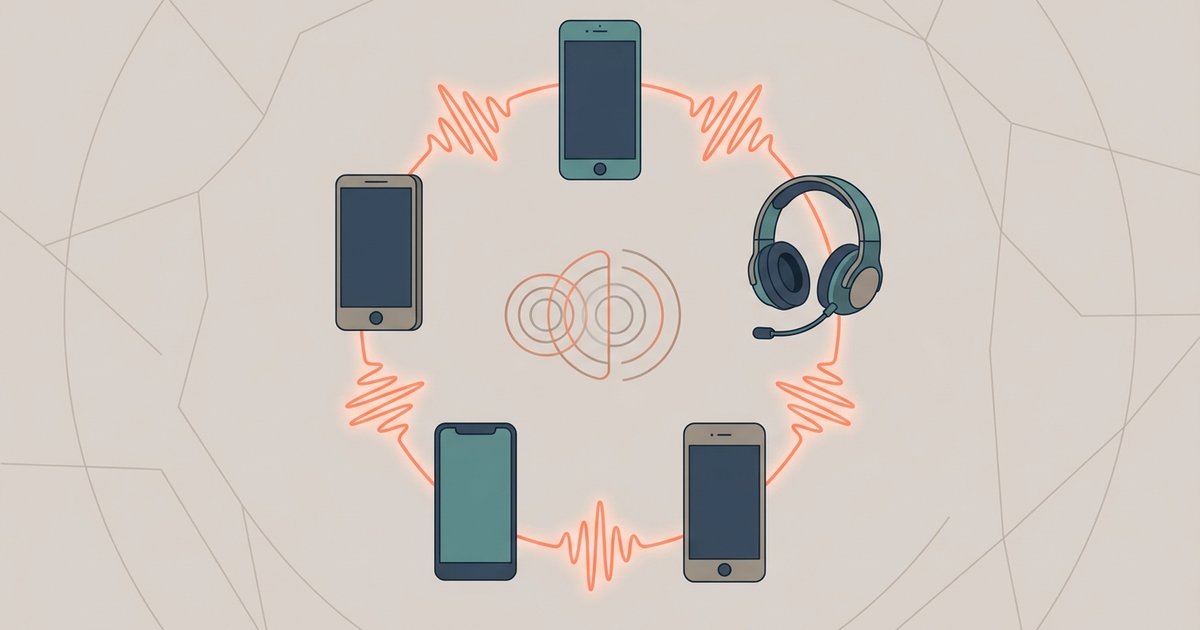
For real-time voice during gameplay, create a manual party call using your gaming machine or phone. On PlayStation, press the PS button, go to "Game Base," start a party, and invite your friends by their PlayStation Network IDs. On Xbox, press the Xbox button, navigate to "Parties & chats," select "Start a party," then add friends by gamertag. If you are on mobile and your friends are on a living room device, use your phone's native speakerphone or FaceTime Audio (iPhone) or Google Duo (Android) to call them directly. They can put their phone on speaker while playing. This method requires everyone to be in the same voice call, but it does not provide proximity chat. You hear everyone equally at all times. To coordinate who you are with, you need to play with friends in Among Us by creating a private lobby. Set a custom room code and share that code through your party call. For crossplay to work, ensure everyone has enabled the feature, as detailed when playing Among Us with friends and crossplay. On Xbox, go to Settings > Account > Privacy & online safety > Xbox privacy > View details & customize > Communication & multiplayer, then allow "You can join cross-network play." This is how you enable crossplay on among us Xbox and similar settings on other platforms. The party call is a manual workaround. You must unmute and speak, and everyone hears you regardless of your in-game location.
Why automatic proximity chat fails without mods
Automatic proximity chat, where your voice fades in and out based on your character's distance to other players, is not a feature built into Among Us on any living room device or mobile version. The game's code on those platforms does not include a microphone API that can dynamically adjust volume based on in-game coordinates. Only the PC version can achieve this through mods like "CrewLink" or "Proximity Chat," which inject custom code into the game. On closed platforms and mobile, the operating system restricts applications from accessing real-time positional audio data from other players. Even if you use a third-party service like Discord on a phone, Discord's own proximity chat feature does not work on mobile or living room hardware. This is because it requires the mod to send location data to Discord's servers. Therefore, any attempt to set up proximity chat in Among Us on a closed platform or mobile device without a PC or a linked Discord bot will fail. The only way to simulate it is to physically sit in the same room as other players. Alternatively, use the manual party call method and agree to mute yourself when you are far from the group. This is a clunky, trust-based system that is not automatic. Until Innersloth adds native proximity voice to the game, console and mobile players are limited to the quick chat wheel or a flat, always-on voice call.