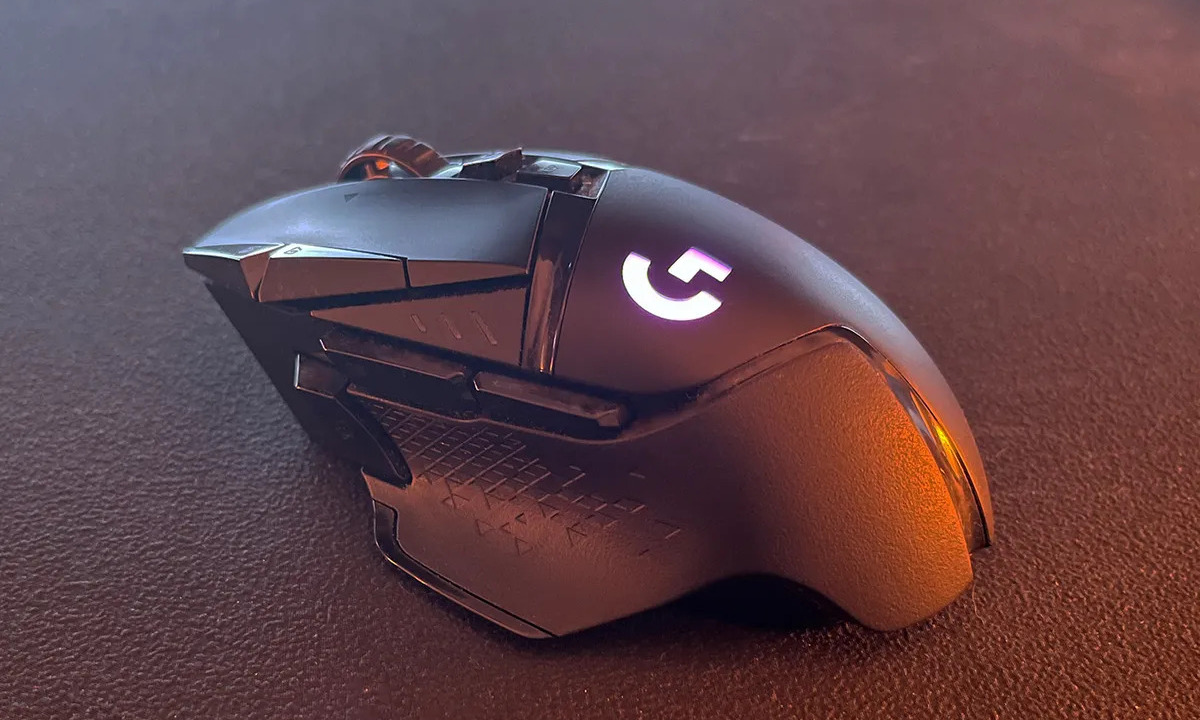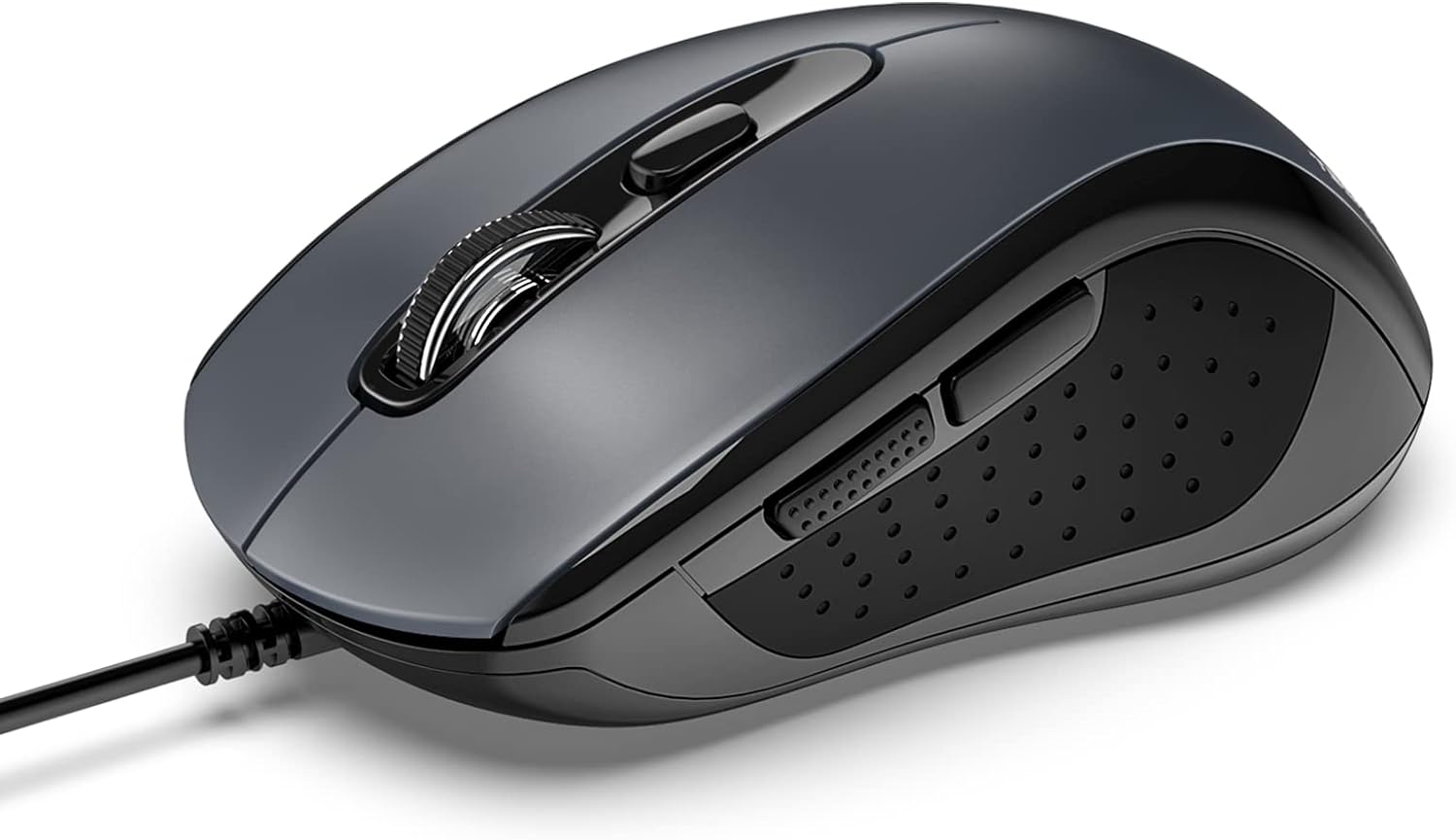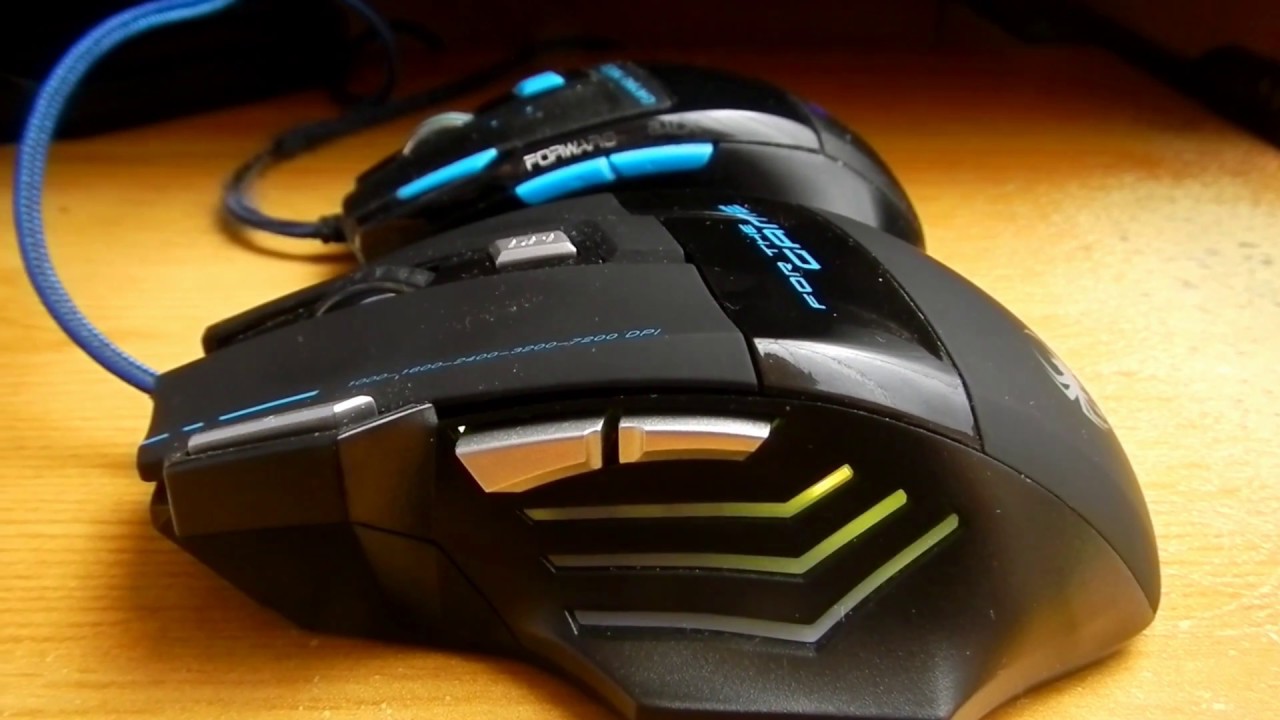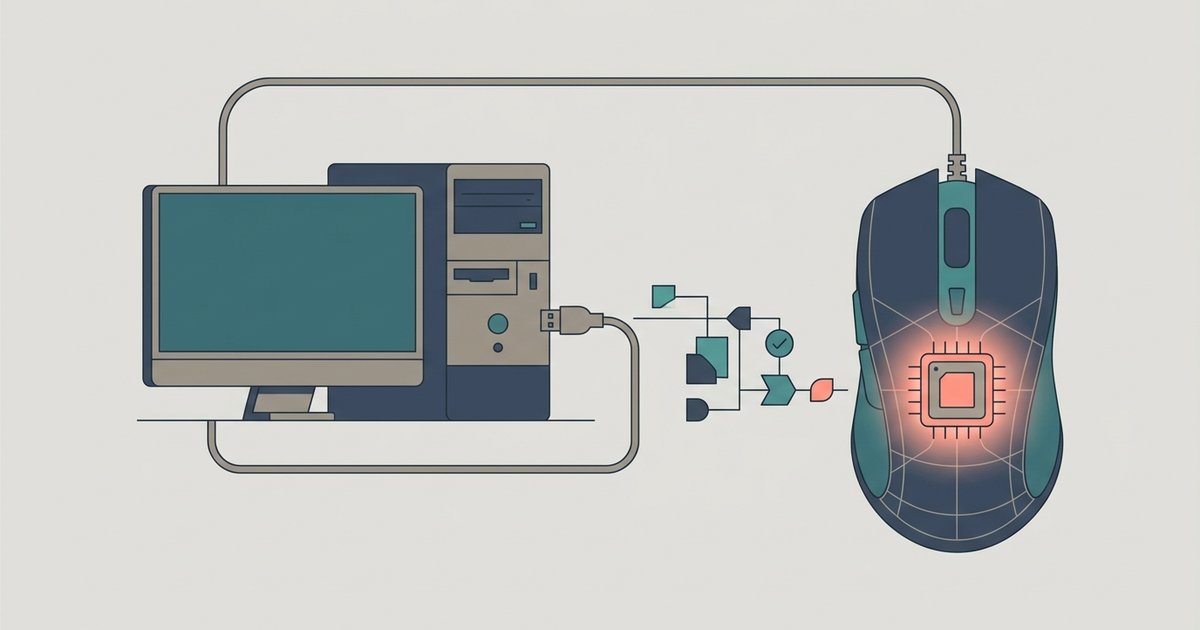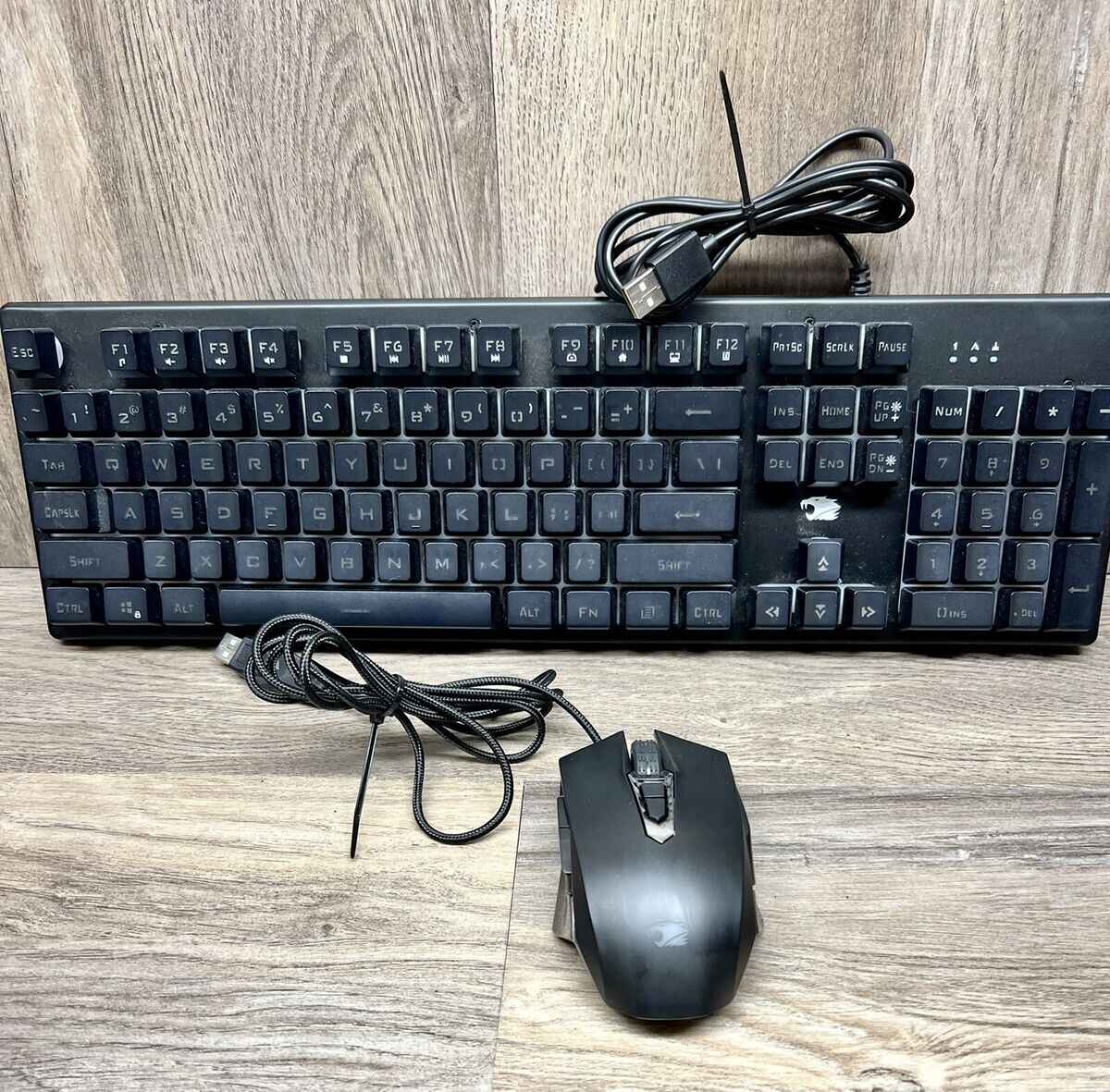
Setting up iBUYPOWER gaming mouse macros requires the HYTE Nexus software, which lets you record custom key combinations and assign them to your mouse buttons for faster in-game actions. This software works with compatible iBUYPOWER and HYTE-branded mice, including those bundled with iBUYPOWER Nexus Edition PCs.
What software do you need for iBUYPOWER gaming mouse macros?
HYTE Nexus is the official software for configuring macros on supported iBUYPOWER and HYTE gaming mice. You can download it directly from the HYTE website. This free application provides the tools needed for programming gaming mouse buttons and macros, allowing you to record and assign custom key sequences to your mouse. If you own a different brand, you can configure zelotes gaming mouse models using their own dedicated software. It is compatible with specific iBUYPOWER mice, particularly those branded under HYTE (an iBUYPOWER subsidiary) or sold as part of iBUYPOWER Nexus Edition PCs.
How to record and assign a macro in HYTE Nexus
Follow these steps to create and assign your first macro:
- Open the HYTE Nexus software on your computer.
- Navigate to the macro editor section within the application.
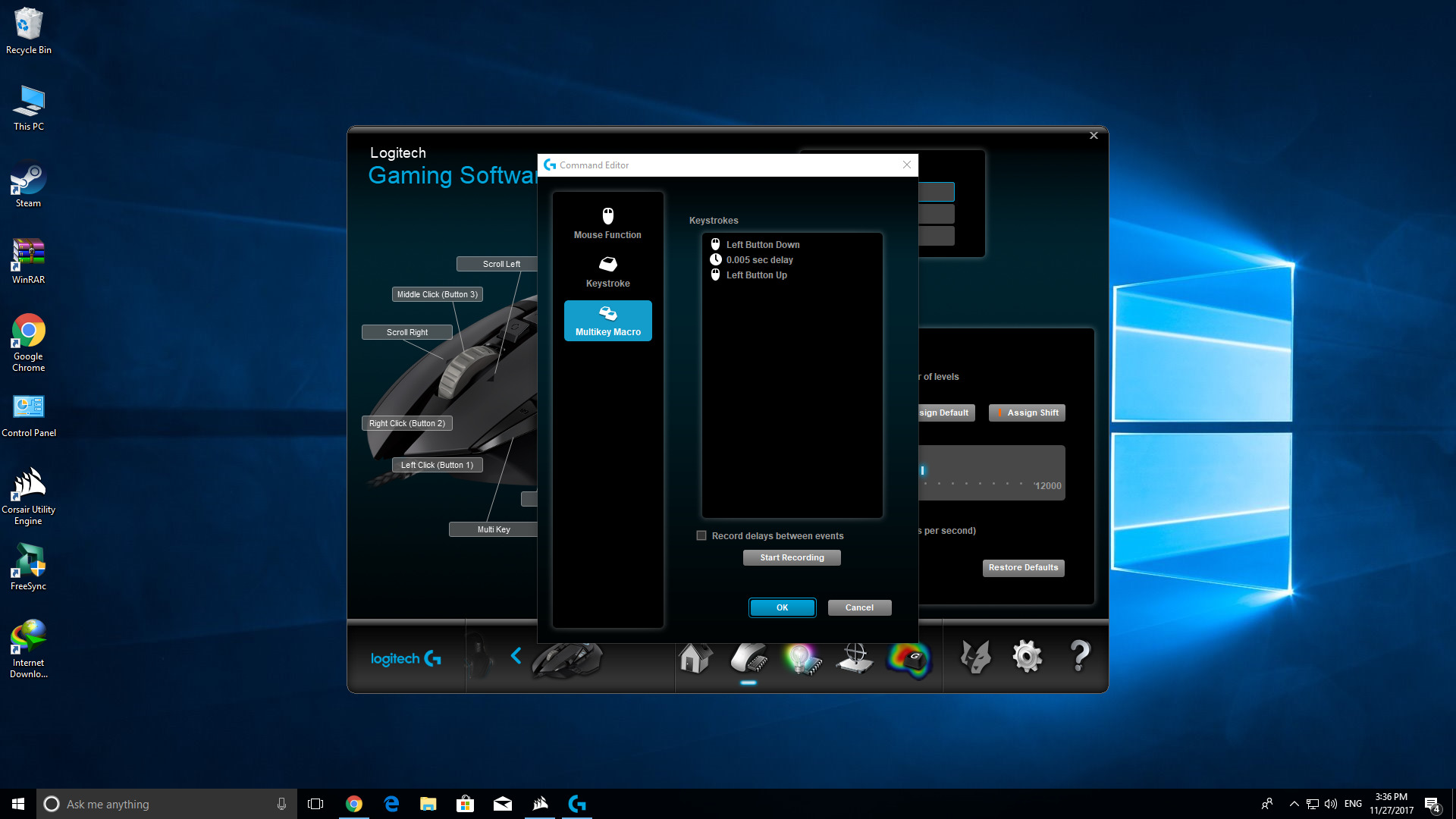
- Click the option to create a new macro, then record the key combination you want the macro to execute. You can press the actual keys on your keyboard in sequence.
- After recording, assign the macro to a specific mouse button by selecting the button from the on-screen diagram or list.
- Save the macro to finalize the assignment.
The software makes it easy to test your macro immediately after assignment. If the sequence does not work as expected, you can return to the editor to re-record or adjust the key presses.
Configuring macro playback and saving to onboard profiles
HYTE Nexus allows you to control how a macro plays back. You can set it to play once per press, repeat continuously, or repeat only while the assigned button is held down. This flexibility is useful for different gaming scenarios: a single play for a skill rotation, a repeat for rapid-fire actions, or a hold-repeat for sustained inputs like auto-running.
Once your macros are configured, you can save them to one of the two available onboard profiles. Each profile supports up to 16 macros. Saving to onboard memory means your macros will work even when the HYTE Nexus software is not running, making your settings portable if you connect the mouse to a different computer.
Which iBUYPOWER mouse buttons can you program?
You can map macros to mouse clicks, side buttons, and scrolling functions within HYTE Nexus. This includes the left and right main buttons, any thumb buttons, and the scroll wheel click or tilt. Check your mouse model to see which buttons are available for programming in the software interface.