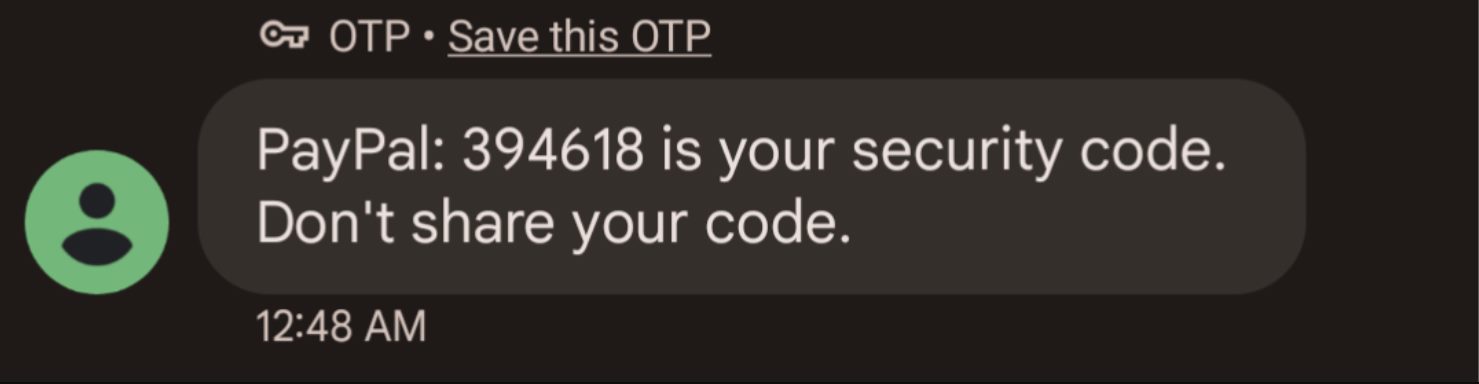
You got a PayPal security code text because someone, possibly you, triggered a verification step that requires a 6-digit code to be entered before a login, password reset, or transaction can proceed. The most common cause is simple: another person mistyped their own phone number when trying to log in or reset their password, and your number received their code by accident.
Why you got a PayPal security code text
Here are the reasons you might receive a PayPal security code text, listed from the most likely and harmless to the most serious. Each reason includes what you should do about it.
- Someone mistyped their phone number. This is the most common reason. A person entering their own phone number during a PayPal login or password reset made a typo, and the code went to your phone instead. You can simply ignore the text; the code will expire in 5-10 minutes and the other person's attempt will fail.
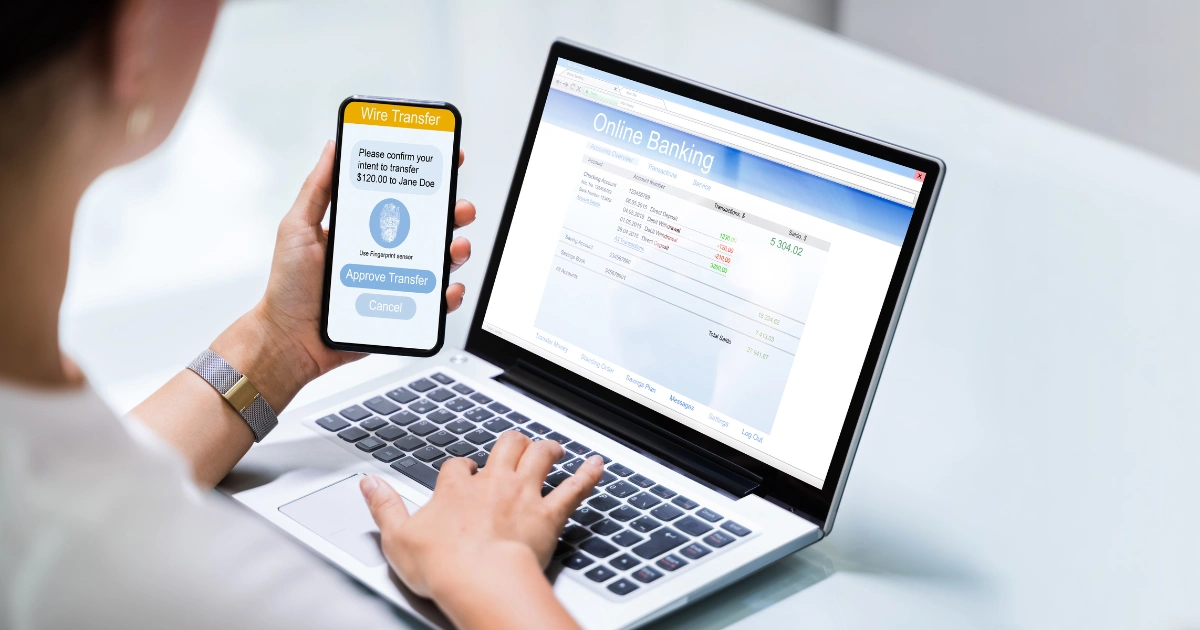
- You have 2-step verification enabled and you (or someone on your device) attempted to log in. If you have two-factor authentication turned on, PayPal sends a security code every time a login attempt is made. This includes attempts from your own browser, a new device, or a different location. If you were logging in, enter the code as prompted. If you weren't, treat it as a warning sign.
- PayPal detected new or unusual activity. PayPal may send a security code to confirm your identity if it detects a login from a new device, a different location, or a high-risk transaction like a large payment or an unusual purchase. If you recognize the activity, enter the code to proceed. If you don't recognize it, do not enter the code and secure your account immediately.
- Someone is trying to use the password reset system for your account. This is more concerning. If a scammer or unauthorized person knows your email address or phone number and attempts to reset your PayPal password, PayPal will send a security code to your phone as a safeguard. If you receive a code and you did not request a password reset, someone is actively trying to access your account.
Is the text legit? How to spot a real PayPal message
Not every PayPal security code text you receive is legitimate. Here are the actionable identifiers that tell you a message is genuinely from PayPal.
- Short code: Legitimate PayPal security code texts come from the short codes 729725 or 72975. If the message arrives from a random 10-digit number or an unknown sender, it is not from PayPal.
- 6-digit format: The code itself is always a 6-digit number. If you receive a code with more or fewer digits, it's fake.
- Expiry window: The code expires after 5-10 minutes. PayPal will state this in the message. If the text doesn't mention an expiry or gives a longer window, it's suspicious.
- No links: A genuine PayPal security code text contains no links whatsoever. It simply states the code and reminds you not to share it. If the text includes a URL, a clickable link, or a request to visit a website, it's a scam.
- No request to share the code: PayPal will never ask you to reply with the code, call a number to provide it, or enter it on any page other than the PayPal login screen. If the message asks you to send the code back, it's fraudulent.
What to do if you didn't request the code
If you receive a PayPal security code text and you did not initiate any login, password reset, or transaction, take these steps immediately. Do not skip any of them.
- Do not share the code. Never reply to the text, call any number listed in it, or enter the code anywhere. Sharing it gives someone else access to your account.
- Log in to your PayPal account and change your password. Go directly to the PayPal website or app, do not click any links from the text, and change your password. Use a strong, unique password that you don't use anywhere else.
- Forward the text to phishing@PayPal.com. This is PayPal's official address for reporting suspicious messages. Forward the entire message, including the sender's number, so PayPal can investigate.
- Monitor your account activity. After changing your password, review your recent transactions, linked bank accounts, and cards. Look for any charges or changes you didn't make. If you see anything suspicious, report it to PayPal directly from your account dashboard.
Common PayPal security code text scams
Scammers use several tactics to trick you into revealing your security code. Knowing these patterns helps you recognize them before you fall for them.
- Phishing: Scammers send texts claiming to be from PayPal, asking you to provide your security code or other personal information. They often create convincing replicas of PayPal messages or websites to trick you into disclosing sensitive details. The goal is to capture your code and use it to log in before it expires.
- Fake security alerts: Scammers send text messages warning you of unauthorized access or suspicious activity on your PayPal account. They instruct you to enter your security code or click on a link to resolve the issue, leading you to a fake website designed to steal your login credentials. The warning is fabricated to create urgency.
- Refund scams: Scammers claim you are owed a refund for an overpayment, a canceled order, or a fee error. They will request your security code to complete the refund process, but their intention is to deceive you into providing your security code for unauthorized access. PayPal never asks for your code to issue a refund.
How to make your PayPal account more secure
If you've received an unexpected security code text, it's a good time to strengthen your account so that even if someone has your password, they can't get in. Here are the most effective measures.
Set up 2-step verification via a web browser. This adds a second layer of protection beyond your password. Log in to PayPal in a web browser, click the "Settings" icon, then "Security," and then "Set Up" next to "2-step verification." Once enabled, every login attempt will require a code in addition to your password.
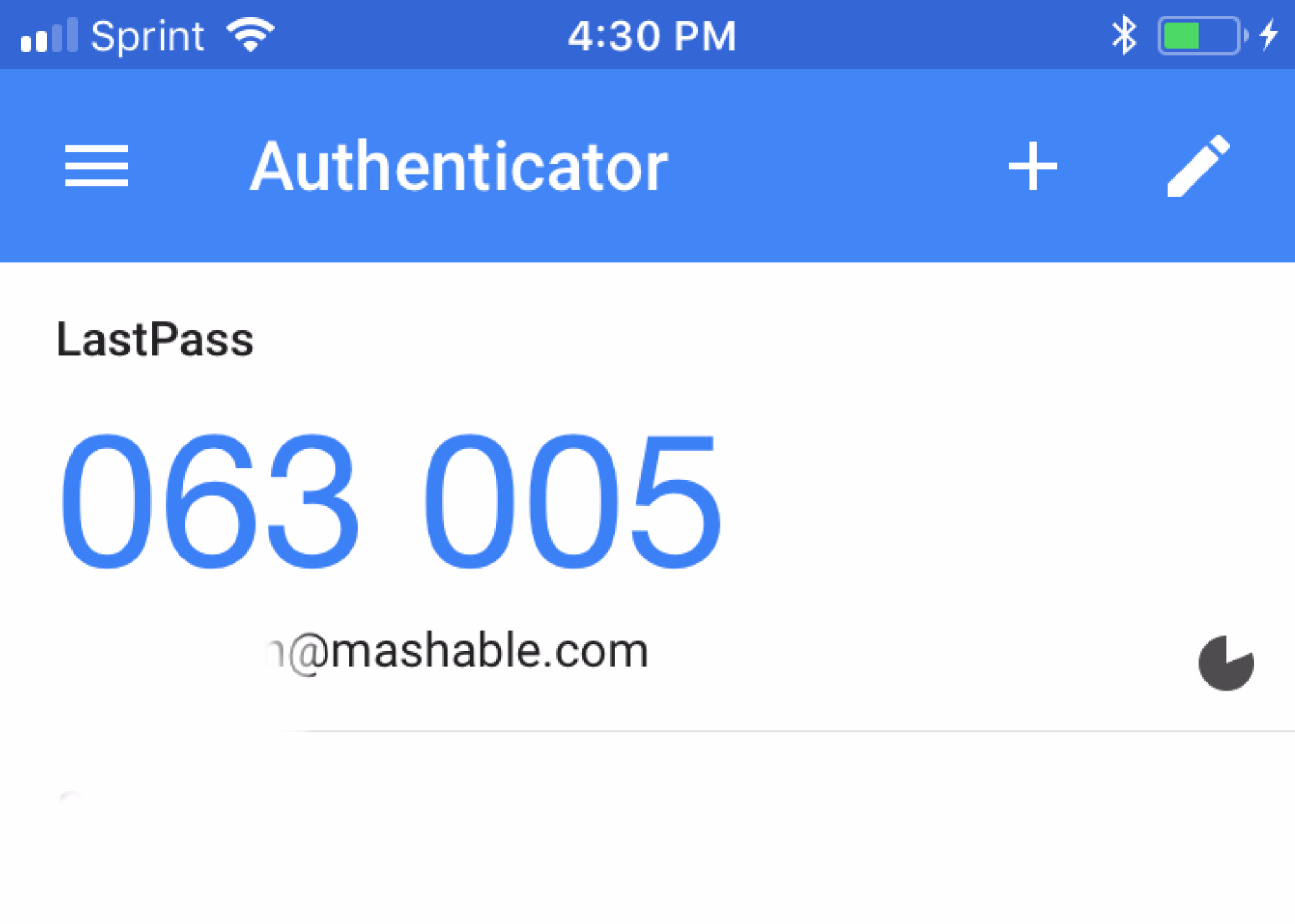
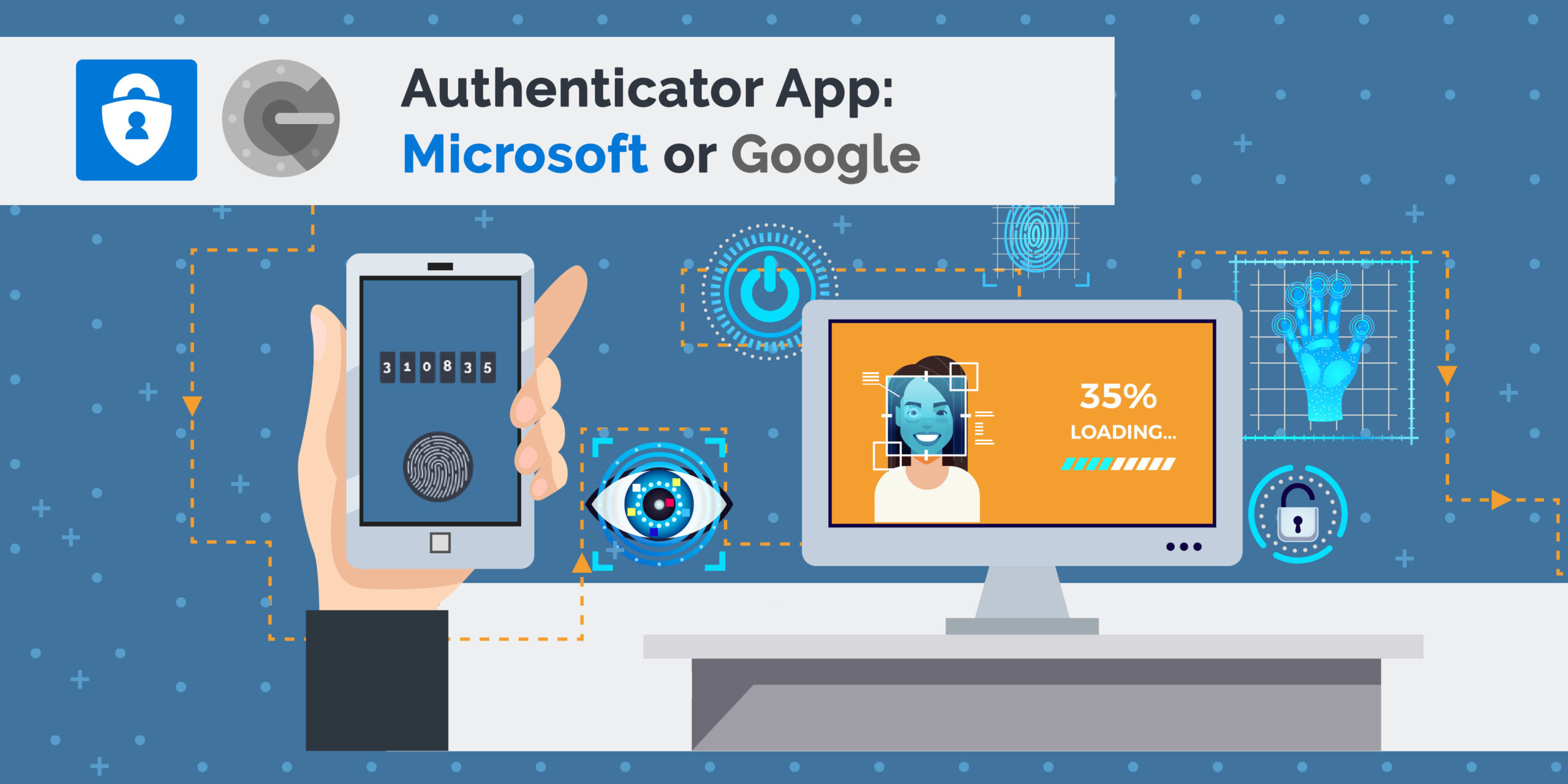
Use an authenticator app instead of SMS. While SMS codes are convenient, they can be intercepted if your phone number is compromised. An authenticator app generates codes on your device without relying on your mobile carrier. This makes it much harder for a scammer to receive your codes even if they know your phone number.
Adopt passkeys for phishing-resistant login. Passkeys allow you to log in using biometrics, a PIN, or your device's password instead of typing a code. Because passkeys are tied to your device and never transmitted as a text, they are immune to phishing attempts that try to steal your security code. Set this up from your PayPal security settings.
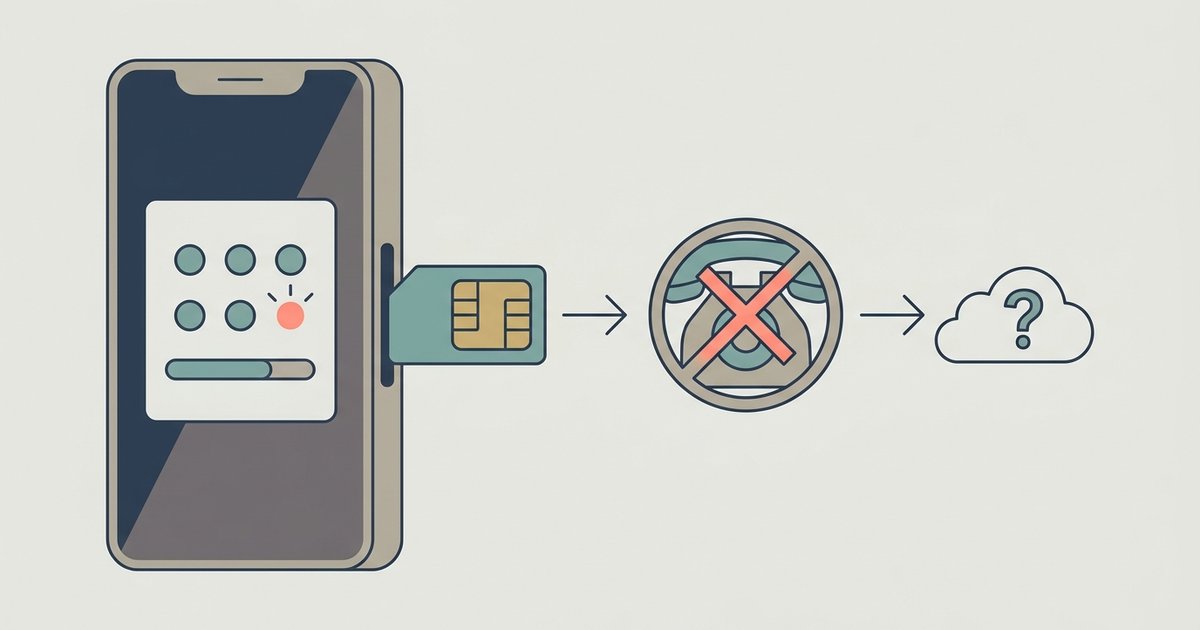
If you are not receiving expected security code texts, contact your mobile phone carrier and ask them to enable short-code text messaging.
\nRelated reading: When Did Elon Musk Sell PayPal, How Do I Access My PayPal Account, and How To Block Payments On PayPal.