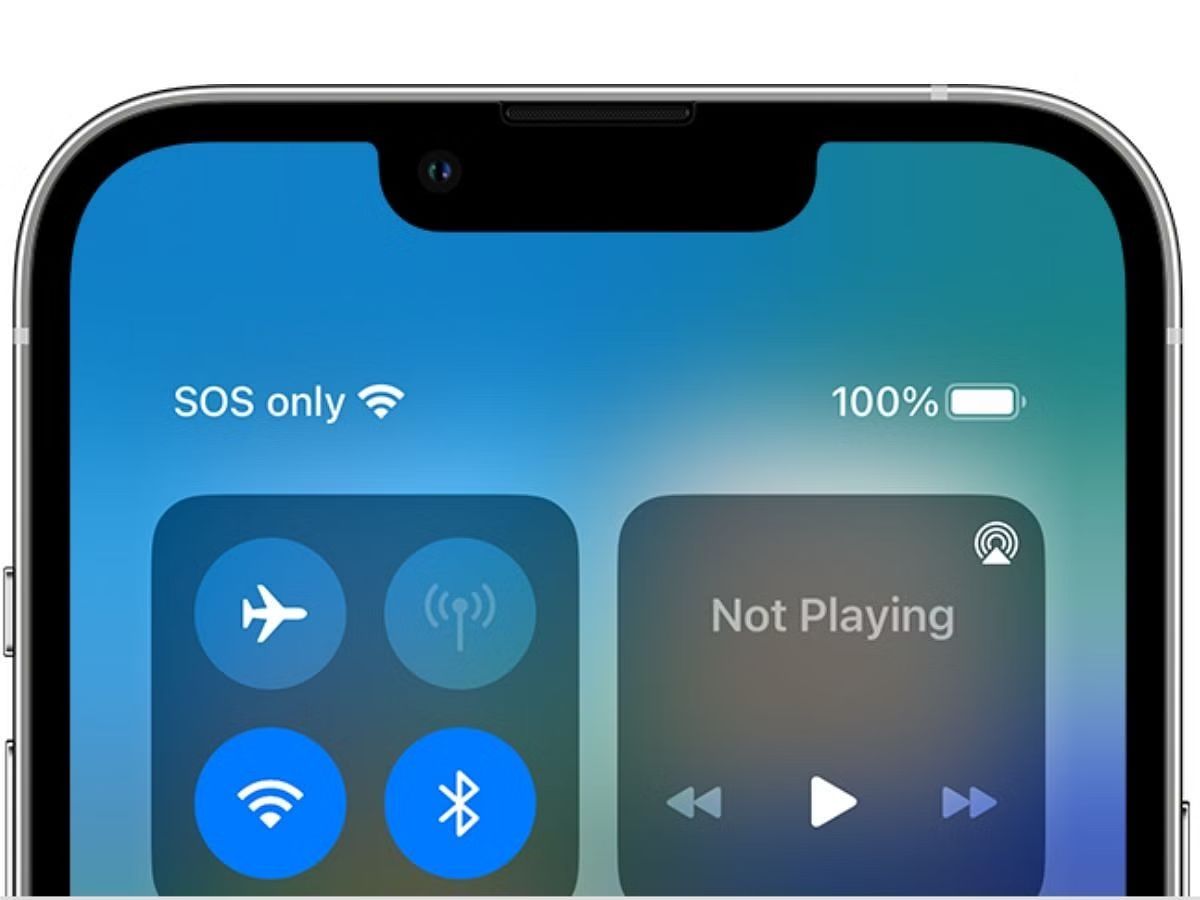
Seeing "SOS Only" on your phone means it is not connected to your carrier's cellular network, though it can still make emergency calls by using other available networks. To fix the "SOS Only" issue quickly, start by toggling Airplane Mode on for at least 15 seconds and then off, as this refreshes your device's network connection and is the fastest way to restore normal service.
How to fix sos only SIM with airplane mode
Toggling Airplane Mode on and off is the verified 15-second fix that refreshes the network connection on both iPhone and Android. On an iPhone, go to Settings and turn Airplane Mode on, then off after 15 seconds. On Android, access Quick Settings or go to Settings > Connections > Airplane Mode to perform the same toggle. This simple action forces your phone to re-scan for available cellular networks, often resolving the "SOS Only" status immediately.
Restart your phone
A full power-off and restart clears temporary software glitches that can cause the "SOS Only" status. Press and hold the power button, select to power off the device completely, wait a few seconds, then press the power button again to turn it back on. This refreshes the operating system and network connections, making it an effective step before moving to more involved troubleshooting.
Check your SIM card
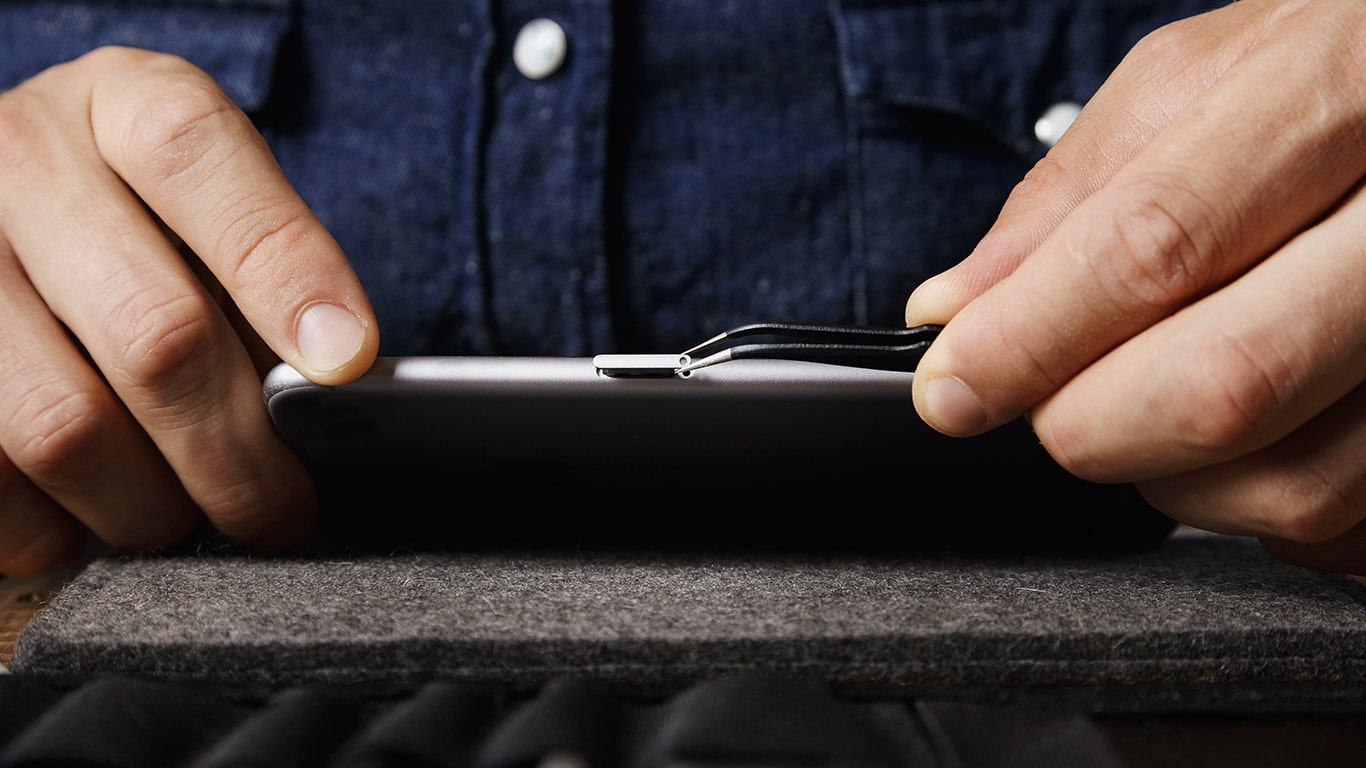
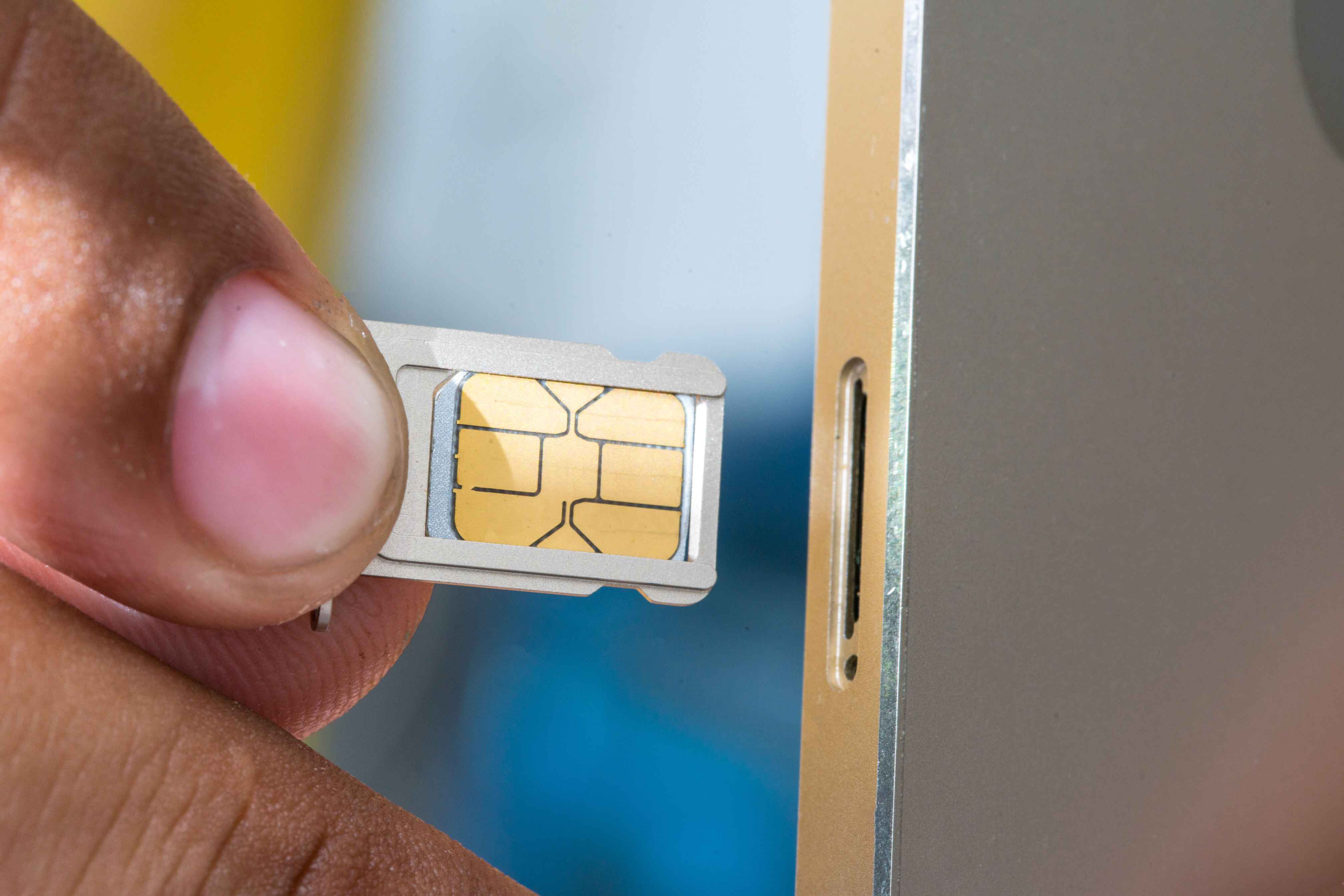
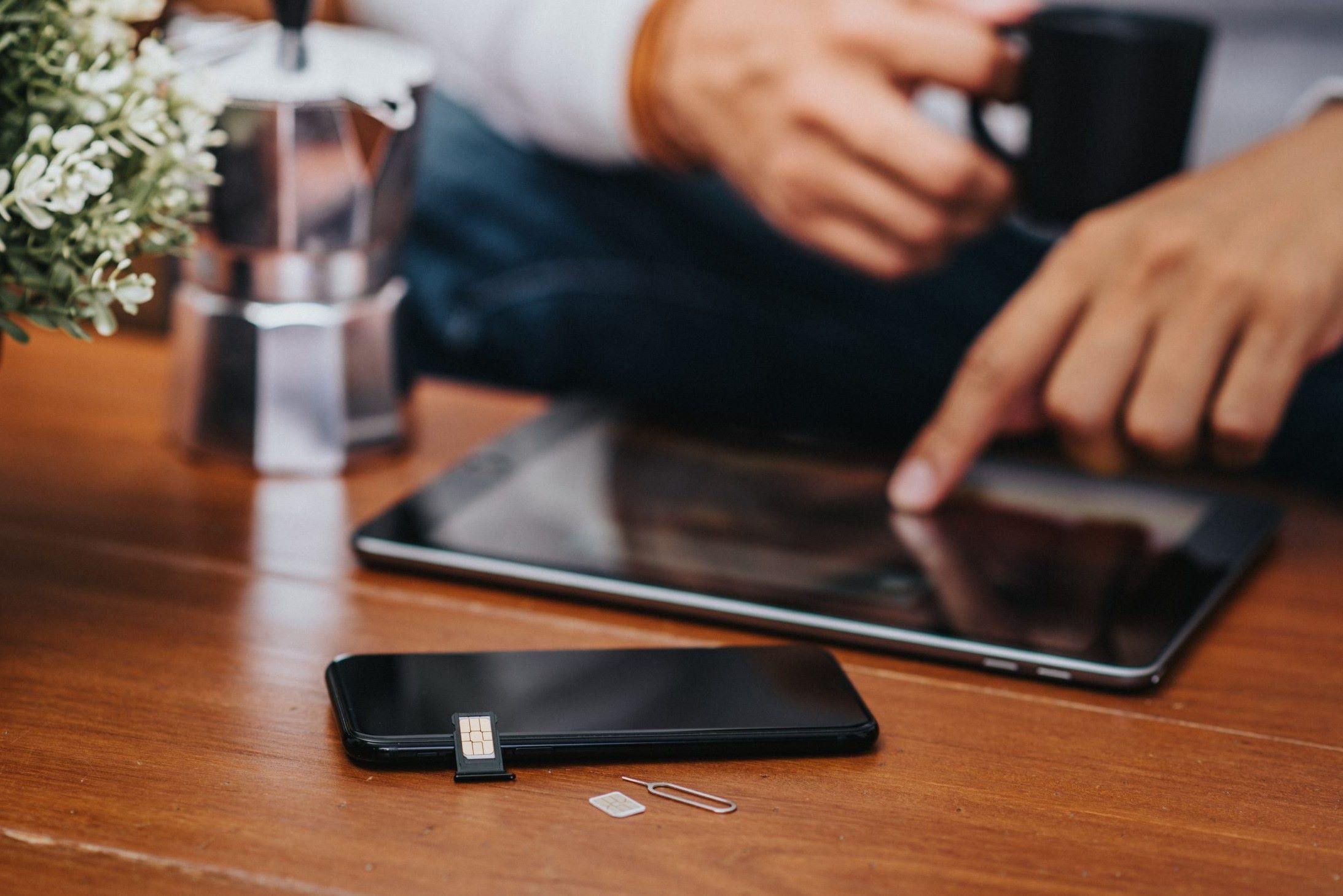
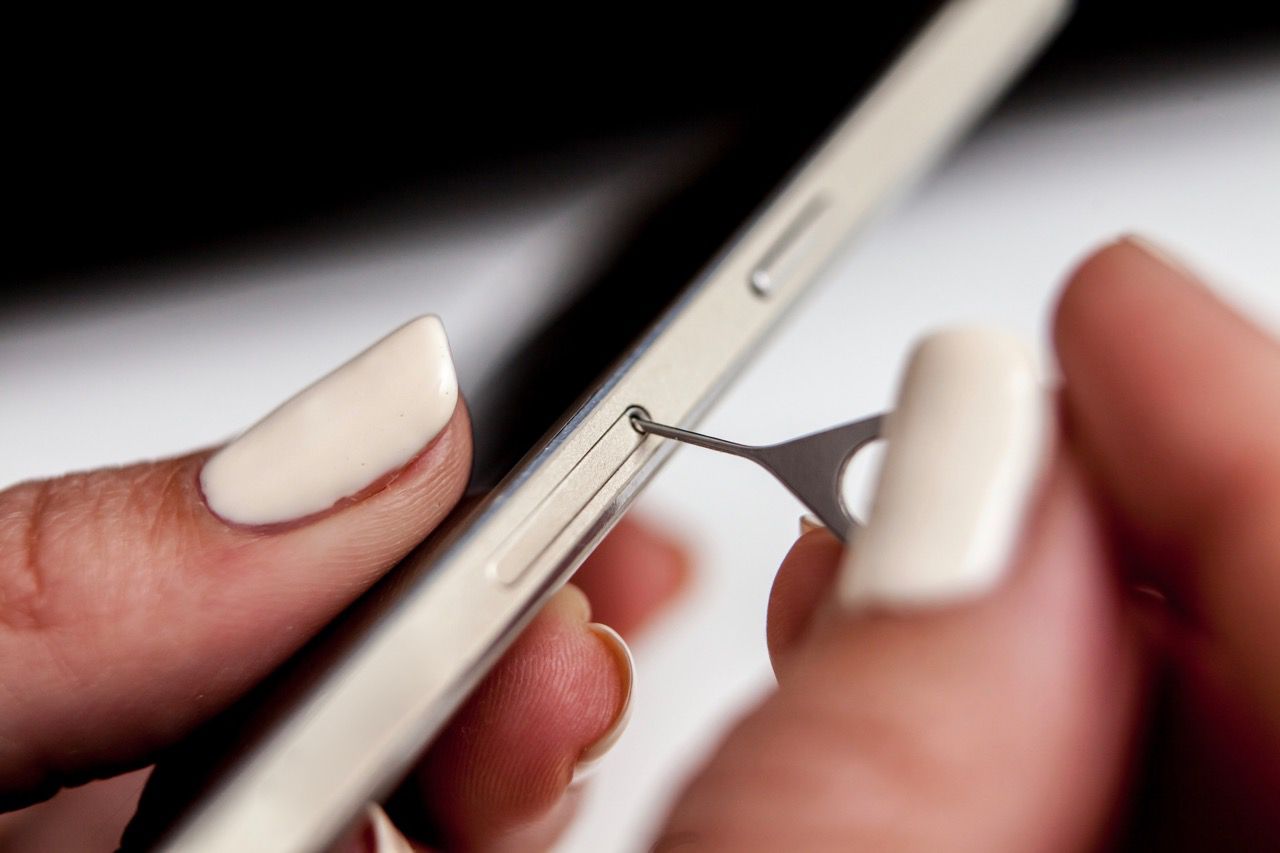
Power off your phone, then remove the SIM card and inspect it for any visible damage or dirt. Gently clean the SIM card and the tray with a dry, lint-free cloth, paying attention to the metal contacts. Reinsert the SIM card securely, ensuring it is properly aligned in the tray. If you encounter difficulty, refer to resources on how to handle a situation where the SIM card tray won't come out, as forcing it can cause damage. After reinsertion, power on the device and check if the "SOS Only" message clears.
Check for carrier settings and software updates
Connect to Wi-Fi and manually check for carrier settings updates first. On an iPhone, go to Settings > General > About; if an update is available, a prompt will appear. On Android, navigate to Settings > About phone > Software information or System updates, depending on your device. After checking for carrier updates, ensure your operating system is up to date: on iPhone, go to Settings > General > Software Update; on Android, go to Settings > System > System update or Software update. If the status persists, understanding what sos mean on iPhone next to wifi indicates can help you distinguish a carrier outage from a device fault. Installing both types of updates can resolve underlying software conflicts that trigger the "SOS Only" issue.
Reset network settings
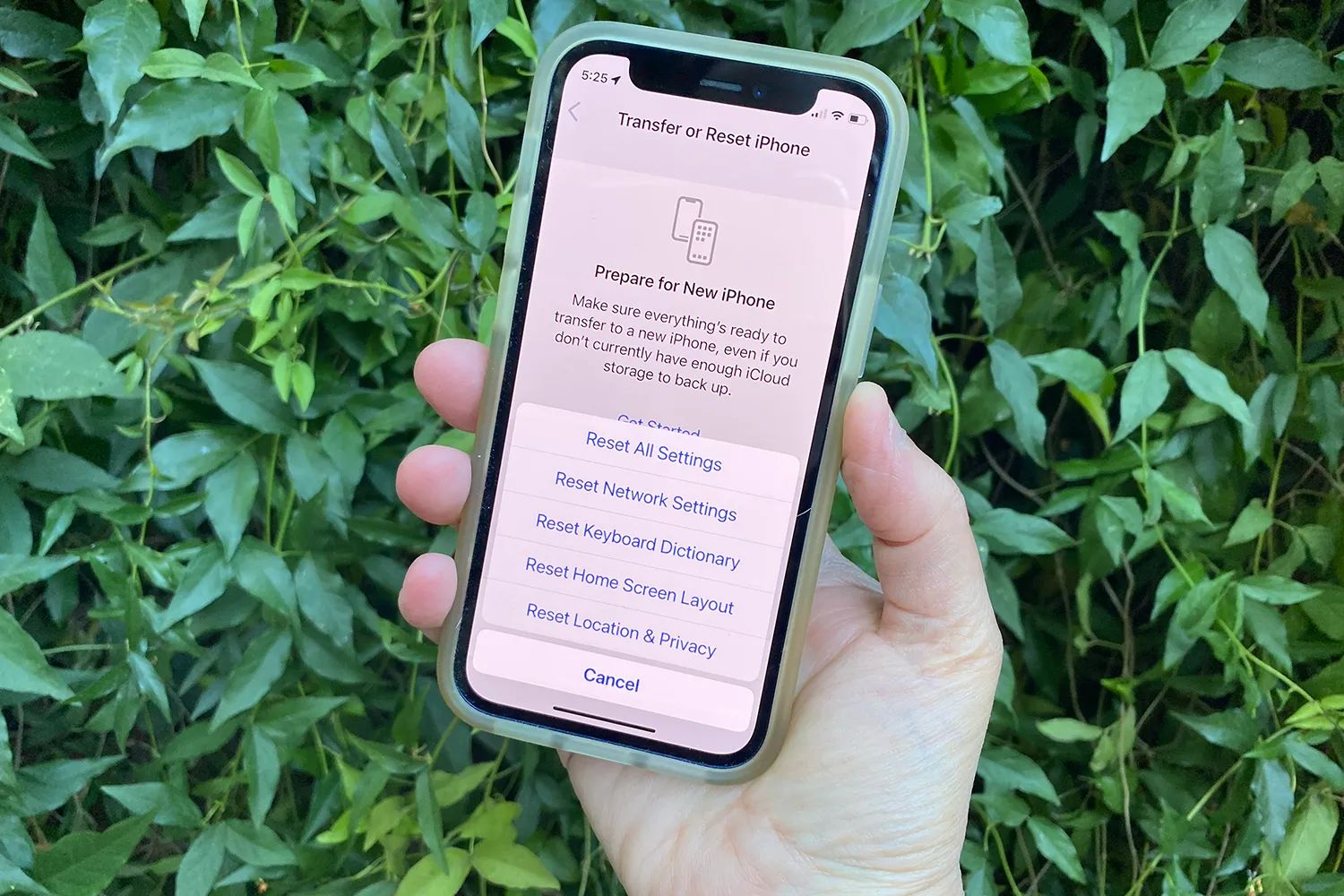
Resetting network settings is the nuclear option for connectivity, restoring all cellular, Wi-Fi, Bluetooth, VPN, and APN settings to their defaults. On an iPhone, go to Settings > General > Transfer or Reset iPhone > Reset > Reset Network Settings. On Android, go to Settings > System > Reset options > Reset Wi-Fi, mobile & Bluetooth or Reset network settings. This action does not delete personal data, but you will need to re-enter Wi-Fi passwords and re-pair Bluetooth devices afterward. It often resolves persistent network conflicts that simpler steps cannot fix.
Contact your network provider
If all troubleshooting steps fail, contact your mobile carrier to verify your account status, check for local service outages, or confirm that your device is not blocked from receiving cellular services. Your carrier can also check if your SIM is properly provisioned, which is essential for normal network access. They can assist with checking if your SIM card is working and may guide you through steps for fixing "network locked" issue with SIM card if that is the root cause. Additionally, they can provide guidance on inserting a SIM card correctly if the issue stems from improper installation. In cases where the SIM card itself is faulty, they can arrange a replacement to restore full service.