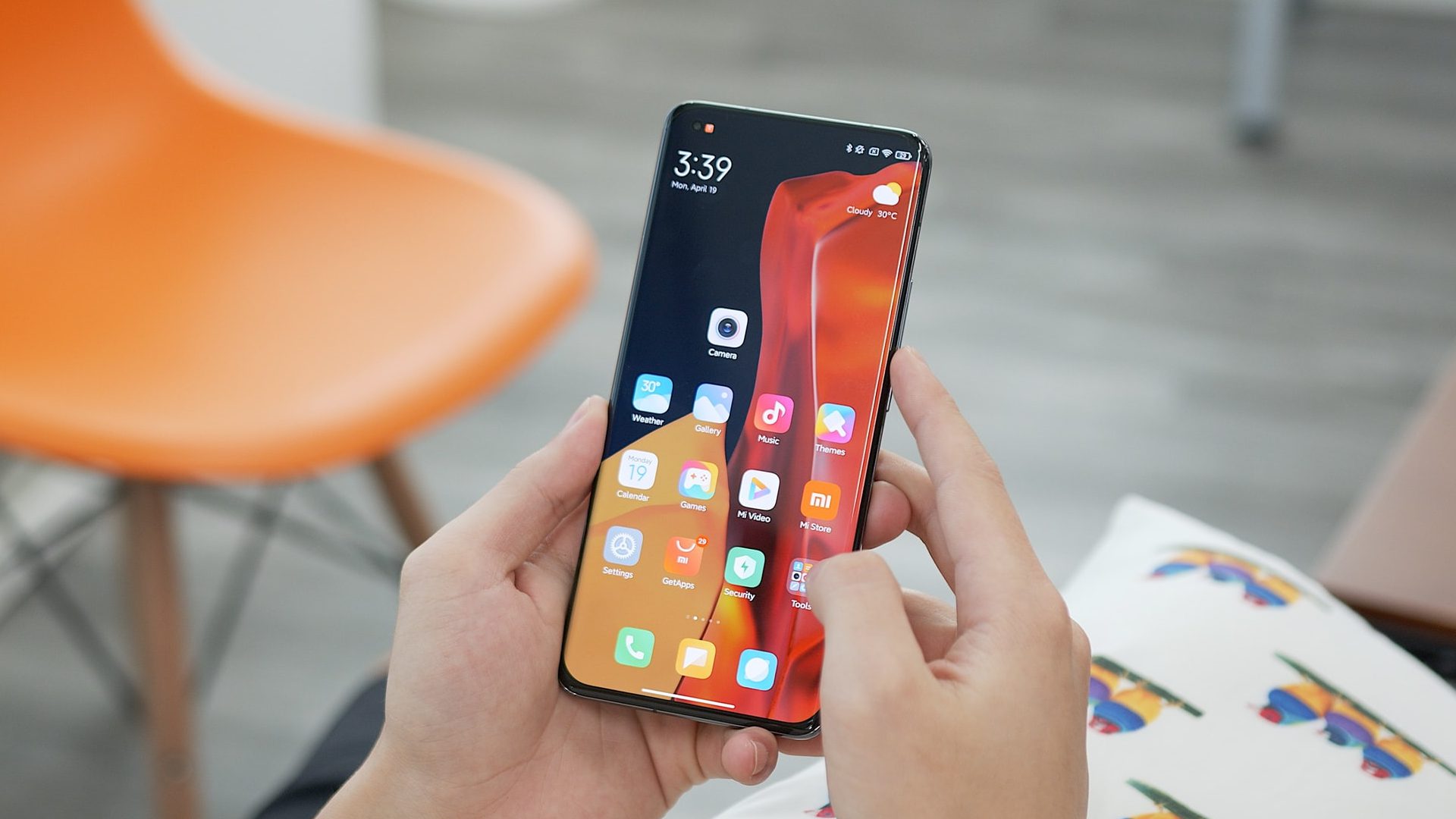
Personalizing your Xiaomi lock screen blends visual flair with practical shortcuts, letting you control everything from the wallpaper and clock style to app shortcuts and notification privacy. On both HyperOS and MIUI, you can tailor the lock screen to match your aesthetic and streamline your daily interactions, with HyperOS offering the most advanced editing tools. For deeper system-level tweaks beyond the lock screen, a rooting guide for redmi note 3 can unlock full control over your device's firmware. This guide walks you through every customization path, from the classic Settings menu to the new HyperOS editor, so you can make your lock screen truly your own.
Personalizing your Xiaomi lock screen: what you can change
Your Xiaomi lock screen is more than a gateway, it's a customizable dashboard. You can change the wallpaper, clock format, date and weather display, add app shortcuts for quick access, and control how notifications appear. On MIUI, customization is primarily managed through the Settings app and the Themes store. With HyperOS, Xiaomi's latest interface, you get a redesigned lock screen editor that allows deep personalization, including unique clock styles, color options, filters, and depth effects. Understanding the scope of what's possible helps you decide which tools to use for the look and function you want.
Accessing the lock screen settings on Xiaomi
There are two primary ways to reach lock screen customization on Xiaomi devices, depending on your system version. For all models, the classic route works: open the Settings app (the gear icon), scroll to and tap Lock screen. You may need to enter your password or use your fingerprint to proceed. On HyperOS, there's a faster, more direct method: wake the screen, then long-press any empty area on the lock screen. Tap Next and then Start to enter the editor mode immediately. This shortcut bypasses the Settings menu, giving you instant access to visual customization.
Choosing and customizing your lock screen wallpaper
Changing your wallpaper is the most impactful way to personalize your lock screen. Xiaomi offers several verified methods to do this, so you can choose what's most convenient.
Using built-in system wallpapers
Navigate to Settings > Wallpaper. Browse the built-in selection, which includes nature scenes, abstract art, and more. Tap a wallpaper you like, then select Apply and choose Set as Lock screen.
Setting an image from your Gallery
Open the Gallery app and select any photo. Tap the three-dot icon in the corner, choose Set as wallpaper, and then pick Set as Lock Screen wallpaper. This lets you use personal photos or downloaded images.
Using the Themes app for wallpapers
Open the Themes app and tap the Wallpapers tab. Browse the extensive collection, select a wallpaper, and tap Set as Lock screen when applying. This is a great source for high-quality, curated images.
Applying AI dynamic wallpapers (HyperOS)
For a more dynamic look, go to Settings > Personalization > AI dynamic wallpapers. These are animated wallpapers that react to touch or time. Note: AI dynamic wallpapers usually do not work with the depth effect, so you'll need to choose one or the other.
Changing wallpaper in the HyperOS editor
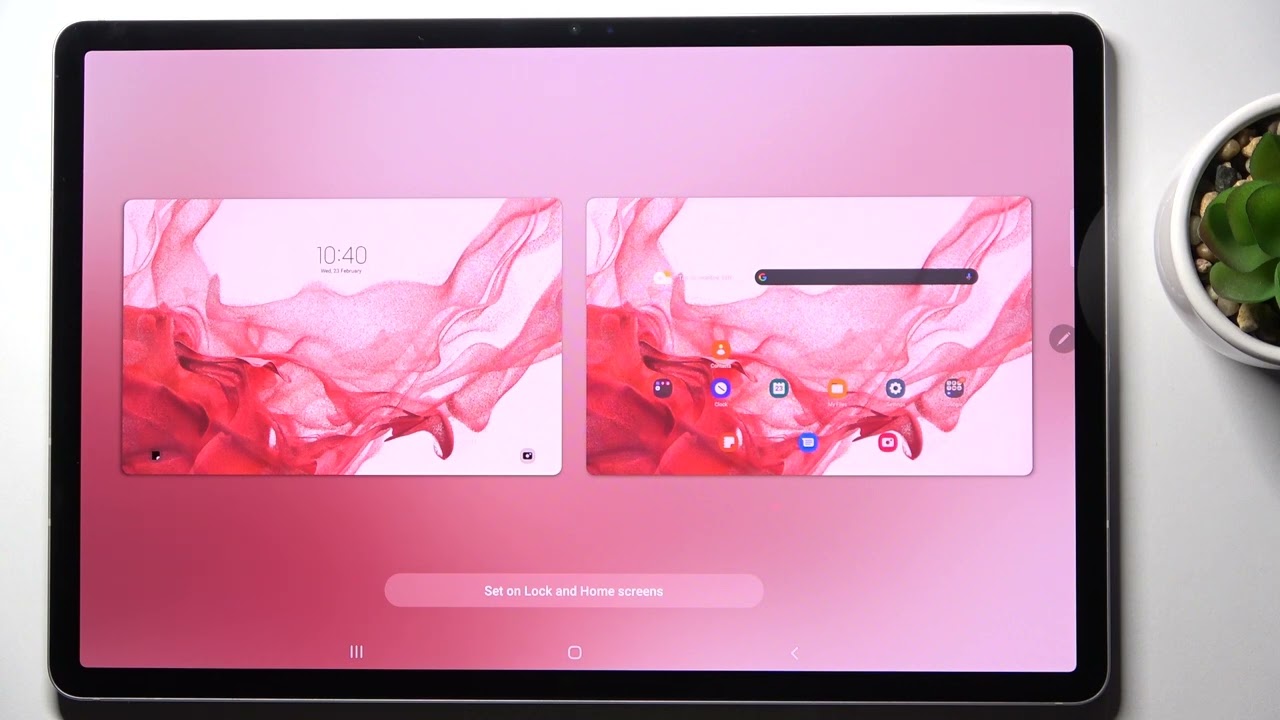
If you're using HyperOS, long-press the lock screen to enter the editor. Tap Customize, then select Wallpaper & Filters. You can choose a system wallpaper or pick an image from your gallery. To crop it, pinch the wallpaper with two fingers to zoom in or out, then adjust the position to your liking.
Applying filters and depth effects in HyperOS
HyperOS introduces exclusive visual enhancements that go beyond a simple wallpaper. After selecting your wallpaper in the editor, you can apply one of six unique filters: Original, Reeded, Ribbed, Prism, Grooves, or Waves. These change the texture and mood of the image. You can also add a Depth of Field effect, which blurs the background to make the subject pop, or toggle on the Matte effect for a frosted glass look. Keep in mind two limitations: the Classic lock screen style does not support the Depth of Field effect, and you cannot combine Depth of Field with a filter, it's one or the other.
Changing the lock screen clock and date style
The clock is a central element of your lock screen, and Xiaomi lets you customize its format and appearance.
On MIUI devices
Go to Settings > Lock screen > Lock screen clock format. Choose from the available layouts. On some models, this setting might be under Settings > Always-on display & Lock screen > Lock screen clock format. Note that you cannot change the clock format when Dual clock is enabled, nor for third-party themes on MIUI 14.
In the HyperOS editor
Long-press the lock screen and tap Customize. Then select Clock, Date & Weather. Here, you can choose your preferred clock style, date format, and whether to show the weather. You can also customize the color and font of the clock and date to match your wallpaper. For dual clock support, be aware that some styles may be restricted.
Adding lock screen shortcuts and widgets
Quick access to your most-used apps can save you time. Xiaomi allows you to set app shortcuts in the corners of the lock screen.
Configuring app shortcuts
Go to Settings > Lock screen > Lock screen shortcuts (on some devices, it may appear as Shortcuts). You'll see options for the left and right corner shortcuts. Tap each one and select the app or action you want to assign. Once you go back, the shortcuts are applied automatically. You can now launch them by swiping from the corner on the lock screen.
Adding widgets
While MIUI doesn't offer full widget support on the lock screen, HyperOS provides a more integrated experience. In the HyperOS editor, you can add widgets by tapping the + icon or selecting from available widget options. These can display information like calendar events, fitness stats, or music controls. Arrange them by dragging to your preferred position, ensuring they don't overlap with the clock or shortcuts.
Managing lock screen notifications
Controlling what appears on your lock screen helps protect your privacy and reduce clutter. To manage notifications, go to Settings > Notifications & Control center > Lock screen. Tap Format to choose between Show notification and content or Don't show Lock screen notifications. For important alerts, enable the Wake lock screen for notifications feature under Settings > Lock screen. This turns on the screen when a notification arrives, so you can see it at a glance. You can also manage per-app notification settings to decide which apps are allowed to show alerts on the lock screen.
Using themes for complete lock screen personalization
For a cohesive look, the Themes app is your all-in-one solution. It lets you change not just the wallpaper, but also the lock screen style, font, icons, and even system sounds. Open the Themes app, browse the lock screen category, and select a theme that appeals to you. Apply it, and the lock screen will adopt the theme's design, including any custom clock styles and wallpaper. Be aware that third-party themes may have limitations: you often cannot change the clock format or apply HyperOS-specific effects like Depth of Field when using a non-stock theme. However, for a complete visual overhaul, themes are the fastest way to transform your device's look and feel.
\nRelated reading: Forgot Redmi Password? Here's How To Unlock.