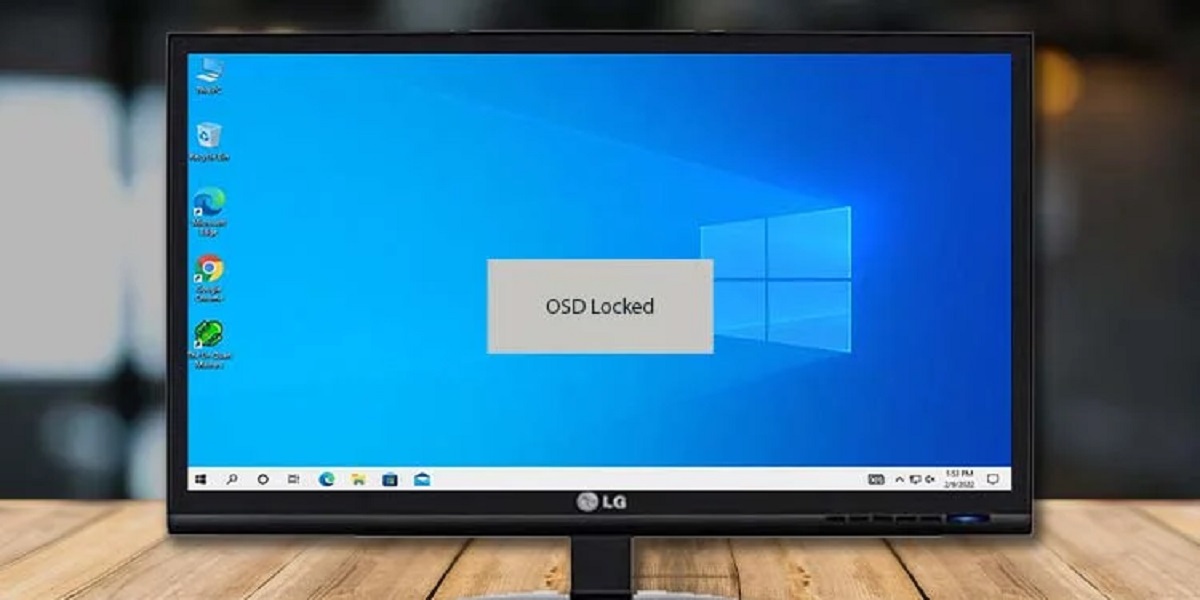
The OSD Lock on an LG monitor is a safety feature that locks the On-Screen Display menu controls, preventing accidental changes to your picture settings like brightness or contrast. When this lock is active, pressing the menu or joystick buttons will either do nothing or show a brief "OSD LOCKED" message, which is why you're here to find out how to turn it off.
What is OSD Lock on an LG monitor?
The On-Screen Display (OSD) is the menu interface built into your monitor that lets you adjust settings such as brightness, contrast, color calibration, and input source. OSD Lock is a dedicated feature on LG monitors that disables these controls. Its purpose is to prevent data setting values from being changed due to unintended button presses. This is especially useful in shared environments like offices, schools, or public kiosks where someone might accidentally, or intentionally, alter the display. When enabled, OSD Lock ensures the monitor stays exactly as configured, so you don't have to worry about a stray press ruining your color accuracy or dimming the screen mid-task. The lock is not a password or a parental control; it's simply a toggle that you can switch off using the monitor's own hardware.
How to unlock the OSD on a button-type LG monitor
If your LG monitor uses physical buttons rather than a joystick, the unlock process is straightforward. These buttons are typically located along the bottom bezel or on the lower-right edge of the screen, often marked with a small menu icon or a "M" for menu.
- Locate the physical button labeled with the menu icon (often the same button you press to open the OSD).
- Press and hold that Menu key for approximately 5 seconds. Do not tap it, hold it down steadily.
- While holding, watch the screen. After about five seconds, a message reading "OSD UNLOCKED" will appear in the corner of the display.
- Release the button. The lock is now removed, and you can press the Menu key again to open the OSD and adjust your brightness or other settings as usual.
That's it. The 5-second hold is the verified method for button-type monitors. If you see "OSD LOCKED" instead, that means the lock was already off and you just re-enabled it, simply repeat the hold to toggle it back off. The on-screen confirmation message is your cue that the action was successful.
How to unlock the OSD on a joystick-type LG monitor
Newer LG monitors often replace physical buttons with a single joystick control, usually located on the bottom center or the back of the monitor. This joystick can be pushed up, down, left, or right, and pressed in like a button. Unlocking the OSD here requires navigating the on-screen menu rather than a long press.
- Press the joystick in (like a button) to open the main OSD menu. This will bring up a full-screen or overlay menu with icons.
- Move the joystick to the right to highlight the [Settings] icon (usually a gear or wrench symbol), then press the joystick in to select it.
- In the Settings menu, move the joystick down to select [General], then press in to enter.
- Scroll down to find [OSD Lock]. It will likely show as "On" or "Off."
- Press the joystick in to toggle it to [Off].
- Press the joystick in again or move it left to exit the menu. The OSD is now unlocked.
If [OSD Lock] is set to [On], you may find that some items within the [Picture] and [General] menus are grayed out or unresponsive, that's the lock doing its job. Once you toggle it to Off, all settings become adjustable again.
Troubleshooting: when the unlock steps don't work
Sometimes you follow the steps exactly and the OSD still won't unlock. The most common culprit is that the exact location of the menu or joystick button varies depending on the specific LG monitor model. On some older or budget models, the menu button might be a single touch-sensitive pad rather than a physical click, and the 5-second hold might need to be slightly longer or shorter.
Another frequent issue is that the problem isn't actually OSD Lock at all. Malfunctioning monitor buttons, possibly due to moisture or foreign substances, can cause the OSD menu to display intermittently or the buttons to behave erratically. If you press the unlock button and the screen flickers, the menu opens and closes on its own, or the brightness changes randomly, you might be dealing with a hardware fault rather than a locked setting. In that case, unplug the monitor, gently clean the button area with a dry microfiber cloth, and try again. If the issue persists, the buttons themselves may be stuck in a pressed state internally, which can feel exactly like OSD Lock because you can't get any input through. This is a physical problem that requires service, not a software toggle. If you've confirmed the OSD Lock is off in the menu but the monitor still ignores your button presses, check for any debris around the joystick or buttons, and if necessary, contact LG support for a repair, as this is a known failure mode for monitors exposed to high humidity or dust.
\nRelated reading: Where Is Scroll Lock On Logitech Keyboard, Where Is Scroll Lock On Keyboard, and What Does CPU Eligible Mean On United.